How to Connect Your WhatsApp Number to Wawp
Connecting your WhatsApp number to Wawp is the first step to automating your messaging and communication. The process is quick, secure, and gives you full control over your automations.
Getting Started: The Connection Process
To begin, log into your Wawp account dashboard. Then, navigate to the “Linked Numbers“ section. This is where you will manage and connect your WhatsApp number. Before you connect, ensure your number meets these criteria:
- It has not been linked to a similar service within the last month.
- It has been in active contact with other numbers.
- It has not been banned by WhatsApp.
Step 1: Create an Instance
An “instance” is the container that links your number to the Wawp platform.
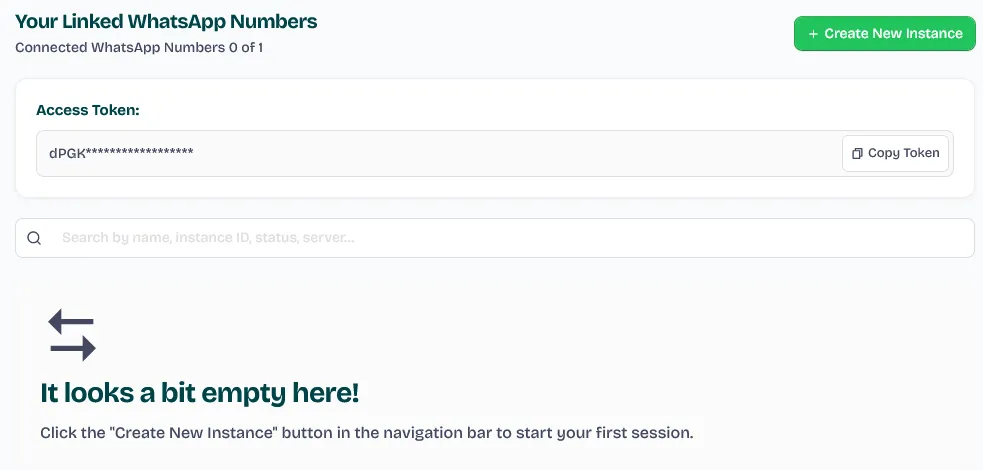
- From the “Linked Numbers” page, click the “Create instance” button.
- Wawp will automatically prepare the container for your number.
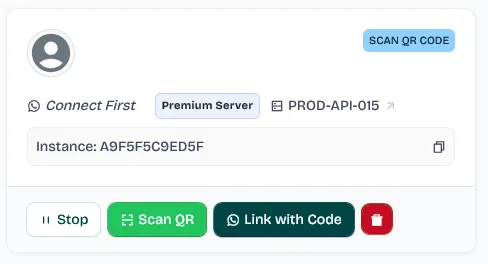
- The status will change to “Scan QR Code” once it’s ready for you to link your number.
⛓️💥 To create an instance via API directly for your system integration, follow this document: Create new Session
- After Create instance it should be like this screen
Step 2: Choose Your Connection Method
WhatsApp allows you to connect in multiple ways, and Wawp supports it to connect anytime, anywhere.
- After completing the steps for each connection method, ensure the following:
- Whatsapp sync for Wawp instance has been started
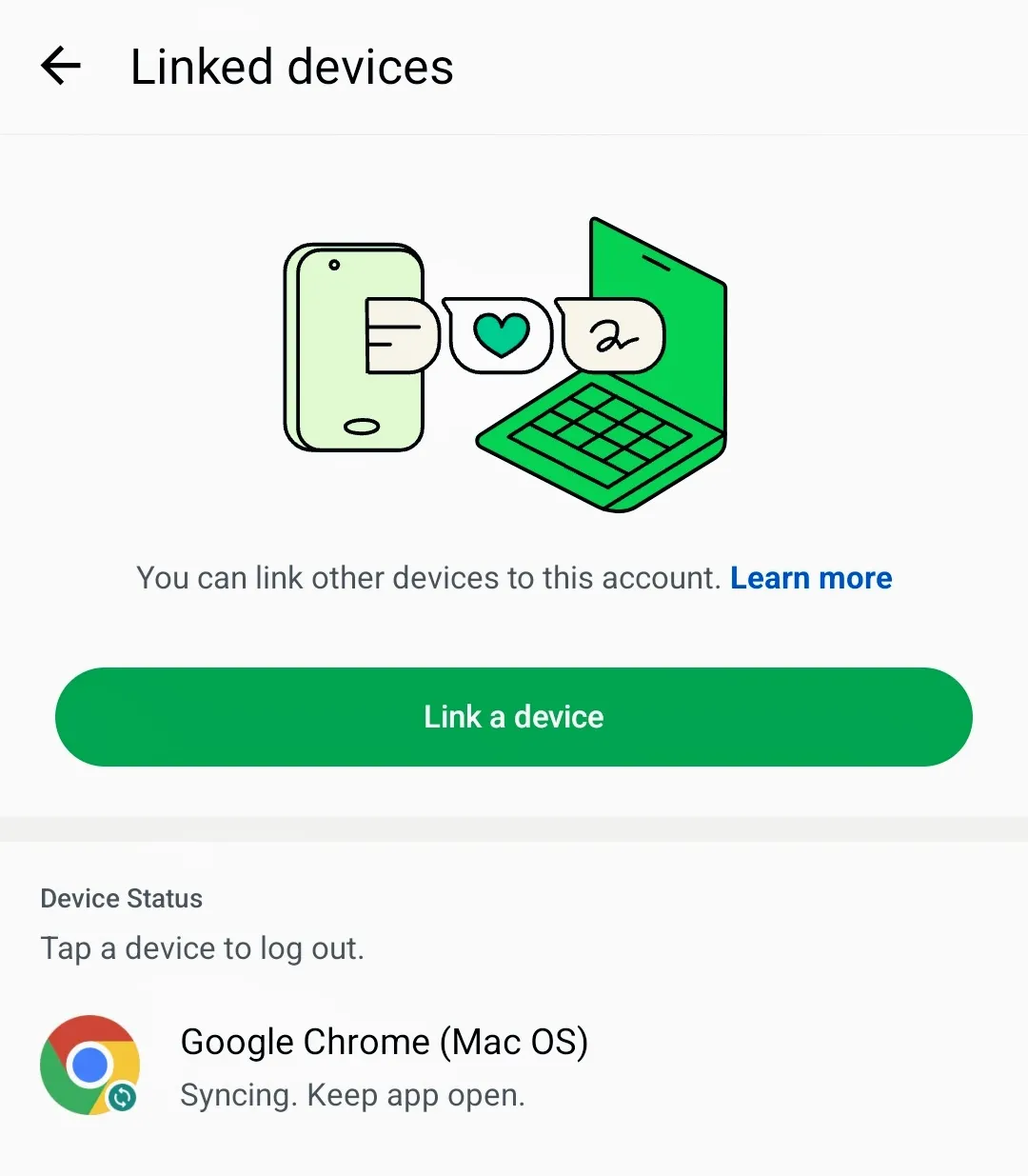
- All WhatsApp information appears on your card and will be explained at the end of this document.

Method 1: Connect by Scanning a QR Code
This is the most common and familiar method. It works just like logging into WhatsApp Web or Desktop.
- This is the most common method of connection.
- It is considered the same method of logging into WhatsApp Web or WhatsApp Desktop.
- From Wawp instance setting Click on Scan QR
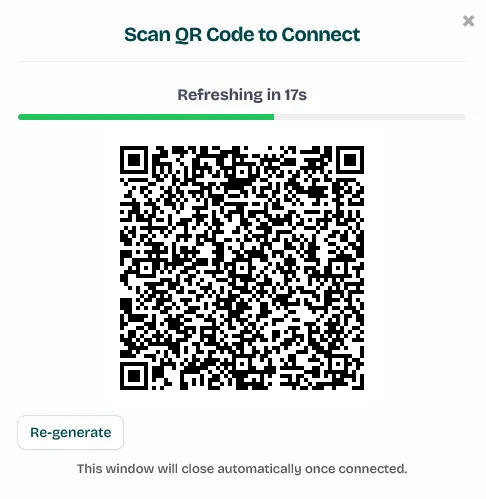
- On your Wawp dashboard, click “Scan QR” within the instance settings. A pop-up will appear with a QR code.
- On your phone, open the WhatsApp app.
- Go to Settings (for iPhone) or the three-dot menu (for Android).
- Select “Linked devices,” then tap “Link a device.”
- Use your phone’s camera to scan the QR code displayed on your Wawp dashboard.
Make sure your Number Status is Connected.
- If not, try to re-login again.
Notes: Linking Must be done via WhatsApp Business App OR WhatsApp Personal App, See this example to know how this done in general.
Method 2: Connect by Login Code
This method is fast and doesn’t require a camera, which is ideal if you’re linking from a mobile device.
- On your Wawp dashboard, click the “Link with Code” button.
- A pop-up will ask you to enter your phone number.
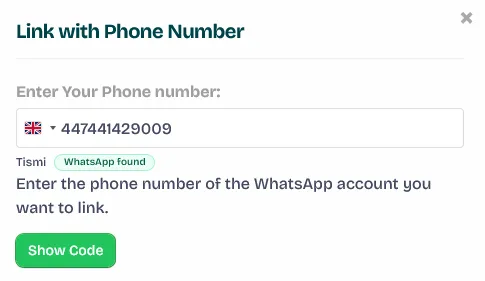
- Enter your number and click “Show code.”
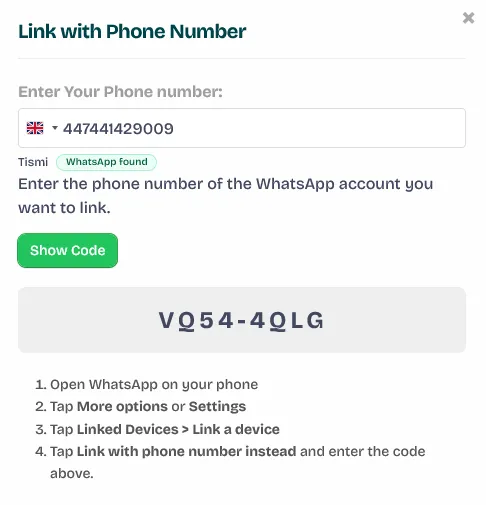
- On your phone, check your WhatsApp notifications.
- You will receive a message from WhatsApp asking if you are trying to link a device.
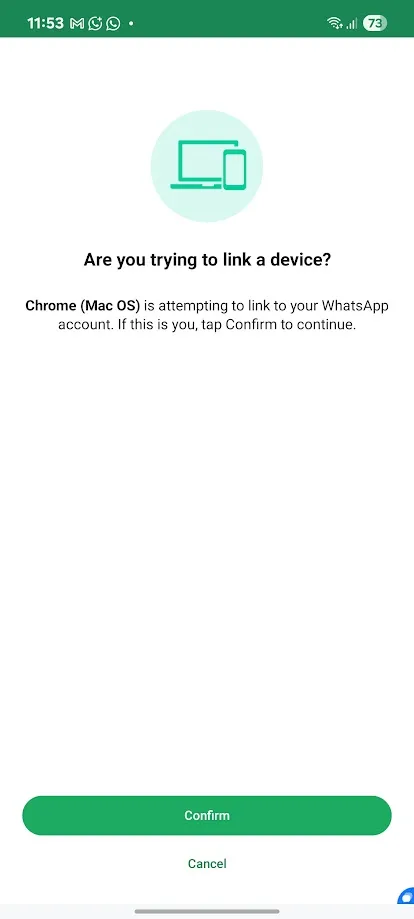
- Tap “Confirm” and enter the code provided by Wawp.
- After entering the code, your number will login, and synchronization will begin automatically.
Understanding Your Wawp Instance Dashboard
Once connected, your instance card will display key information and action buttons:
| Button | Action |
|---|---|
 |
Restart: It allows you to reboot the ID for any reason. It will not log you out and your number will remain connected normally. |
 |
Stop: If you want to disable the connection for any reason but do not want to connect again after that, you can just stop the connection between the Wawp system and WhatsApp. |
 |
Webhook: You can set a link to listen to events to respond to them, useful in external systems and automation like N8N and Zapier. |
 |
Logout: it will disconnect the Wawp system from the WhatsApp application. You will need to log in later to use the service again. |
 |
Delete: It will delete all the number details including the instance ID unlike all the previous options. |
Connection status
Keep an eye on the status displayed on your instance card to ensure everything is working correctly:
- Connected: WhatsApp number connected to Wawp and working normally SCAN
- QR CODE: You must log in to WhatsApp via your phone quickly, as staying in this mode will automatically fail.
- FAILED: You did not reconnect or there is a problem connecting your WhatsApp phone number to the service. Contact support for further inquiries.
- STOPPED: The instance has been stopped and you can start it at any time if it was previously connected without having to reconnect again.