How to Setup Passwordless Login (Login by OTP)
Passwordless Login feature provides you with less stress on your customer's memory to remember the password every time they log in, making the login experience great.
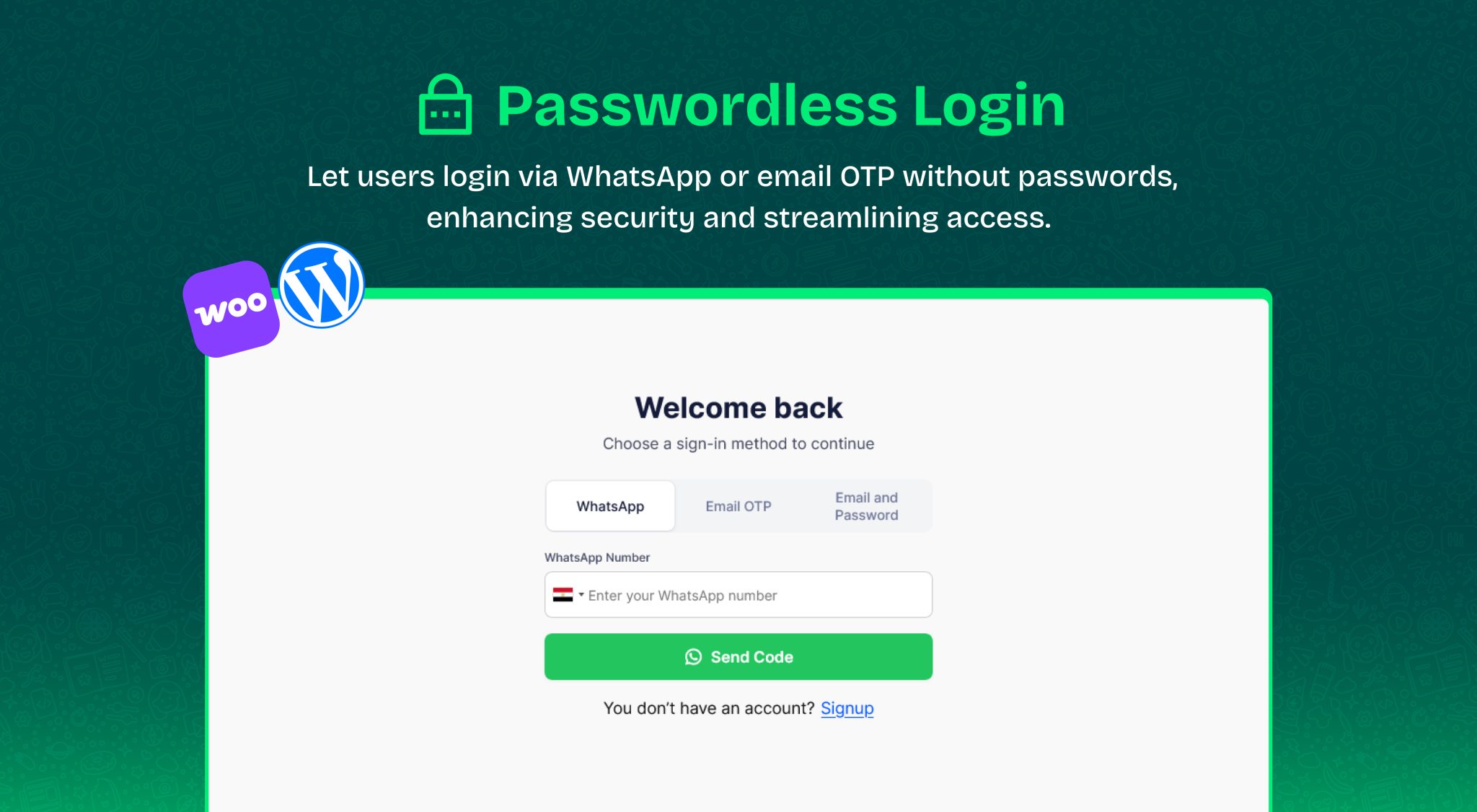
Available login methods
All you have to do is activate the login method you want and edit the template to customize the login message.
You can provide login via WhatsApp OTP, email OTP, email with password, or all of them together if you want.
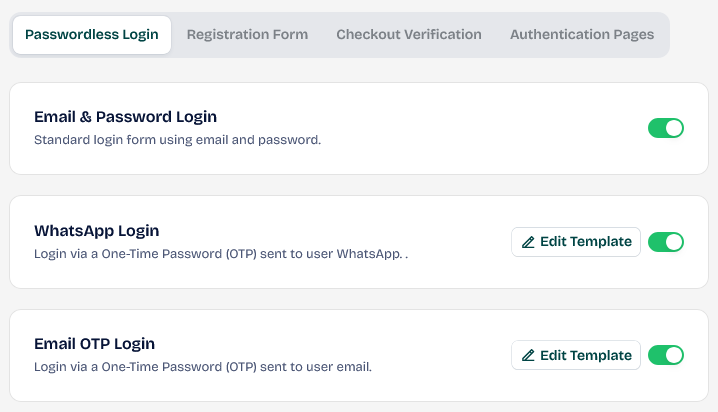
Always use the Placeholder {{otp}} to send the one-time passcode, whether via email or WhatsApp.
Default Login Method
Choose the login method you’d like your users to see first on the login page. If you select any of the available options, it will be the first way the user will find to log in. 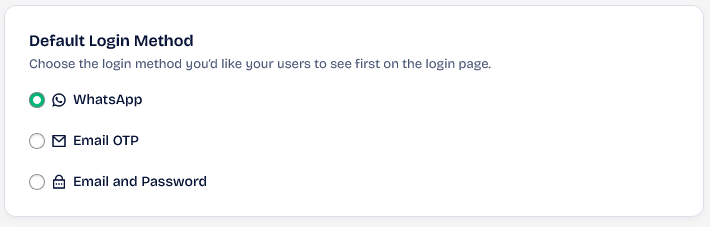
Redirection Rules
Set up redirection URLs after login based on user roles. For example, you can direct the manager to the administration control panel, the client to the orders area, and any other role to the main page, my account area, or any other place as you wish. To do this, just click on Add Redirection Rule. 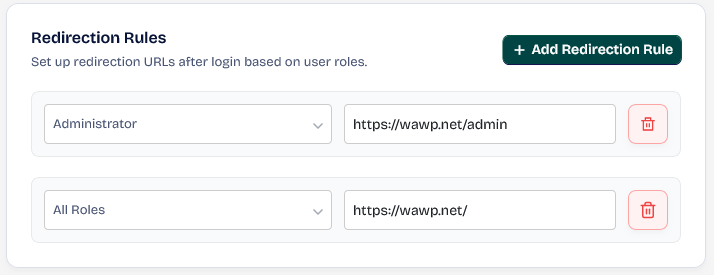
Form Style
Customize the appearance of your login form. You can use this area to customize the button and text above the login form. 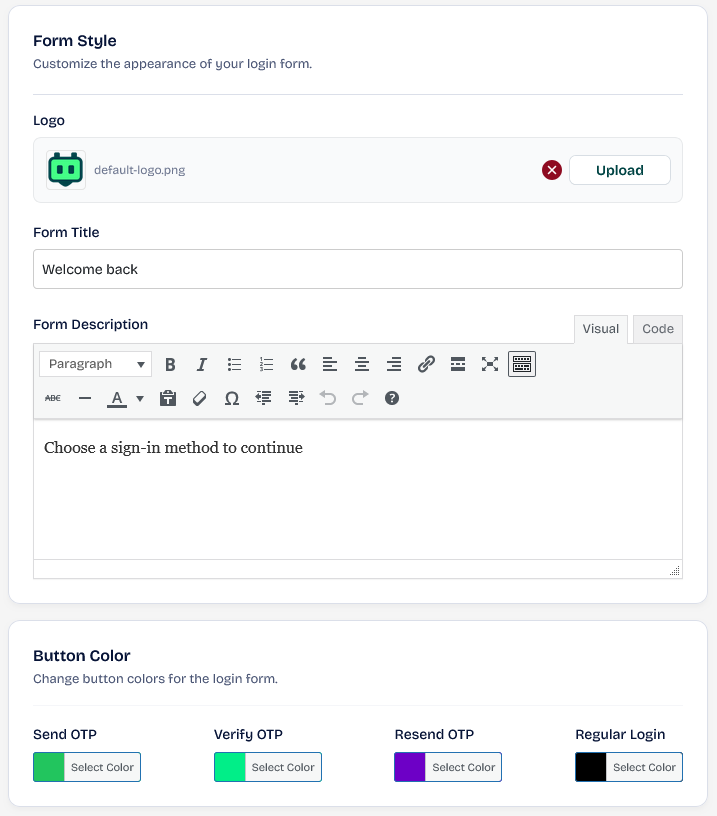
Custom Shortcode
Do you want to integrate social media login or add Google ReCaptcha? Anyway, you can add the Shortcode of the add-on that does this for you in this area to identify it within the login area. 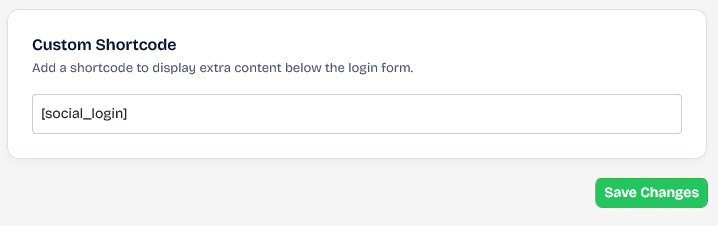 Don’t forget to click the Save Changes button after completing the setup process. After saving, your form should look like the following screenshot: