How to setup WhatsApp Chat Button
Add direct multiple WhatsApp chat, social media links, and more with stats
This feature is used to provide communication channels from your customer to you through your website Frontend.
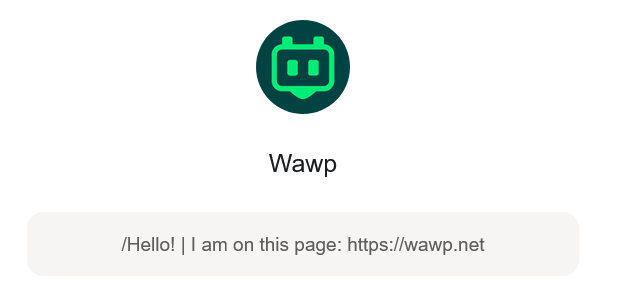
Useful information: When a customer contacts you, a link to the page is sent in the message the customer started, so you know where the conversation started.
Setup Whatsapp Button
In this step, you can adjust the basic settings for the feature and add all the numbers that the user will be able to contact you through, such as the sales and support numbers, etc.
Go to WhatsApp Chat Button
: Turn on to make the WhatsApp chat button visible on your website.

WhatsApp Numbers
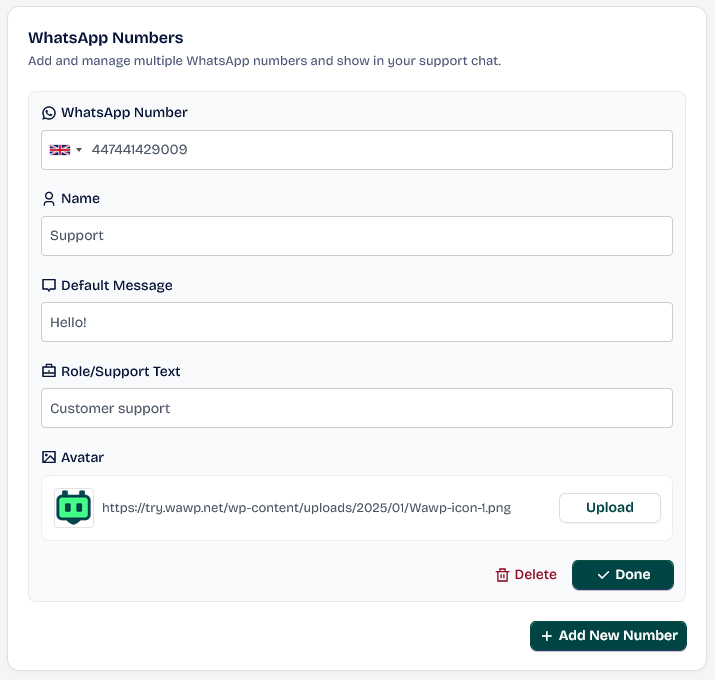
Add and manage multiple WhatsApp numbers and show in your support chat. To use it click on
Add new Number WhatsApp Number: The number your customer will contact you on
Name: The name that will appear on the card
Default Message: The message you will receive when you start the conversation, for example: Hello, I need help.
Role/Support Text: The importance of this number is to avoid confusion about the customer who will appear on the card.
Avatar: The image that will appear next to the information
: Turn on to hide the “Powered by” branding from your chat widget.

Main Card
Customize how your chat widget appears to visitors. 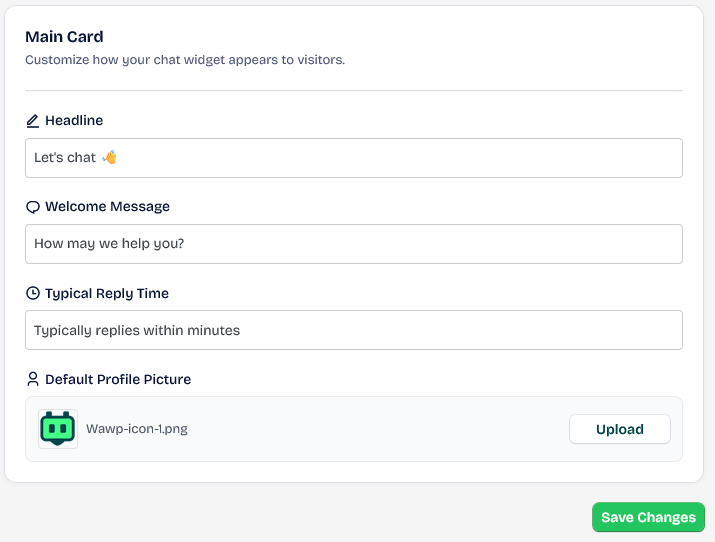
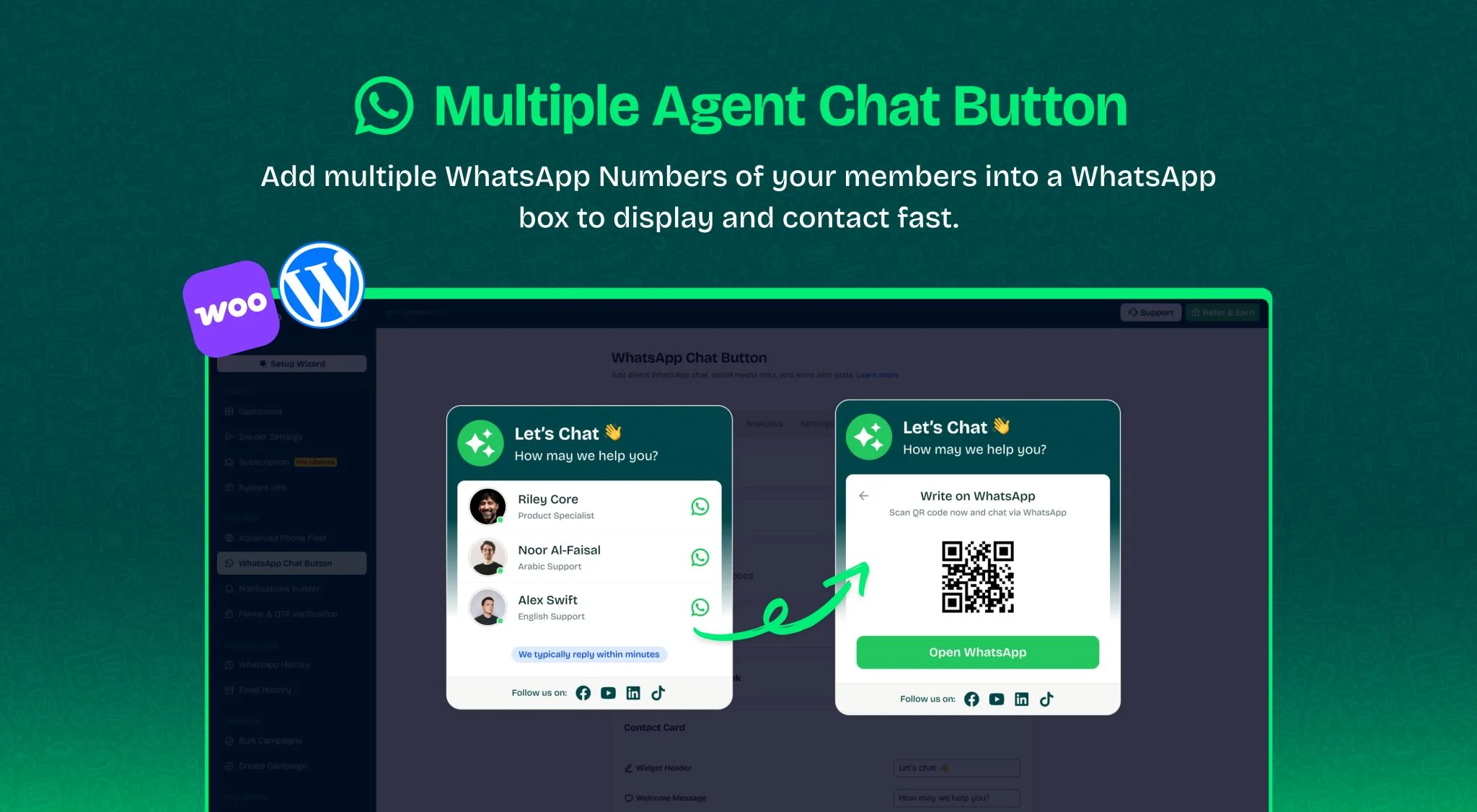
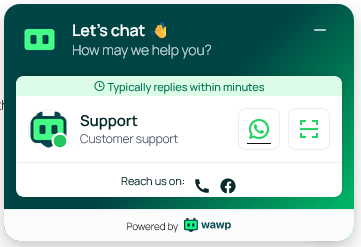
After the setup and saving process, your contact information will appear directly on your website homepage.
Note that the QR code allows the user to scan the code with the camera to contact you directly, and the link code to obtain the contact link.
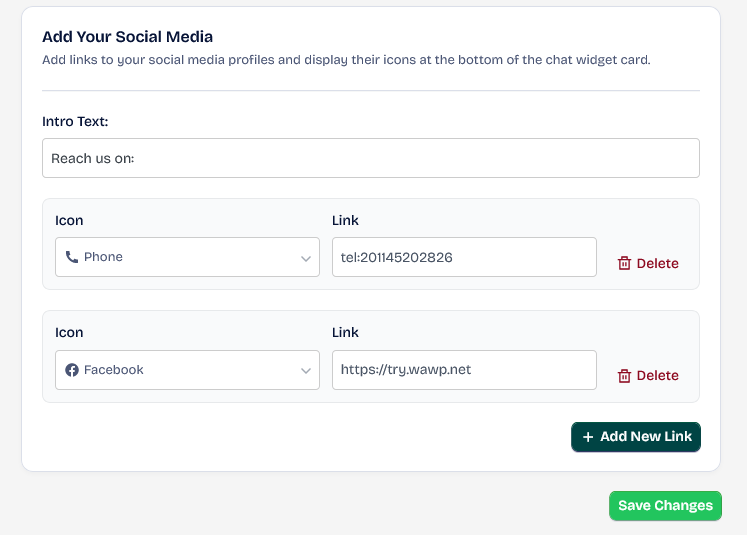
Add Your Social Media links
Add links to your social media profiles and display their icons at the bottom of the chat widget card.
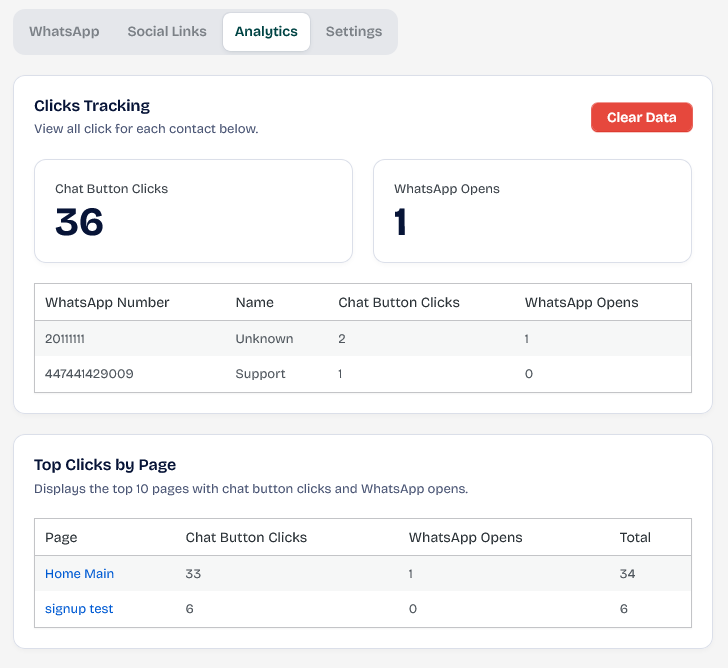
Clicks Tracking
View all click for each contact below.
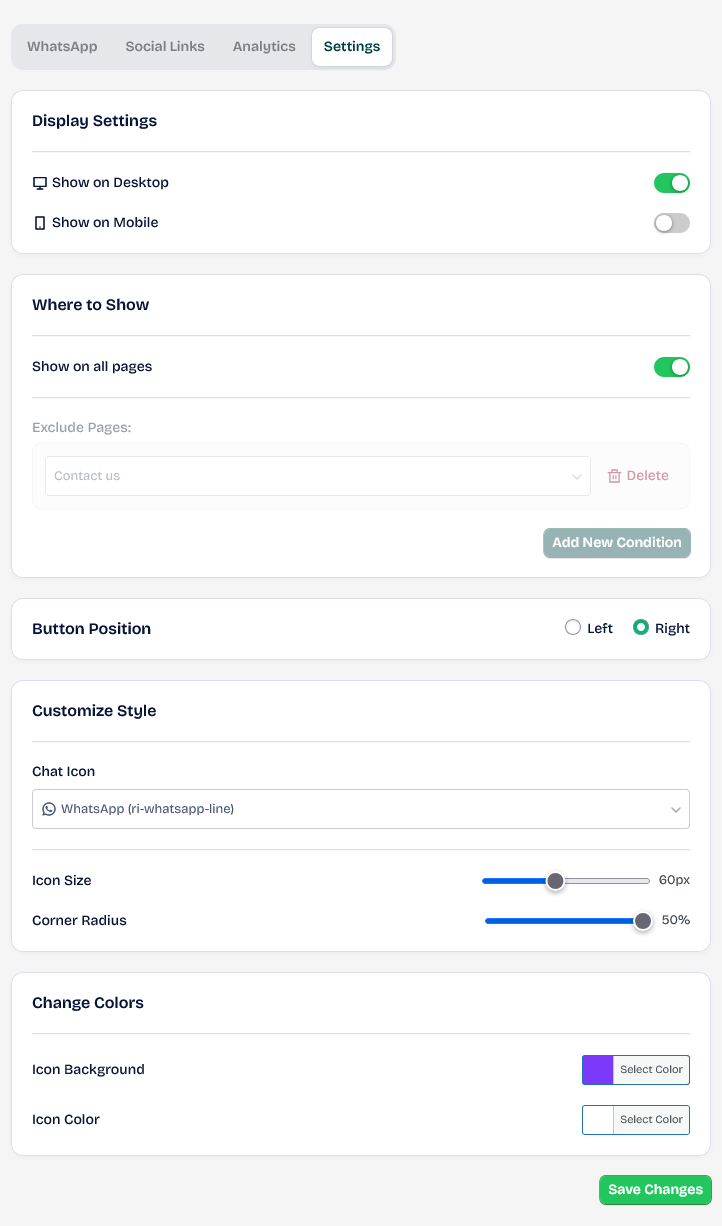
Display Settings
You can customize how the button will appear and its colors.
- Show on Desktop: You can modify it if you want to hide the WhatsApp button from desktop and laptop devices.
- Show on Mobile: You can modify it if you want to hide the WhatsApp button from tablets and phones.
- : Activating this feature will make the button appear on all pages. Disabling it will allow you to control which page you want the WhatsApp communication button to appear on.
- : You can also move it from right to left and vice versa.
- Customize Style: This section allows you to control the shape of the icon, its size, and the circle around it.
- Change Colors: This section allows you to control the color of the external icon to match your site design.