Learn how to connect your WhatsApp number to Wawp using QR code or Login code, and manage your connection via the instance dashboard.
7 min read·Updated August 23, 2026
Getting Started: The Connection Process
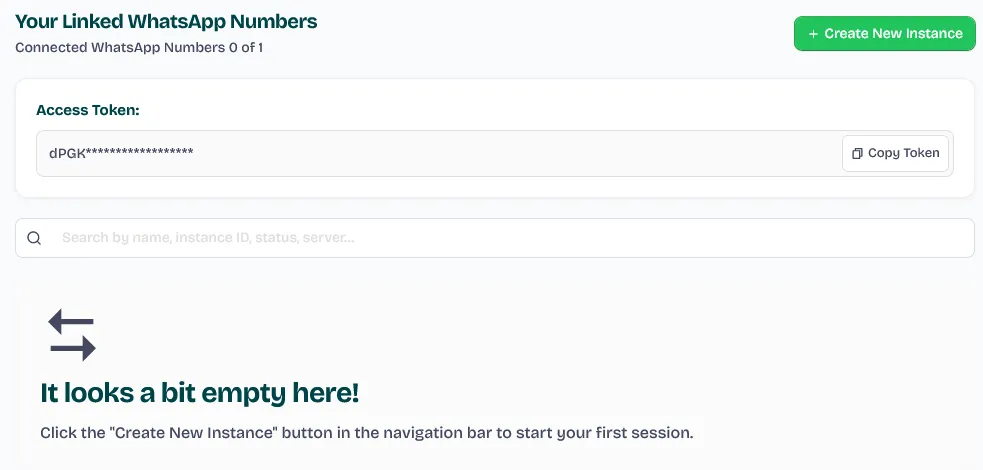
To begin, log into your Wawp Workspace Dashboard. By default, this opens the "Linked Numbers" management tab, which serves as your central operation hub for provisioning and monitoring all connected WhatsApp channels.
Before you connect, ensure your number meets these criteria:
It has not been linked to a similar service within the last month.
It has been in active contact with other numbers.
It has not been banned by WhatsApp.
Linked Numbers Dashboard
The central management area in the Wawp portal for viewing and adding WhatsApp instances.
An "instance" is the dedicated container that links your number to the Wawp platform.
1
Access Linked Numbers From the "Linked Numbers" page, click the "New Instance" button.
2
Preparation Wawp will automatically provision and prepare the container for your number.
3
Ready to Link The status will change to "Scan QR Code" once it is ready for you to link your number.
⛓️💥 To create an instance via API directly for your system integration, follow this document: Create new Session
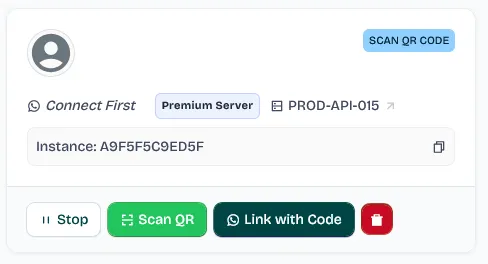
After creating the instance, it should look like this screen:
Instance Creation Ready
A new instance prepared and awaiting connection via QR code or pairing code.
Keywords: create instance, prepare session, whatsapp link ready
Step 2: Choose Your Connection Method
WhatsApp allows you to connect in multiple ways, and Wawp supports both primary connection channels seamlessly.
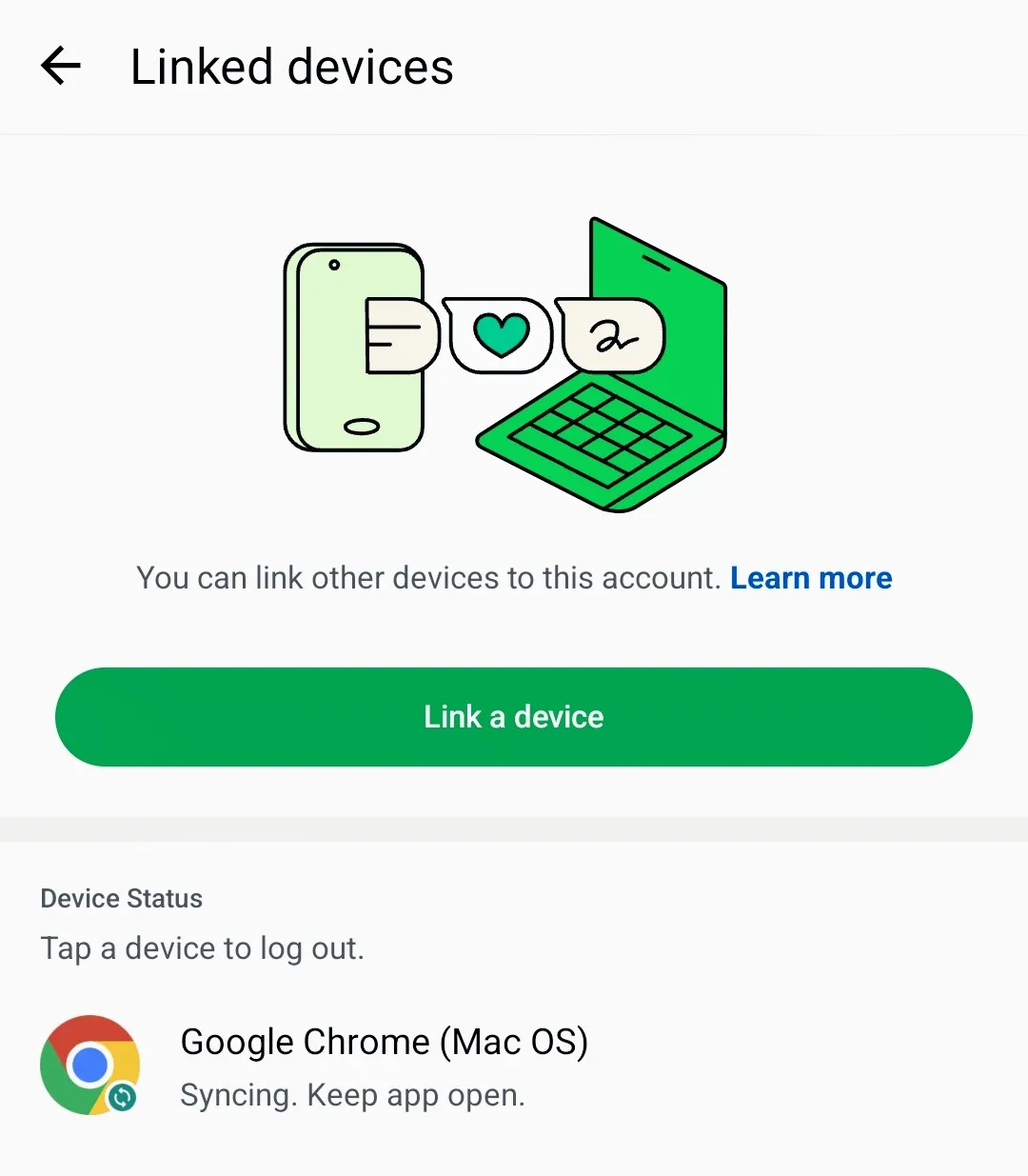
WhatsApp Linked Devices Menu
The standard WhatsApp mobile app menu used to link new devices by scanning a QR code.
Keywords: whatsapp settings, linked devices, link new device
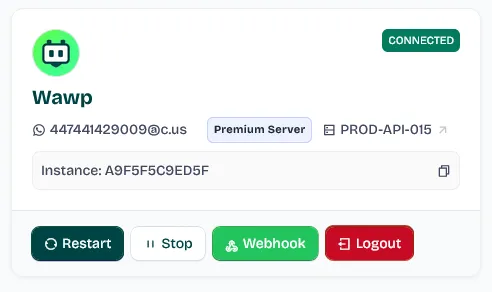
All connected WhatsApp profile information appears directly on your card as shown below:
Active Connection Card
A successfully connected WhatsApp instance displaying profile information and a green 'Working' status.
Keywords: active connection, whatsapp linked, session status
Method 1: Connect by Scanning a QR Code
This is the most common and familiar method. It works exactly like logging into standard WhatsApp Web or Desktop.
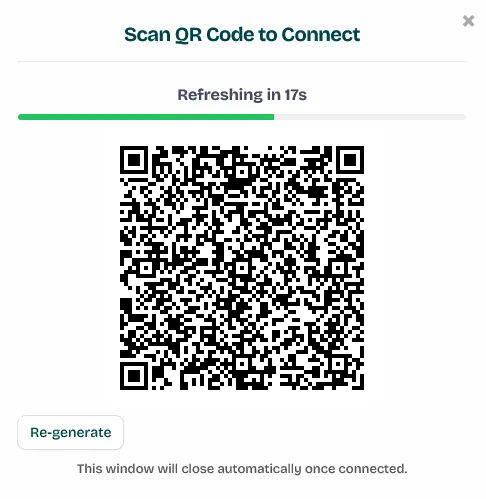
From your Wawp instance row actions, click on "Scan QR":
Scan QR Code Option
The action button to display a secure QR code for linking your WhatsApp account.
Keywords: scan qr, whatsapp web link, authorize session
1
Get QR Code Click "Scan QR" within your instance actions. A secure modal will appear containing your unique QR code.
2
Open WhatsApp On your phone, open the WhatsApp app.
3
Linked Devices Go to Settings (for iPhone) or the three-dot menu (for Android) and select "Linked devices".
4
Scan Tap "Link a device" and use your phone's camera to scan the QR code displayed on your Wawp dashboard.
Note: Linking must be done via the official WhatsApp Business App OR WhatsApp Personal App. See the reference walkthrough video below.
— Wawp Support
Method 2: Connect by Pairing Code
This method is fast and does not require a working camera, making it ideal if you are linking directly from the same mobile device.
1
Trigger Pairing On your Wawp dashboard, click the "Pair Code" button inside the instance row actions.Link with Pairing Code
Selecting the alternative pairing code method for connecting without a camera scan.
Keywords: pair code, link without qr, manual authentication
2
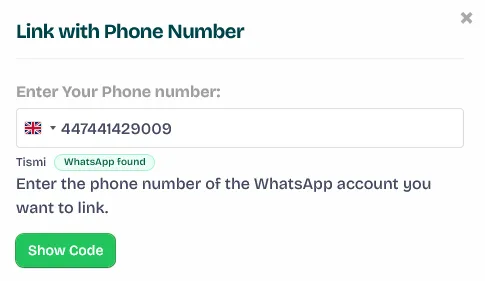
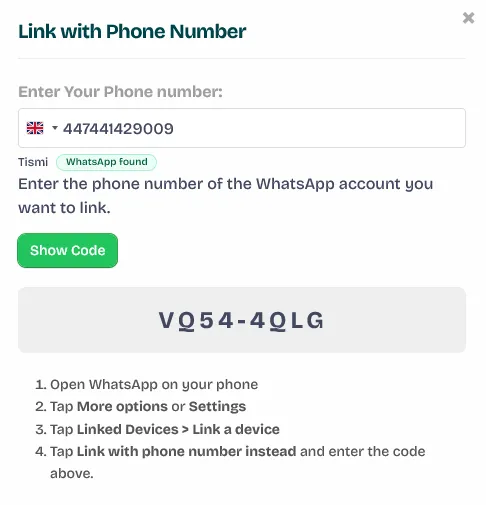
Generate Code Select your country, enter your target WhatsApp phone number inside the secure modal, and click "Generate Pairing Code".Enter Pairing Code
The modal interface for entering your phone number and generating an 8-character pairing code.
Keywords: pairing code generator, mobile auth, manual link
3
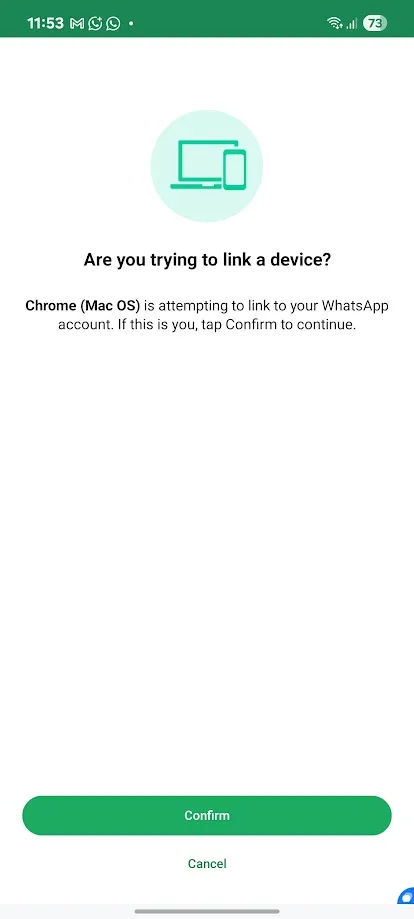
Check Phone On your phone, check your active WhatsApp notifications for a push prompt asking if you are attempting to link a new device.
4
Confirm Tap "Confirm" on your phone and input the 8-character pairing code provided by Wawp.Phone Confirmation Prompt
The mobile push notification on WhatsApp used to confirm a new device connection attempt.
Keywords: phone confirmation, authorize device, link security
Once entered successfully, your instance authenticates instantly, and real-time synchronization will begin automatically.
Pro Tips for Managing Your Numbers
To keep your dashboard highly organized and facilitate secure cross-team operations, Wawp provides built-in auxiliary workspace controls:
Remote Linking (Temp Access Link): If the target WhatsApp phone is held by a separate client or team member, open the instance dropdown menu and click Temp Access Link. This generates a secure, time-expiring external gateway URL that allows them to scan the QR code or trigger pairing directly without requiring administrative entry to your main account dashboard.
Assigning Custom Names: Click the small edit pencil directly next to the instance identifier string to define custom operational titles (e.g., "Customer Care Line", "Automated Marketing Line"). This makes navigating high-capacity clusters simple and clear.
Instances Limit & Scaling Quotas
Every Wawp workspace operates under an allocated Instances Limit, which controls how many active WhatsApp channels you can link simultaneously.
Free Plan Quota: The default Free tier enables linking exactly 1 WhatsApp number to test and deploy standard API automations.
Reaching the Limit: Once your allocated instances quota is consumed, the "New Instance" provisioning button becomes disabled automatically to prevent system over-allocation.
How to Scale: If your operations require broadcasting across multiple sending numbers or configuring independent client clusters, you can expand your workspace limit instantly by:
Upgrading your Core Plan: Switch to a higher premium subscription tier via the Plan & Billing tab.
Purchasing Flexible Add-ons: Navigate to the Add-ons Explorer to provision extra individual flexible instances on-demand without altering your base subscription structure.
Connection Status Guide
Understanding your instance status helps you diagnose connection states and perform the appropriate maintenance actions immediately:
Status Badge
Meaning
Recommended Action
Working
WhatsApp channel connected successfully to Wawp and operating normally.
No action required. Your instance is fully authenticated and actively broadcasting messages or processing integration webhooks.