Accessing your centralized Wawp Dashboard gives you full control over your active instances, API integrations, subscription tiers, and automated notification sequences. Wawp provides multiple secure and seamless methods to authenticate into your account.
How to Login to your Wawp Account
Learn how to access your Wawp dashboard securely using all available authentication methods, including classic Email & Password credentials, instant SMS OTP, Passwordless WhatsApp interactive lists, and one-click Google Sign-in.
5 min read·Updated August 23, 2026

Official Portal
All user authentication flows take place through the secure central Wawp portal at app.wawp.net/login. Bookmark this direct URL for faster access.
Method 1: Standard Email and Password Login
If you set up a designated password during your initial onboarding, you can utilize standard credential-based authentication.
Step 1: Access the Portal and Enter Credentials
Navigate to the login page and fill in your registered account Email Address along with your designated Password in the primary input fields.
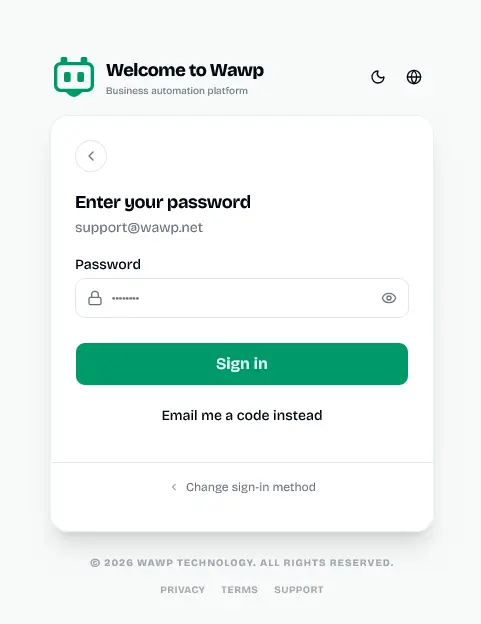
The primary interface for accessing the Wawp dashboard using traditional email and password credentials.
Keywords: wawp login, email password authentication, dashboard accessStep 2: Submit and Authenticate
Click the primary "Sign In" button to establish a secure, persistent session.
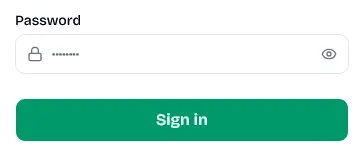
Visual guide highlighting the sign-in button to finalize account authentication.
Keywords: sign in button, authenticate account, login confirmationSecurity Lockout Limit
To protect your account against brute-force attacks, the portal allows a maximum of 5 consecutive failed attempts before temporarily locking standard credential sign-ins.
Sign in with Magic Link
If you don't remember your password, you can use the "Sign in with link" option located directly below the password field. Enter your email address to receive a secure, one-click authentication link delivered instantly to your inbox.
Method 2: Login via SMS OTP
For users who prefer phone verification via standard carrier text messages, Wawp supports single-use codes delivered via SMS.
Step 1: Select the Phone Login Option
On the login challenge view, switch to the Phone Number interface. Ensure you correctly pick your international country code prefix.
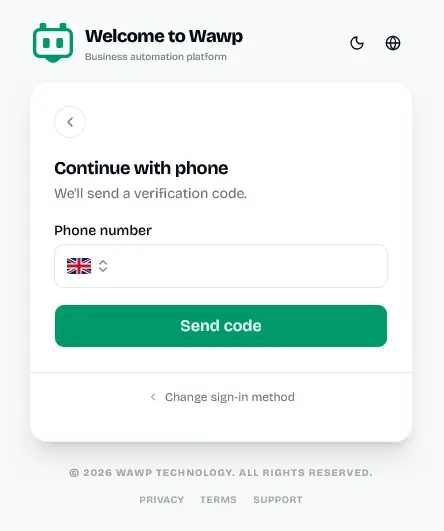
Selecting the dedicated phone number login interface for SMS or WhatsApp verification.
Keywords: phone login, mobile authentication, verification tabStep 2: Request an SMS Code
Enter your full phone number and click the "Send OTP via SMS" action button to prompt an immediate text message delivery.
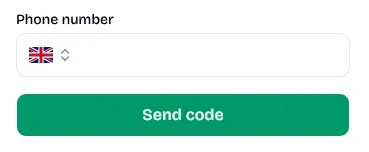
The trigger button to request a secure 6-digit verification code delivered via carrier SMS.
Keywords: sms otp, request verification code, mobile loginStep 3: Enter the SMS Token
Check your incoming text messages for the secure 6-digit verification code. Provide this code inside the challenge confirmation prompt to authenticate instantly.
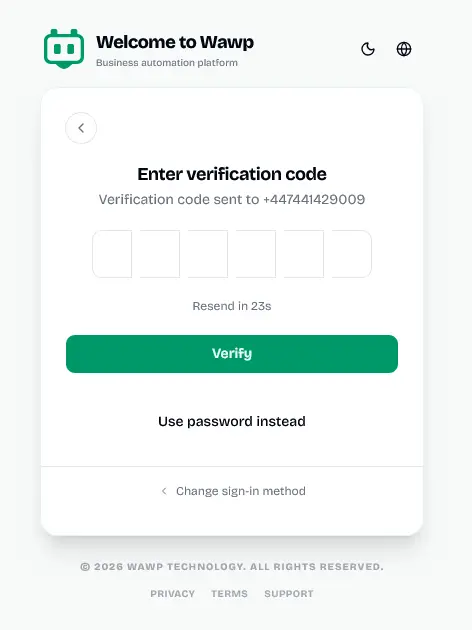
The secure input field for entering the 6-digit OTP received via text message.
Keywords: otp input, verify sms code, secure loginSMS Request Quota
Carrier regulations and anti-fraud throttling limit SMS OTP deliveries to a maximum of 3 verification requests per hour per phone number.
Method 3: Login via Passwordless WhatsApp Interactive List
If you prefer logging in using your verified WhatsApp account directly, Wawp dispatches an interactive notification list directly to your WhatsApp application where you can request authorization on demand.
Step 1: Enter Your WhatsApp Number
Select the phone authorization layout and provide your active WhatsApp-linked phone number alongside the correct geographic country code.
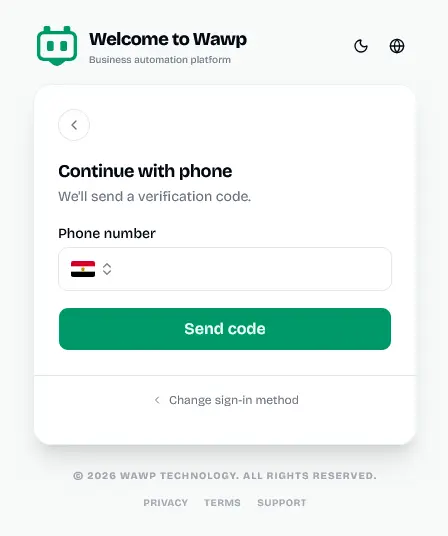
Screen for entering your WhatsApp-linked phone number to initiate passwordless authentication.
Keywords: whatsapp login, passwordless entry, verify phone numberStep 2: Trigger the Interactive Login List
Click the prominent action button to trigger delivery. Instead of a standard text token, the official Wawp bot will dispatch an interactive List Message containing explicit authorization choices directly to your WhatsApp chat feed.
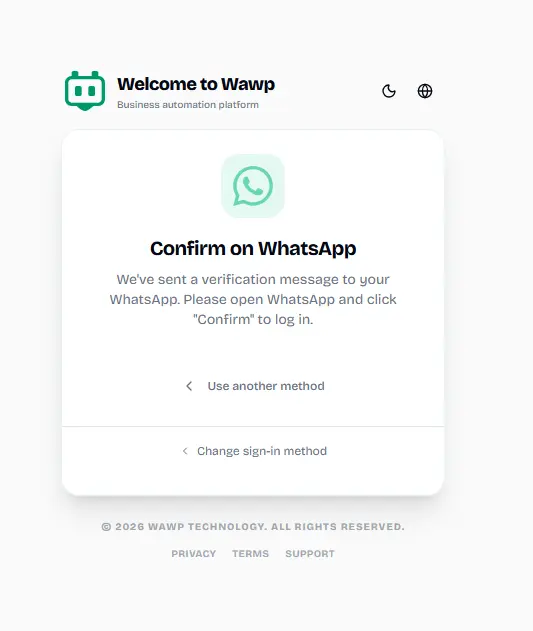
Action button to trigger an interactive authorization menu delivered directly to your WhatsApp application.
Keywords: whatsapp list message, interactive login, passwordless whatsappStep 3: Select and Confirm the Verification Code
Open your WhatsApp application, view the incoming list menu from Wawp, select the login authorization option to receive your secure 6-digit confirmation key, and paste it into the secure portal challenge input.
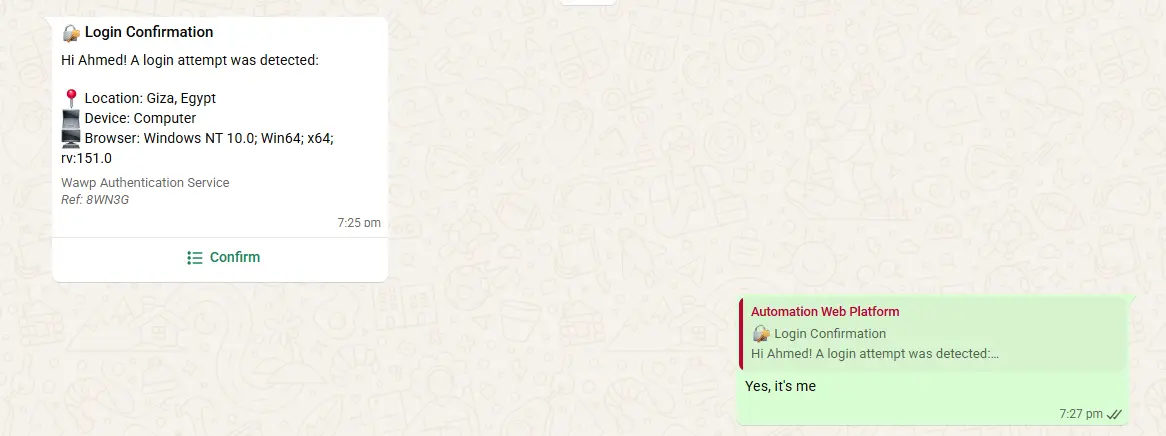
Providing the verification code received via WhatsApp to finalize the secure portal login.
Keywords: whatsapp confirmation, verify account, secure portal accessWhatsApp Throttling Quota
To preserve API instance scores and avoid platform spam filters, you are allowed a maximum of 5 WhatsApp login list requests per hour per linked number. Ensure stable cellular or Wi-Fi connectivity to receive interactive messages instantly.
Method 4: Login with Google (One-Click Sign-in)
For the absolute fastest and most frictionless experience, authenticate using secure Google OAuth integration.
Step 1: Select Google Authentication
On the main sign-in view, click the standalone "Continue with Google" button located at the top of the alternative identity providers list.
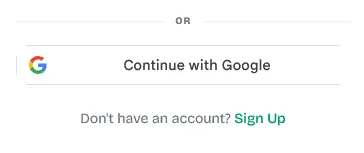
Fast authentication button to sign in to Wawp using secure Google OAuth integration.
Keywords: google login, oauth authentication, one-click sign inStep 2: Choose Your Account
A secure browser popup will appear displaying your active Google identities. Select the email address associated with your Wawp workspace to establish an authorized session immediately.
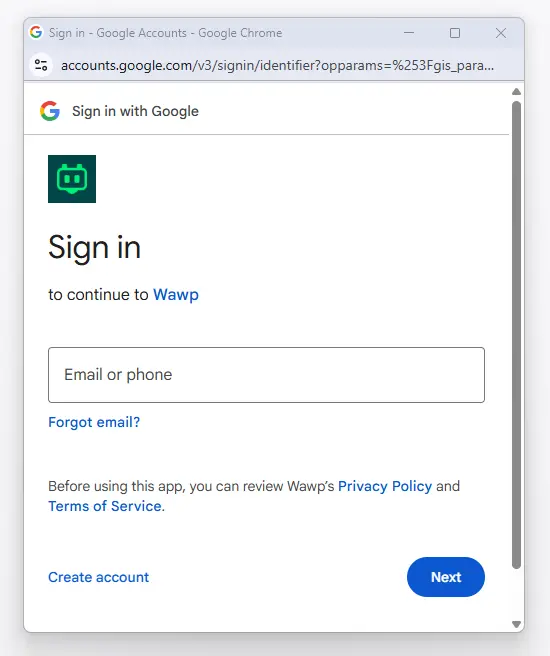
Standard Google account selector popup for choosing the authorized profile for workspace access.
Keywords: google account selector, choose account, auth popupInstant Workspace Access
If your chosen Google profile corresponds to a valid registration, you will bypass standard password checks entirely and land directly inside your master workspace overview.
Did this page help you?
98% found this article helpful (180 likes)
Related Articles
How to Create your Wawp account
This quick guide walks you through the easy process of creating your Wawp account, from filling out the registration form and choosing your preferred verification channel (WhatsApp, SMS, or Email) to automatic Google sign-in resolution.
How to Connect WhatsApp to Wawp
Learn how to connect your WhatsApp number to Wawp using QR code or Login code, and manage your connection via the instance dashboard.
Customizing Device & Browser Emulation for Safe Connections
Learn how to create a WhatsApp instance, select the optimal server, and configure device & browser emulation to mimic your real-world setup for maximum number security and ban prevention.
- Need help? Contact Support.
- Check out our Changelog.
- Join our Facebook Community.
- LLM? Read llms.txt.
OFFER ENDS SOON
Extra 30% OFF All Plans
Use this exclusive promo code at checkout to enjoy an extra 30% discount on top of current sales!
BOOST30