Managing a complex WordPress and WooCommerce environment can sometimes lead to unexpected integration issues. To provide fast, efficient, and highly secure assistance, Wawp includes a built-in Remote Support & Troubleshooting utility.
Remote Support & Troubleshooting
Enable secure, one-time dashboard access for Wawp support administrators to help you troubleshoot issues.
4 min read·Updated August 23, 2026

This feature allows Wawp support administrators to securely access your WordPress dashboard on a one-time basis to diagnose, configure, and resolve technical issues without requiring you to share your primary administrator password or FTP/hosting credentials.
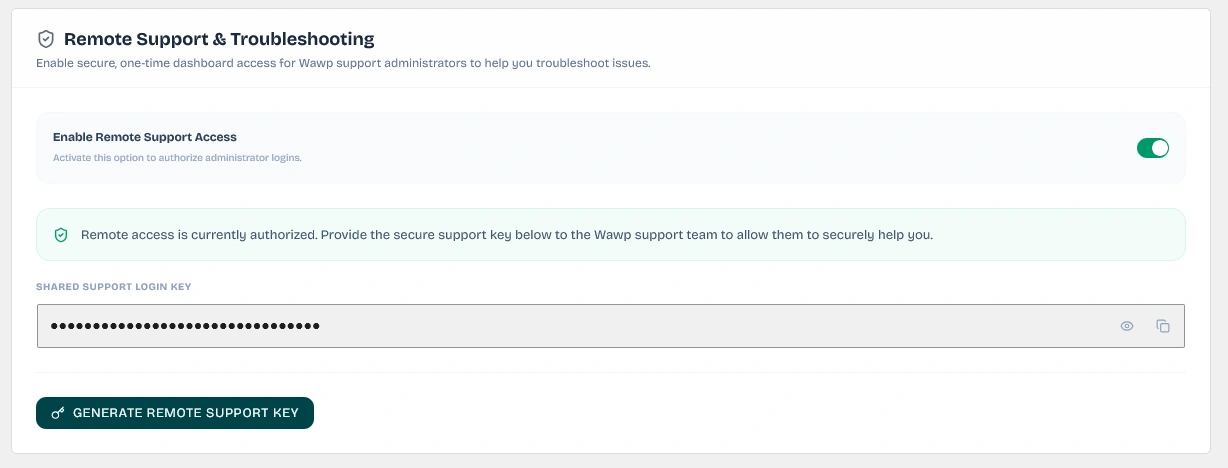
The Wawp account remote support and troubleshooting configuration card where you can authorize administrator login access and generate support keys.
Keywords: remote support key, authorize support logins, shared support keyWhat is Remote Support & Who is it For?
The Wawp Remote Support utility is a secure gateway built directly into the plugin. It is available exclusively to website administrators running the Wawp Pro edition with an active paid plan (Starter, Pro, Growth, or Premium) who require hands-on technical support from our engineering team. Please note that this utility is not available on the Free plan.
Instead of generating insecure static administrator accounts, you simply toggle a temporary authorization switch and share a cryptographically secure token with our support agents.
The "Enable Remote Support Access" Control
At the heart of this feature is the Enable Remote Support Access toggle switch (described on screen as "Activate this option to authorize administrator logins").
This toggle acts as a master security kill-switch:
- Strict Revocation: The moment you disable this toggle, the entire remote login gateway is shut down instantly.
- Zero Residual Access: Once disabled, the Wawp support team is completely blocked from accessing your dashboard—even if the generated Shared Support Login Key is correct, unexpired, or active in our system. You retain absolute control over when access is permitted.
Key Purposes of Remote Support
Our team utilizes this remote access interface for two primary objectives:
- Paid Setup & Configuration Requests: If you have requested a paid setup service, our team will use this secure access to configure your WhatsApp Web connections, Meta Cloud API integrations, Firebase SMS gateways, SMTP servers, and custom notification flow templates.
- Resolving Plugin-Induced Website Issues: In rare cases where database mismatches, PHP execution limits, or third-party conflicts arise due to Wawp—which could degrade site performance or harm your live website environment—our developers use this access to run loopback diagnostics, check table structures, and safely apply official hotfixes.
Security First: Never share your main administrator password or credentials over support tickets. The Remote Support system is designed specifically to eliminate password sharing and keep your credentials secure.
What it Allows Our Support Team to Do
When you grant remote access, Wawp support administrators can:
- Log into your WordPress admin dashboard using a secure, temporary, and encrypted one-time access token.
- Inspect plugin configurations and run diagnostic tests.
- Test and debug connection channels (WhatsApp Web, Meta Cloud API, Firebase, SMTP).
- Analyze Wawp database table integrity and troubleshoot schema mismatches.
- Isolate and debug conflicts with other active themes or plugins.
How Remote Support Works (Step-by-Step)
The entire authorization process is fully controlled by you and can be revoked instantly at any time.
1
Access Account Dashboard Log into your WordPress admin area and navigate to the Wawp dashboard, then click on the Account settings tab.
2
Enable Support Access Locate the Remote Support & Troubleshooting card and toggle the Enable Remote Support Access switch to active.
3
Generate Access Key Click the Generate Remote Support Key button to generate a unique, temporary Shared Support Login Key.
4
Share Key with Support Copy the generated key and paste it securely into your Wawp support ticket or share it with the assigned engineer. Our administrators will use this key to authenticate a secure, temporary session.
5
Automatic / Manual Expiration Once the troubleshooting session is complete, you can toggle the switch off to revoke access immediately. Otherwise, the generated token will automatically expire after a set security period to prevent unauthorized future logins.
Complete User Control: Wawp support team members can only access your dashboard as long as the toggle remains enabled and the key is valid. The moment you disable the toggle, all active support sessions are instantly terminated and the login key is permanently invalidated.
Did this page help you?
100% found this article helpful (0 likes)
Related Articles
About Wawp System Status
This area helps you understand and troubleshoot execution statuses relating to critical system operations.
Wawp Shortcodes
Add advanced Wawp forms seamlessly to any layout template page using native WordPress Shortcodes.
Fix sending issues in Wawp plugin
Step-by-step expert diagnostic procedures the support team executes to actively resolve persistent outbound messaging bottlenecks.
- Need help? Contact Support.
- Check out our Changelog.
- Join our Facebook Community.
- LLM? Read llms.txt.
OFFER ENDS SOON
Extra 30% OFF All Plans
Use this exclusive promo code at checkout to enjoy an extra 30% discount on top of current sales!
BOOST30