Below is a series of diagnostic steps the support team performs to resolve the issue on your site.
Fix sending issues in Wawp plugin
Step-by-step expert diagnostic procedures the support team executes to actively resolve persistent outbound messaging bottlenecks.
13 min read·Updated August 23, 2026

General Notes
PHP Support: The plugin supports up to PHP 8.3, but PHP 8.1 is preferred.
WordPress Support: The plugin supports the latest version of WordPress.
Site Updates: Ensure all plugins, themes, and WordPress versions on your site are up to date.
Note: When accessing any link mentioned in these instructions, replace sitename.com with your actual site domain name.
🛠 Step-by-Step Resolution
1. Ensure Sender Settings are Set
Make sure you have at least one online ID and that it is set for all sending features. (For developers, check session status via Wawp API Docs).
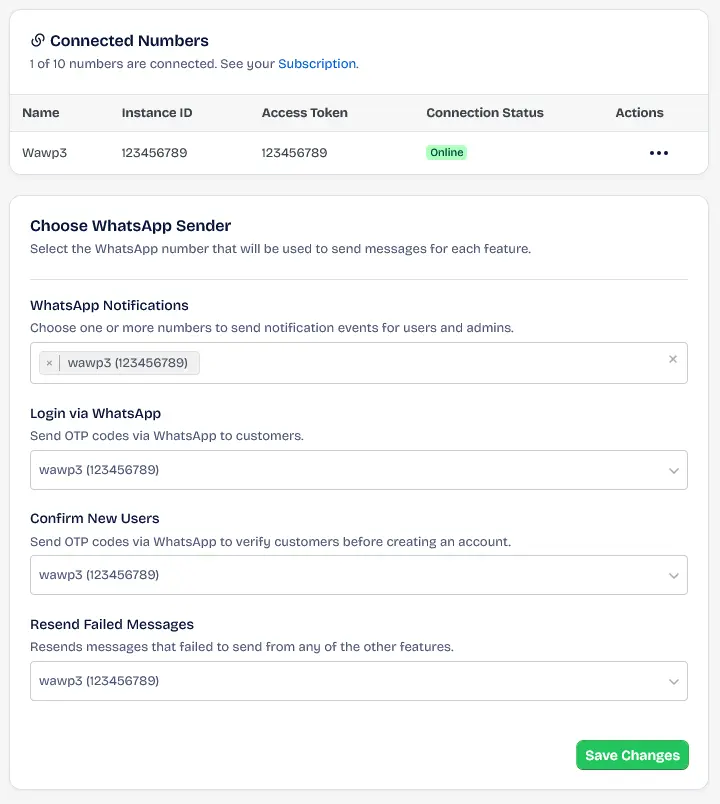
Interface for verifying and setting up WhatsApp sender IDs in the Wawp plugin.
Keywords: wawp sender settings, whatsapp id setup, wordpress whatsapp config2. Make sure you have enabled WooCommerce's High Performance Mode.
WooCommerce's High Performance Mode organizes processes and orders more efficiently and quickly than the old version. To access WooCommerce, go to Settings > Advanced Settings > Features > Enable Compatibility Mode (sync orders between High Performance Order Storage and WordPress Post Storage). (Learn more about HPOS in WooCommerce docs).
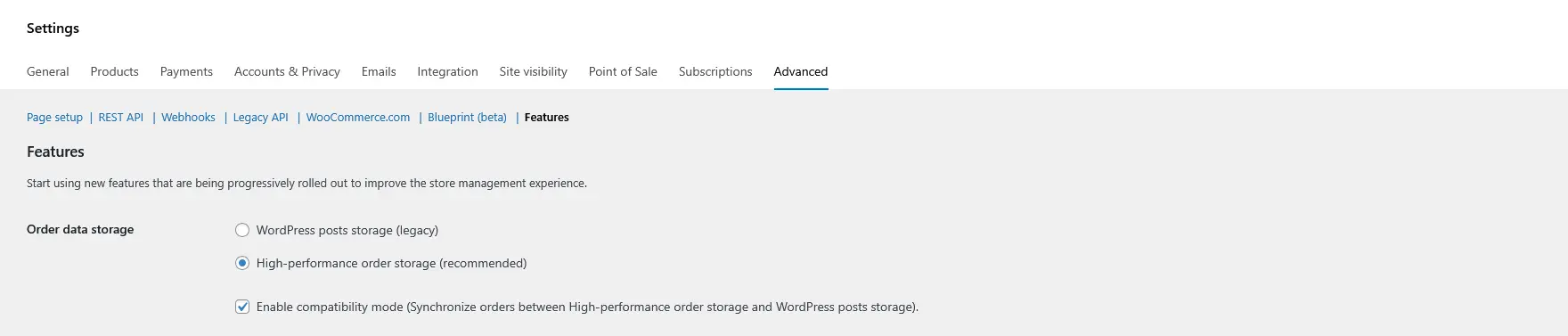
Enabling HPOS compatibility mode in WooCommerce settings for better database performance.
Keywords: woocommerce hpos, high performance order storage, wp order optimization3. Ensure that Cron jobs are installed and running correctly.
The Cron executes functions correctly, such as sending notifications and resending failed messages. Activate the WP Crontrol plugin to verify that the Cron is installed.
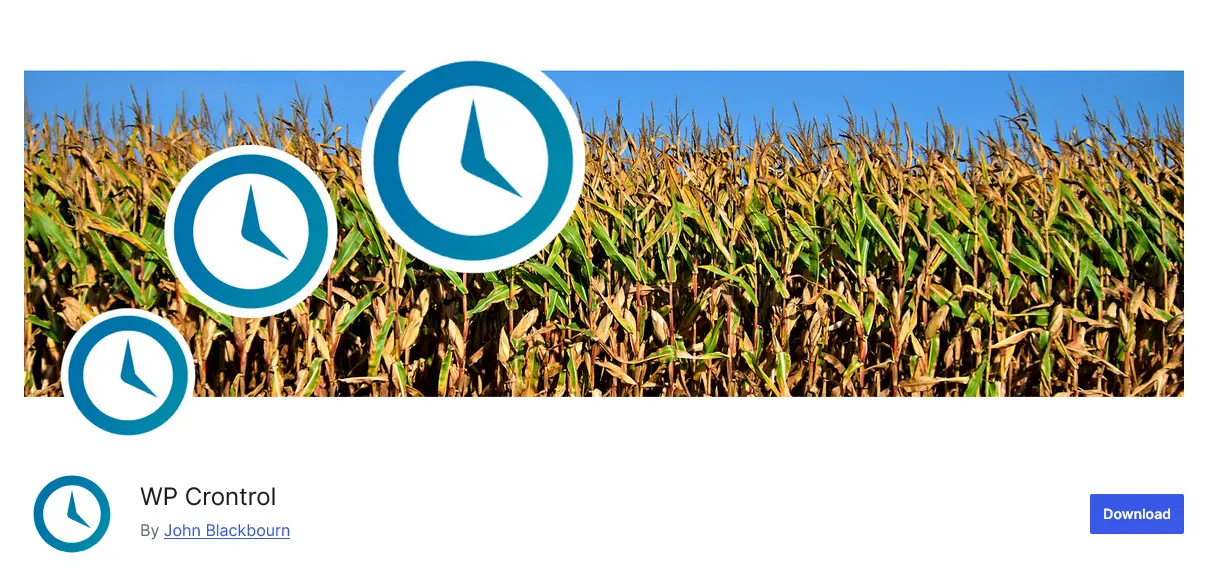
Installing and using WP Crontrol to monitor and manage WordPress cron events.
Keywords: wp crontrol, wordpress cron manager, manage scheduled tasksPlugin Link: https://wordpress.org/plugins/wp-crontrol/ From the WordPress sidebar > Tools > Cron Events
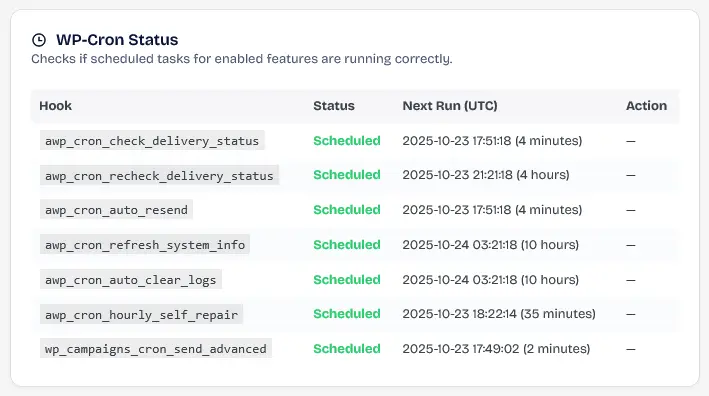
Detailed view of active cron hooks and their schedules in the WordPress dashboard.
Keywords: cron events table, wordpress scheduled hooks, automation logsSearch for wawp to find Wawp background operations. Review the complete hook index below:
| Cron Hook Name | Function / Process Description |
|---|---|
wawp_cron_refresh_system_info | Audits core environmental parameters and logs entries to the System Status dashboard. (Runs every 12 hours.) |
wawp_cron_hourly_self_repair | Self-reconnects offline instances and repairs database inconsistencies. (Runs every hour.) |
wawp_cron_daily_cleanup | Automatically purges old messaging history and expired records according to cleanup settings. (Runs every 24 hours.) |
wawp_cron_clear_expired_otps | Purges expired OTP database entries to maintain optimal database size. |
wawp_cron_process_abandoned_cart_notifications | Evaluates abandoned checkouts to initiate cart recovery notifications. (Runs every 5 minutes.) |
wp_campaigns_cron_send_advanced | Handles bulk queue campaign dispatches in groups. (Runs every 5 minutes.) |
wawp_notif_send_scheduled_notification_action | Processes and dispatches WooCommerce scheduled alerts, delays, and dynamic transactional notifications. |
wawp_sync_hourly_stats | Synchronizes click stats, widget opens, and metrics to keep analytics accurate. (Runs every hour.) |
wawp_mrsb_auto_sync_event | Synchronizes background configuration states. (Runs every 30 minutes.) |
4. Disable WP-Cron Constant
Open the wp-config.php file located in the WordPress root directory, such as public_html. Look for any command to disable, enable, or bypass cron, such as define('DISABLE_WP_CRON', true);
If you have any lines like the one above, delete them, save the file, then disable and re-enable the Wawp plugin.
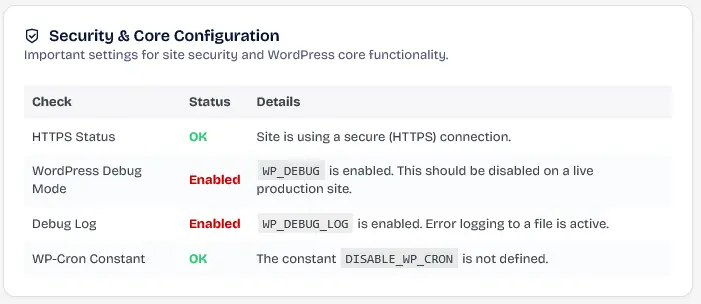
Locating and removing the DISABLE_WP_CRON constant from the wp-config.php file.
Keywords: disable wp cron, wordpress config edit, fix cron issues5. Ensure the country code is activated.
Some customers are not receiving messages because the country code is not activated. Therefore, the number is not automatically corrected when the user enters it in the purchase or registration form, etc.
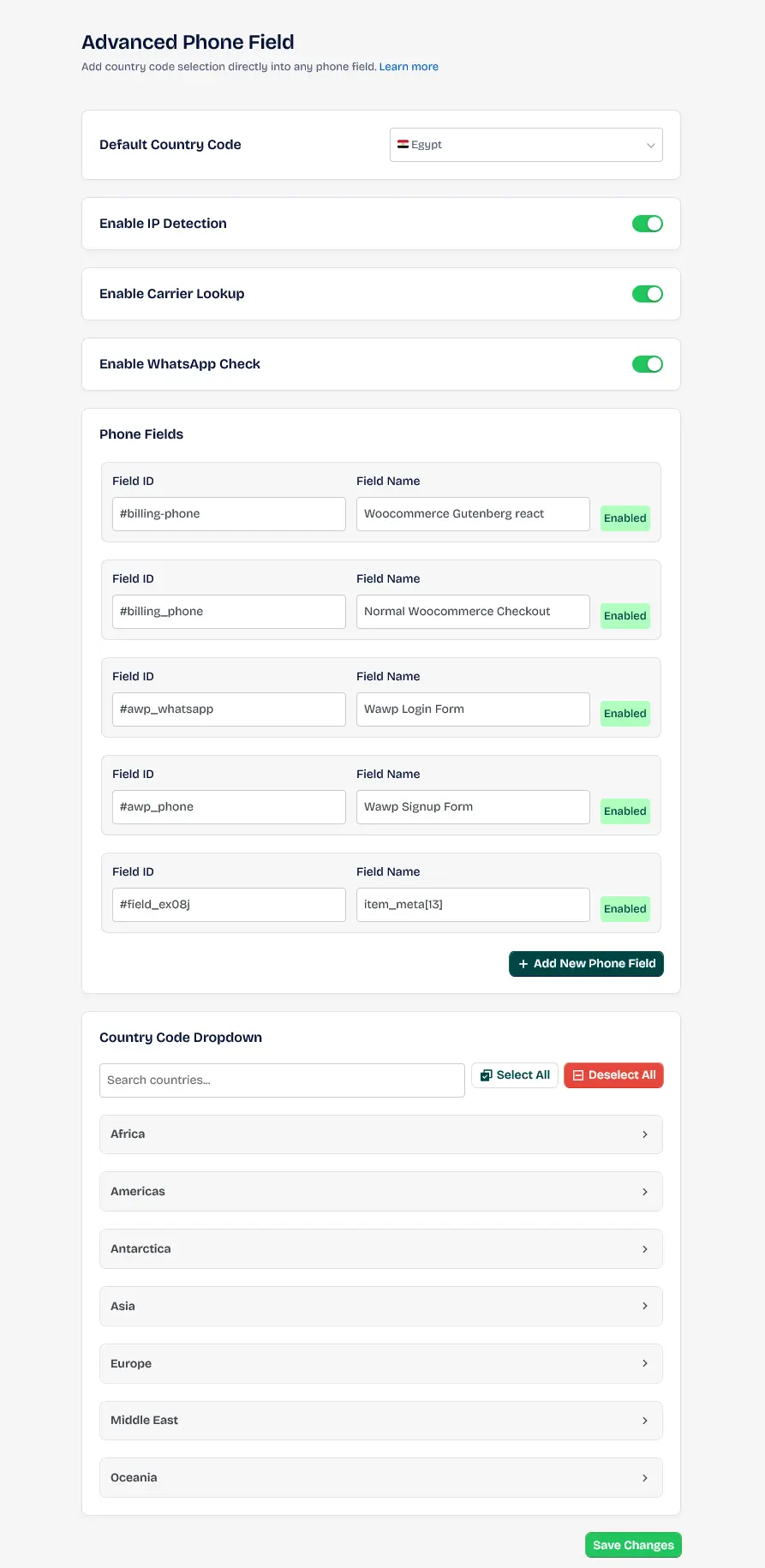
Configuring country codes and phone number validation rules in the Wawp settings.
Keywords: whatsapp phone format, country code prefix, phone validation wordpressTo set the country code, go to the Advanced Phone Field in the Wawp plugin and adjust the settings and activate the countries according to your preferences. Then, save the changes you made.
The ultimate goal is to obtain a user number that includes the country code, such as 201111111111 or 96650000000 without the 00 or + at the beginning of the number.
❌ 0111111111111 - Error
❌ 050000000000 - Error
⚠️ +201111111111 - Wrong Format
⚠️ 00201000000000 - Wrong Format
✅ 201111111111 or 96650000000 - Correct / Valid
Visual guide showing correct vs incorrect phone number formats for WhatsApp API.
Keywords: whatsapp number format, phone validation guide, correct country code6. Cron may be disabled due to your hosting.
After hosting, you can access cron control, such as the Wp-toolkit tool in your Cpanel and AAPanel. Disable cron blockers, or contact your hosting provider to confirm. Also, make sure to disable "Takeover wp-cron.php" routines.
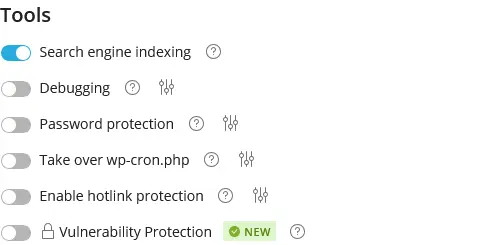
Managing cron job blockers and toolkit routines in the hosting control panel.
Keywords: cpanel cron jobs, wp-toolkit settings, hosting cron blocker7. You're using Cloudflare and have your DNS configured incorrectly.
Contact your hosting provider to configure your DNS and disable the proxy (Cloud icon should be gray) for your main or subdomain, depending on where the Wawp plugin is installed, to ensure direct API communications. (See Cloudflare DNS Guide).

Setting Cloudflare DNS proxy status to 'DNS only' (gray cloud) for API communication.
Keywords: cloudflare dns proxy, gray cloud cloudflare, api dns config8. You have a plugin that's disrupting your cron or some WordPress features.
Disable all plugins and try submitting after following all the steps above. Then, activate one plugin after the other, creating a request or changing its status each time to determine which plugin is affecting your site's performance and the performance of the Wawp plugin. Then, contact the developer of this plugin to inform them of the problem so they can resolve it or replace it.
Sending does not work well with Litespeed, whether it is an add-on to your site or on the server as an alternative to Apache to get instant sending. Disable it or change your hosting to avoid cached payload conflicts. (More on Litespeed Cache).
WordPress sites running many plugins or specific server environments can experience conflicts that disrupt background delivery, API connectivity, or validation logic. Below is a diagnostic guide for four common areas of plugin conflict:
A. Caching & Optimization Conflicts (LiteSpeed Cache, WP Rocket, W3 Total Cache)
- The Conflict: Caching engines store static page copies and query results. Wawp relies on dynamic real-time REST API requests to verify phone formatting, handle OTP registrations, and track active instances. If your cache plugin stores REST API responses, it will return outdated, cached payloads, resulting in delivery or verification failures.
- Technical Solution: Configure your caching plugin's exclusions list to completely bypass Wawp REST API endpoints by adding the following wildcard path to the non-cached URL list:
/wp-json/wawp/v1/*Additionally, ensure that any "Object Cache" or "Database Cache" settings are disabled or excluded for Wawp tables.
B. Security Firewalls & WAF Blocks (Wordfence, Solid Security, Cloudflare WAF)
- The Conflict: Security plugins and external Web Application Firewalls (WAF) scan active HTTP requests. They can block outbound Loopback connections that Wawp uses to verify connectivity to
api.wawp.net, or block incoming webhook confirmation notifications, returning a403 Forbiddenerror status. - Technical Solution: Whitelist the Wawp REST API namespace path (
/wp-json/wawp/v1/*) and the WAWP domain gateway IP addresses in your security plugin's whitelist rules or Cloudflare firewall custom bypass policies.
C. Database Optimizers & Transients Purging (WP-Optimize, Advanced Database Cleaner)
- The Conflict: To save server resources, Wawp caches active WhatsApp instance sessions, API states, and login tokens inside temporary database records called Transients. Plugins that automatically clean or optimize databases by deleting transients can drop active connection sessions, forcing constant connection handshakes and API timeout errors.
- Technical Solution: Exclude Wawp-specific database keys (particularly those prefixed with
_transient_wawp_or_transient_timeout_wawp_) from periodic automated database purges.
D. Custom Redirects & Membership Takeovers (Theme My Login, Ultimate Member)
- The Conflict: Membership or user management plugins that override default WordPress login and registration pages can bypass Wawp's custom input hooks. This bypasses the Advanced Phone Field country formatting validation and passwordless authentication redirects, permitting invalid phone numbers to be stored in the database.
- Technical Solution: Disable standard form redirect rules in your membership settings on any page configured to use Wawp registration fields or OTP login gates.
9. Loopback requests are blocked on your server.
WordPress uses internal "loopback" requests — where the server sends an HTTP request to itself — to handle background tasks, trigger cron jobs, and process OTP verifications. If your server or security plugin blocks these internal requests, all background delivery processes will silently fail.
How to diagnose: Go to WordPress Admin > Tools > Site Health > Info, and look for the "Loopback Requests" status. Alternatively, check the System Status page in the Wawp plugin, which runs this check automatically.
Common causes and solutions:
- A security plugin (Wordfence, Solid Security) may be blocking loopback. Temporarily disable it to test.
- The server's firewall may block requests from
127.0.0.1orlocalhost. Ask your hosting provider to whitelist internal loopback connections. - A
.htaccessrule may be redirecting or blocking all requests. Review it for any global deny rules.
10. WordPress REST API is disabled or blocked.
The Wawp plugin relies entirely on the WordPress REST API (/wp-json/wawp/v1/*) for phone validation, OTP authentication, instance management, and webhook handling. If the REST API is globally disabled — by a plugin, theme, .htaccess rule, or WAF policy — all of Wawp's operations will fail completely with no obvious error message.
How to diagnose: Open your browser and navigate to https://yoursite.com/wp-json/wp/v2/types/post. If the page returns a JSON error or a 403 Forbidden page instead of JSON data, your REST API is blocked. The Wawp System Status page checks this automatically.
Common causes and solutions:
- A security plugin may have a setting like "Disable REST API for non-logged-in users." Disable this restriction or add an exception for the Wawp namespace.
- A WordPress snippet or
functions.phpcode may includeremove_action('rest_api_init', ...)oradd_filter('rest_authentication_errors', ...). Remove any such code. - A WAF rule may be blocking all
wp-jsonpaths. Whitelist/wp-json/wawp/v1/*in your firewall.
❌ Never use plugins or code that fully disable the WordPress REST API on a site running Wawp. The plugin cannot function without it.
11. PHP Memory Limit is too low.
Wawp requires a minimum PHP memory limit of 1024MB (1GB) to handle bulk campaign dispatches, abandoned cart evaluations, and large notification queues. If the memory limit is too low, PHP will silently terminate background processes mid-execution, causing messages to disappear from the queue without being sent and without logging any error.
How to diagnose: Check the System Status page in the Wawp plugin. If it shows a "Warning" for PHP Memory Limit, your server is below the required threshold.
How to fix: Add or update the following line in your wp-config.php file (before the /* That's all, stop editing! */ line):
define( 'WP_MEMORY_LIMIT', '1024M' );
If this does not work, contact your hosting provider to increase the memory_limit value in php.ini or the hosting control panel.
12. PHP Max Execution Time is too low.
Wawp recommends a minimum max execution time of 300 seconds for reliable bulk operations. If this value is set too low (commonly 30 or 60 seconds on shared hosting), PHP will forcibly terminate long-running processes such as campaign dispatches before they finish, leaving messages unsent.
How to diagnose: Check the System Status page. A "Warning" next to PHP Max Execution Time means the current value is below 300 seconds.
How to fix: Add the following to your wp-config.php:
@ini_set( 'max_execution_time', 300 );
Alternatively, add this to your .htaccess:
php_value max_execution_time 300
Or contact your hosting provider to update max_execution_time in php.ini.
13. Wawp database tables are missing or corrupted.
The Wawp plugin stores all its data (activity logs, notification settings, instance configurations, OTP records, campaign queues) in its own dedicated database tables. If any of these tables are missing — due to a failed installation, a database optimizer that dropped them, or a migration error — the plugin will silently stop working.
How to diagnose: Go to the System Status page in the Wawp plugin. The Database section shows the status of every required table. A "Missing" status on any table means it needs to be recreated.
How to fix: The easiest fix is to deactivate and then reactivate the Wawp plugin from WordPress Admin > Plugins. The plugin recreates all missing tables on activation. If tables are still missing after this, contact Wawp support with a copy of your System Status report.
⚠️ If you use a database optimizer plugin (WP-Optimize, Advanced Database Cleaner), ensure it is not configured to drop non-standard tables. Wawp tables all use the wawp_ prefix.
14. SSL is not configured correctly on your server.
All communication between the Wawp plugin and the external API gateway (api.wawp.net) is made over HTTPS. If your server does not have a valid, trusted SSL certificate, or if PHP's curl library cannot verify the certificate chain, all outbound API requests will fail with SSL verification errors, blocking all message delivery.
How to diagnose: Check the System Status page. A "Warning" next to SSL Status means your site is not running over a secure connection. Additionally, check your hosting control panel for SSL certificate expiry.
How to fix:
- Install a valid SSL certificate via your hosting control panel (Let's Encrypt is free and widely supported).
- Ensure your site URL in WordPress Admin > Settings > General starts with
https://. - If you are on a development server with a self-signed certificate, make sure the CA bundle on your server is up to date (
ca-certificatespackage on Linux).
15. WP_DEBUG is enabled on a live production site.
The WordPress WP_DEBUG mode is intended for development environments only. When enabled on a live site, it can cause PHP notices and warnings to be injected into REST API JSON responses, breaking their structure and making them unparseable by the Wawp plugin. This can cause OTP failures, webhook rejections, and notification delivery errors that are very difficult to trace.
How to diagnose: Check the System Status page. A "Warning" next to WordPress Debug Mode confirms WP_DEBUG is active.
How to fix: Open wp-config.php and ensure the following line is set to false:
define( 'WP_DEBUG', false );
Also confirm that WP_DEBUG_LOG and WP_DEBUG_DISPLAY are both set to false on your production server.
Next Steps
If you have followed all these steps and messages are still not delivering, please check your Wawp Activity Hub for specific error codes or visit the System Status page for a full environment report.
Did this page help you?
98% found this article helpful (211 likes)
Related Articles
About Wawp System Status
This area helps you understand and troubleshoot execution statuses relating to critical system operations.
Remote Support & Troubleshooting
Enable secure, one-time dashboard access for Wawp support administrators to help you troubleshoot issues.
Wawp Shortcodes
Add advanced Wawp forms seamlessly to any layout template page using native WordPress Shortcodes.
- Need help? Contact Support.
- Check out our Changelog.
- Join our Facebook Community.
- LLM? Read llms.txt.
OFFER ENDS SOON
Extra 30% OFF All Plans
Use this exclusive promo code at checkout to enjoy an extra 30% discount on top of current sales!
BOOST30