The Wawp Activity Hub serves as a centralized, high-fidelity audit trail for your website. Unlike legacy logs that only track outgoing messages for individual sender channels, the Activity Hub provides a comprehensive, user-centric timeline of all shopper actions, login events, registration signups, and communications routed across all pathways (WhatsApp Web, Meta Cloud API, Firebase SMS, and SMTP Mailers).
About Wawp Activity Hub
Monitor user-centric actions, login sessions, site movements, and unified communication delivery metrics in real-time.
8 min read·Updated August 23, 2026

1. Top-Level Statistical Summary
The top of the Activity Hub features four high-level metrics cards providing a comprehensive overview of your automated operations:
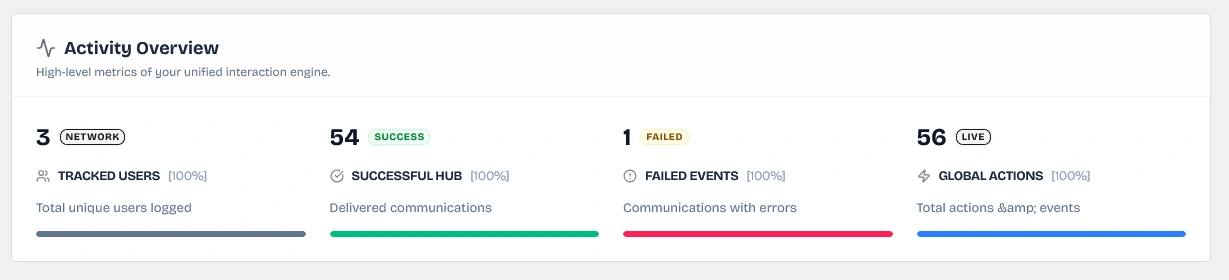
- Tracked Users: Total unique customers in your database who have logged activity or received a communication.
- Successful Hub: Total successfully enqueued or delivered notifications across all active sender gateways.
- Failed Events: Total communication attempts that failed or encountered provider errors (e.g. invalid phone formats or API balance limits).
- Global Actions: Total number of user activities processed, including login sessions, page navigations, cart additions, and registrations.
2. The Engagement Directory
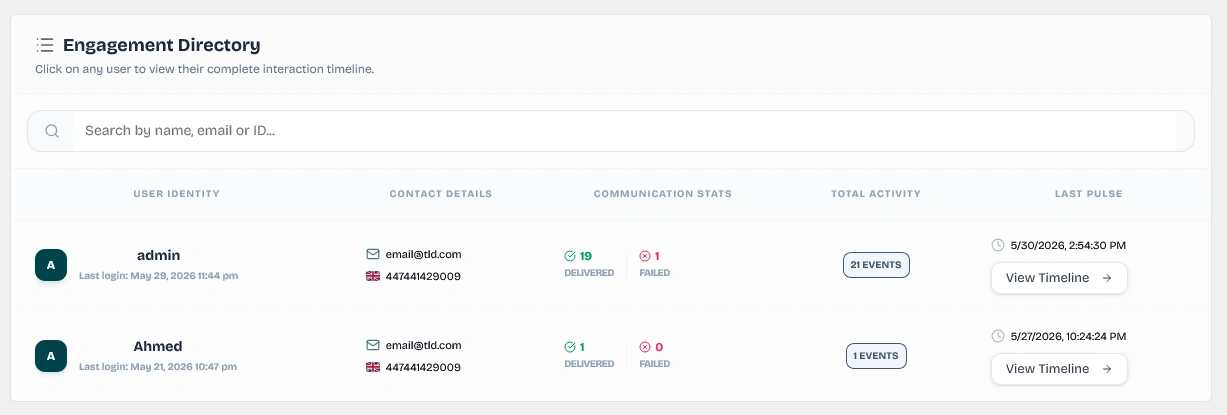
The Engagement Directory lists all customers interacting with your site. It is organized into a clean, searchable spreadsheet containing the following details:
| Data Column | Technical Detail & Feature Coverage |
|---|---|
| User Identity | Displays the user's name, avatar fallback letter, and their most recent login session timestamp. |
| Contact Details | Shows their email address and phone number, complete with a dynamic country flag (determined by dialing prefix). Note: Phone numbers starting with +972 automatically display the Palestine flag. |
| Communication Stats | Displays separate counters for Delivered (Success) and Failed notifications for that specific user. |
| Total Activity | A badge showing the exact number of custom event logs captured for the user. |
| Last Pulse | Timestamp of their most recent activity, with a View Timeline button. |
Live Search & Filter Bar
At the top of the directory, the live search bar allows you to filter the entire list in real-time by customer name, email address, phone number, or WordPress User ID.
3. Real-Time Interaction Timelines (Slide-Out Sheets)
Clicking on any customer in the directory opens a slide-out Activity Timeline sheet on the right side of your dashboard.
Customer Identity & Status Summary
At the top of the slide-out sheet, Wawp displays a high-fidelity profile overview of the selected user containing three primary diagnostics cards:
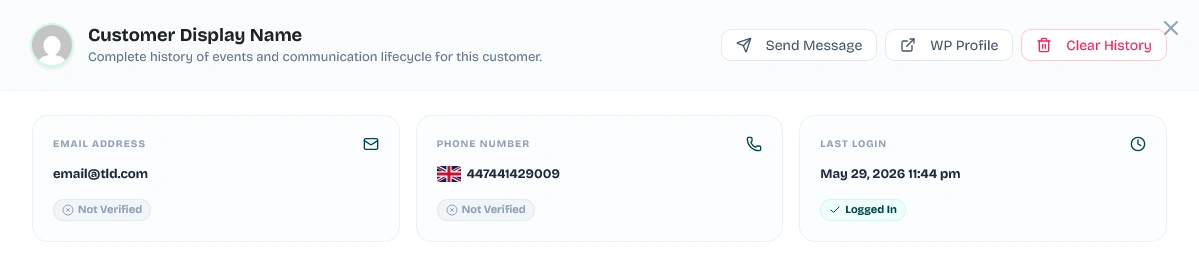
- Email Address: Displays the customer's email alongside a verification status badge (Verified in green or Not Verified in gray) depending on whether the email address has completed registration or email OTP checks.
- Phone Number: Shows the customer's linked contact number complete with a dynamic country flag determined by the dialing prefix (e.g. phone numbers beginning with prefix
+972automatically display the Palestine flag). An inline badge displays the verification status (Verified in green or Not Verified in gray). - Last Login: Displays the exact timestamp of the user's most recent login session alongside a status indicator badge showing Logged In (with a checkmark) or Never Logged In (with an 'X' icon).
Chronological Event Logging
The timeline lists every action taken by the user or triggered by the system in exact chronological order:
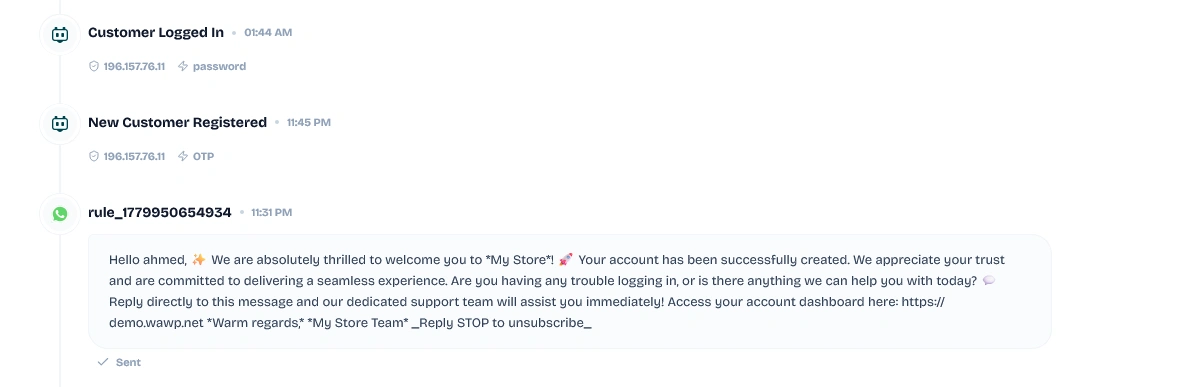
Login: Recorded when the customer logs into their account (Customer Logged In) showing the source IP address and authentication method (e.g. OTP, Password).Signup: Logged on new user registration (New Customer Registered) detailing the registration IP.OTP Verified: Logged when a phone number is successfully verified using a Wawp OTP check.Email: Tracked when a transactional or system email is sent (Sent Email).Abandoned Cart: Recorded when items are added to the cart but the checkout is left incomplete (Added Items to Cart).Placed Order: Triggered when a WooCommerce checkout is completed successfully.Message: Detailed delivery log of any WhatsApp notifications or SMS OTP codes dispatched to the user.
WhatsApp Web Read Status For messages dispatched via WhatsApp Web, the real-time read receipt status is tracked and available directly inside your cloud dashboard at app.wawp.net.
4. Administrative Control Actions
The Activity Hub equips administrators with powerful diagnostics and direct communication options:
Hover Controls for Timeline Events
Hovering your mouse over any specific card in a customer's event log reveals three administrative utility buttons:
- View Details (Eye Icon): Opens the Detailed Event Trace dialog. This shows a technical breakdown of the event, displaying the exact transaction timestamp, routing gateway signal, success state, and the raw JSON metadata payload (useful for analyzing error codes, recipient details, trigger context, template names, or IP addresses).
- Resend (Refresh Icon): Instantly re-queues and dispatches that specific notification. This allows you to manually re-send a failed message or receipt directly without forcing the shopper to checkout again.
- Delete (Trash Icon): Removes the specific log entry permanently from the timeline history.
Send Manual Custom Messages (Send Message Drawer)
Clicking Send Message launches a slide-out messenger drawer on the right side of the screen. This drawer can be opened from three different entry points:
- Activity Hub Header: The Send Message button at the top-right of the dashboard.
- Timeline Sheet Header: The Send Message button inside a customer's timeline sheet.
- WordPress User List (
users.php): The Send Message button under the "Quick Send" column redirects to the Hub and automatically opens the drawer prefilled.
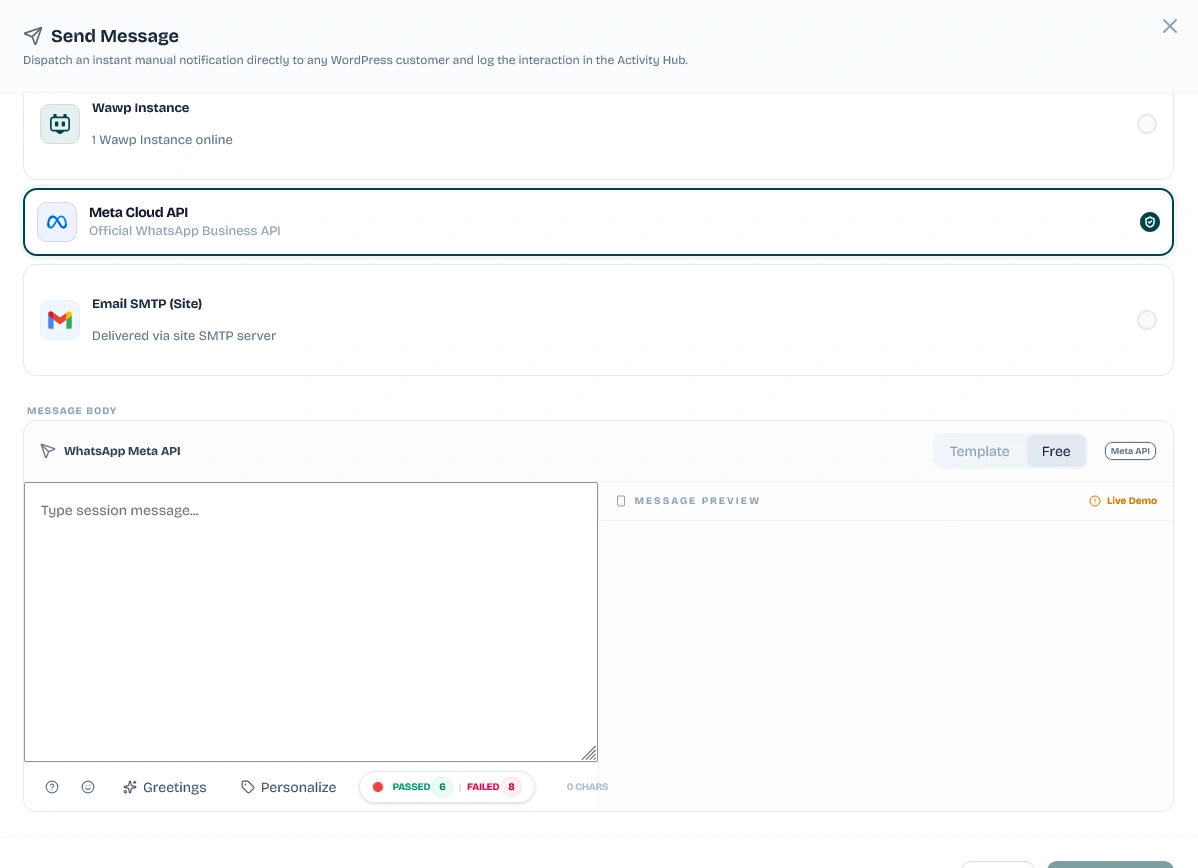
Drawer Features & Capabilities:
- Recipient Selection: A searchable dropdown allows you to search through registered users by name, email, or user ID to set the recipient.
- Gateway Options:
- Wawp Instance (WhatsApp Web): Routes WhatsApp messages using your connected WhatsApp Web instances. If multiple instances are configured, you can select which specific instance to send from using the online instance picker.
- Meta Cloud API: Dispatches official template messages or free-form text using the Meta WhatsApp Business API.
- Email SMTP (Site): Delivers custom emails using your website's configured SMTP server. It displays a live connection status check (showing whether SMTP is active and ready) and provides a shortcut link to configure the SMTP settings if they are inactive.
- Message Personalization: A brackets button (
{}) opens the Personalization Dialog allowing you to insert dynamic merge tags (such as{user_name},{user_email},{billing_phone}) to customize the notification text. - Rich Email Editor: When SMTP is selected, the drawer displays separate fields for a custom Email Subject and Message Body, both supporting dynamic brackets personalization tags.
Log Purging & Database Management
- Wipe User History: Inside a customer's timeline header, click Clear History to permanently delete all logs, events, and communications for that customer.
- Wipe All Logs: Click the Clear All Logs button in the Activity Hub header to perform a complete system purge, erasing all activity logs from the database to recover storage space.
5. Channel-Specific Auditing Screens
For focused diagnostics, Wawp enqueues dedicated dashboards for each communication channel:
Official Meta Cloud API logs
Track outbound messages routed through the official Meta Cloud API. This screen maps template names, webhook statuses, and delivery metrics.
SMTP Email Logs
Monitor transactional emails, invoices, and passwordless email OTPs. Wawp logs delivery states and enqueues warning reports for SMTP server failures.
Database Cleanup Recommendation Keeping unlimited historical logs can increase your WordPress database size over time. We recommend using the Clear All Logs utility periodically or configuring automated database cleanup intervals to maintain optimal database performance.
6. WordPress User Directory Integration (users.php)
Wawp extends its capabilities directly into the core WordPress Users admin panel (wp-admin/users.php), providing inline actions and verification statistics:
Custom Data Columns
Wawp overrides the default users layout by replacing and injecting custom metadata columns:

- Email Column: Replaces the core WordPress email column. It adds an inline verification status badge showing either a green check (Email Verified) or a red icon (Email Not Verified) depending on the user's email verification state.
- Phone Number Column: Displays the customer's phone number alongside an inline WhatsApp verification badge (green check mark or red icon). The column header is custom-branded with the Wawp logo.
- Quick Send Column: Appends a "Send Message" button next to each user. Clicking this redirects you to the Activity Hub (
admin.php?page=wawp&wawp_section=activity_hub&wawp_action=send_message&user_id=<user_id>), automatically launching the manual messaging drawer with the selected user pre-populated as the recipient.
Live Phone Number Search Filter
Adds a Search Number... search input box directly in the WordPress users filter bar. This lets administrators filter the users table by phone digits, running real-time database queries matching both the Wawp phone records and WooCommerce billing_phone user metadata.

Bulk Verification Actions
Allows administrators to check multiple users and use the bulk actions dropdown to apply status changes:
- Mark as WhatsApp Verified / Mark as WhatsApp Unverified
- Mark as Email Verified / Mark as Email Unverified
Upon execution, Wawp updates the database records in bulk and displays a confirmation notice (e.g. Bulk WhatsApp verification updated for X users).
User Profile Page Integrations
- wp-admin Profile Screen: Appends a Wawp User Information card on the edit profile screen (
user-edit.phporprofile.php). Administrators can update the phone number for notifications and view the real-time WhatsApp and Email verification badges. Any updates automatically synchronize with WooCommerce billing profiles. - WooCommerce Edit Account Screen: Adds a dedicated Phone number input field on the customer's frontend Edit Account page. Shoppers can update their phone numbers directly, syncing instantly with Wawp notifications.
Did this page help you?
100% found this article helpful (0 likes)
Related Articles
About Messaging Tools
Get an overview of Wawp's advanced Messaging Tools designed to optimize delivery rates, blacklist contacts, and log transactional events.
How to Block WhatsApp Numbers and Emails
Manage blocked users and blacklist specific phone numbers or email addresses globally from receiving automated WhatsApp alerts, emails, or OTP pings.
How to Configure Unique Message IDs
Prevent WhatsApp bans by appending randomized, unique message identifiers to bypass automated spam filter checks.
- Need help? Contact Support.
- Check out our Changelog.
- Join our Facebook Community.
- LLM? Read llms.txt.
OFFER ENDS SOON
Extra 30% OFF All Plans
Use this exclusive promo code at checkout to enjoy an extra 30% discount on top of current sales!
BOOST30