Managing audience list compliance is critical for automated communication systems. The Block Manager panel (Access Control) provides a local blacklist mechanism inside your WordPress site, allowing you to suppress automated outbound transactional and marketing traffic to specific recipients instantly.
By adding phone numbers or email addresses to your blocklist, Wawp intercepts outgoing payloads before they leave your server, protecting your API balances and respecting user opt-out choices.
1. Blocked Phone Numbers Tab
This tab manages phone numbers that are restricted from receiving any system notifications, order alerts, or verification OTP codes.
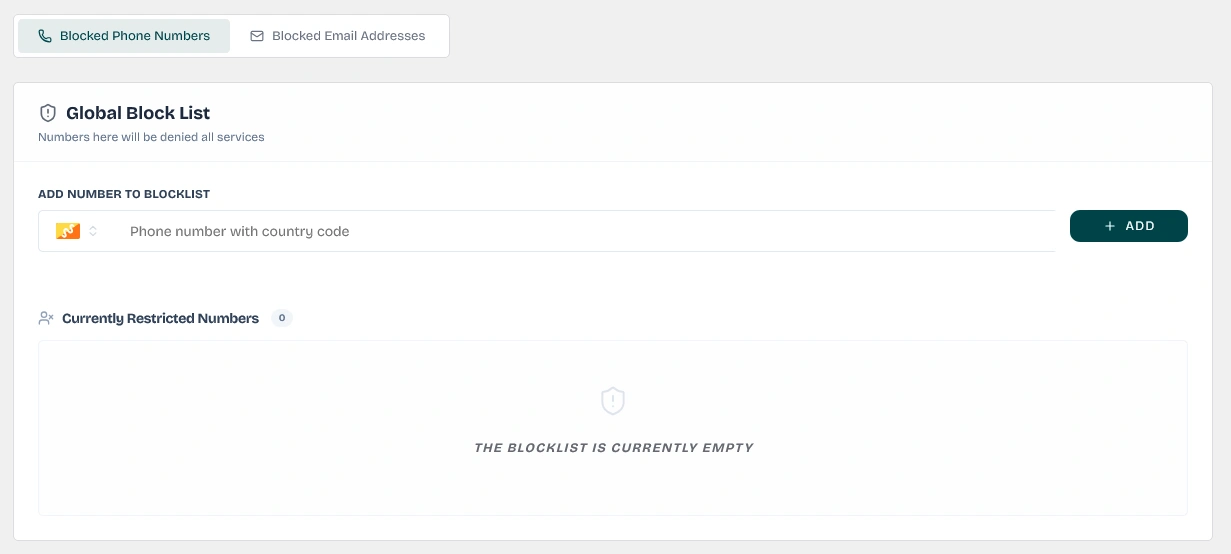
Blocked Phone Numbers Panel
Review and manage all phone numbers blocked from receiving outbound messages, verification codes, or OTPs.
Format Verification: The plugin processes the number through its enqueued validation rules to ensure country code and dialing key compliance.
Validation Badge: Displays the validation status in real-time beneath the input (e.g., Valid Phone Number in emerald green or Invalid Phone Number in rose red).
Phone format validator
Real-time validation confirms if the phone format conforms to E.164 requirements before blocking.
Keywords: phone format validation, phone number helper text, live input check
restricted List Controls
Restricted Counter: A stats badge displaying the exact number of phone numbers currently blacklisted.
Search-Like Card Grid: Blocked numbers are organized in an easy-to-read grid. Each blocked number card displays a phone icon, a monospace font layout of the full E.164 number, and a hover delete option.
Clear All Option: A red text trigger allowing administrators to wipe the entire phone blocklist with a single click.
Unblocking Numbers: Hover over any card and click the X icon to remove the restriction and immediately restore delivery capabilities.
All blocked phone numbers are compiled into a newline-separated string and saved in your WordPress database under the option key: wawp_block_list.
Complete Account and Access Ban
When you block a user's phone number or email address, Wawp automatically propagates the block to all associated credentials for that account. Specifically:
Phone Block: Blocking a phone number will automatically restrict the associated account and its linked email address.
Email Block: Blocking an email address will automatically restrict the associated account and its linked phone number.
This restriction goes beyond suppressing outbound message or email delivery; it completely blocks the user from interacting with the website (including logging in, performing OTP checks, registering, or placing orders).
2. Blocked Email Addresses Tab
This tab manages email addresses restricted from receiving automated newsletters, order transactional updates, or SMTP-routed email alerts.
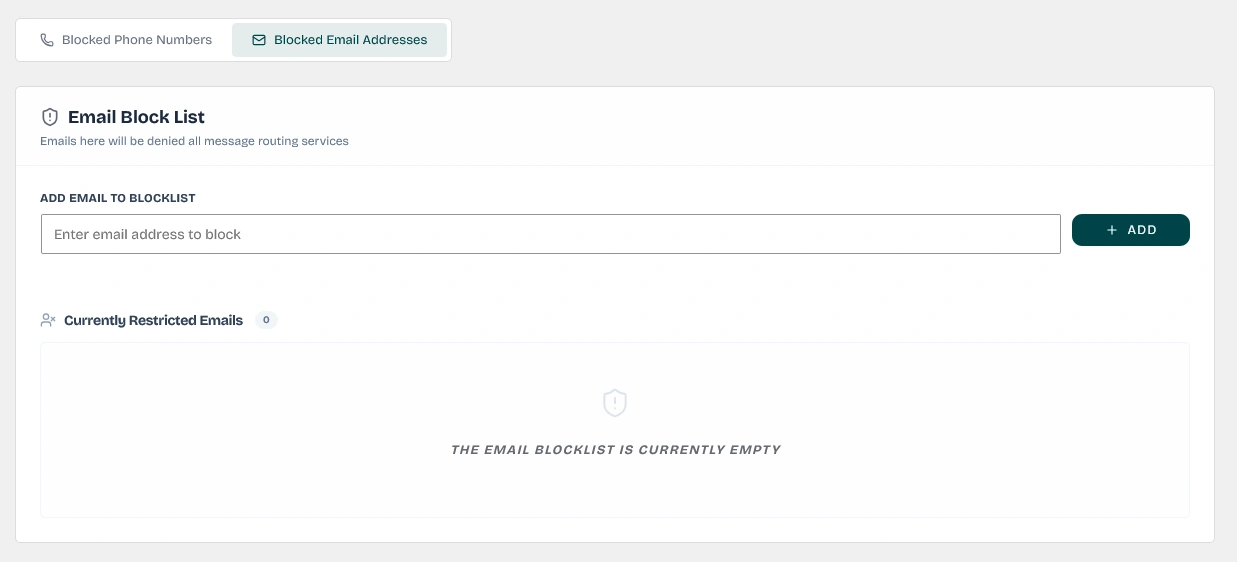
Blocked Emails Panel
Blacklist individual email addresses from receiving newsletters, transaction updates, or alerts.
Wawp validates the input format using a strict client-side regular expression before adding it to the list:
/^[^\s@]+@[^\s@]+\.[^\s@]+$/
If the entry does not match standard email syntax (e.g. missing @ or domain suffix), Wawp blocks the addition and prompts a toast error.
Restricted Email Controls
Restricted Emails Counter: Displays a numerical badge showing the total number of blocked email addresses.
Email Grid Layout: Renders each blocked address as a clean, hover-interactive white card featuring a mail icon.
Clear All Option: Instantly purges the entire email blacklist database.
Unblocking Emails: Click the hover-triggered X delete button on any email card to lift the routing ban.
All blocked email addresses are compiled and stored as a newline-separated string in your WordPress database under the option key: wawp_block_email_list.
If you want to configure automated keyword suppression policies (e.g., automatically blocking users who message you "STOP" or re-subscribing users who message you "START"), these behaviors are governed by Wawp's central cloud suppression engine.