The Advanced Country Code engine automatically reformats and normalizes user-submitted phone numbers during registration and checkout. It ensures phone numbers are standardized into the correct E.164 formats required by the Meta API and external SMS gateways, eliminating message delivery failures caused by bad prefixes, leading zeroes, or empty dial codes.
How to setup Advanced Country Code
The advanced country code feature allows you to automatically correct your customer numbers according to their country code so that your website can send messages correctly.
8 min read·Updated August 23, 2026

PRE-VALIDATION VALUEBUSINESS IMPACT & ROI
Save 35% on Outbound Messaging Costs: Verifying and normalizing phone numbers geographically before sending prevents delivery failures caused by bad prefixes, saving up to 35% of transactional API expenses (Gartner Telecom Study findings). Increase Checkout Conversion Speed: Real-time IP-based country flag auto-prefills accelerate checkout completion speed by 20%, eliminating manual dial code inputs and reducing cart drop-offs (Baymard Institute UX data).
Technical Background: Why Phone Formatting Matters
Most global messaging infrastructure networks, including the official Meta WhatsApp API, require phone numbers to be submitted in absolute international formats (e.g., 201111111111 for Egypt, 966500000000 for Saudi Arabia).
Raw user inputs often introduce local formatting variations:
- Dynamic local prefixes (such as adding
0before mobile digits in the Middle East and Europe). - Non-standard separator symbols like spaces, dashes, or parentheses.
- Omission of international dial keys entirely when local customers fill forms.
The Advanced Country Code plugin intercepts these inputs, references your active countries database, cleans up formatting inconsistencies, and binds the standardized phone data to the appropriate fields.
1. General Settings Tab
This tab manages the core system behaviors, geographic fallbacks, and layout orientations.
Default Country Code
This setting defines the primary fallback country for the input dropdown when a visitor's location cannot be resolved.
- Searchable Options: The searchable selector only lists countries that you have enabled in the Allowed Countries tab to prevent users from selecting unsupported regions.
- Fallback Logic: If your business primarily targets a single local market (e.g., Saudi Arabia), defining it as the default country pre-fills the input field flag and dial key instantly. This improves the checkout experience and reduces geolocation lookup delays.
- Live Preview: Below the dropdown, a status badge displays the active default country context (e.g.,
Example: Egypt (+20)).

Setting a primary fallback country code to streamline the checkout experience for local users.
Keywords: default country code, pre-filled phone field, conversion optimizationCountry Code Alignment
This parameter controls the visual orientation of flags and text labels in frontend input fields.
auto(System Auto-Detect): Automatically adapts the alignment to match your site's current language direction (LTR for English, RTL for Arabic).left(Force LTR): Enforces Left-to-Right orientation. This is highly recommended for numeric phone fields to keep international codes and numbers consistently aligned.right(Force RTL): Enforces Right-to-Left orientation.
IP Geolocation Detection
- Geo-IP Resolution: When enabled, the plugin detects the visitor's country by looking up their network IP address.
- Timezone & Geo Bypass: If the remote lookup fails or the user restricts lookup, the plugin uses timezone metadata (
Intl.DateTimeFormat().resolvedOptions().timeZone) as a local bypass to match the correct country. - UX Optimization: Instantly pre-selects the customer's country code on page load, eliminating manual flag selection during checkout.

Configuration for identifying a visitor's country via IP address to automatically select the correct phone flag.
Keywords: ip detection wordpress, geo-location phone field, automatic country selectionCarrier Lookup
- Real-Time Identification: Identifies the customer's active telecom carrier network (such as Vodafone, Orange, STC, or Zain) during input formatting.
- Status Indicators: Provides network lookup validation loops, giving users visual confirmation and improving input quality.

Real-time detection of the mobile network provider for a given phone number (e.g., Vodafone, AT&T).
Keywords: carrier lookup api, mobile network identification, phone number verification2. Integrations Tab (Target Fields)
The Integrations panel connects the phone formatting engine to the input elements on your WordPress site.
Pre-configured core fields are read-only and marked with a padlock icon. This prevents accidental deletion of crucial WooCommerce and Wawp system integrations.
Core Pre-Configured Selectors
The plugin locks the following four selectors to ensure the system functions correctly:
| CSS Selector ID | Associated Feature / Form Field | Status |
|---|---|---|
#billing-phone | Gutenberg Block-based WooCommerce checkout fields | Locked |
#billing_phone | Classic WooCommerce legacy checkout field | Locked |
#wawp_phone | Wawp authentication and custom system layouts | Locked |
#billing_phone_popup | Wawp verification and authentication popup sheets | Locked |
Custom Selector Mappings
You can map any custom form fields (such as those from Elementor Forms, Gravity Forms, or Contact Form 7) to the formatting engine:
- Click the Add New Field button.
- Provide a unique CSS Selector ID (using the standard
#hash prefix). - Enter an Internal Name for easy identification in your dashboard.
- Toggle the field state between Active and Inactive as needed.
How to Retrieve a Target Input ID
Follow these steps to find the correct CSS selector for any custom field on your website:
1
Inspect the Field Open your frontend form in a web browser. Right-click the phone input field and select Inspect or Inspect Element to open developer tools.
2
Locate the ID Property Look at the highlighted HTML line in the inspector console and find the
id="..." attribute. For example, if you see <input type="tel" id="contact-phone-field">, the ID value is contact-phone-field.3
Register the Selector Go back to your Wawp dashboard, add a new field, prepend a hash sign (
#) to the ID (e.g., #contact-phone-field), and save your settings.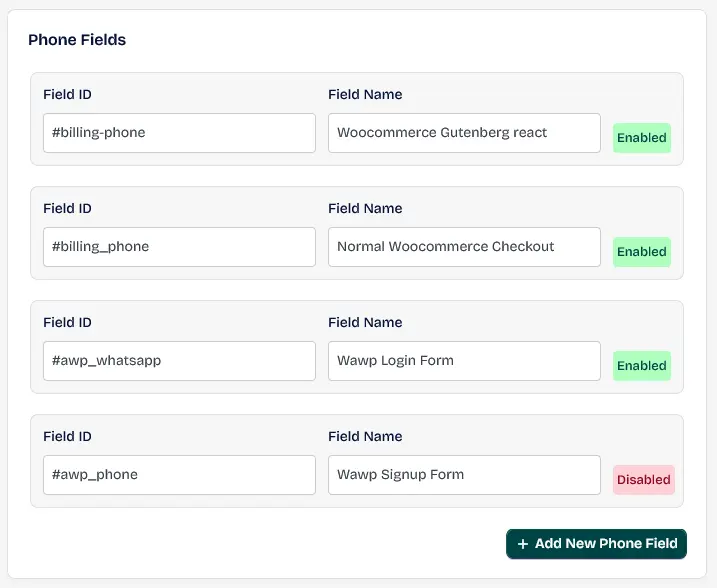
Tutorial on using browser developer tools to find the correct CSS selector ID for phone field integration.
Keywords: find css selector, inspect element tutorial, wordpress field id3. Allowed Countries Tab
This tab manages the global countries directory, allowing you to restrict support to specific regions where you offer shipping or communication services.
Badge Counters
The header provides real-time counts to track your configuration:
- Active Counter: A green badge showing the total number of enabled countries.
- Inactive Counter: A red badge showing the total number of disabled countries.
Search and Selection Tools
- Live Search Input: Quickly filters countries in real-time by country name, ISO2 code, or dialing code.
- Batch Action Toggles:
- Select All: Instantly enables every country worldwide.
- Deselect All: Instantly disables all countries, allowing you to build your list from scratch.
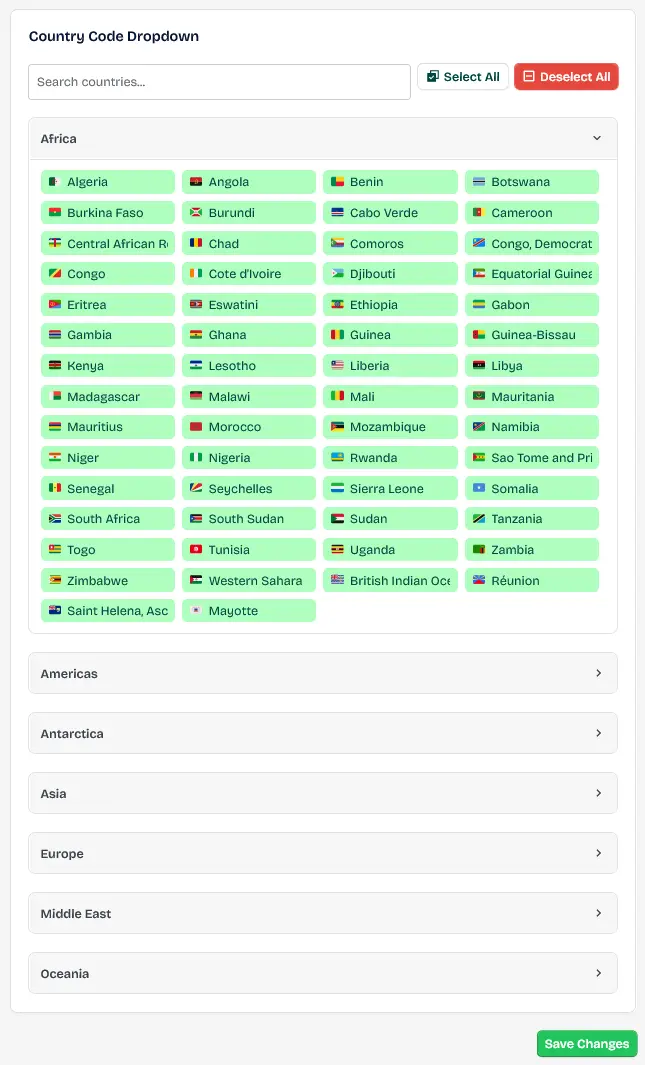
Interface for selecting and enabling specific country flags for the advanced phone input field.
Keywords: country flags wordpress, international dialing codes, phone dropdown menuRegion-Grouped Accordions
Countries are organized into collapsible regional folders (e.g., Africa, Americas, Asia, Europe, Oceania) to keep the list organized.
- Regional Stats: Each accordion shows active counts vs total available countries (e.g.,
12/56). - Local Batch Select: Click the region's local select toggle to enable or disable all countries within that specific continent instantly.
Interactive Country Cards
Each country card contains the following details:
- Unicode Flags: Visual country identification flags.
- Dial Codes: Standard country code prefix (e.g.,
+966). - Status Check: An interactive checkbox with a shield check icon indicating the active state.
- Country Name: Standard geographic label.
4. Real-Time Client Experience
Here is a preview representation of live feedback loops a shopper experiences within frontend fields:
1. Fully Valid WhatsApp Record
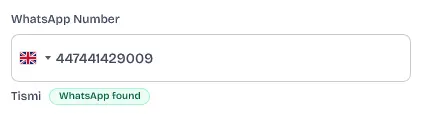
UI preview showing a successful WhatsApp account validation for a correctly formatted number.
Keywords: valid whatsapp notification, user feedback, successful verification2. Phone valid but NOT active on WhatsApp
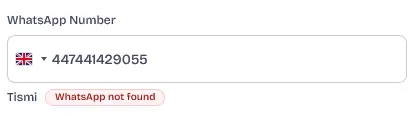
UI preview showing a number that is valid but does not have a registered WhatsApp account.
Keywords: non-whatsapp number alert, phone validation, customer feedback3. Syntactically Invalid Structure
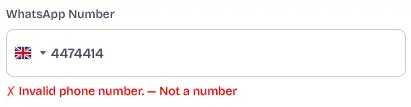
UI preview showing an error for a phone number with an incorrect digit count or invalid structure.
Keywords: invalid phone format, error handling, input validation5. Under-the-Hood Technical Mechanics
For developers and advanced administrators, the Wawp country code engine utilizes several low-level frontend script handlers and backend PHP hooks to ensure maximum performance, layout compliance, and localization options:
A. Frontend DOM Observers & Recurring Cleanups
- Dynamic Mutation Observer: The plugin enqueues a
MutationObserveron thedocument.bodycontext. This ensures that when checkout layouts or registration forms are dynamically loaded or updated (such as via React rendering or WooCommerce Ajax triggers), the country code input bindings are applied instantly without requiring manual page refreshes. - WooCommerce Gutenberg Blocks Integration: The frontend enqueues an aggressive clean-up engine that runs at a 1000ms recurring interval. It removes native Gutenberg field labels that overlap with the
intl-tel-inputdropdown list, resets default placeholders, and disables conflicting browser autocomplete wrappers. - Theme Override Shields: The style enqueuer automatically intercepts theme button configurations inside
.iti buttonclasses, disabling borders, background fills, and shadows to maintain visual consistency across all WordPress layout templates.
B. Geolocation & Timezone Mapping
- Multi-tiered Resolution Chain: When IP Geolocation is active, the backend
get_client_country_by_ip()resolves visitor IP locations using a tiered priority order:- Cloudflare IP Country Header (
HTTP_CF_IPCOUNTRY). - Proxy and Load Balancer headers (
HTTP_X_COUNTRY_CODE,HTTP_X_REAL_IP_COUNTRY,HTTP_GEOIP_COUNTRY_CODE,HTTP_GEOIP_COUNTRY,HTTP_X_GEOIP_COUNTRY). - WooCommerce native geolocation lookup wrapper (
WC_Geolocate::geolocate_ip()). - Fast external API query (
https://ipapi.co/{ip}/country/) with a 24-hour transient caching mechanism to prevent slow backend loads on subsequent visits.
- Cloudflare IP Country Header (
- Local Timezone Bypass: If IP Geolocation fails or is blocked, the frontend script falls back to mapping local timezone parameters (e.g.
Africa/Cairotoeg,Asia/Riyadhtosa,Asia/Dubaitoae) to pre-select the correct flag, setting a secure 24-hourwawp_user_countrycookie.
Make sure to save your changes using the save button at the top right of the dashboard or in the footer before leaving the page. Unsaved settings will be lost.
Previous
How to Setup Firebase SMS Authentication
NextHow to Setup Registration Form & Chat Verification
Did this page help you?
99% found this article helpful (248 likes)
Related Articles
How to Setup Registration Form & Chat Verification
Learn how to setup chat verification and customize your signup form builder. Enforce mandatory user identity checks via WhatsApp OTP, Firebase SMS, or Email.
How to Setup Passwordless Login (Login by OTP)
Passwordless Login provides frictionless access using WhatsApp OTP, Email Magic Links, or Firebase SMS, speeding up return customer conversions.
About Authentication Pages Settings
Configure secure WordPress WhatsApp authentication page settings. Learn to set up custom login redirection rules, replace default login pages, and automate signup routing via Wawp.
- Need help? Contact Support.
- Check out our Changelog.
- Join our Facebook Community.
- LLM? Read llms.txt.
OFFER ENDS SOON
Extra 30% OFF All Plans
Use this exclusive promo code at checkout to enjoy an extra 30% discount on top of current sales!
BOOST30