Now, you’re just one step away from launching your automated WhatsApp notifications. This final step involves executing the script to create the necessary pages and triggers that will power your workflow. This guide will show you how to run the script and what happens after a successful execution.
Automate Your Sheet: How to Execute the Wawp Google Script
Step-by-step guide on running the Wawp Google script to set up automatic triggers and essential Settings/Log sheets.
4 min read·Updated May 12, 2026

You’ve generated the custom Google Apps Script using our Google Notifications Setup tool.
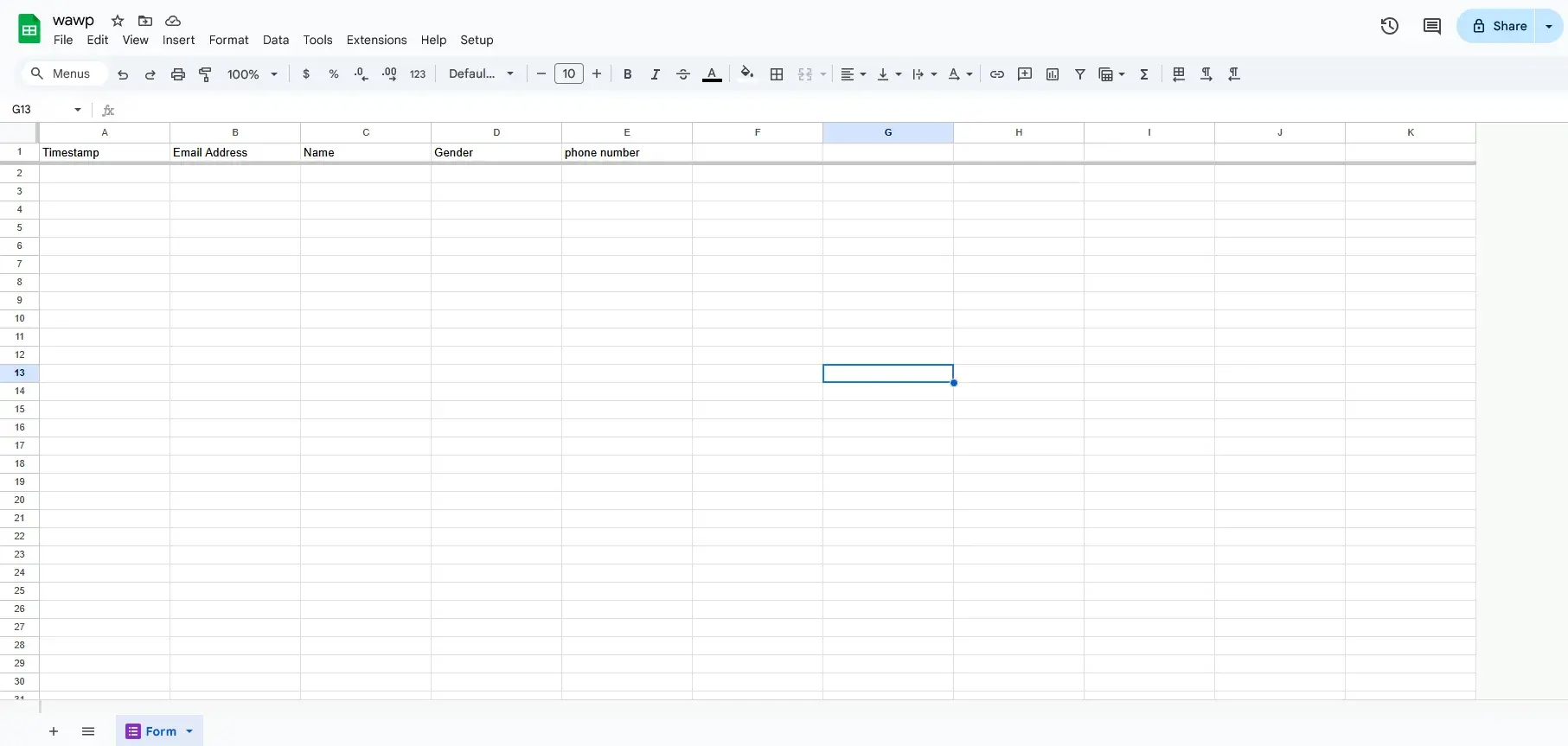
A conceptual visualization of how Google Sheets, Apps Script, and Wawp interact to deliver messages.
Keywords: workflow visualization, google sheets automation, script executionStep 1: Execute the Wawp Google Script
To make your automation live, you must paste the script and run it for the first time.
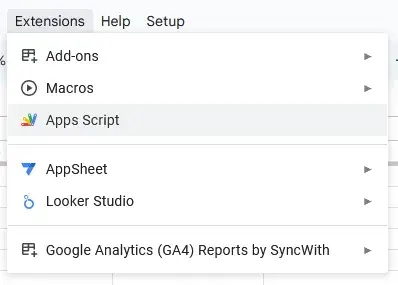
The Google Sheets menu path to access the Apps Script editor for pasting your custom code.
Keywords: extensions menu, apps script editor, sheet setup1
Open Editor
From your Google Sheet, navigate to the Extensions menu and select Apps Script.
2
Paste Code
In the editor, replace any existing code with the code you generated from the Wawp tool. Make sure to paste it into the
Code.gs file.3
Execute Script
Click the Run button from the menu bar.
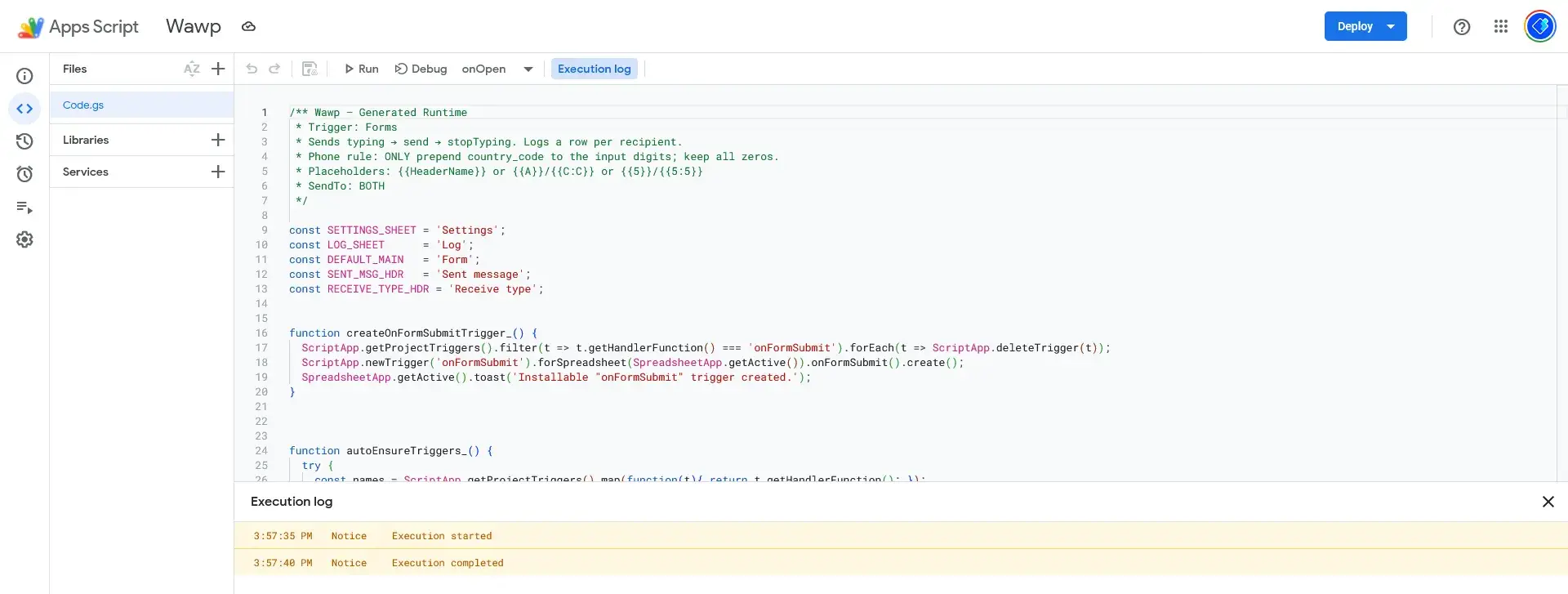
The development environment where the Wawp script is pasted and executed to initialize the automation.
Keywords: script editor, runtime environment, code deployment- Click on Run Button

Clicking the Run button to activate the script and begin the automated setup process.
Keywords: run script, execute code, start automationA message will appear at the bottom of the editor saying “Execution completed.” This confirms that the script has run successfully.
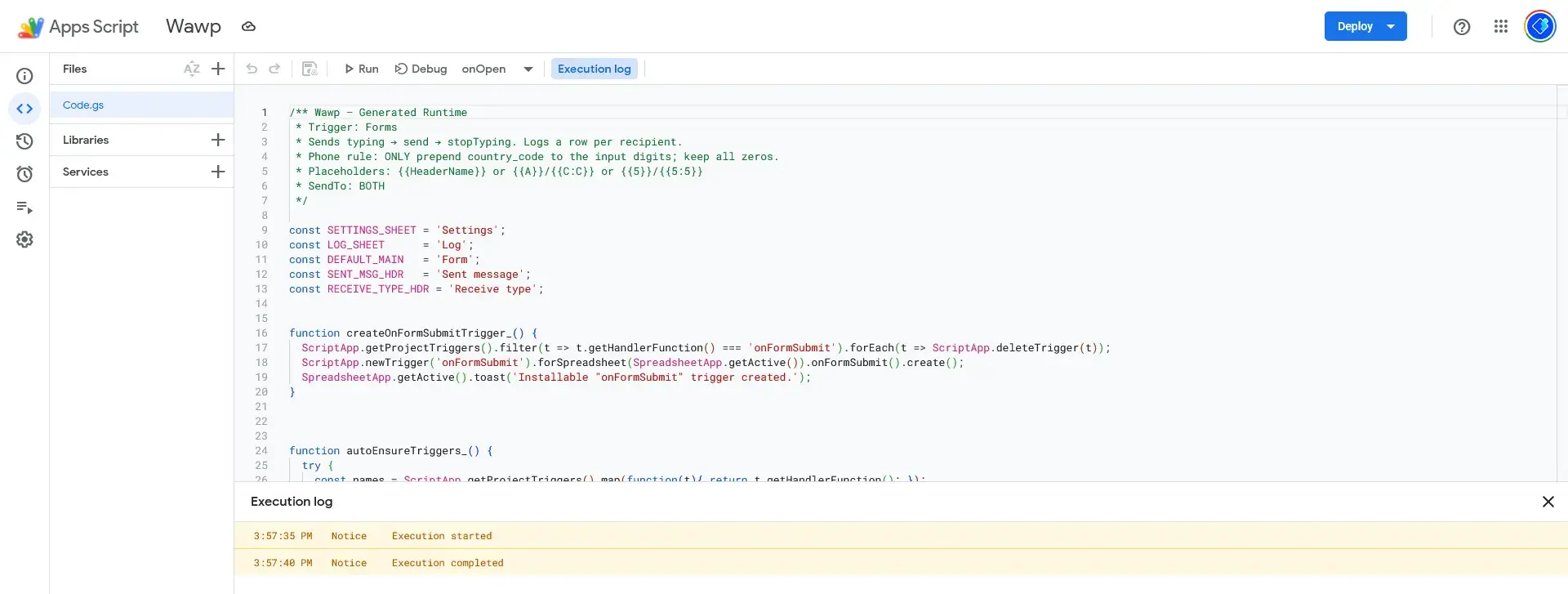
The confirmation log at the bottom of the editor indicating the script has finished initializing the sheets and triggers.
Keywords: execution completed, success log, setup confirmationThe first time the script is run, it performs several important tasks automatically to set up your workflow based on the Google Triggers you selected.
A New Trigger is Created

A view of the installable triggers that monitor the spreadsheet for new form submissions.
Keywords: google triggers, on form submit, automated listenerThe script creates an “installable trigger” that automatically runs your script every time a new form is submitted. You can find this trigger by navigating to the Triggers menu in the Apps Script editor. You will see an entry that says “From spreadsheet – On form submit event.”
This trigger ensures your automation is always listening for new form submissions, even when you are not actively using the spreadsheet.
New Pages Are Added to Your Sheet
The script also creates two new sheets within your Google Sheet: Settings and Log.
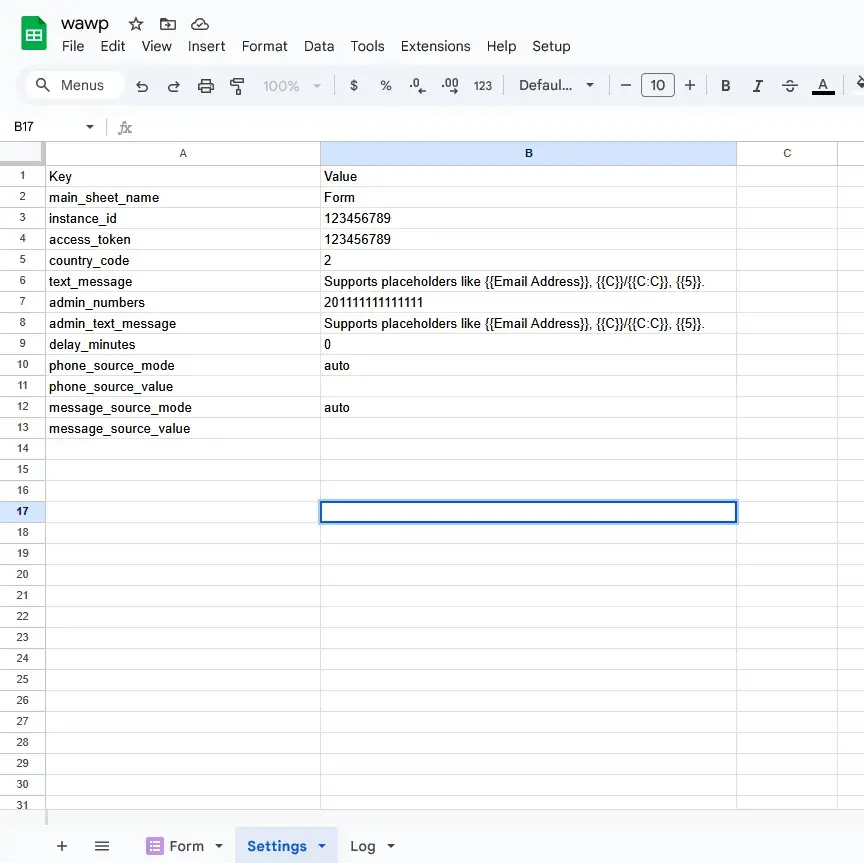
The automatically generated Settings sheet where you can update your credentials and message templates.
Keywords: settings sheet, configuration tab, dynamic setupSettingsPage: This page contains all the settings you configured in the Wawp script generator. It provides a simple, accessible way for you to modify and customize your information later if you wish, without needing to go back to the script editor.LogPage: This sheet is your activity log. It records the status of every message sent, which is crucial for monitoring and troubleshooting your automation.

The header for the Log sheet which tracks all outgoing WhatsApp message attempts.
Keywords: log sheet, activity tracking, message historyUnderstanding the Log Page
The Log page is essential for verifying that your workflow is running correctly. It automatically records details for each message sent, including:

Detailed entries in the Log sheet showing the status and content of each sent notification.
Keywords: delivery log, message status, automation audit| Field Name | Description |
|---|---|
| Sent message | The exact content of the message that was sent via WhatsApp. |
| Recipient type | Indicates whether the message was sent to a user, an administrator, or both. |
| Log status | The sending status of the message, such as Pending, Sent, or Failed. |
This detailed log helps you to follow up on messages and ensure that the automation process is proceeding correctly.

The full historical log of messages, recipient types, and delivery results for your Google Sheets automation.
Keywords: audit log, history view, scaling diagnosticsYour automation is now fully configured and ready to go. You can test it out by submitting a new entry to your Google Form and watching the Log sheet to confirm the message was sent successfully.
Did this page help you?
99% found this article helpful (215 likes)
Related Articles
Wawp + Google Forms: No-Code/Low-Code WhatsApp Automation
Automate WhatsApp messages from Google Forms with Wawp. Our no-code/low-code guide helps you fire instant messages to users or admins on form submission.
Available Google Triggers: How to Automate Messaging
Learn about the Google triggers available for Wawp. Automate WhatsApp messages when a Google Form is submitted or a new row is added to a Google Sheet.
Set Up Google Forms & Sheets Notifications with Wawp
Master customizing your automated WhatsApp notifications from Google Sheets. This step-by-step guide explains every setting, from triggers to delivery.
- Need help? Contact Support.
- Check out our Changelog.
- Join our Facebook Community.
- LLM? Read llms.txt.