Set Up Google Forms & Sheets Notifications with Wawp
Master customizing your automated WhatsApp notifications from Google Sheets. This step-by-step guide explains every setting, from triggers to delivery.
6 min read·Updated May 18, 2026
The Wawp – Google Runtime Script Generator is a powerful tool for creating customized WhatsApp notifications. It allows you to build a sophisticated workflow based on your own data, with a simple, user-friendly setup. (Start using the Generator Tool on Wawp.net). This guide will walk you through every setting in the generator, from choosing a trigger to defining message content and recipients.
Step 1: Trigger & Main Sheet
The first part of the setup is to define when the script should run and where it should look for data.
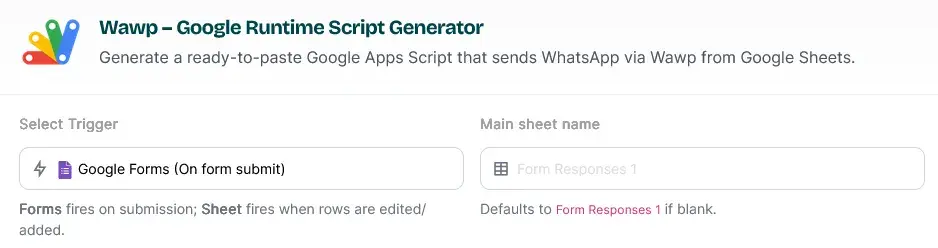
Script Generator Interface
The primary interface for the Wawp Google Script generator, showing trigger and main sheet configuration.
Keywords: google script generator, whatsapp notifications setup, script runtime
Select Trigger: Choose the Google trigger that will execute your operation. As we covered in our Google Triggers Guide, this can be On Form Submission or On a New Row in Google Sheets.
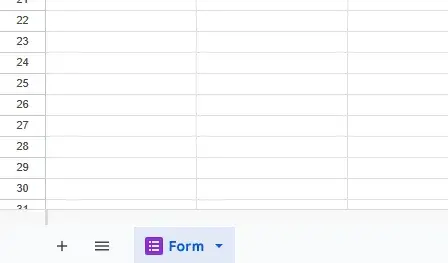
Main Sheet Name: Add the name of the Google Sheet where your data will be stored. It’s best to use a single word without spaces, for example, Form. This is the sheet the script will monitor for new data.
Sheet Name Configuration
Configuring the target Google Sheet name where the automation will monitor for new data entries.
Keywords: sheet name, data source, google forms integration
Step 2: Wawp Credentials
The script needs your credentials to connect to your Wawp account and your WhatsApp number. You can find these details in your Sender Settings or directly from your Wawp.net dashboard: WhatsApp Linked Numbers
Wawp Credentials Setup
Input fields for Instance ID and Access Token to authorize the Google script with your Wawp account.
Keywords: wawp credentials, api authorization, instance id setup
Instance ID: This is your account’s unique ID, which you get after linking your WhatsApp number to Wawp. You can find it on your Wawp account dashboard under WhatsApp Linked Numbers.
Access Token: This is the unique key that identifies your account and authorizes the script. It is found in the same area as your Instance ID.
If you are already logged into your Wawp account, the script generator may automatically fetch your Instance ID and Access Token for you.
Step 3: Choose Your Recipients
You have three options for who receives the notification, and the settings page will update dynamically based on your choice.
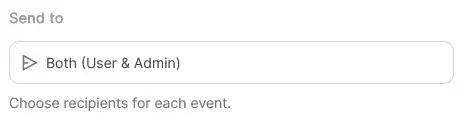
Recipient Type Selection
Choosing whether to send WhatsApp notifications to the user, the admin, or both parties.
Keywords: recipient selection, notification routing, user and admin alerts
Send to User: The message is sent only to the user who submitted the form.
Send to Admin: A customized message is sent only to a manager or admin number.
Send to Both: The script sends two separate, customized messages—one to the user and one to the admin.
Step 4: Customize Your Messages
This is where you write the content for your notifications. The generator supports placeholders to personalize your messages using data from your sheet.
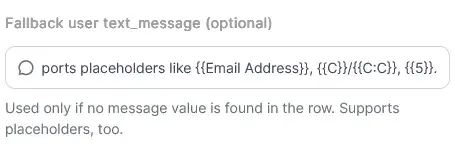
Message Template Builder
Writing and personalizing the automated WhatsApp message content using dynamic placeholders from your sheet.
You can set up a message to be sent to the user who completed the form.
Country Code: Provide the country code as a two-digit number (e.g., 2 for Egypt). If your sheet is for local transactions, the script will automatically prepend this to local phone numbers, ensuring the message is sent to the correct number.
Fallback User Text Message: Add the main message that will be sent. This message also supports placeholders like {{name}} or {{phone}}.
Send to Admin
You can send a separate, customized message to one or more admin phone numbers.
Admin Numbers Configuration
Setting up one or multiple admin phone numbers to receive automated alerts upon new entries.
Keywords: admin phone numbers, team alerts, multiple recipients
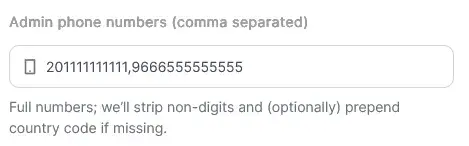
Admin Phone Numbers: Enter the full phone numbers, including the country code, separated by commas (e.g., 201111111111,9665215454).
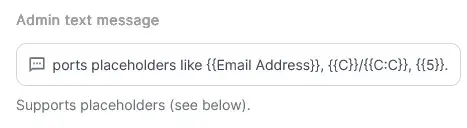
Admin Text Message: Write the message that will be sent to the administrator. This message also supports placeholders.
Admin text message: The message sent to the administrator when adding information to the table or when entering also supports Placeholders.
Admin Message Customization
The dedicated editor for crafting messages specifically for administrators and managers.
In the Settings section, you can define how the script finds the phone number and message content in your sheet. This is crucial for ensuring the script works correctly. The script can detect these columns in three different ways:
Header (header): Finds the column by its header name (e.g., phone number, WhatsApp).
Letter (letter): Finds the column by its letter (e.g., E).
Index (index): Finds the column by its number (e.g., 5).
Phone Column Mapping
Defining which column in the Google Sheet contains the recipient's WhatsApp phone number.
Keywords: column mapping, phone source, data extraction
In Settings, you now have:
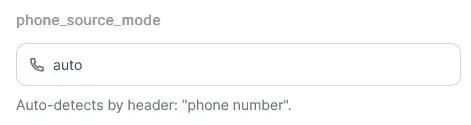
phone_source_mode = auto | header | letter | index
phone_source_value = depends on mode
header: e.g. Mobile, WhatsApp, phone number, etc.
letter: e.g. E
index: e.g. 5 (1-based)
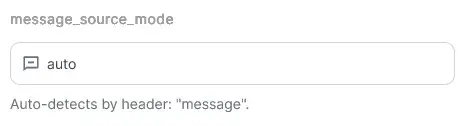
message_source_mode (same options; default auto)
message_source_value (optional; used if mode ≠ auto)
Message Column Mapping
Mapping the specific column that contains the message content if using dynamic sheet-driven texts.
Keywords: message source, data mapping, automated content extraction
auto behavior (backward compatible):
Phone: tries to find a header named phone number (case-insensitive).
Message: tries to find a header named message (case-insensitive).
If message column isn’t found or empty, it falls back to Settings → text_message.
Step 5: Enable Diagnostics & Logging
These options are useful for monitoring and troubleshooting your script.
Include Diagnostics & “Process last row now”: This provides detailed information while the script is running, allowing you to troubleshoot any issues.
Log HTTP code & API response: This feature automatically records the message sending status in your sheet, helping you track what was sent successfully and what failed. This is useful for follow-up and ensuring your automation is working correctly.
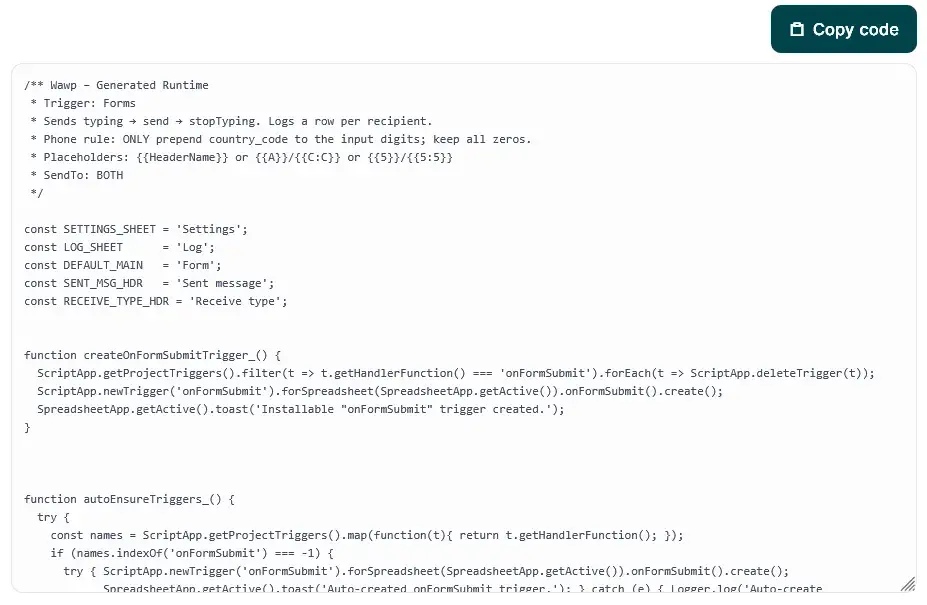
After completing all the fields in the generator, click the “Generate Apps Script” button to get the code. This code is ready to be copied and pasted into your Google Apps Script editor. (Learn more about Google Apps Script basics).
For Developers: Wawp is an API-first platform. You can skip the script generator and build your own integration directly using our REST API Documentation.