Learn how to receive WhatsApp events with Wawp on n8n using webhooks. Set up the Wawp trigger node, capture JSON payloads, and build responsive automations.
5 min read·Updated August 23, 2026
The Wawp Trigger node in n8n is the perfect starting point for any WhatsApp automation. It acts as a webhook that listens for real-time events from your Wawp account, allowing you to build workflows that react instantly to user actions.
Step 1: Add the Wawp Trigger Node
First, you need to add the Wawp Trigger node to the beginning of your n8n workflow.
1
Open Canvas Open your active n8n workflow canvas.
2
Search Node Search for Wawp Trigger in the available node panel inventory.
3
Initialize Trigger Click on the node to instantiate it directly onto your canvas.
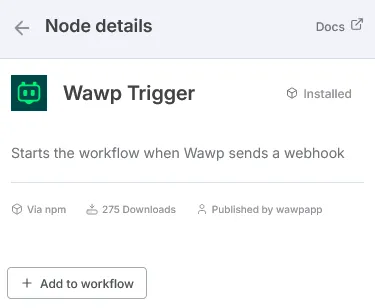
Wawp Trigger Initialization
Searching for and adding the Wawp Trigger node within the n8n workflow canvas to start listening for events.
Required Connectivity: The webhook URL must be globally accessible via the internet. Wawp cannot send events to a local environment (localhost) link. This feature works exclusively with n8n Cloud or public-facing self-hosted instances.
💡 Developer Tip - Testing Webhooks Locally:
Want to test and build your n8n workflows on your local machine (localhost) before deploying them to production? You can use a free tunneling utility like ngrok or Cloudflare Tunnels to expose your local port to a secure public URL.
Ngrok Command: Run ngrok http 5678 (where 5678 is your default n8n port).
Copy the resulting secure https://... URL and use it to configure Wawp. This enables zero-latency local debugging!
Once added, open its settings container to grab your distinct endpoint identifiers:
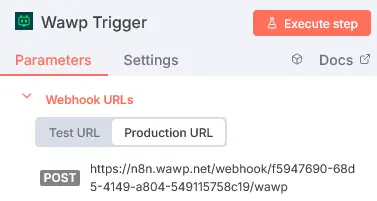
Test URL: Dedicated unique link used strictly during active flow building and testing in the n8n editor.
Production URL: The final pipeline URL used for permanent automated operation after activating the workflow.
Step 2: Configure Webhook in Wawp
Define where outbound event streams should target within Wawp's administrative boundaries.
1
Dashboard Access Log into your official[Wawp account dashboard](https://app.wawp.net/linked-numbers) and find your active connected instance.
2
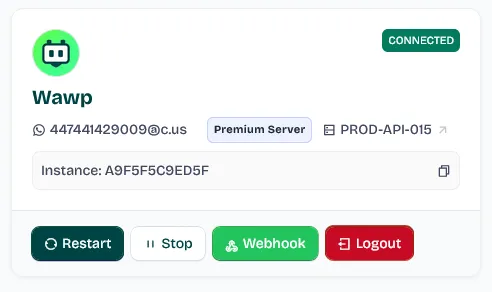
Trigger Config Locate and click the Webhook toggle visible on your core number instance card.
3
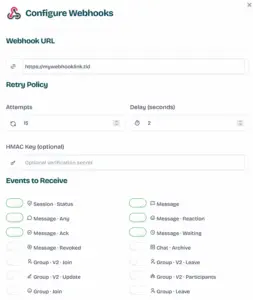
Add Callback Choose Add New Webhook from the popup modal.
4
Inject URL Paste your copied Test URL (during testing) or Production URL (for production) into the endpoint input field.
5
Save Setup Define desired Retry Policies and subscription scopes before hitting Save.
Wawp Instance Webhook Toggle
The specific location on the Wawp instance card to activate and configure outbound webhook URLs.
The administrative modal for defining endpoint URLs and event subscription scopes for n8n integration.
Keywords: webhook modal, api parameters, event subscription
⚠️ Critical Hook Mapping Alert (Test vs. Production):
In n8n, the Test URL only listens when the editor is actively open and you've clicked "Execute Workflow" or "Listen for test event".
Step A (Building): Copy the Test URL and paste it into Wawp first to capture your test payloads and map fields.
Step B (Going Live): Once your logic is built, copy the Production URL from n8n, replace the URL in your Wawp Dashboard, and turn on the Active switch in n8n. If you leave the Test URL in Wawp, your bot will stop responding as soon as you close the browser tab!
Step 3: Verify & Active Execution
Finalize tests confirming live callback relay functionality works flawlessly.
1
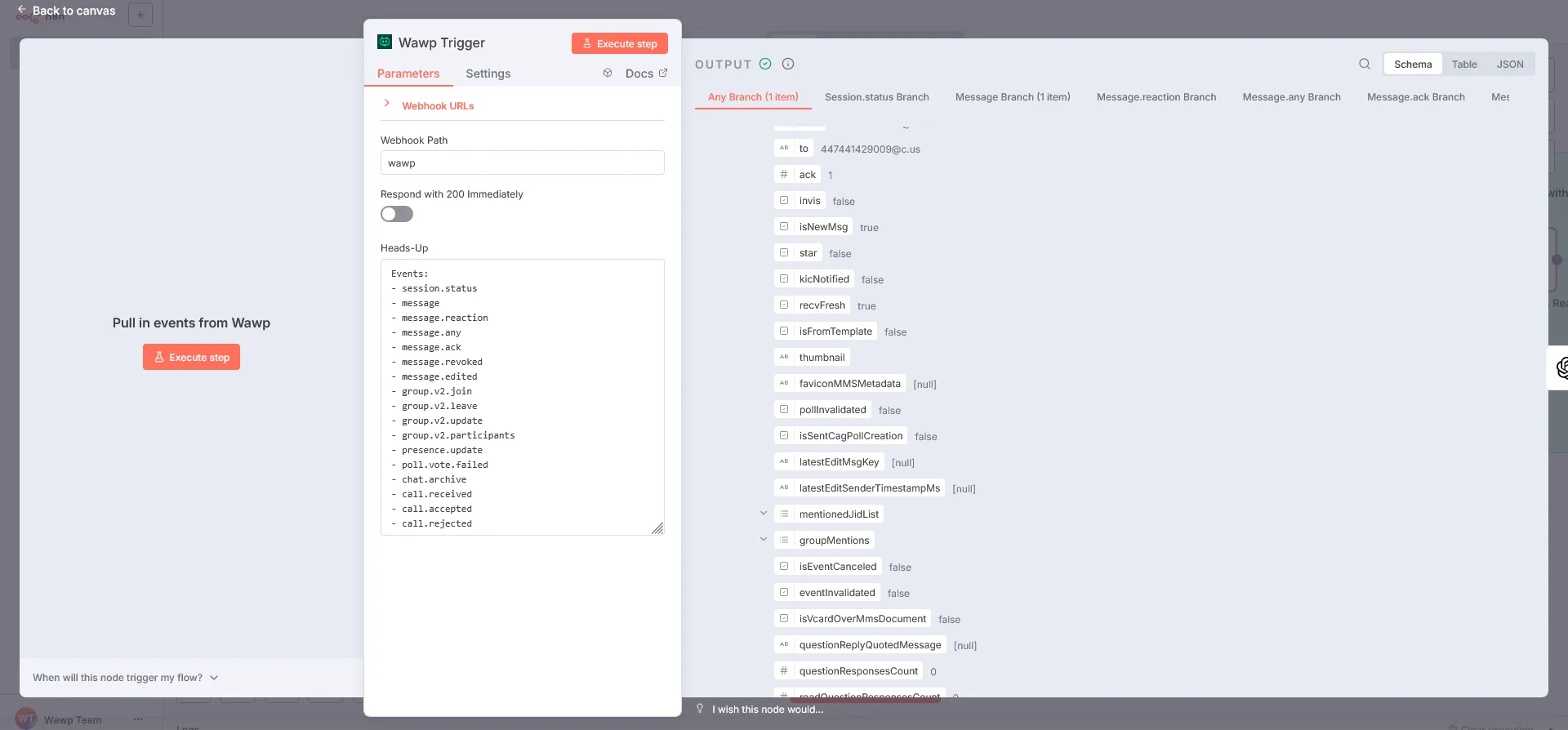
Arm Listener Head back to n8n and hit Execute Workflow (or click Listen for test event on the Trigger node). The server now sits actively listening for input payloads.
2
Send Pulse Grab your smartphone and manually send a standard WhatsApp message (like "Hello bot!") to your tied number.
3
Monitor Feedback Verify the visual nodes immediately illuminate in execution green within n8n, indicating valid traffic lock and successful delivery.
n8n Live Execution View
The visual feedback in n8n showing successful payload delivery from a live WhatsApp event.
Keywords: live execution, payload inspection, n8n success state
Troubleshooting Alert: Should connection loops experience latency errors or rejection, navigate to the trigger node and actively disable the Respond 200 override option.
📦 Understanding the Webhook Payload (JSON Schema)
When Wawp intercepts an event on your phone, it posts a structured JSON payload to n8n. Here is the exact, standard JSON data layout delivered for an Incoming Message (message event):
Message Body: Access it via expression {{ $json.payload.body }} (contains the incoming text).
Sender JID: Access it via {{ $json.payload.from }} (looks like 11111111111@c.us).
Prevent Bot Feedback Loops (Guardrail): Always check the boolean {{ $json.payload.fromMe }} at the start of your workflow (using an IF node). If it is true, the message was sent by your own bot; if false, it's an external user. Only respond if fromMe is false!
Human Takeover Filter: Inspect {{ $json.payload.source }}. If it equals "phone", a human agent manually answered using the physical phone. You can use this to temporarily mute the bot.
Advanced Branching Logic
The native Wawp Trigger excels as a multi-output logic distribution switch. Instead of messy redundant webhooks, one trigger efficiently routes disparate payload paths including standard chats or group joins like message and group.v2.join automatically through parallel processing channels.
Advanced Branching Logic
A complex workflow map showing how one Wawp Trigger can route messages to different processing branches.