Complete walkthrough to install Wawp node from npm and hook up instance credentials within your n8n instance.
3 min read·Updated August 23, 2026
Ready to unlock powerful automation for your WhatsApp communication? The first step is to install the Wawp community node on n8n and connect your Wawp account. This guide will walk you through the entire process, from installation to building your first test workflow.
What You Need
Before you start, make sure you have these prerequisites in place.
n8n Cloud or Self-Hosted Instance: Wawp’s Webhook Trigger requires a publicly accessible URL, which is a feature of n8n Cloud or a public self-hosted setup. You can start a free trial here.
A Wawp Account with an Active Instance: You need an active Wawp instance connected to your WhatsApp number. If you haven’t done this yet, read our guide on how to connect your WhatsApp number to Wawp.
Self-Hosted n8n Users: If you are running n8n on your own servers (Docker, VM, etc.), community node installations are disabled by default. You must enable them by adding the following environment variable to your n8n configuration before starting:
N8N_COMMUNITY_PACKAGES_ENABLED=true
Step 1: Install the Wawp Community Node
The Wawp node is available as a community-contributed package. Here’s how to install it in your n8n instance.
1
Navigate to Settings From your n8n dashboard, navigate to Settings in the bottom-left corner.
2
Community Nodes Click on Community nodes.
3
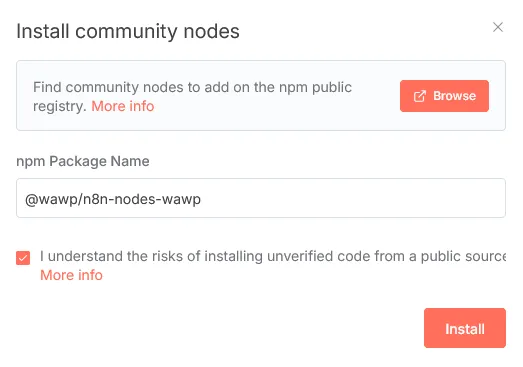
Start Installation Click the Install button.
4
Enter Package Name In the npm Package Name field, enter: @wawp/n8n-nodes-wawp
5
Confirm Install Click the Install button again to finalize.
n8n Community Node Installer
The n8n settings interface for installing community-contributed nodes via npm package names.
Keywords: n8n community nodes, install npm package, wawp node installation
🎉 Great! The Wawp node is now installed. You can find it by searching for “Wawp” in the node panel.
Step 2: Connect Your Wawp Account Credentials
Next, you need to connect n8n to your Wawp account using your API Key and Instance ID.
1
Access Dashboard Open your Wawp dashboard in a new tab to find your credentials.
2
Add Node In n8n, drag a new Wawp Main Action node onto the canvas.
3
New Credentials Click on the node, then select Credentials > New.
4
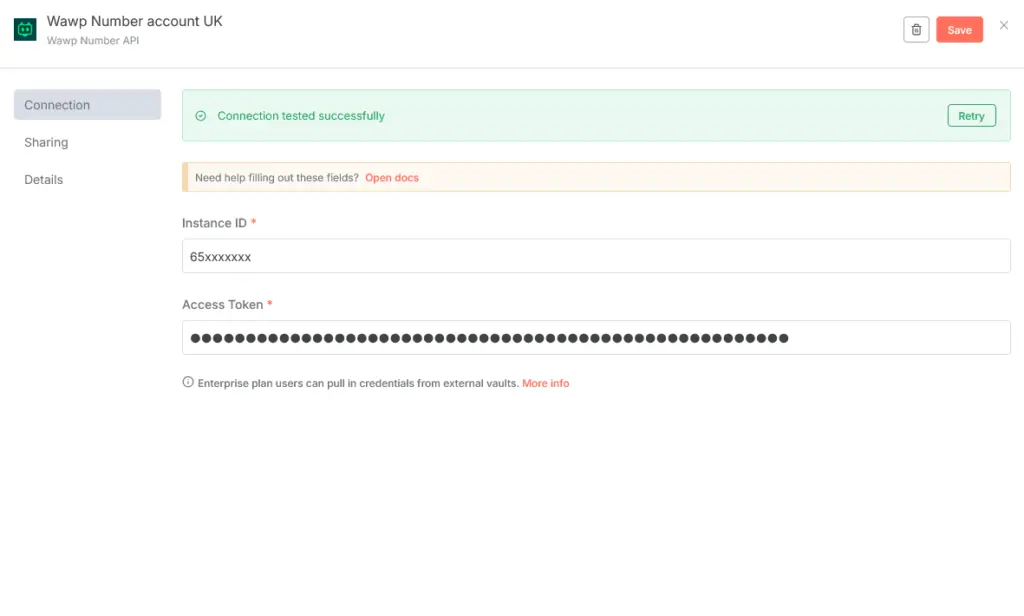
Extract Identifiers Copy the API Key and Instance ID from your Wawp dashboard.
5
Paste Details Paste them into the relevant fields in n8n.
6
Save Mapping Give your credentials a name (e.g., My Wawp Account) and click Save.
Wawp Credentials Configuration
The secure interface in n8n for mapping your Wawp API Key and Instance ID to the Wawp node.
Keywords: n8n credentials, api key mapping, secure authorization
🔑 Pro Developer Tip - Where to find your credentials:
Instance ID: Go to your Wawp Dashboard. The Instance ID is shown clearly on your active connected WhatsApp number card.
API Key (Access Token): This is the master authorization key. You will find it listed right next to your Instance ID on the card, or under your Wawp Profile Security settings.
🔒 Security Warning: Your API Key (Access Token) grants full administrative access to send messages through your WhatsApp number. Never share it with anyone, post it on public forums, or commit it to public repositories.
Troubleshooting Common Issues
Encountering a problem? Here are some common issues and their solutions.
Wawp Node Not Appearing: If you don’t see the Wawp node after installation, make sure you’ve entered the npm package name correctly and that your n8n instance has been restarted.
Connection Failed: Check your API Key and Instance ID for any typos. Ensure your Wawp instance is active and has a “Connected” status on your dashboard.
🚀 Next Steps to Build Your First Bot
Now that you have successfully installed the Wawp community node and authenticated your account, you are ready to construct your flows: