The power of Wawp lies in its ability to automate your WhatsApp communication. This is done through the Wawp Main Action node in n8n, which allows you to send various messages and control your connected WhatsApp number.
How to Send WhatsApp Messages & Actions with Wawp and n8n
Master sending WhatsApp messages and controlling your account directly via custom node automation workflows.
3 min read·Updated August 23, 2026

Wawp provides you with a comprehensive set of tools to send messages, manage groups, and more.
Understanding the Wawp Main Action Node
The Wawp Main Action node is your primary tool for sending all types of messages and commands. It is designed to be a single, powerful node with multiple capabilities.
The node’s functionality is organized into two main fields, as seen in the screenshot:
- Category: This field defines the type of action you want to perform (e.g.,
Send Message,Chats,Presence). - Operation: This field specifies the exact action within the selected category (e.g.,
Send Text,Start Typing,Get Chat Info).
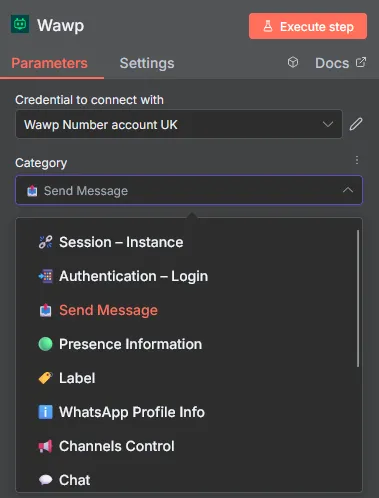
The interface of the Wawp Main Action node in n8n, highlighting the Category and Operation selection fields.
Keywords: n8n actions, message operations, automation interfaceBy selecting a Category and an Operation, you can access a wide range of powerful functions.
Key WhatsApp Actions You Can Send
The Wawp Main Action node gives you the ability to manage your WhatsApp account from within your n8n workflows. Below are some of the most common categories and operations you can use.
Sending Messages
This is the most common use case. The Send Message category allows you to send various message types to any phone number.
- Send Text: Send a simple text message.
- Send Media: Send images, videos, or documents by providing a media URL.
- Send Buttons/Polls: Send interactive messages to engage your audience.
Presence & Chat Control
You can control your account’s status and manage individual chats to create a more responsive user experience.
- Set Presence: Set your status to
typingorrecordingbefore sending a long message. - Mark as Seen: Mark incoming messages as read to show the blue checkmarks.
- Star Message: Mark a specific message to find it easily later.
- Archive Chat: Archive a conversation to clean up your chat list.
Profile & Account Management
The node also allows you to control key aspects of your account and manage contacts.
- Get Profile Info: Retrieve a contact’s profile picture or “About” message.
- Set Profile Info: Change your own profile information directly from a workflow.
- Block/Unblock Contact: Control who can send you messages.
📦 Successful Message Response (n8n JSON Output)
When the Wawp Main Action node successfully dispatches a text or media message, it returns a structured JSON response payload. You can capture and map this output in downstream nodes to log the message ID in your CRM database or record it inside Google Sheets to audit the delivery pipeline:
Send Message Response
json sample
Ln 10, Col 1
💡 Professional Automation Best Practices:
- Simulate Human Interaction: Before calling the
Send Textaction to reply, prepend aSet Presencenode and set your session presence status totypingfor 2 to 5 seconds. This adds a realistic human delay to the conversational workflow. - Pre-Flight Contact Auditing: To prevent messages from getting bounced by invalid entries, use the
Contactscategory and invoke theCheck Phone Existsoperation beforehand to safely filter active WhatsApp accounts.
Explore More Actions
The Wawp Main Action node supports a wide range of other categories, including Groups, Contacts, and 24 Hour Status. Each of these contains multiple operations that you can use to build custom automations.
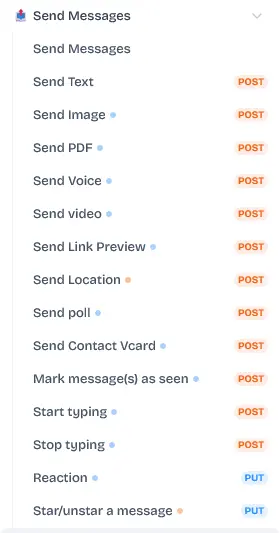
A list of the diverse action categories available within the Wawp node for comprehensive WhatsApp account management.
Keywords: dashboard actions, account management, automation categoriesTo see a complete list of all supported operations and their parameters, please refer to the Wawp API Documentation.
Previous
How to Receive WhatsApp Events with Wawp on n8n
NextHow to Send and Receive WhatsApp Messages for Free on n8n
Did this page help you?
98% found this article helpful (231 likes)
Related Articles
Automate WhatsApp with Wawp & n8n
Transform your business communication by learning how to set up powerful Wawp n8n WhatsApp automation workflows for everything from customer support to marketing campaigns.
How to install Wawp on N8N
Complete walkthrough to install Wawp node from npm and hook up instance credentials within your n8n instance.
How to Receive WhatsApp Events with Wawp on n8n
Learn how to receive WhatsApp events with Wawp on n8n using webhooks. Set up the Wawp trigger node, capture JSON payloads, and build responsive automations.
- Need help? Contact Support.
- Check out our Changelog.
- Join our Facebook Community.
- LLM? Read llms.txt.
OFFER ENDS SOON
Extra 30% OFF All Plans
Use this exclusive promo code at checkout to enjoy an extra 30% discount on top of current sales!
BOOST30