Transform your business communication by learning how to set up powerful Wawp n8n WhatsApp automation workflows for everything from customer support to marketing campaigns.
5 min read·Updated August 23, 2026
Unleash the power of WhatsApp automation with Wawp and n8n. This guide shows you how to build powerful workflows for auto-replies, lead capture, and more—no coding required.
Automating your business communication on WhatsApp can save you countless hours and create better customer experiences. By connecting Wawp n8n WhatsApp automation, you can build powerful, customizable workflows without writing a single line of code.
High-Impact Automation Use Cases
With Wawp and n8n, you can create smart workflows that streamline operations and enhance your interactions. Here are some of the most impactful use cases.
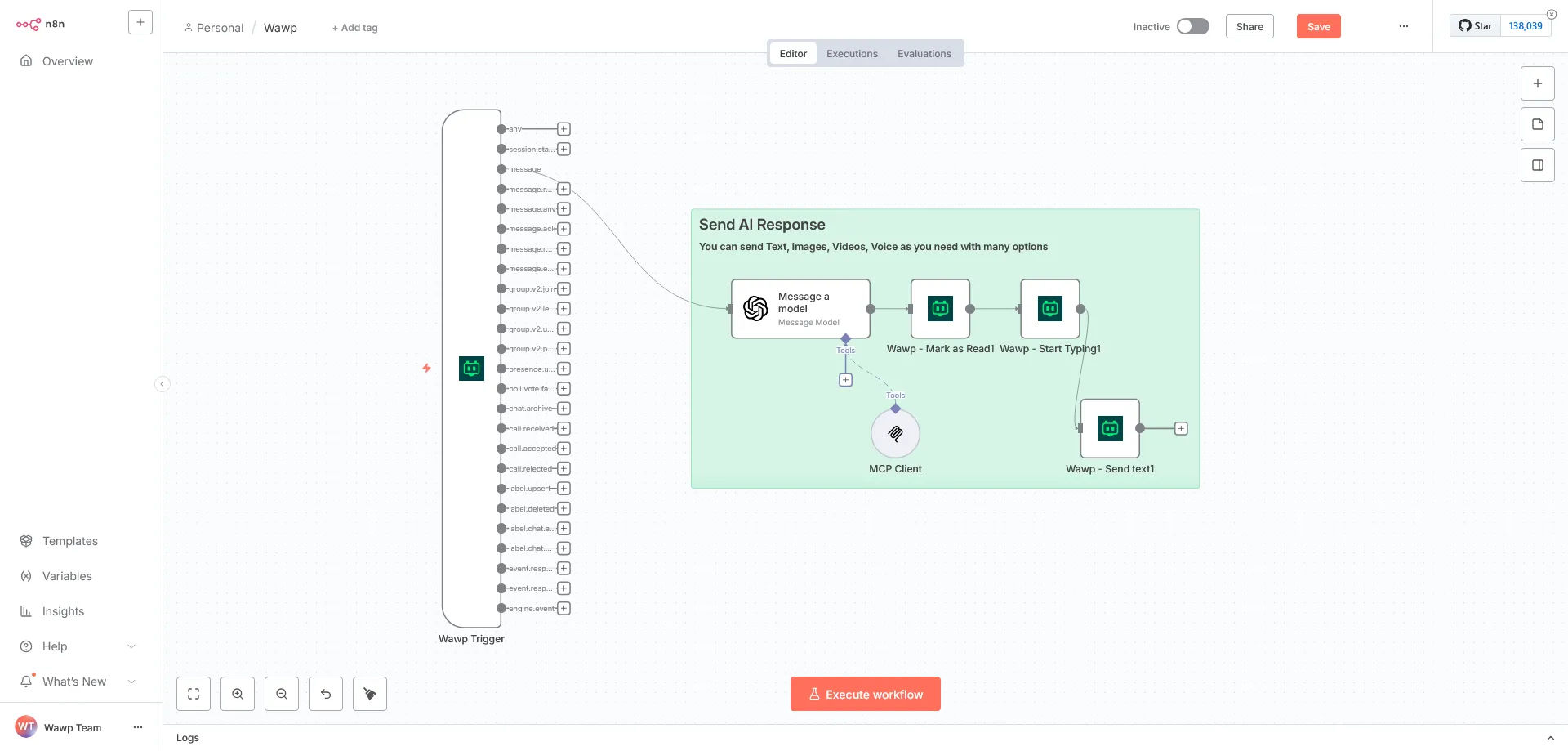
Smart Auto-Reply with AI: Automatically respond to incoming messages with intelligent, AI-driven replies. This workflow can receive a message, understand its intent, then send a personalized text or media reply with a typing indicator to create a natural, human-like experience.
Lead Capture & CRM Sync: Turn every new WhatsApp inquiry into a qualified lead. Capture new messages, find contact details like an email address, and push all the information directly to your CRM (like HubSpot or Pipedrive). You can also tag the contact in Wawp and notify your sales team on Slack.
Order & Delivery Updates: Keep customers informed about their orders in real-time. Automatically send messages from your Shopify or WooCommerce store to notify a customer when an order is paid for or shipped.
Support Triage & Human Handoff: Instantly sort and route customer support requests. Your workflow can detect the user’s intent or the priority of their message, create a support ticket in Zendesk or Jira, and send an automated acknowledgment message.
🔄 How the Logic Flows:
Customer sends a message to your WhatsApp number.
Wawp Trigger Node instantly catches the event and relays it to n8n.
Your Workflow Logic processes the message (e.g., checks conditions or sends it to an AI Node).
Wawp Main Action Node executes the response (e.g., sets typing status, then sends a reply back to the customer).
AI-Driven Workflow
A logic flow diagram showing how n8n can use AI to process WhatsApp messages and send smart replies.
Keywords: ai auto reply, n8n workflow, intelligent messaging
Understanding the Wawp n8n Nodes
To build these workflows, you need to understand the two core nodes that power Wawp n8n WhatsApp automation: the Wawp Trigger and the Wawp Main Action Node.
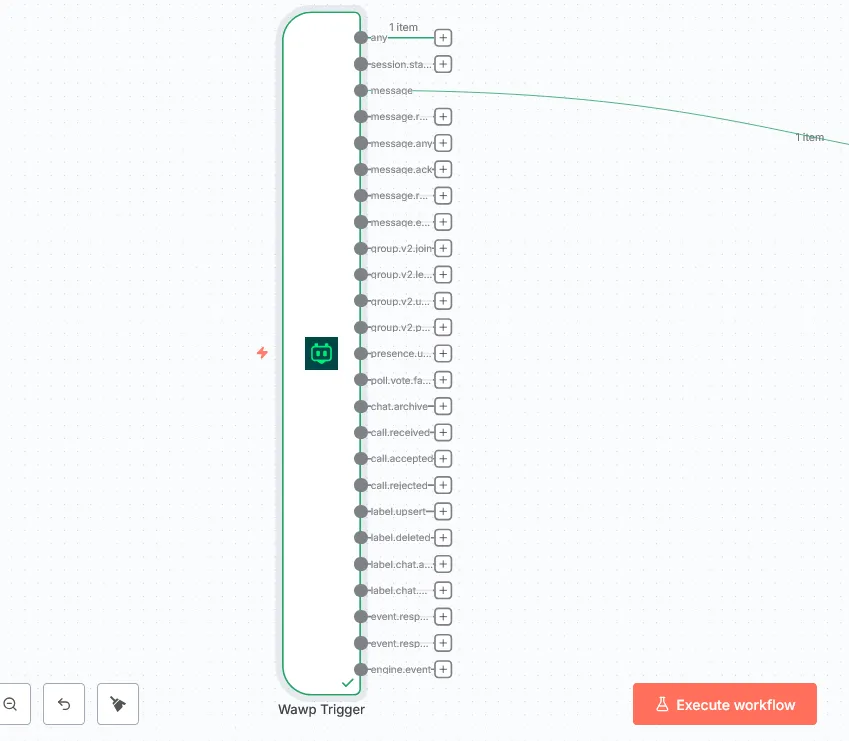
Wawp Trigger (Webhook)
The Wawp Trigger node is your workflow’s starting point. It listens for and catches events happening on WhatsApp, such as new messages, calls, or reactions. This node can handle a wide range of event types, including:
message (a new message is received)
message.reaction (a reaction is added to a message)
message.ack (a message status changes, e.g., to “read”)
group.v2.join (someone joins a group)
Wawp Webhook Trigger
The visual representation of the Wawp Trigger node in n8n, configured to listen for incoming message events.
The trigger has a multi-output switch, allowing you to easily route different event types to different parts of your workflow.
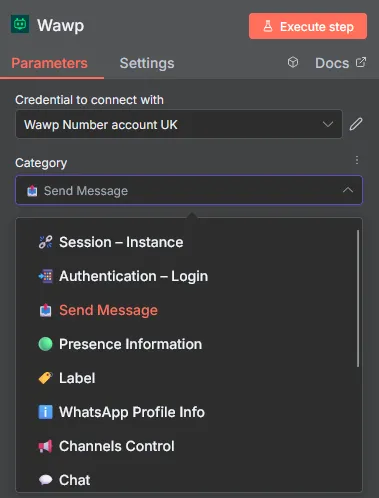
Wawp Main Action Node
The Wawp Main Action Node is where the magic happens. It allows you to perform actions and send commands to control your WhatsApp account. Its extensive capabilities cover almost every function you need for automation:
Sessions: Create, start, stop, restart, delete, or log out of your Wawp sessions.
Auth: Get a QR code or request a login code to connect a new number.
Messages: Send various message types (text, image, PDF, voice, video, polls) and control chat actions like marking as seen, starting a typing indicator, or starring a message.
Presence: Set or get your online presence.
Labels: Manage your chat labels (create, read, update, delete) and assign them to specific chats.
Profile: Edit your profile information, including your display name, “about” section, and profile picture.
Chats & Contacts: List, archive, or unarchive chats. Get contact information, check if a number is on WhatsApp, and even block or unblock contacts.
Groups: Create or join groups, manage participants, and control group settings.
🔑 Developer Tip: You can quickly find your API Key and Instance ID directly inside your Wawp Dashboard. The API Key is located in your Profile settings, and each connected phone number has its own unique Instance ID on its settings card.
n8n Action Branching
Demonstrating how different WhatsApp actions can be branched and executed based on specific conditions in n8n.
As you start building with Wawp n8n WhatsApp automation, keep these professional tips in mind:
Prevent Duplicates: Use the message.id as an idempotency key to make sure your workflow processes each message only once.
Improve User Experience: Add a “Mark as Read” and “Start Typing” action before a long operation. This tells the user you’ve seen their message and are in the process of responding.
Keep Secrets Safe: Never hard-code your API keys or other sensitive information directly in your workflow. Use n8n’s built-in Credentials or environment variables to keep your data secure.
Log Everything: Always log every outbound message with its status and a timestamp. This creates an audit trail that is useful for debugging and retries.
Run Campaigns Safely: When sending bulk campaigns, use a Split In Batches node with a short Wait node between each batch. This helps you respect WhatsApp’s message limits and avoid getting your number flagged.
🚀 Your WhatsApp Automation Roadmap
To bring these automation use cases to life, follow this structured step-by-step path: