How to Send and Receive WhatsApp Messages for Free on n8n
Learn step-by-step how to automate WhatsApp for free using n8n and Wawp. Send & receive messages, media, and build an interactive bot without coding.
5 min read·Updated August 23, 2026
Many business owners and developers search for an efficient way to connect WhatsApp to n8n without facing expensive Meta Business API fees or going through long, tedious verification processes.
In this ultimate step-by-step guide, we will show you exactly how to send and receive WhatsApp messages for free on n8n using Wawp's developer sandbox tier. This solution requires zero coding skills and can be set up in minutes.
Why Choose This Solution?
Integrating Wawp with n8n gives you complete freedom to automate a regular WhatsApp personal or business number. Send media, capture events, and interact with customers instantly without paying per-conversation fees or waiting for message template approvals.
🛠️ Prerequisites to Start For Free
Ensure you have the following free tools ready to begin:
n8n Environment: Either an active account on n8n Cloud or a self-hosted instance (Docker/local installation).
Free Wawp Account: Sign up for a free sandbox account on the Wawp Dashboard and connect your WhatsApp number in seconds using a QR code.
Local Tunnel Tool (Optional): If running n8n locally on your computer, you will need a tunnel utility like ngrok to capture incoming events.
Steps to Automate WhatsApp for Free on n8n
1
Install Wawp Community Nodes Go to n8n settings, click on Community Nodes, choose Install a Node, and input npm package name @wawp/n8n-nodes-wawp then click install.
2
Create Credentials and Connect Add a Wawp node and click Create New Credential. You will need to fill in two parameters from your Wawp Dashboard: your secure API Key and Instance ID.
3
Set Up the Webhook Trigger Add a Wawp Trigger node. Copy the Test Webhook URL and paste it into the Webhook settings on your Wawp Dashboard, then enable Incoming Message event.
📦 Understanding the Webhook Payload (JSON Schema)
When a customer sends a message to your WhatsApp number, Wawp captures it in real-time and posts a structured JSON payload to n8n. Here is the exact data layout you will receive:
13"body": "Hi! How do I connect WhatsApp to n8n for free?",
14"hasMedia": false,
15"author": "11111111111@c.us"
16 },
17"me": {
18"id": "22222222222@c.us",
19"pushName": "My Brand Account"
20 }
21}
json sample
Ln 21, Col 1
💡 How to Map Incoming Message Values in n8n:
Capture Text Content: Reference it via expression {{ $json.payload.body }} (contains the client's query).
Sender WhatsApp Number: Reference it via {{ $json.payload.from }} (returns a JID format like 11111111111@c.us).
Infinite Loops Prevention Guardrail: Check that {{ $json.payload.fromMe }} is equal to false. This ensures the bot only answers external queries and doesn't trigger loops responding to its own messages.
📤 Sending Automated WhatsApp Messages For Free
Once you capture the incoming message, you can trigger an automated reply.
Add a Wawp Main Action node to your workflow and configure it as follows:
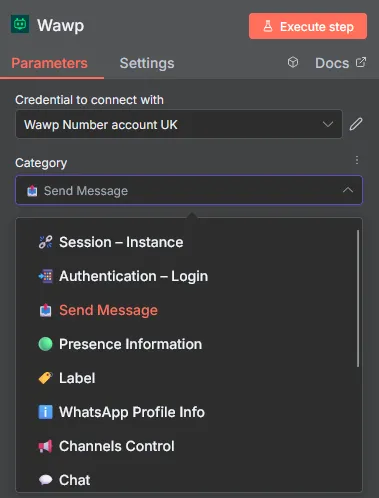
Category: Choose Send Message.
Operation: Choose Send Text.
Recipient: Map it dynamically using the sender's identifier {{ $json.payload.from }}.
Body: Write the automated message you wish to dispatch.
n8n Main Send Node Configuration
Wawp Main Action node settings in n8n, configured to dispatch replies, media files, and star chat histories.
Keywords: send whatsapp n8n, message automation, whatsapp auto reply
📦 Successful Message Response (JSON Output)
When Wawp successfully dispatches a text or media message, it returns the following JSON response, which you can map in downstream nodes to log histories or track ticket statuses:
8"body": "Thanks! Your request was received successfully and is being processed."
9 }
10}
json sample
Ln 10, Col 1
⚠️ Critical Troubleshooting Alert (Test vs. Production URL)
The Difference Between n8n Webhook URLs:
During development and debugging, you must use the Test Webhook URL to inspect payloads on n8n. However, keep in mind that the test URL only listens while your editing page is actively open.
To launch your free WhatsApp bot permanently, activate the workflow (Active toggle in n8n) and copy-paste the Production Webhook URL into your Wawp Dashboard.
🚀 Pro Tip for Free Local Testing:
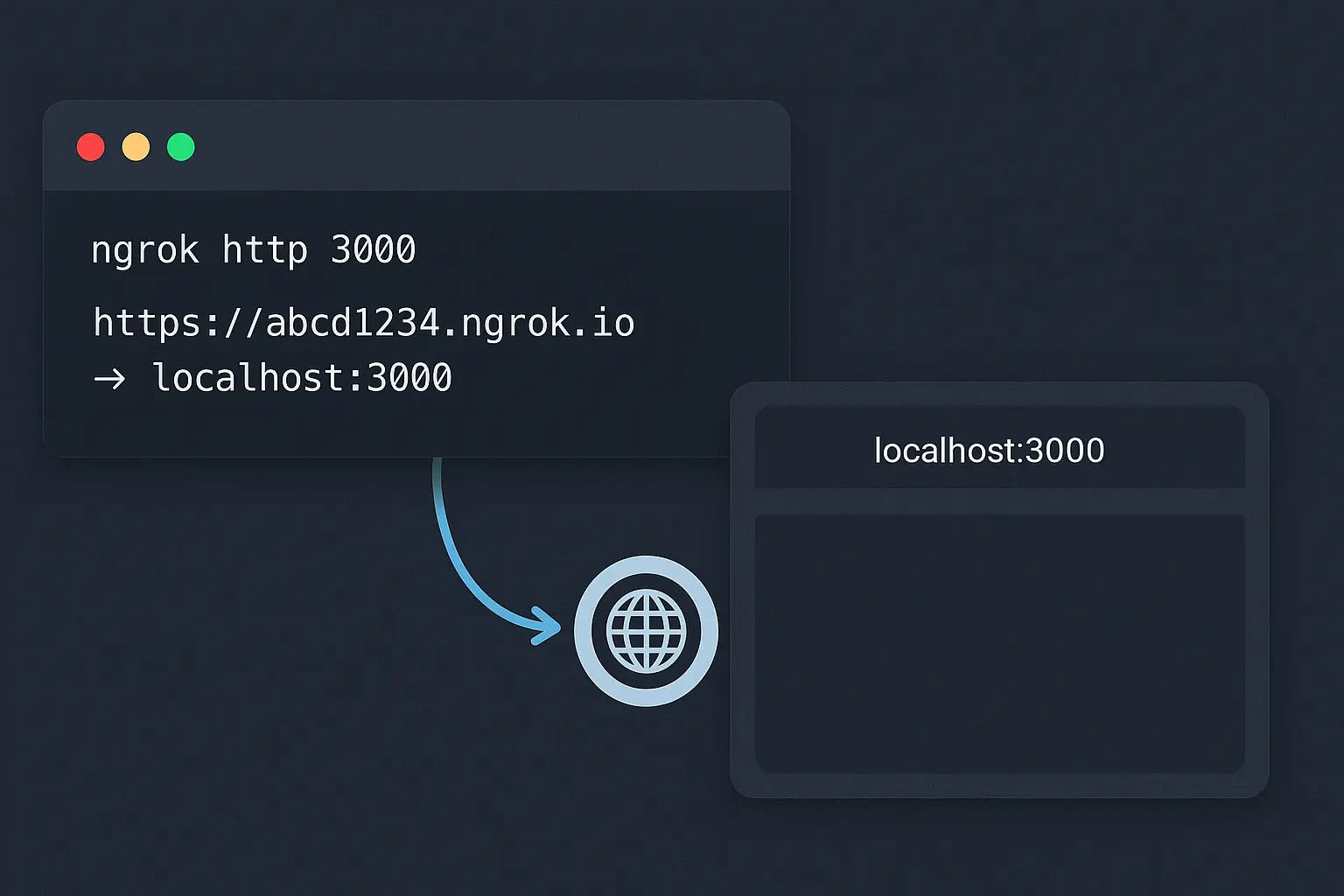
If running n8n on localhost and you need to test Webhook events without a cloud server, boot up a ngrok tunnel for free to bridge the connection:
Terminal
1ngrok http 5678
bash sample
Ln 1, Col 1
Activate ngrok Tunnel for Local Testing
A detailed diagram showing how ngrok secure tunnels connect a local n8n instance (localhost) to the external web, enabling WhatsApp webhook captures from Wawp for free.
Keywords: ngrok tunnel, test webhooks, local n8n, free whatsapp automation
Copy the secure public HTTPS URL generated by ngrok and set it as your primary webhook server on the Wawp Dashboard.
💡 Best Practices for Free WhatsApp Automation
Simulate Natural Human Typing: Prepend a Set Presence action before sending a reply and set your status to typing for 2 to 5 seconds. This makes the interaction feel friendly and organic.
Direct Image and Media URL Verification: When sending files (Send Media), verify that URLs lead directly to the files and end with standard file extensions (such as .jpg, .png, or .pdf) to ensure instant delivery.
Respect WhatsApp Terms: To protect your number from automatic spam detection filters, only execute active interactions that start with user requests and avoid broadcasting unsolicited bulk messages.
You now have all the tools and technical know-how to design, build, and deploy a fully automated WhatsApp support bot on n8n for free. Start building today and automate your manual customer operations!