ABANDONED CARTS feature allows you to see the visitor's journey on your website until he becomes a customer and gives you some useful information to constantly improve your services.
How to Setup Abandoned Carts
ABANDONED CARTS feature allows you to see the visitor's journey on your website until he becomes a customer and gives you some useful information to constantly improve your services.
10 min read·Updated August 23, 2026

ROI IMPACTBUSINESS IMPACT & ROI
WhatsApp Recovery Success: Dynamic cart recovery campaigns achieve up to 29% to 45% recovery rates using WhatsApp, compared to just 8% to 10% for traditional email templates. Immediate Revenue Lift: Recovering sales from the average e-commerce cart abandonment rate of 69.8% (Baymard Institute study) delivers a direct 15% to 25% revenue increase for WooCommerce store owners.
This is a paid component that you must obtain first in order to be able to use it.
Tab 1: General Configuration
Craft the message that will convince users to stay, toggle popup availability globally, and customize its visual design:
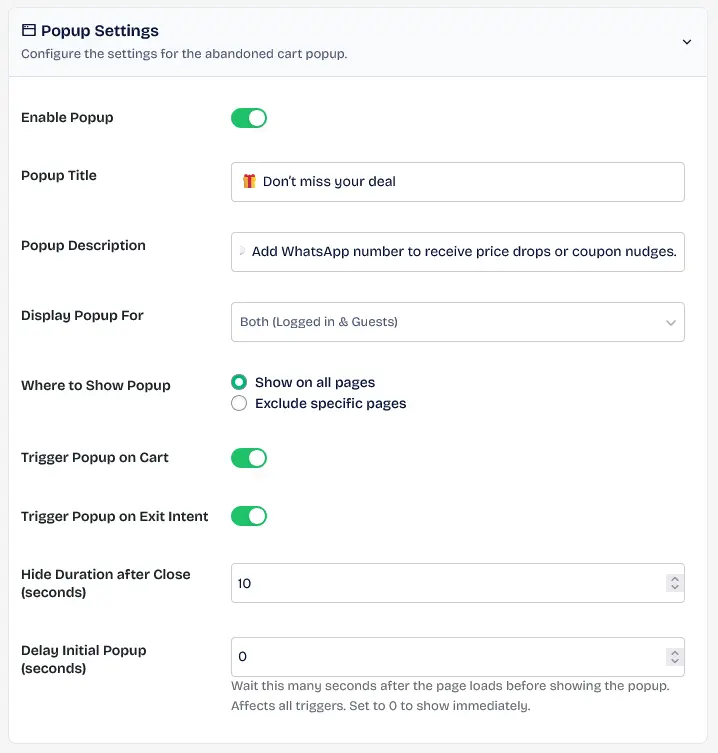
The layout of the popup used to capture visitor phone numbers before they leave the store.
Keywords: abandoned cart popup, lead capture ui, woocommerce exit intentPopup Availability
- Enable Popup: The global switch to enable or disable the recovery popup on your website.

Main toggle to activate the phone number collection popup for visitors.
Keywords: enable popup, lead generation settings, waws cart recoveryContent Design
- Popup Title: Customize the main headline displayed on the lead popup to attract attention.

Field for customizing the headline text that appears on the lead capture popup.
Keywords: popup title, marketing text, conversion optimization- Popup Description: Add an attractive description or offer (e.g. Get a 10% discount via WhatsApp) to encourage visitors to submit their number.

Interface for writing persuasive descriptions and offers inside the lead capture popup.
Keywords: popup description, promotional offer, whatsapp marketing- Save Button Text: The label for the primary action button.
- Continue Button Text: The label for the button shown on the success state.
- Success Title: The title shown in the popup after a successful submission (defaults to Excellent!).
- Success Description: The description displayed upon successful number collection.
Visual Customization
- Popup Image: Upload a custom brand image (transparent PNG, SVG, or GIF recommended). Select the layout:
- Inline: Standard embedded card layout.
- Banner: Wide banner layout (e.g., 550x150px).
- Image Alignment: Set the image position (Left, Center, Right).
- Color Theme Preset: Select from six beautiful pre-configured presets (Teal, Midnight, Ocean, Sunset, Minimal, Warm).
- Detailed Colors Customizer: Override specific elements to match your exact brand identity:
- Button Background & Hover Colors
- Card Background & Hover Colors
- Title & Description Text Colors
- Custom CSS: Paste custom CSS rules to override default popup component styles. Your styles are injected in the footer with high priority.
Tab 2: Trigger Constraints
Define exactly when, where, and to whom the lead capture popup should be displayed:
Audience Targeting
- Display Popup For: Choose the targeted user segment:
- Both (Logged in & Guests): Triggers for all visitors.
- Logged In Users Only: Displays only to registered users who do not have a phone number saved on their account profile.
- Guests Only: Restricts visibility strictly to guest visitors.
- Disabled for All: Deactivates the popup trigger.

Settings to choose which visitors (Guests, Members, Both) see the lead capture popup.
Keywords: audience targeting, visitor segmentation, popup display rulesPage Targeting (Where to Show)
- Where to Show Popup: Select target pages:
- Show on all pages: Global visibility across all frontend blocks.
- Exclude specific pages: Excludes the popup on specific selected WordPress pages or checkout pages.
- Include specific pages: resticts the popup strictly to specific selected pages.

Control panel for excluding the popup from appearing on specific pages or posts.
Keywords: page exclusion, popup visibility, wordpress display logicTrigger Events
- Trigger Popup on Cart: Triggers the popup as soon as a visitor adds a product to their shopping cart.
- Trigger Popup on Exit Intent: Triggers the popup immediately when the visitor moves their mouse cursor off the screen (exit intent), highly effective for converting ad traffic.
Delay & Hide Durations
- Hide Duration after Close (seconds): Sets how long (in seconds) the popup remains hidden after a user manually closes it before showing again.
- Delay Initial Popup (seconds): The delay time required before displaying the popup for the first time upon landing.
Frequency Limits
- Popup Frequency: Determine popup recurrence rules:
- Once: Shows once per user lifetime using cookie tracking.
- Every page load: Displays on every page refresh.
- Custom Limit: Constrain popup displays to a specific number of times.
Tab 3: Popup Phone Verification & Advanced Auth
Secure your lead generation popup from fake numbers by mandating verification challenges directly within the popup interface:
- Verification Method: Choose whether to enforce verification on submitted phone numbers:
- None: Phone numbers are saved instantly without checks.
- WhatsApp Web: Relays a 6-digit OTP code or Interactive List to their WhatsApp.
- Firebase SMS: Delivers verification codes via SMS.
- Email OTP: Delivers verification codes via email.
- WhatsApp Authentication Type: Choose your verification template layout:
- Standard OTP: Delivers a classic secure 6-digit verification code.
- Interactive List (One-Tap Verify): Delivers a WhatsApp interactive template containing Approve Request and Reject & Report buttons for one-tap verification.
Customizing Interactive Lists:
You have complete control over the layout of the WhatsApp interactive message template:
- List Title: e.g., Secure Verification
- Main Description: e.g., Please confirm your identity to continue.
- Selection Button: e.g., Choose Action
- Bottom Footer: e.g., Authorized by Wawp Engine
- Item 1 (Success Action) Title & Description: e.g., Approve Request - This is my login attempt
- Item 2 (Reject Action) Title & Description: e.g., Reject & Report - I don't recognize this
Message Language & Formatting:
- Force Language: Enforce the WhatsApp OTP language manually (e.g., Arabic, English) or let it follow your site's WordPress language settings.
- Enable Custom Footer: Include a custom footer text at the bottom of the WhatsApp OTP text template.
Tab 4: Coupon Configuration
Encourage cart recovery by dynamically generating and attaching coupon discount codes to your notification triggers. Wawp integrates a powerful, secure coupon code builder:
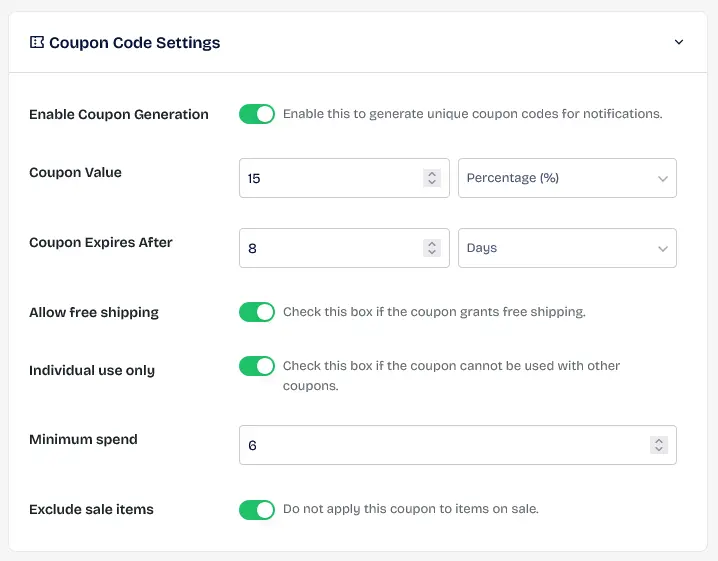
Settings for automatically generating and sending unique discount codes to recovering customers.
Keywords: coupon generator, dynamic discounts, woocommerce sales recovery- Enable Coupon Generation: The master toggle to activate or deactivate the automated coupon generation engine for abandoned cart recovery notifications.
- Coupon Value: The discount amount (fixed cart discount, fixed product discount, or percentage discount) applied to the cart.
- Coupon Prefix: Set a custom prefix attached to the auto-generated code strings (e.g. setting
SAVEcreates codes likeSAVE-XXXX-XXXX). Defaults toREC. - Coupon Expires After: Define the exact validity time window (customizable from minutes, hours, days, to years) before the coupon dynamically expires.
- Auto-Apply Coupon on Restoration: Automatically apply the generated coupon discount to their checkout cart when the user clicks the Wawp recovery link.
- Restrict to Customer Email: Restrict the generated coupon code exclusively to the customer's email address in WooCommerce. This prevents coupon leakage, sharing, or public coupon code site scraping.
- Coupon Discount Limit (Capped Value): Cap percentage-based discount deductions to a maximum absolute amount per order (e.g. a 10% discount coupon capped at a maximum of $50 savings).
- Allow free shipping: Enables free shipping when the coupon is applied.
- Individual use only: Restricts the coupon so it cannot be combined with other discount codes.
- Minimum spend: The minimum cart subtotal required to apply the discount.
- Exclude sale items: Excludes products that are already on sale.
- Product Restrictions (Inclusions/Exclusions): Restrict the coupon strictly to specific product IDs.
- Category Restrictions (Inclusions/Exclusions): Restrict the coupon strictly to specific category IDs in your store.
Tab 5: Advanced Engine
Configure advanced settings for automated workflows and data management:
- Autofill Frontend: Prefill the exit-intent popup with the user's phone number automatically if they have previously entered it.
- Checkout Autofill: Automatically pre-fill WooCommerce checkout billing fields (email and phone) with contact details captured during the session.
- Enable Cart Restoration: Generates a secure recovery link containing the visitor's unique session parameters. Clicking this link instantly rebuilds their abandoned cart session on the WooCommerce checkout page.
- Hide Incomplete: Turn this toggle on to automatically hide incomplete/bot sessions from your main workspace list for a cleaner overview.
- Data Cleaner Settings (Enable Data Cleaner): Automatically purges bot/empty records from the database table to keep base logs clean. Bot/empty records are defined as rows with no location or contact details captured.
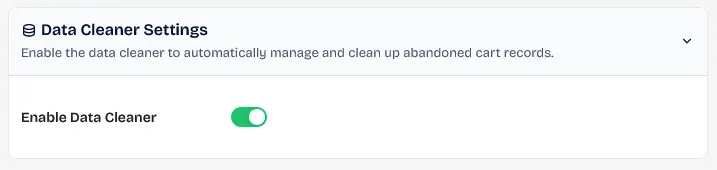
Configuration for automatically purging bot data and inactive sessions from the database.
Keywords: data cleaner, database optimization, bot filteringAbandoned Cart Reminders & Flow Automation
To recover potential lost sales, Wawp integrates its abandoned cart recovery reminders directly within the central Automated Notifications (Flow Builder) workspace. This unified architecture allows store owners to manage recovery notifications as native automated flows alongside standard transactional alerts:
Centralized Trigger States
Inside the Automated Notifications dashboard, you can build custom flow rules triggered by the following recovery states:
Abandoned Cart (Potential Customer): Triggered when a guest visitor enters their contact information in the lead capture popup but leaves the store before adding any products to their shopping cart.Abandoned Cart (Shopping): Triggered when a shopper adds items to their WooCommerce cart and initiates checkout, but abandons their session before completing the payment.
Multi-Step Flow Settings
When creating a recovery flow, you can configure powerful recovery mechanisms:
- Dynamic Coupon Attachment: Toggle the option to dynamically generate a unique coupon discount code (based on your settings in Tab 4) and automatically attach it to the recovery notification.
- Precise Wait Delays: Set a customized waiting period (e.g. 30 minutes, 2 hours, or 24 hours) that Wawp waits after cart abandonment before dispatching the recovery alert.
- Multi-Channel Dispatch: Choose to send the recovery alert via WhatsApp Web, Meta Cloud API, or Email.
- Dynamic Placeholders: Customize your message templates using standard WooCommerce and Cart recovery tags, including
{{coupon_code}}to display their unique discount and{{cart_recovery_url}}to automatically restore their cart session in one click. - Sequential Reminders: You can add multiple recovery flow rules at different intervals (e.g. Step 1: WhatsApp reminder after 30 minutes; Step 2: Email discount offer after 24 hours) to maximize conversion rates.
1
Lead Capture Popup Displayed Based on your triggers, the lead capture popup is displayed to visitors browsing your site, offering an incentive (like a discount coupon) in exchange for their WhatsApp number.
2
Success Confirmation Upon entering their number and completing any mandatory verification checks, the visitor receives their success confirmation and dynamic coupon code.
3
Admin Real-Time Monitoring As an Admin, you can monitor the live shopping session, cart contents, and chronological visitor behavior in real-time inside the **[Sessions & User Journey](/en/articles/sessions-user-journey)** dashboard.
Did this page help you?
100% found this article helpful (240 likes)
Related Articles
Best WooCommerce WhatsApp Plugin: Ultimate E-Commerce Automation Guide
Discover the best WooCommerce WhatsApp plugin to secure and automate your store. Learn about order notifications, abandoned cart recovery, and checkout OTPs.
How to Setup Automated Notifications
Configure dynamic triggered notification messages automatically driven by WooCommerce order state transitions, subscriptions, or WordPress account events.
How to Setup Checkout Verification
Secure your WooCommerce store transactions utilizing robust WhatsApp OTP, Firebase SMS, or Email confirmations to prevent fraud.
- Need help? Contact Support.
- Check out our Changelog.
- Join our Facebook Community.
- LLM? Read llms.txt.
OFFER ENDS SOON
Extra 30% OFF All Plans
Use this exclusive promo code at checkout to enjoy an extra 30% discount on top of current sales!
BOOST30