As an Admin, you can monitor and track all active visitor sessions, device specifications, and real-time customer journeys directly from the WordPress Admin Area. This dashboard gives you a complete, granular window into visitor interactions before, during, and after cart creation.
Sessions & User Journey
Track user sessions, analyze the chronological customer journey, view live shopping cart summaries, and monitor custom ecommerce events in real time.
11 min read·Updated August 23, 2026


Admin view of active user sessions and their real-time journey through the store.
Keywords: session tracking, real-time analytics, user monitoringThis interface allows you to easily analyze technical attributes, contact details, cart summaries, active statuses, and chronological journey timelines to understand customer behavior and optimize conversions:
1. Performance Snapshot Cards
The top header section features four major real-time analytical snapshot cards:
- Potential Revenue: The total calculated monetary value of all active and abandoned shopping carts currently logged in the system.
- Profit (ROI): The total accumulated order lifetime value (LTV) recovered from cart campaigns, paired with a calculated percentage representing your Return on Investment (ROI) relative to potential revenue.
- Active Carts: The total absolute number of sessions with items currently in their shopping carts, accompanied by a percentage representation of active shoppers relative to total visits.
- Recovered: The absolute number of successfully completed purchases that originated from recovered shopping sessions, showing the recovery conversion rate percentage.
2. Live Filters & Search Toolbar
Easily sort and drill down into thousands of visitor sessions using advanced toolbar filters:
- Status Filters: Tap standard quick-filters to display All, Abandoned Cart, or Shopping sessions.
- "+6 More" Status Dropdown: Open this dropdown to filter by specialized statuses:
- New Visitor: Visitors on their very first session.
- Guest Cart: Unregistered guests who have added items to their cart.
- Potential Customer: Visitors who submitted their number but haven't added products yet.
- Purchased: Completed conversions.
- Returning Customer: Logged-in repeat buyers.
- Duplicate IPs: Sessions sharing identical IP addresses.
- Has Phone or Email Toggle: Click this green toggle button to instantly filter and display only sessions that have captured contact details (phone or email address), hiding anonymous sessions.
- Live Search Field: Instantly search and match sessions by visitor name, email, phone number, or IP address in real time.
3. Database Cleanup & Bulk Actions
Keep your database clean and optimized with specialized bulk actions:
- Hide / Show Incomplete: Hide empty bot clicks or low-interaction guest sessions from your active workspace table view.
- Smart Clear (Smart Cleanup): This advanced utility automatically optimizes your database:
- It purges incomplete records where a complete record exists for the same IP address.
- It deduplicates remaining incomplete-only IPs, retaining only the newest record.
- Clear Selected: Instantly delete selected checked sessions.
- Clear All: Wipe the session tracking table entirely (requires double confirmation).
4. Technical Visitor Profiles
Learn exactly who is browsing and what device setup they are using:
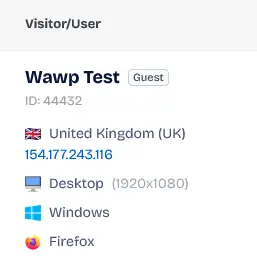
Technical details about the visitor including device type, operating system, and browser.
Keywords: visitor data, browser tracking, device info- Visitor Name & ID: Displays their display name (defaults to Guest) and their unique session ID (e.g.,
#412). - User Role Badge: Displays structural WordPress role badges, highlighting admin, user, or guest classifications.
- Country Flag Emoji: Displays the country flag matching their location.
- IP Geolocation Link: Shows the visitor's IP address. Clicking the IP opens their geolocation profile on whatismyipaddress.com.
- Tech Stack Icons: Displays visual icons indicating their device (Desktop, Tablet, Mobile), OS (Windows, macOS, iOS, Android, Linux), and browser engine (Chrome, Safari, Firefox, Edge, Opera).
- Screen Resolution: Displays their screen dimensions (e.g.,
RES: 1920x1080) to optimize frontend layout designs. - Merged Sessions Notice: If the same visitor returns within a short interval from the same IP, Wawp automatically merges their activity and displays a Merged Session notice to prevent database bloating.
5. Detailed Customer Contact Info & Network Badges
Contact details are compiled dynamically from exit-intent popups and checkout form inputs:
Collection of customer contact information including email, phone, and billing address.
Keywords: customer details, contact info, billing address- E-mail: The captured email address, clickable to launch a direct mail composer.
- Phone Number: The captured phone number, including a direct WhatsApp Web chat link (
https://api.whatsapp.com/send?phone=...) to start immediate manual outreach. - Network Carrier Badge: Automatically identifies the customer's mobile network carrier (e.g., Vodafone, Orange, We, MobiNil) for carrier-specific SMS optimization.
- Address Details: Displays billing addresses (street lines, city, state, postcode) captured in real time from the checkout fields.
6. Cart Summaries & Live Contents
Monitor what items are in their cart and what value is at stake:
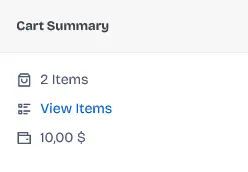
Total value and item count of the products left in the abandoned shopping cart.
Keywords: cart value, abandoned summary, revenue loss tracking- Item Counter: Displays the total number of items currently in the cart.
- View Items Modal: Click the link to open a modal displaying product pictures, selected quantities, and individual prices:
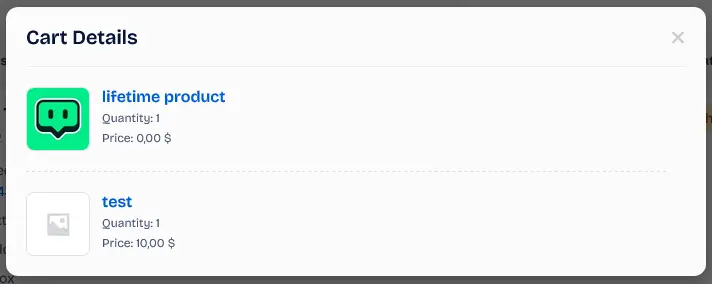
Detailed list of specific products and quantities found in the user's abandoned cart.
Keywords: cart items, product details, missing sales- Cart Total: Displays the real-time monetary value of the active cart.
7. The 11 Unique Session Statuses Explained
Wawp classifies every visitor session into one of eleven detailed operational statuses to track checkout progression:
- New: The session has just initialized and has a recorded history, but the visitor has not yet taken any action (like adding products or providing contact details).

Visual indicator for a user who has just started browsing the site.
Keywords: new status, visitor tracking, active session- New Visitor: An anonymous visitor browsing public pages with completed technical details (browser, OS, device) and an active timeline, but no cart or contact entries.
- Admin: Logged-in users holding administrator roles. This helps you filter out internal staff visits to keep your analytics clean.
- Potential Customer: The visitor has provided their WhatsApp number or email via the popup form, but has not yet added any products to the cart or completed a purchase.

Indicator for a user who provided contact info but hasn't added products to the cart yet.
Keywords: potential lead, lead status, customer conversion- Guest Cart: An anonymous, unregistered guest who has successfully added one or more items to their shopping cart but has not provided contact details yet.
- Shopping: The visitor has items in their cart and has entered contact details (email or phone) but has not finalized the transaction yet.

Status showing the user has items in their cart but hasn't completed checkout.
Keywords: shopping status, active cart, woocommerce user journey- Abandoned Cart: A visitor who added products to their cart and provided contact details, but has left the site (offline status) for more than 5 minutes without purchasing.
- Purchased:
The visitor has successfully completed a transaction. The dashboard displays their order ID (e.g.
#8423) and a link to the backend WooCommerce order page.

Confirmation status that the user has successfully completed an order.
Keywords: purchased status, successful conversion, order completed- Returning Customer: A registered user who has placed at least one successful order on your website previously.

Tag for loyal customers who have made previous purchases from the store.
Keywords: returning customer, customer loyalty, repeat buyer- Left Site: A timeline marker indicating the user closed the tab or moved away, triggering offline session status.
- Returned to Site: A timeline marker indicating a returning session from a previous offline state, continuing their journey.
- Lifetime Value (LTV) Metric: Displayed for converted customers, showing their total monetary value generated over time.
- Multiple Associated Orders Dropdown: If a customer completes multiple separate orders during their session, clicking the and +X more link displays a clean overlay listing all order IDs and links:
- Associated Orders: Clickable shortcuts to view each order directly in your WordPress backend.
8. Chronological User Journey Timeline
Track the visitor's real-time step-by-step behavior history on your website:
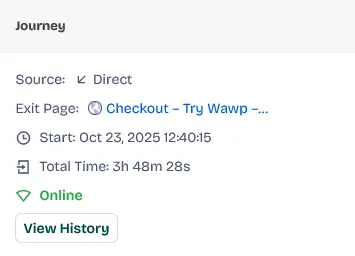
Comprehensive view of all pages and actions taken by a user during their site visit.
Keywords: user journey, behavior map, customer path- Source: Identifies how the visitor found your site (e.g., Google, Facebook, or Direct if they typed your URL directly).
- Current / Exit Page: If the user is actively online, this displays the page they are currently browsing. If they have left or completed an order, it lists the exit page they last visited before leaving.
- Start: The exact timestamp when their session first began.
- Total Time: The accumulated duration of their active site visit.
- Online / Offline Connection Status:
- Online: Displays a pulsing green indicator to show the visitor is actively browsing.
- Left Site: Displays a red indicator to show the visitor has left your site.
- View History: Clicking this button opens a highly detailed chronological timeline of every page view and event.
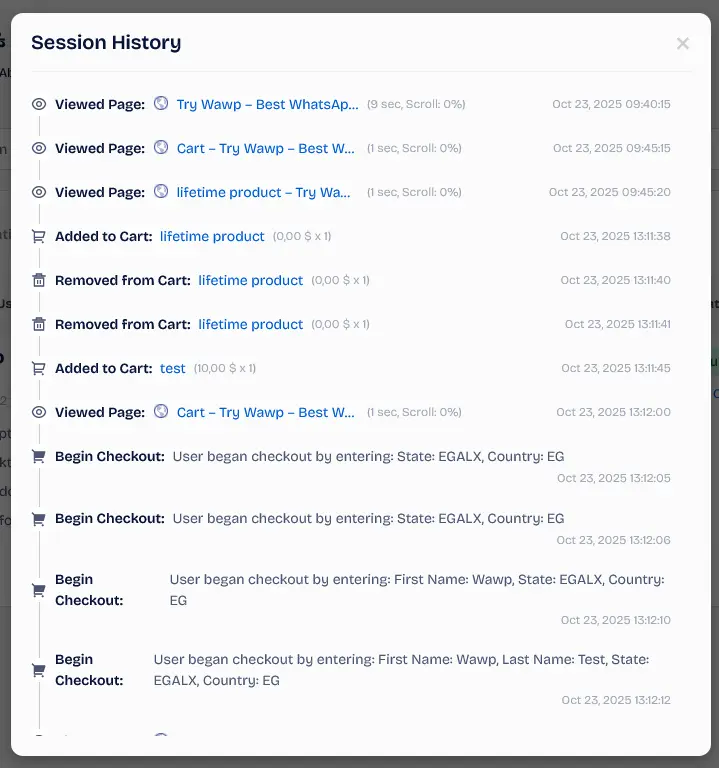
Chronological log of every action, page view, and event performed by the visitor.
Keywords: activity log, timeline view, granular tracking9. Tracked E-commerce Events & Timeline Markers
Wawp captures specific, crucial e-commerce actions as events on the visitor's timeline:
- Viewed Page: Logs every page visited, duration spent on that page, and their scroll percentage (e.g. scrolled 85% before leaving).

Log entry showing when a user viewed a specific page and for how long.
Keywords: page view event, user engagement, content tracking- Added to Cart: Records product titles, quantities, and prices the moment they are added to the cart.

Log entry documenting when a product was added to the shopping cart.
Keywords: add to cart event, purchase intent, cart interaction- Removed from Cart: Tracks which items are removed from the cart, including quantities and values.

Log entry documenting when a product was removed from the shopping cart.
Keywords: remove from cart event, cart abandonment, product rejection- Begin Checkout: Automatically records all contact inputs (phone, email, shipping fields) as they are being typed in the checkout fields.
Because users fill out forms in steps, the Begin Checkout event may record multiple updates. This ensures you capture their contact details as early as possible even if they do not complete the form.

Log entry documenting the moment a user started filling out the checkout form.
Keywords: begin checkout, checkout tracking, conversion funnel- Signed Up: Documents successful user registration actions.

Log entry documenting a successful user registration on the website.
Keywords: signup event, user registration, membership tracking- Filling Checkout Fields: Logs specific form fields actively updated by the user during checkout.
- Order Completed: Confirms successful WooCommerce transaction completion.
- Cart Restored: Logs when a cart is successfully recovered and restored using an automated recovery link sent via WhatsApp or Email.
Advanced Gap Detection & Session Re-entry Markers:
If a user is inactive for more than 5 minutes, the timeline automatically logs a Left Site status change. When they return, a Returned to Site marker is automatically injected to track distinct active shopping windows.
10. Automated Services & Background Engines
Several powerful background services power the Sessions & User Journey workspace:
- Carrier Lookup Service: When a phone number is captured via popup or checkout, the system automatically checks the prefix against international databases to identify their network carrier (e.g. Vodafone, Orange), displaying carrier badges and enabling targeted reminders.
- Session Merge Engine: Prevents duplicate rows. When a guest submits their number or logs in, the engine merges their temporary guest history into their master registered user profile in the database, preserving all timeline events.
- Checkout Autofill Service: Contact data captured from the exit-intent popup is automatically pre-filled in the WooCommerce checkout form billing fields when the visitor navigates to checkout, reducing checkout friction.
- Cart Restoration Service: Generates a secure recovery link containing the visitor's unique session parameters. Clicking this link instantly rebuilds their abandoned cart session on the WooCommerce checkout page.
Did this page help you?
100% found this article helpful (0 likes)
Related Articles
Best WooCommerce WhatsApp Plugin: Ultimate E-Commerce Automation Guide
Discover the best WooCommerce WhatsApp plugin to secure and automate your store. Learn about order notifications, abandoned cart recovery, and checkout OTPs.
How to Setup Automated Notifications
Configure dynamic triggered notification messages automatically driven by WooCommerce order state transitions, subscriptions, or WordPress account events.
How to Setup Checkout Verification
Secure your WooCommerce store transactions utilizing robust WhatsApp OTP, Firebase SMS, or Email confirmations to prevent fraud.
- Need help? Contact Support.
- Check out our Changelog.
- Join our Facebook Community.
- LLM? Read llms.txt.
OFFER ENDS SOON
Extra 30% OFF All Plans
Use this exclusive promo code at checkout to enjoy an extra 30% discount on top of current sales!
BOOST30