Unleash the power of using your customer data to retarget them. The Wawp Bulk Campaigns dashboard provides advanced marketing automation that allows you to segment your users, schedule multi-channel blasts, randomize message delivery intervals to prevent spam flags, and review real-time execution analytics.
How to Setup Wawp Bulk Campaigns
Unleash the power of using your customer data to retarget them using mass scale automated broadcast workflows.
12 min read·Updated August 23, 2026

This is a paid component that you must obtain first in order to be able to use it.
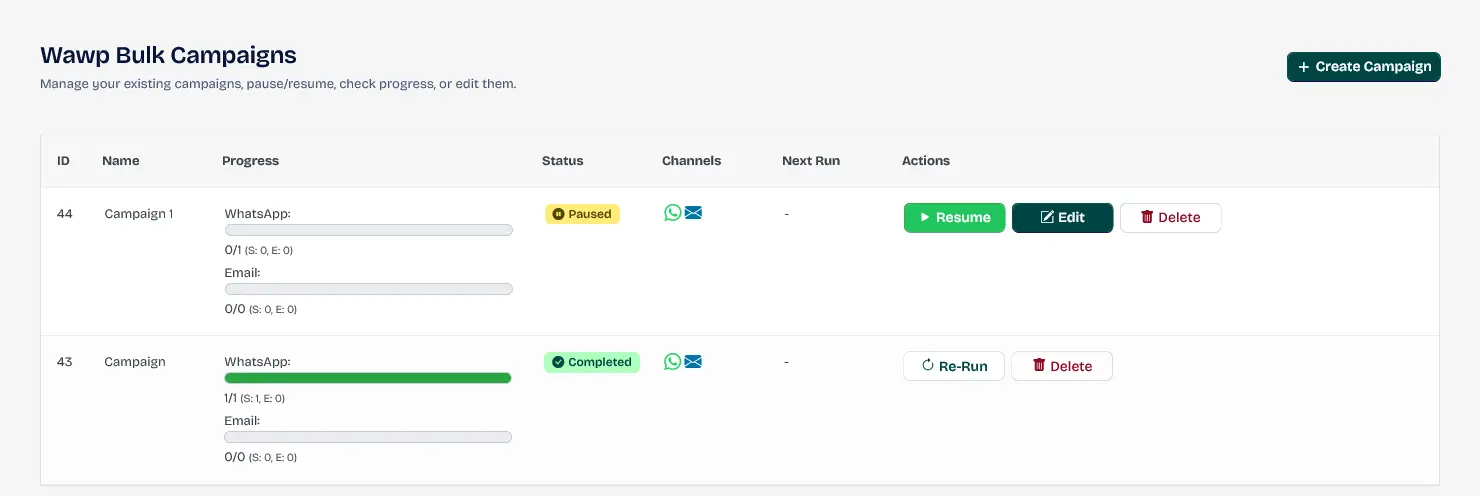
A comprehensive overview of all current bulk broadcast campaigns, including their statuses and progress metrics.
Keywords: whatsapp campaign management, bulk broadcast dashboard, woocommerce marketing toolCampaigns Performance Snapshot
At the top of the Campaign Workspace, the Campaigns Performance Snapshot provides a real-time high-level analytics dashboard breaking down lifetime metrics:
- Total (ALL): The total lifetime campaigns registered on your website. Displayed with a blue progress tracking bar.
- Active (RUNNING): The count of campaigns actively sending or queued for delivery. Displays a green progress tracker showing active vs total campaigns percentage.
- Processed (DONE): The absolute number of successfully delivered messages (WhatsApp, Meta API, and Email combined) across all campaigns.
- Failed (ERROR): The absolute count of delivery errors. Displayed with a warning-red indicator showing the failure rate percentage for easy troubleshooting.
Create Campaign
To start a new campaign, just open the Campaigns page and click on the + Add New button (which acts as your Create Campaign trigger).

The primary button to launch the multi-step wizard for creating a new marketing campaign.
Keywords: create campaign, new broadcast, marketing automation setupCampaign Header
The Campaign Header provides you with important structural information while configuring your campaign so you can monitor details in real time:
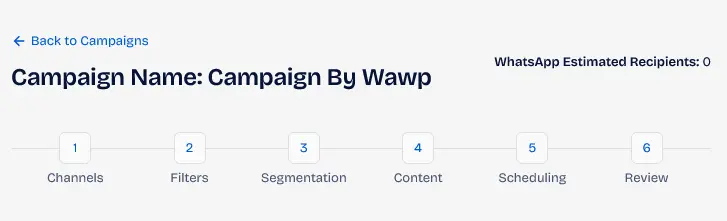
The header section of the campaign builder showing name, estimated recipients, and current setup step.
Keywords: campaign header, recipient counter, setup progress- Campaign Name: The campaign name is automatically retrieved based on the name you specified to avoid confusion during its creation.
- Estimated Recipients: This information is automatically retrieved in the background based on your active channels and filter parameters, letting you know exactly how many users will receive the WhatsApp, Meta, or Email dispatches.
- Progress bar: Displays what step you are currently at, allowing you to click on any step number to jump directly to and modify that configuration step.
Campaign Footer
The footer area includes the save, forward, and return navigation buttons present in every step of the wizard:

The sticky bottom bar with options to save as draft, go back, or proceed to the next campaign step.
Keywords: campaign navigation, save draft, workflow controls- Save Draft: Saves the campaign temporarily to your dashboard. Note that the campaign wizard also backs up all inputs to your browser's local storage (
localStorage) in real time to prevent accidental data loss. - Back: The return button to go back to the previous step to modify its settings.
- Next: The forward button displaying the next step's name to complete the setup.
Step 1: Audience & Channels
In this step, specify the campaign name, set up the transmission channels, select WhatsApp senders, and define your target audience:
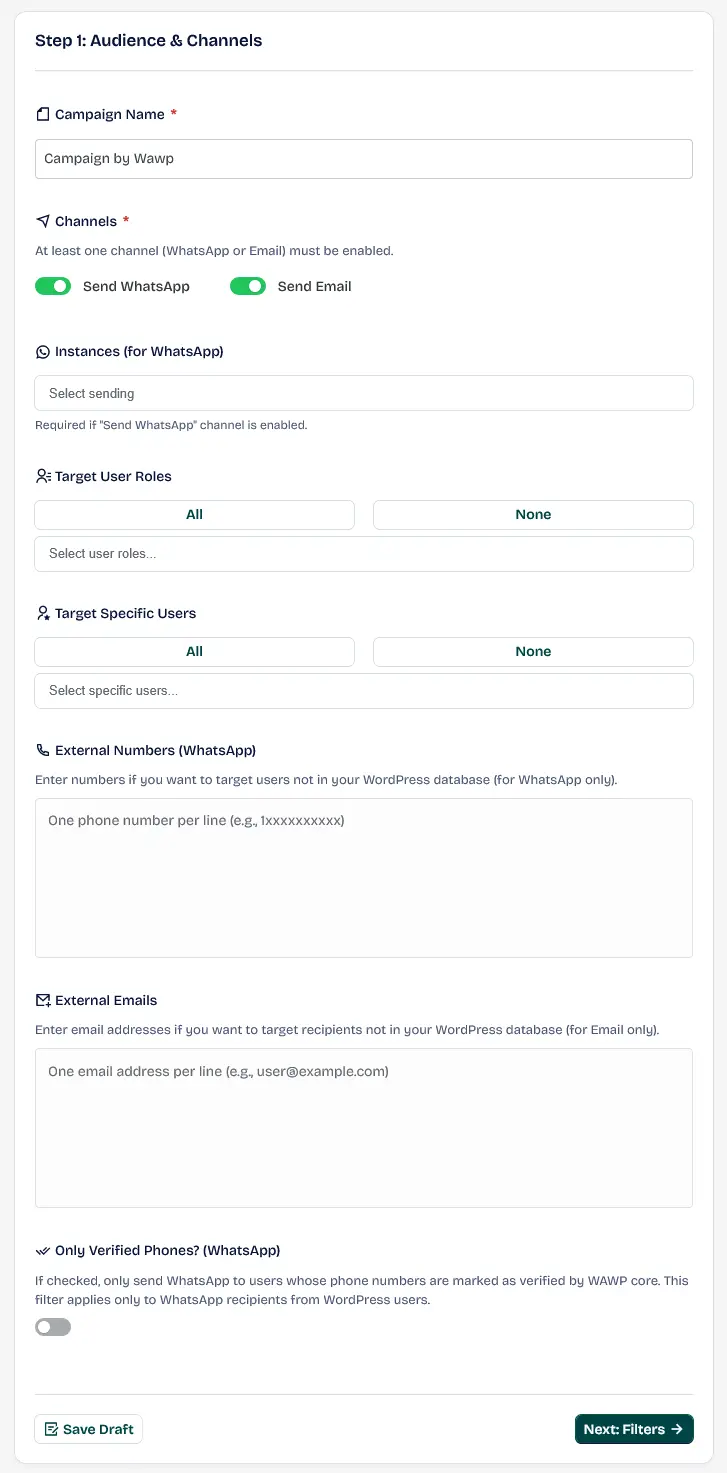
Initial setup screen for naming the campaign and selecting delivery channels like WhatsApp or Email.
Keywords: audience settings, delivery channels, campaign setupCampaign Name: Write a unique descriptive name for your campaign so that you can easily identify it in logs and reports.

Text field for entering a descriptive name to identify the campaign in logs and reports.
Keywords: campaign name, documentation settings, wordpress marketingChannels: Select WhatsApp Web (direct WAWP engine dispatch), Meta WhatsApp (official WhatsApp Business API), Email, or a combination of them to run the campaign across multiple channels simultaneously.

Options to route the campaign through WhatsApp Web, Email, or both simultaneously.
Keywords: routing options, message channels, multi-channel marketingInstances (for WhatsApp): Choose one or more of your connected WhatsApp Web instances. If multiple instances are selected, Wawp uses an automated rotation system to distribute outgoing messages between them. This reduces traffic on any single number and protects your accounts against spam restrictions.

Control panel for selecting multiple WhatsApp instances and enabling automated message rotation.
Keywords: whatsapp rotator, instance management, sender safetyTarget User Roles: Target users belonging to specific WordPress member roles (e.g. Customers, Subscribers). This is highly effective for segmenting large user bases.

Filter for targeting messages to specific WordPress user roles such as Customers or Subscribers.
Keywords: role targeting, user segmenting, wordpress membership filterTarget Specific Users: Search your user database by name or email and select specific individual users manually.

Search and selection tool for manually picking individual users from the site's database.
Keywords: manual selection, user search, targeted outreachExternal Numbers (WhatsApp): Paste external mobile numbers (one number per line) in international format (e.g., 201111111111, 966500000000) without leading zeros or +. Ensure your numbers follow the Correct Phone Format to avoid delivery failures.
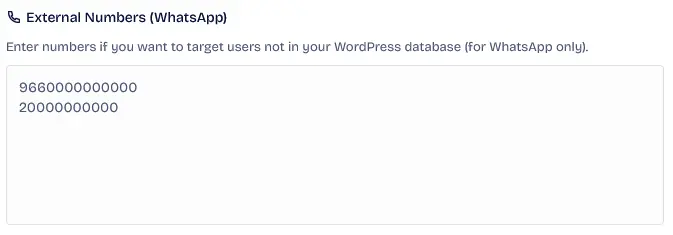
Text area for pasting a list of external WhatsApp numbers not currently in the site's user database.
Keywords: external numbers, contact import, whatsapp broadcast listExternal Emails: Paste a list of external email addresses (one email per line) for direct email broadcasts (e.g., user@example.com).
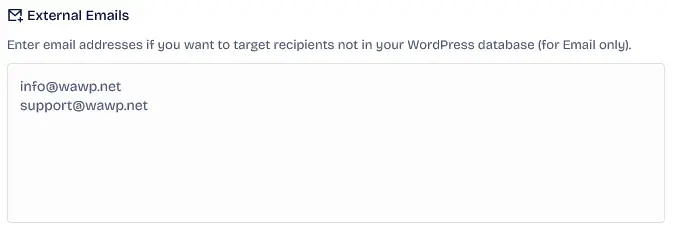
Text area for pasting a list of external email addresses for the broadcast campaign.
Keywords: email list, external contacts, email marketingOnly Verified Phones? (WhatsApp): Turn this toggle on to restrict WhatsApp dispatches strictly to users whose phone numbers have been previously verified via Wawp's OTP gateways (Checkout or Registration), avoiding undeliverable messages.

Option to restrict the campaign to users whose phone numbers have been verified via OTP.
Keywords: verified phones, otp verification, data qualityStep 2: Additional Customer Filters
Use customer profile details to apply geographic and linguistic filters to localize your campaign:
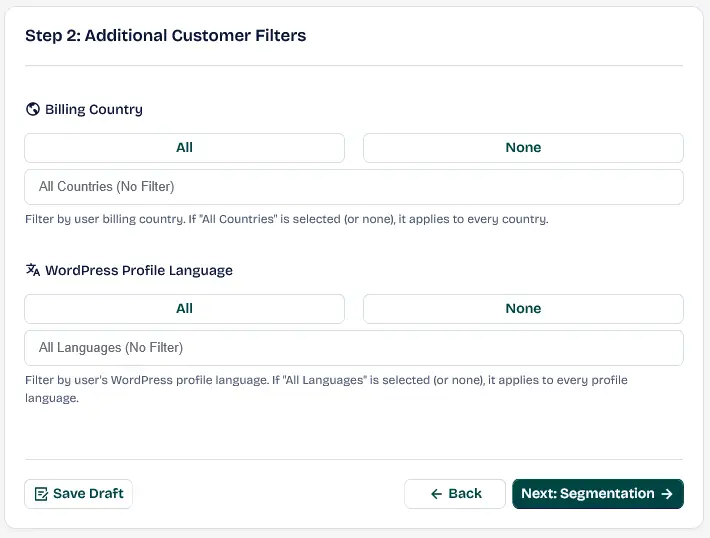
Filters for narrowing the audience based on their billing country and profile language.
Keywords: location filters, language targeting, localization settingsBilling Country: Target users belonging to specific billing countries. Selecting All Countries (or leaving it empty) applies the campaign globally.
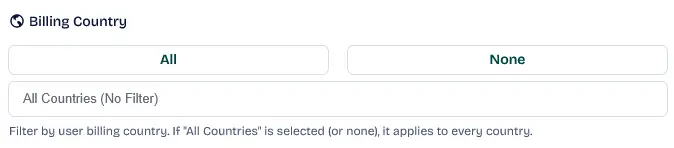
A selection grid to target specific countries based on user billing information.
Keywords: billing country, geographic targeting, global marketingWordPress Profile Language: Target users based on the language preference set in their WordPress profile (e.g. English, Arabic), which allows you to send localized copy to distinct language groups.
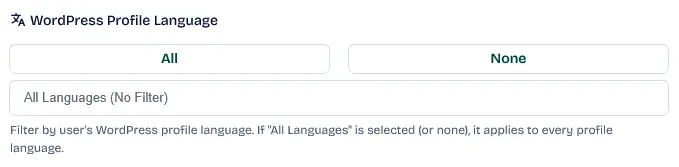
Filter to target users based on the language preference set in their WordPress profile.
Keywords: language filter, content localization, user preferenceStep 3: WooCommerce Customer Segmentation
Filter your audience based on order history and customer behavior to target specific shopping patterns:
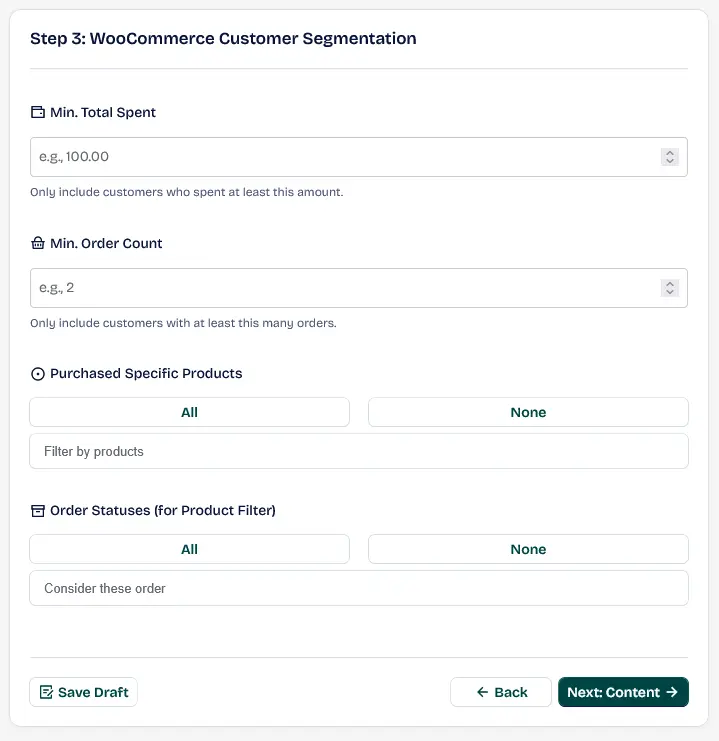
Advanced interface for segmenting customers based on their purchase history and behavior.
Keywords: customer segmentation, purchase history, ecommerce targetingMin. Total Spent: Only target customers who have spent at least this total amount in your store, helping you run exclusive VIP promotions.

Filter to target high-value customers who have spent more than a specific amount in the store.
Keywords: spending filter, vip customers, sales analysisMin. Order Count: Target loyal customers with at least this number of total placed orders.

Filter to target customers based on the total number of orders they have placed.
Keywords: order count, customer loyalty, purchase frequencyPurchased Specific Products: Promote to customers who have previously purchased specific products by searching and entering their product IDs.

Filter for targeting customers who have purchased specific product IDs from the store.
Keywords: product targeting, cross-selling, upsell automationOrder Statuses (for Product Filter): Refine the product purchase filter by selecting specific order statuses (e.g., target only users with Completed or Processing orders, while excluding On Hold or Cancelled orders).
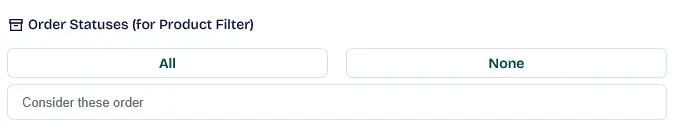
Filter to include or exclude customers based on their latest order status (e.g., Completed, Processing).
Keywords: order status, lifecycle filter, woocommerce funnelStep 4: Message Content
Choose and compose the messages to send across your selected channels:
General Standards / Type Text only
Write standard text messages. For email, this includes a rich-text WordPress editor and custom email subject line.
For email dispatches, you can also select one of your beautifully designed Email HTML Templates from the dropdown menu to deliver branded layout notifications.
For Meta WhatsApp dispatches, select your pre-approved Meta Template and language from the dropdowns, then map dynamic placeholder variables to user meta keys.
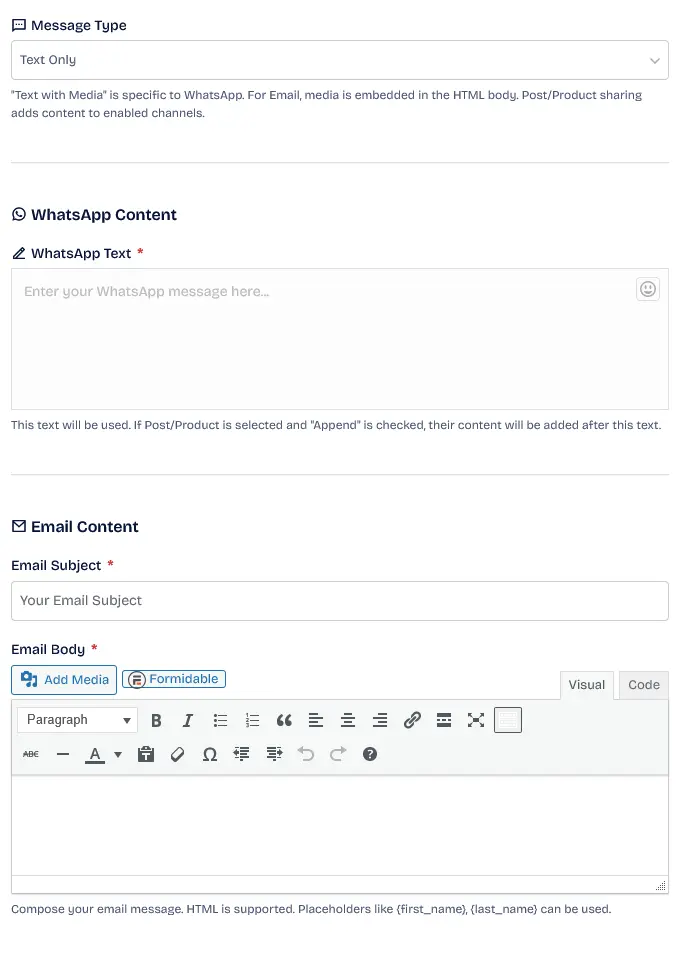
The editor interface for composing the primary text content of the broadcast campaign.
Keywords: message editor, campaign content, text composerText with Media (WhatsApp)
Upload images, audio files, or PDF documents to attach rich media directly to your WhatsApp Web dispatches.

Area for uploading images, audio, or PDFs to be included in the WhatsApp broadcast.
Keywords: media attachments, rich messaging, file uploadShare WordPress Post/Page
Search and share a published WordPress post or page. Choose whether to append or replace your message body with its title, excerpt, link, or featured image.
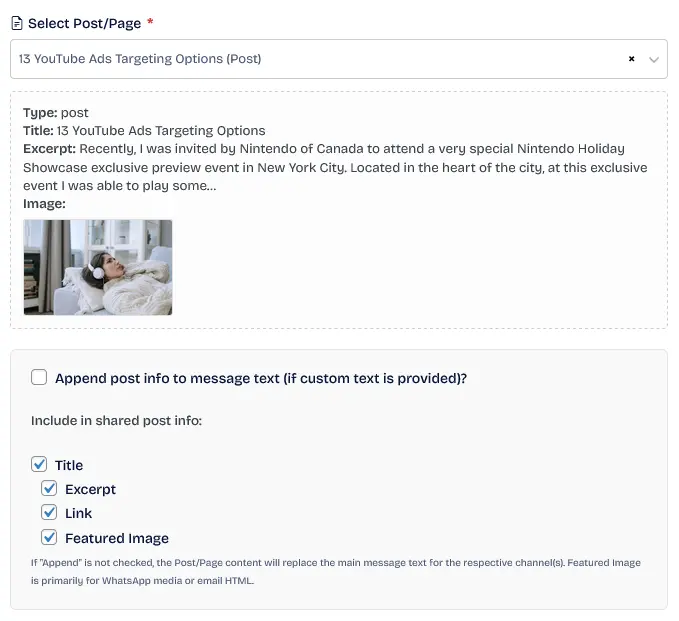
Tool to search and link WordPress posts or pages for automatic link preview generation.
Keywords: post sharing, link previews, content marketingInclude in shared post info: Title, Excerpt, Link, Featured Image. If “Append” is not checked, the Post/Page content will replace the main message text for the respective channel(s).
Share WooCommerce Product
Search and share products from your WooCommerce store. Select whether to append or replace your message body with product details, including title, price, description, link, or main image.
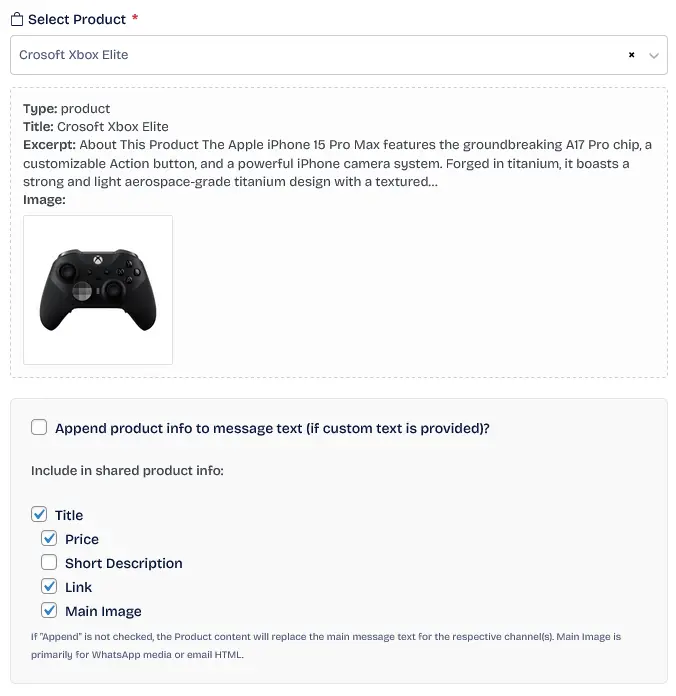
Selection tool for including live product data (price, image) directly into the message.
Keywords: product sharing, ecommerce broadcast, direct sellingInclude in shared product info: Title, Price, Short Description, Link, Main Image. If “Append” is not checked, the Product content will replace the main message text for the respective channel(s).
With any selection type, you may also add a custom supplementary message text to explain the distinct purpose of your campaign explicitly to end recipients.
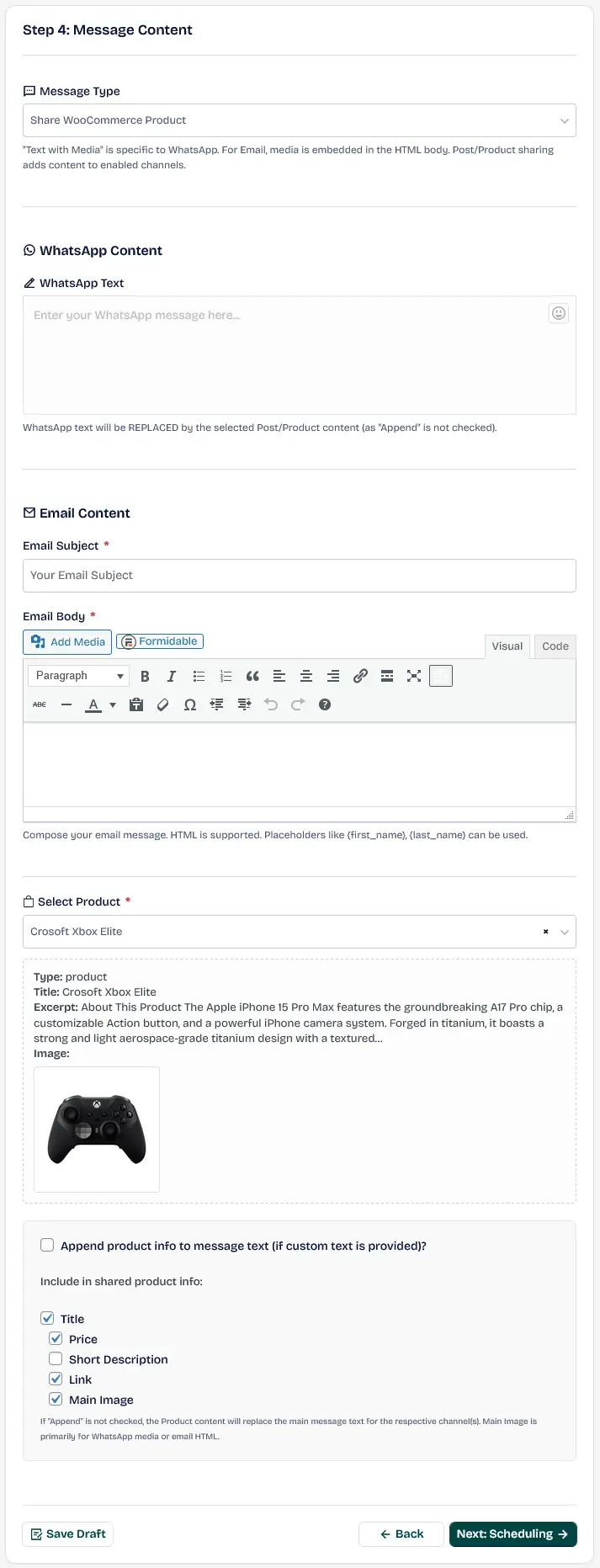
Optional field for adding a custom personalized note alongside shared products or posts.
Keywords: custom text, personalized note, campaign explanationStep 5: Scheduling & Timing
Configure delays, daily limits, and launching schedules to protect your sender reputation and simulate human dispatch:
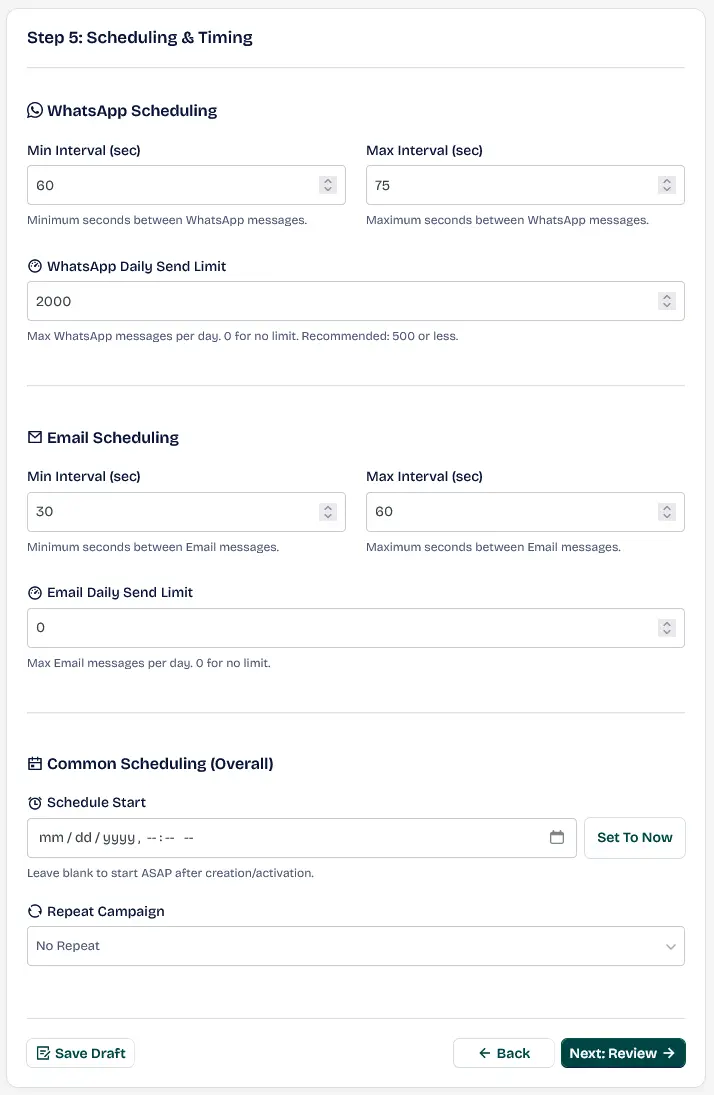
The setup screen for defining broadcast speed, intervals, and daily message limits.
Keywords: campaign scheduling, message timing, send speedWhatsApp Scheduling & Email Scheduling
- Min Interval (sec): The minimum delay time between consecutive message dispatches.
- Max Interval (sec): The maximum delay time. The system randomizes delays between these bounds to mimic natural human behavior.
- Daily Send Limit: The maximum number of messages to send daily. Once this limit is reached, sending pauses and automatically resumes the next day.
Safety Caution: The maximum tested safe daily deployment baseline is approximately 500 WhatsApp dispatches per account. Breaching this safety ceiling can carry a risk of number blockages by WhatsApp.
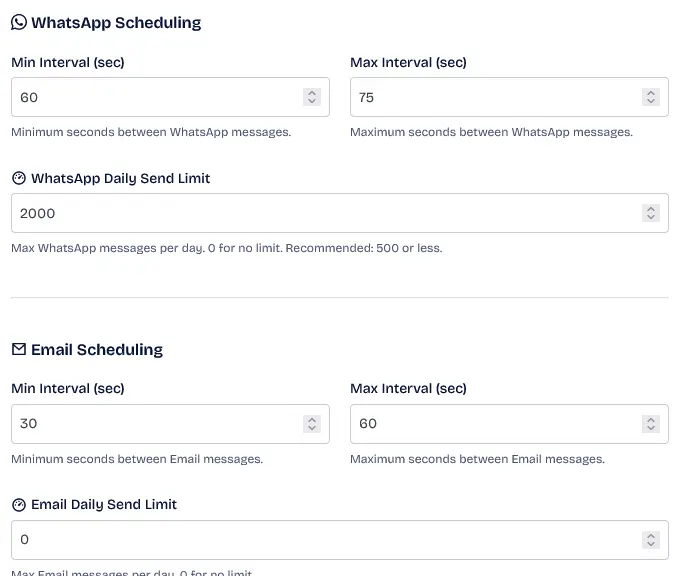
Settings for minimum and maximum intervals between messages to mimic human behavior.
Keywords: send intervals, random delay, anti-spam settingsCommon Scheduling (Overall)
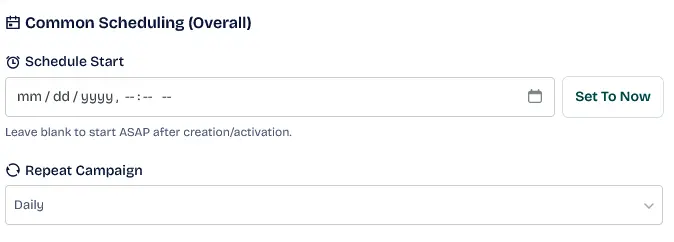
The date and time picker for scheduling exactly when the campaign should begin its broadcast.
Keywords: launch schedule, automated start, broadcast timing- Schedule Start: Set a future date and time to launch the campaign. If set to a past date or left empty, sending begins immediately upon campaign activation.
- Repeat Campaign: Configure automated recurrences (e.g. Daily, Weekly, Monthly, or Custom Interval where you specify the repeat interval in days).
Step 6: Review
Review the summary of all campaign parameters, including targeted channels, filters, and scheduled times:
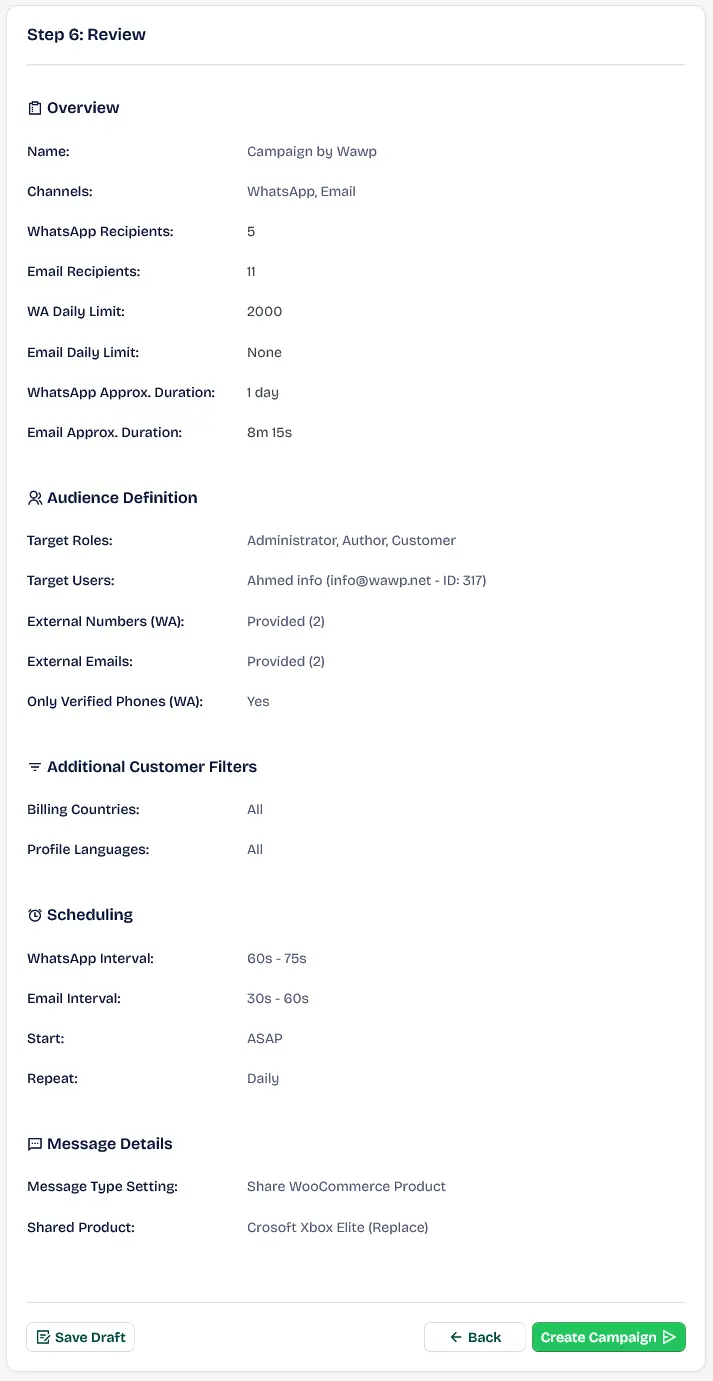
The summary screen displaying all selected parameters for a final check before launch.
Keywords: campaign review, pre-launch audit, final validationSafety Safeguard Gate (Risky Campaigns): If a campaign targets more than 500 WhatsApp Web recipients without a safe daily limit, the wizard places it in a Risky status. The campaign will not send messages until an administrator manually clicks Approve Run in the Campaigns Workspace.
Manage Existing Campaigns
Oversee your active queues, pause operations, track progression metrics, and direct edits from the Campaigns Workspace:

The operational dashboard for monitoring active campaigns, with controls for pausing or editing.
Keywords: campaign control, monitor broadcast, active queueStatus Index Reference
- Active: The campaign is currently running or scheduled to send.
- Paused: The campaign is paused in a sleep loop.
- Completed: The campaign has fully sent all messages in its queue.
- Draft: The campaign is a saved draft and has not yet been launched.
- Risky: The campaign is blocked for safety approval due to high recipient volumes without daily limits.
Operations Context Menu
- Pause: Pause an Active campaign's queue.
- Resume: Instantly resume a Paused campaign's dispatch loops.
- Edit: Modify campaign parameters (available on all statuses except Completed).
- Delete: Permanently delete the campaign entry and its queue logs from the database.
- Re-run: Re-start a Completed campaign, resetting statistics and recreating the target queue.
Did this page help you?
99% found this article helpful (244 likes)
Related Articles
Best WooCommerce WhatsApp Plugin: Ultimate E-Commerce Automation Guide
Discover the best WooCommerce WhatsApp plugin to secure and automate your store. Learn about order notifications, abandoned cart recovery, and checkout OTPs.
How to Setup Automated Notifications
Configure dynamic triggered notification messages automatically driven by WooCommerce order state transitions, subscriptions, or WordPress account events.
How to Setup Checkout Verification
Secure your WooCommerce store transactions utilizing robust WhatsApp OTP, Firebase SMS, or Email confirmations to prevent fraud.
- Need help? Contact Support.
- Check out our Changelog.
- Join our Facebook Community.
- LLM? Read llms.txt.
OFFER ENDS SOON
Extra 30% OFF All Plans
Use this exclusive promo code at checkout to enjoy an extra 30% discount on top of current sales!
BOOST30