Connect with an official external Meta developer backend to route high-volume transactional traffic directly through official Cloud API conduits. You can integrate Meta API using either the new automated Quick Connect method (Recommended) or the advanced Manual Setup method.
Method A: Quick Connect via Facebook (Recommended)
This is the easiest and fastest way to connect. By providing your Meta App ID, you can authorize Wawp to automatically retrieve your Access Token, WhatsApp Business Account ID, and Phone Number ID, and automatically subscribe your Webhooks.
Step 1: Create WhatsApp Meta API App
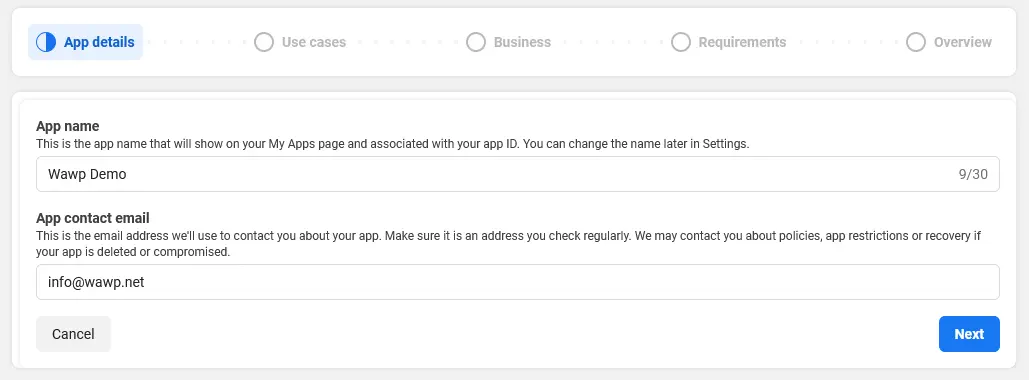
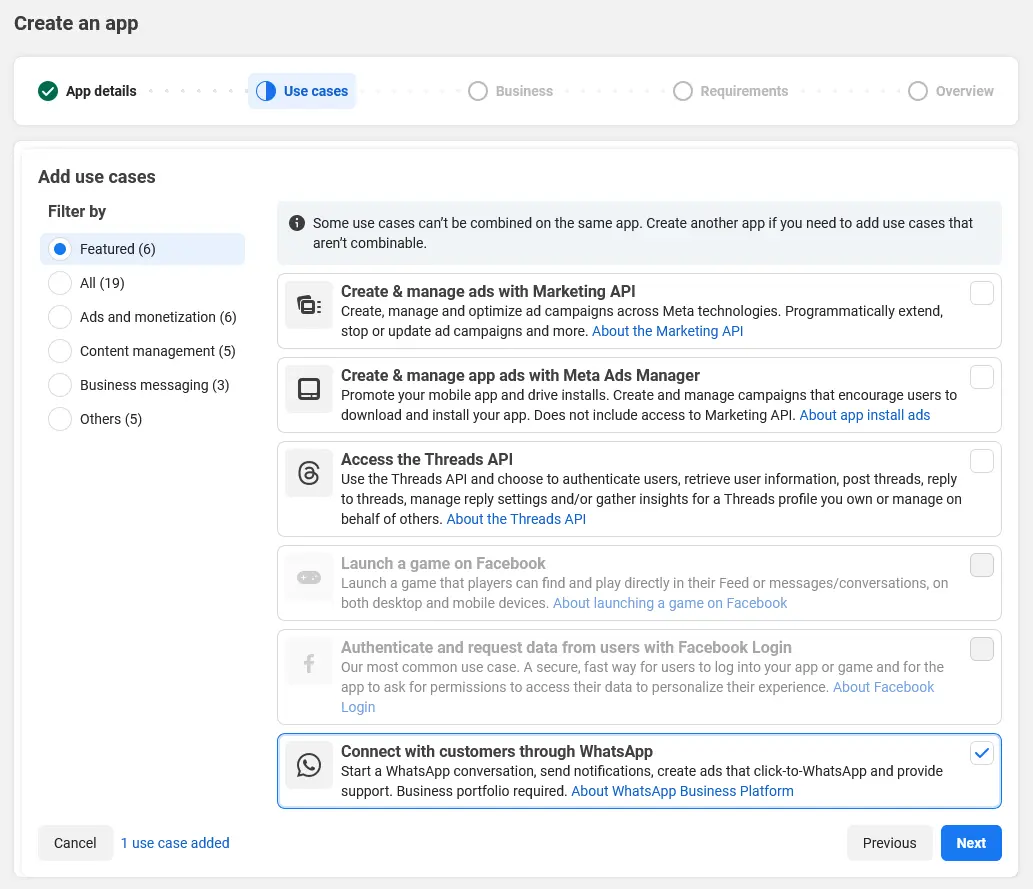
To get started, you must register a developer app on Meta's platform to obtain your App ID and App Secret:
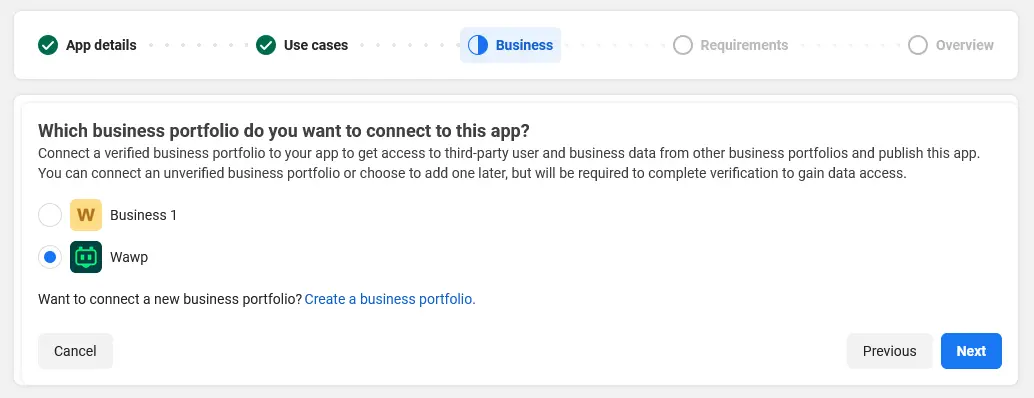
Tie application strictly to your dedicated Facebook Business Account directory.
Linking a Business Account
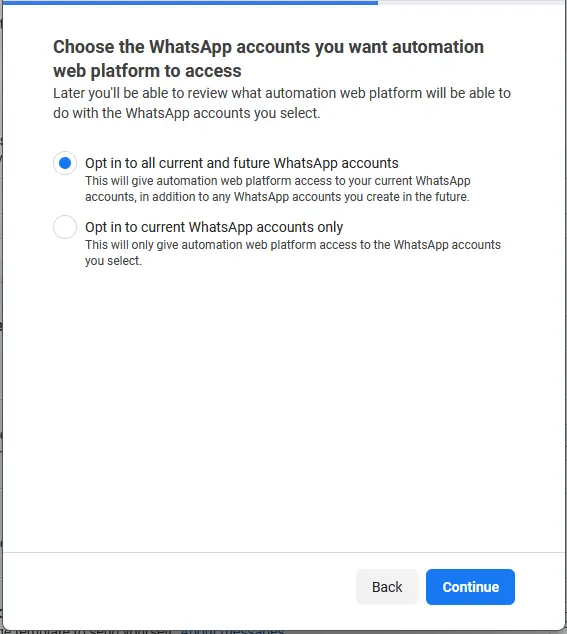
Selecting the specific Facebook Business Account to associate with the WhatsApp integration.
Keywords: facebook business account, link accounts, meta settings
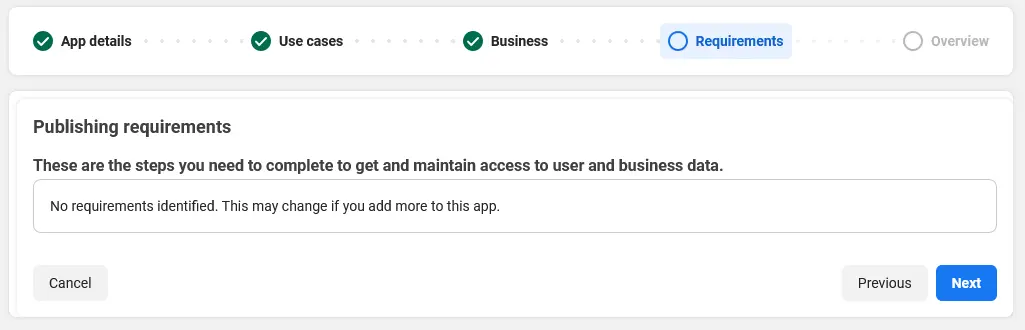
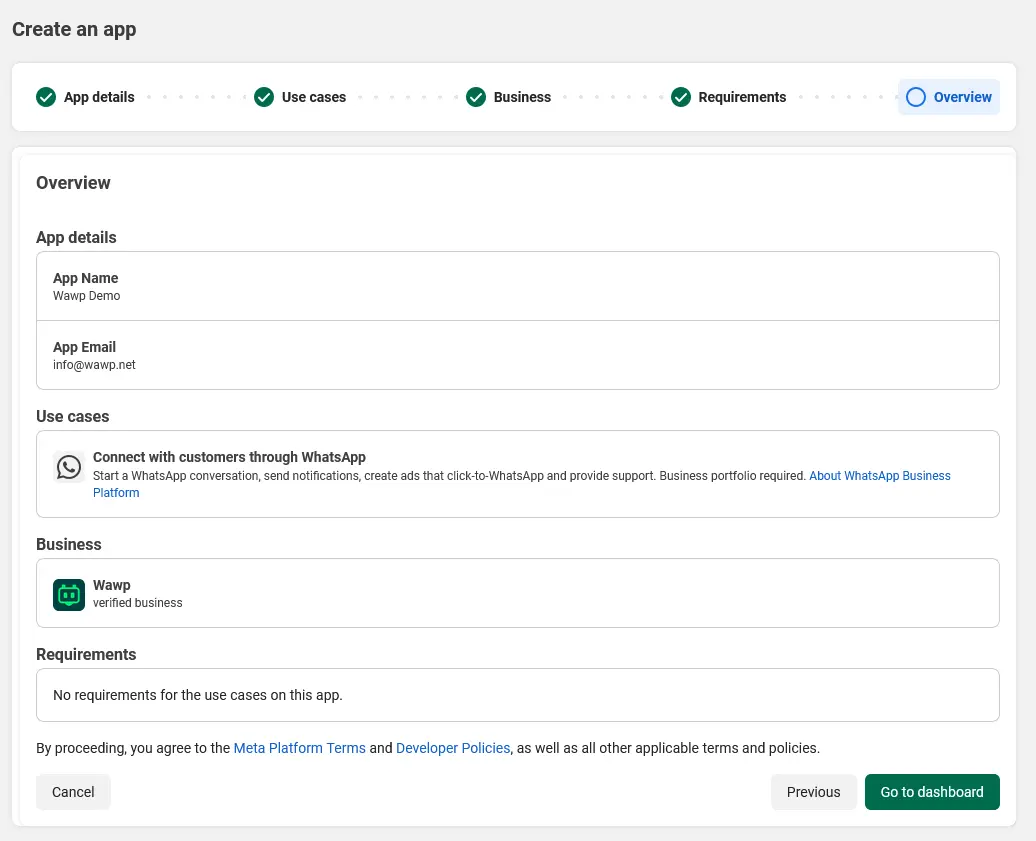
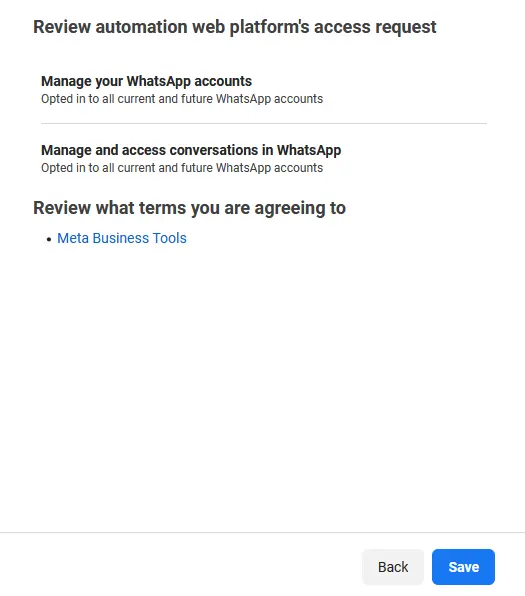
Final review screen display. Complete mandatory setup steps to persist variables.
Reviewing App Settings
Final review of all entered data before officially confirming the app creation.
Keywords: meta review settings, confirm data, final step
Enter account credentials to securely verify creation completion authorization.
Password Verification
Security challenge requiring the account password to authorize the new app creation.
Keywords: account security, meta verification, password check
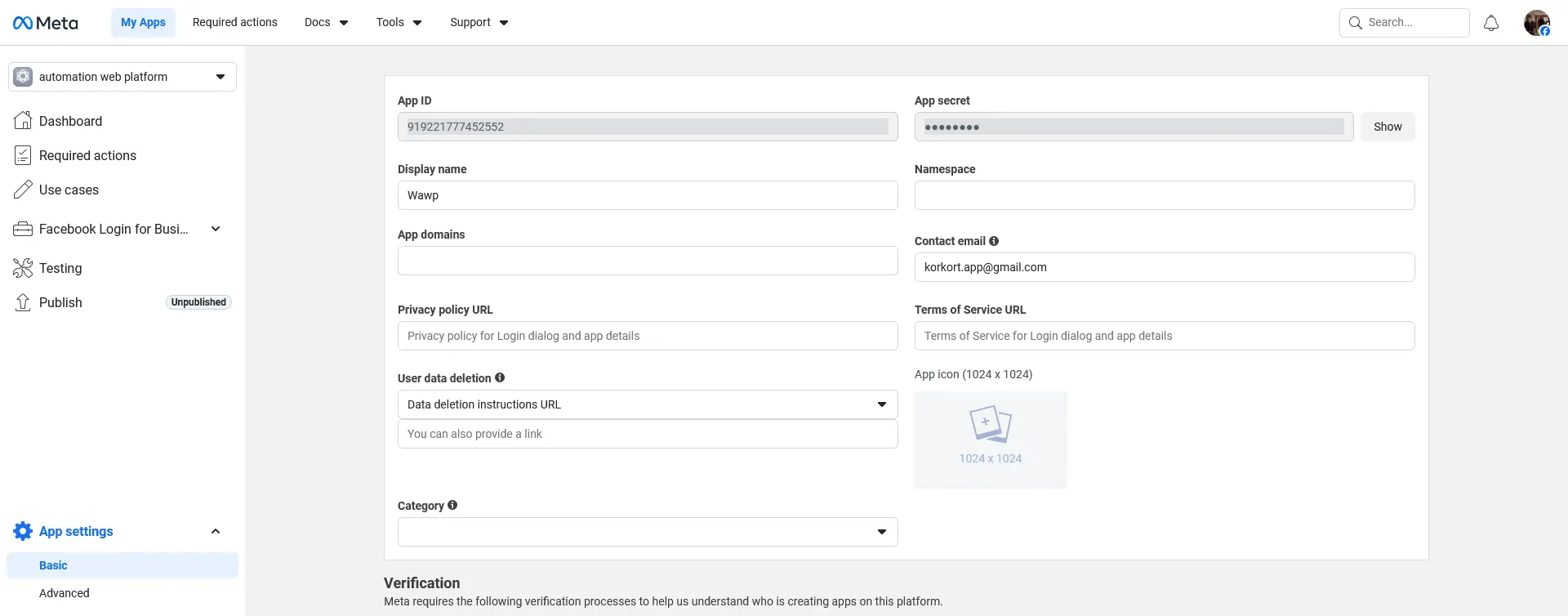
Copy the App ID and App Secret from the top bar or from the App Settings > Basic tab in your Meta Developer Dashboard.
Copying App ID
Extracting the unique numeric sequence that identifies the specific app.
Keywords: copy id, app identity, link data
Step 2: Initialize & Quick Connect in Wawp
Once you have your Meta App ID and App Secret, you can authorize Wawp in a single click:
Navigate to the Meta API Sender section within your Wawp dashboard.
In the Meta App ID (Client ID) and Meta App Secret fields, paste the keys you copied from Facebook, and click Save.
Under the Quick Connect banner, click the Connect with Facebook button.
A secure Facebook OAuth popup will open. Log in to your Facebook account and select the WhatsApp Business Accounts and Phone Numbers you want to grant Wawp access to.
Grant the necessary scopes: whatsapp_business_management and whatsapp_business_messaging.
Once authorized, Wawp will automatically use Meta's Graph API to fetch:
Permanent Access Token (populated in settings)
WhatsApp Business ID (WABA) (automatically populated)
Phone Number ID (automatically populated)
Verify Token (automatically generated as a secure random string)
Step 3: Automatically Subscribe Webhooks
With the App Secret and App ID saved, you can subscribe to real-time events automatically without manual configuration:
Scroll down to the Incoming Events (Webhook) card in Wawp.
Verify that your Verify Token is present.
Click the Subscribe Automatically button. Wawp will automatically request Meta Graph API to register the webhook callback URL and verify token.
Click Save in Wawp.
Congratulations! Your Quick Connect configuration is complete. You can now synchronize your message templates and start sending.
Under-the-Hood: How Quick Connect Works
For advanced developers, the Connect with Facebook mechanism automates the entire configuration handshake using official Meta SDK and OAuth API calls:
1. App Configuration & SDK Initialization: When you save your Meta App ID, the Wawp plugin loads and initializes the official Facebook JavaScript SDK (FB.init()) on your WordPress admin page.
2. OAuth Authorization Flow: Clicking Connect with Facebook triggers window.FB.login(), opening a secure Facebook dialog asking you to authorize Wawp with two critical WhatsApp permissions:
whatsapp_business_management (to discover and configure your WhatsApp Business account).
3. Access Token & Key Generation: Upon approval, Facebook returns an OAuth Access Token to the Wawp frontend, which populates the Permanent Access Token field. Wawp also instantly generates a secure random string for the Verify Token.
4. Business & Phone Auto-Discovery: Wawp queries Meta's Graph API (/me/whatsapp_business_accounts). It instantly retrieves your WhatsApp Business ID (WABA ID) and the associated Phone Number ID, auto-filling the settings fields instantly.
5. Automated Webhook Subscription: When clicking Subscribe Automatically, Wawp's backend calls Meta's app subscription endpoint (/v17.0/{waba_id}/subscribed_apps) using your Access Token, securely binding your site's webhooks.
Method B: Manual Setup (Fallback Setup)
If you prefer to configure the parameters manually or encounter any authorization issues with Facebook OAuth, you can use the traditional manual configuration:
Step 1: Create WhatsApp Meta API App
Follow the same App creation workflow outlined in Method A - Step 1 to obtain your Meta developer application.
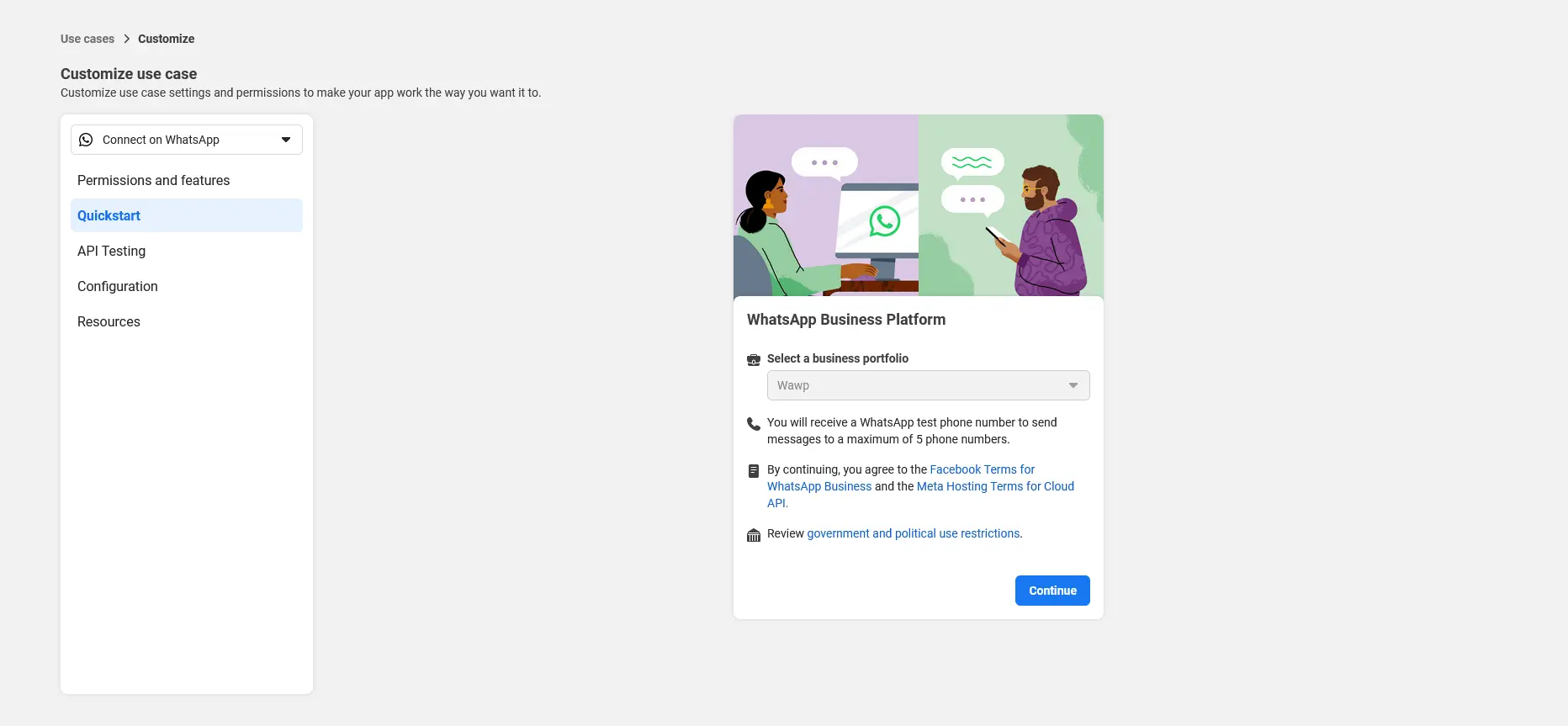
Step 2: Customize WhatsApp to Get Keys
Once the App is created, activate the WhatsApp product and generate credentials manually:
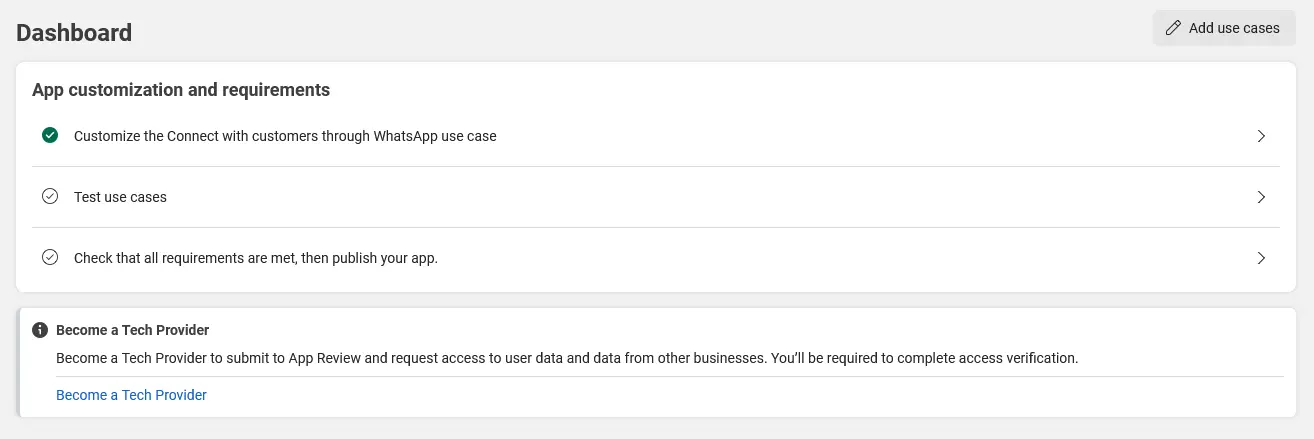
Locate and activate the WhatsApp product module within the app dashboard.
Adding WhatsApp Product
Selecting and activating the WhatsApp product module within the app dashboard.
Keywords: meta products, enable whatsapp api, developer settings
Connect mandatory assets across dashboards matching intended deployment targets.
Connecting Digital Assets
Binding the app with necessary digital assets to manage messaging flows.
Route developer components across the Wawp configuration plane to establish communication bridge:
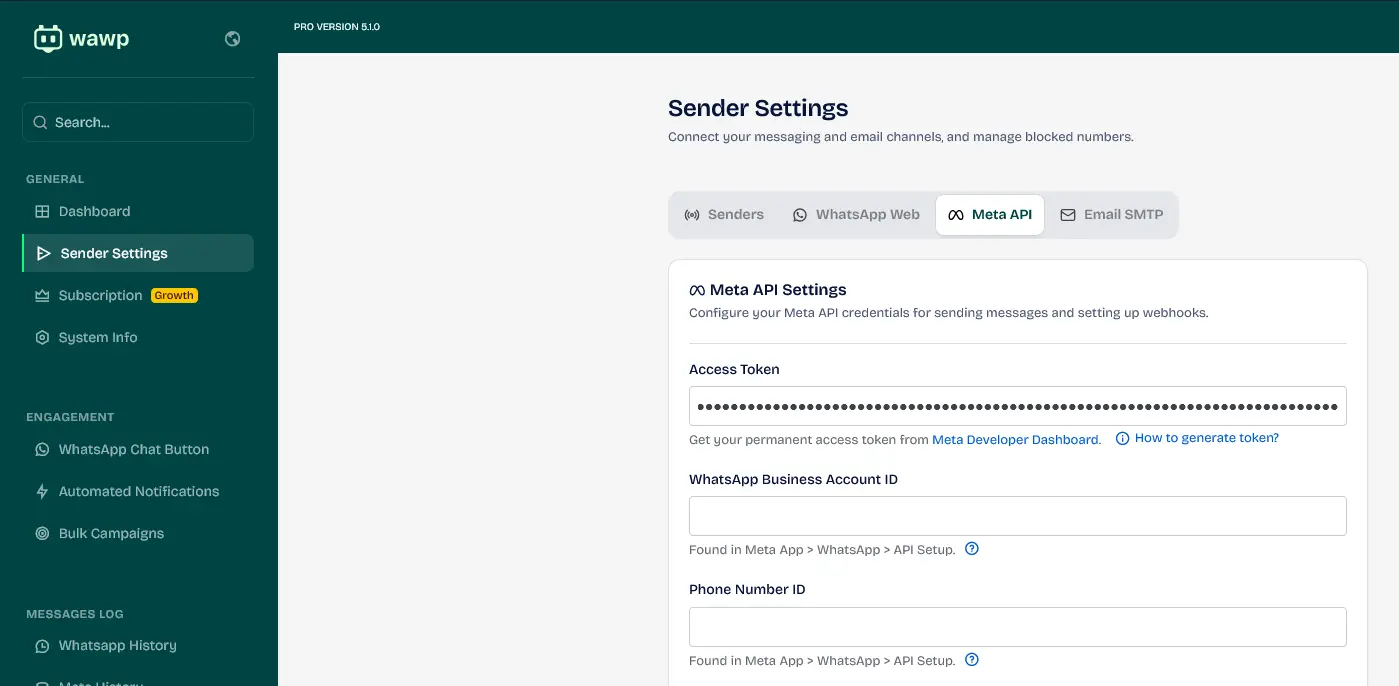
Locate the Meta API Sender section within Wawp.
Inject copied authorization token stream directly into the Permanent Access Token field.
Inputting Data in Wawp
Pasting the authentication tokens into the designated fields in the Wawp plugin.
Keywords: wawp plugin settings, link whatsapp wordpress, api input
Step 4: Integrate Business Identifiers
Synchronize specific background identity integers enabling cloud broadcast routing logic:
Locate and copy the distinct WhatsApp Business Account ID and Phone Number ID visible inside your Meta Dashboard.
Business Account ID
Locating and copying the unique WhatsApp Business Account identifier.
Keywords: business account id, whatsapp business id, copy id
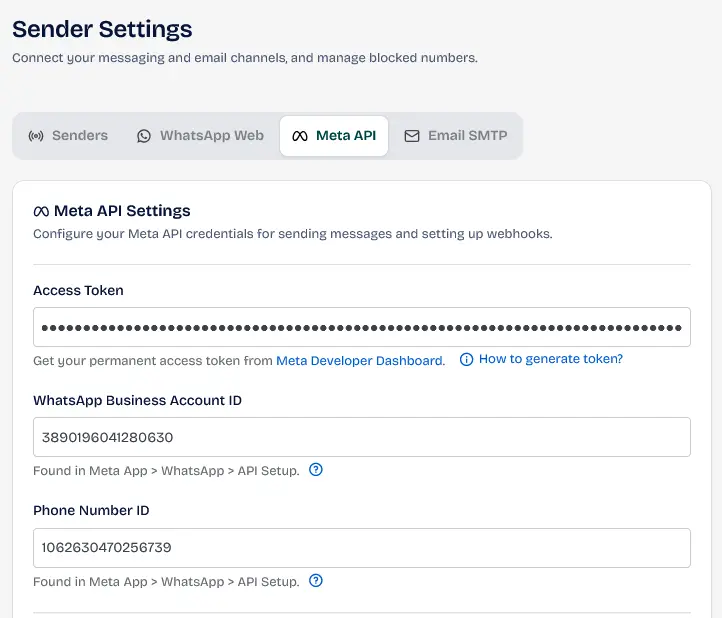
Navigate to input container fields and paste the extracted ID streams into their respective WABA ID and Phone Number ID fields.
Matching Identifiers
Ensuring the Business ID is mapped correctly within the plugin settings.
Keywords: matching data, link account, sender settings
Click Save in Wawp.
Saving Final Settings
Committing all API credentials to begin sending messages via official channels.
Keywords: save whatsapp settings, enable messaging, success link
Step 5: Setup Dynamic Webhooks (Manual Method)
Synchronize state callbacks allowing real-time delivery verification and notification updates from handsets:
Enter explicit integration panel designated strictly for Webhook handlers in the Meta Developer Dashboard.
Webhook Initialization
Starting the webhook configuration to enable real-time message status updates.
Keywords: webhook setup, receive messages, meta notifications
Copy the Rest Endpoint URL displayed under the Webhook card in Wawp.
Webhook Callback URL
Identifying the site-specific URL where Meta will send event callbacks.
Keywords: webhook link, endpoint url, receive data
Paste it in Meta's Webhook configuration window under Callback URL, and enter your Wawp Verify Token under Verify Token. Verify and save the webhook handshake.
Security Handshake
Verifying the security token to establish a trusted webhook connection.
Keywords: webhook verification, data security, security handshake
Activate required subscriptions specifying actionable event pipelines. Under Webhook field subscriptions, subscribe to messages to receive incoming notifications and delivery statuses.
Webhook Subscription Fields
Selecting specific event fields to monitor (e.g., delivered, read).
Keywords: monitoring fields, meta subscriptions, message data
Next Steps
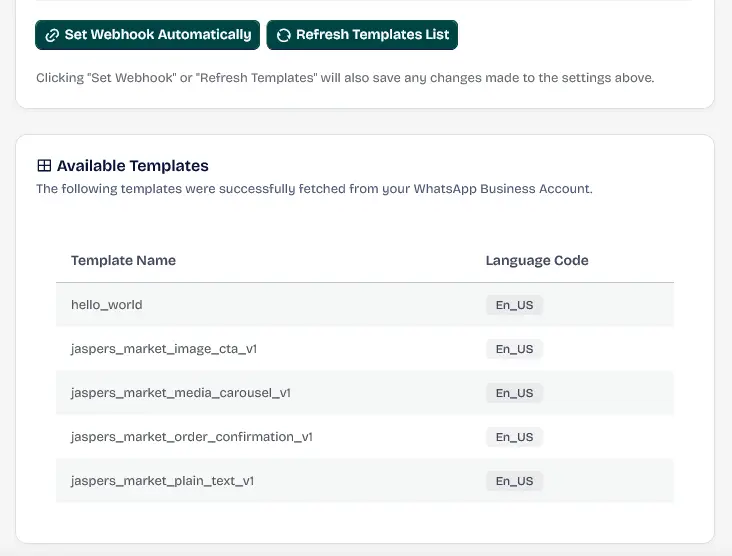
Step 6: Sync Approved Templates
Wawp retrieves and caches all your pre-approved templates so you can use them inside flows:
Scroll down to the WhatsApp Templates section.
Click Sync Now to fetch the catalog from Meta Cloud.
Syncing Message Templates
Fetching approved WhatsApp templates for instant use in site campaigns.
Keywords: template sync, whatsapp templates, meta campaigns
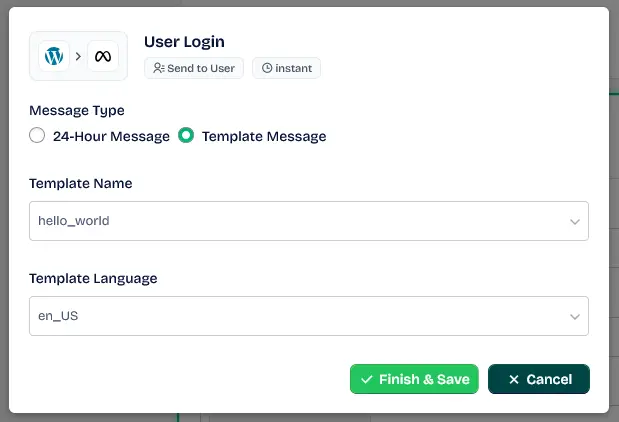
Step 7: Test Official Transmission Pipelines
Validate live broadcasts through native plugin notification modules after finalized hookups.
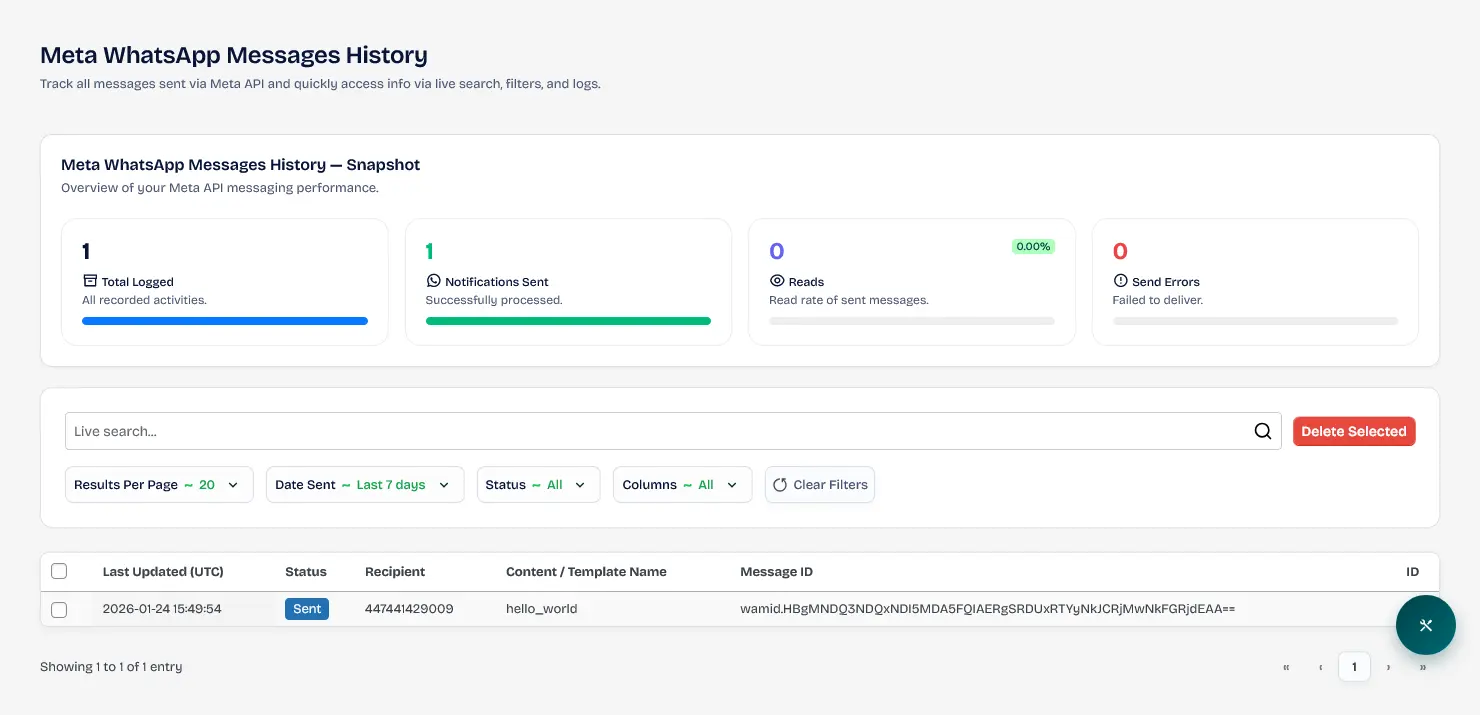
Once your Meta API is live, you can monitor every sent message and its delivery status in real-time through the Wawp Activity Hub. (For advanced developers, explore Wawp API Messaging Endpoints for custom integrations).