Learn how to link your regular or Business WhatsApp number to Wawp using a QR code, an OTP link code, or manual credentials, and follow best practices to avoid bans.
Linking your personal or business WhatsApp number allows you to route messages directly through your own device using the stable WhatsApp Web protocol. This method is highly cost-effective and integrates with both regular WhatsApp and WhatsApp Business applications.
To guarantee high stability and continuous uptime, all active phone sessions (QR scanning or link code pairing) are established and managed securely inside your central Wawp.net cloud console, and then imported or auto-synced into your local WordPress plugin.
Step 1: Access WhatsApp Web Settings
First, ensure that the WhatsApp Web feature is activated under the global sender settings of the Wawp plugin.
Step 2: Choose Your Connection Method
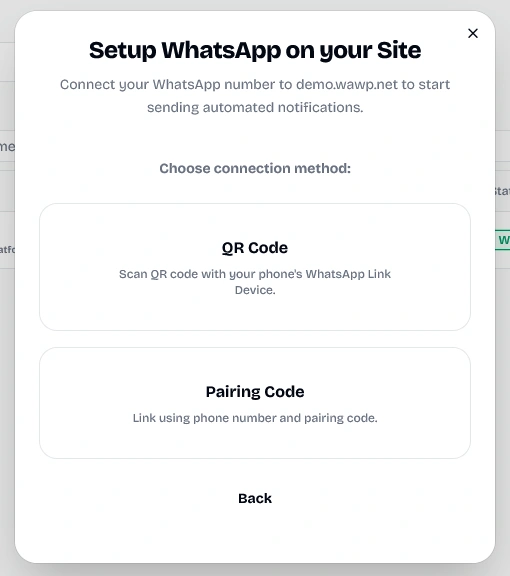
You can easily link your device using one of two seamless connection routes directly from your site's dashboard:
Once the phone is connected and showing as active, return to your WordPress site and simply click the Sync link (located directly next to the "Connected Numbers" card title) to instantly pull the active WhatsApp Web instances into your site.
Automatic Transfer Property
The Onboarding Setup Wizard automatically imports connected devices from your Wawp Cloud account.
Keywords: onboarding setup wizard, automatic transfer property, sync linked numbers
Alternatively, you can run the Wawp Onboarding Setup Wizard, which features a smart automatic transfer property that automatically searches your cloud account and pulls active instances directly into your site with zero manual settings.
Method B: Manual Connection (Import via Drawer)
Add New Instance
Clicking this button opens a side drawer to manually import credentials from Wawp Cloud console.
Keywords: add new instance, manual connection drawer, import whatsapp device
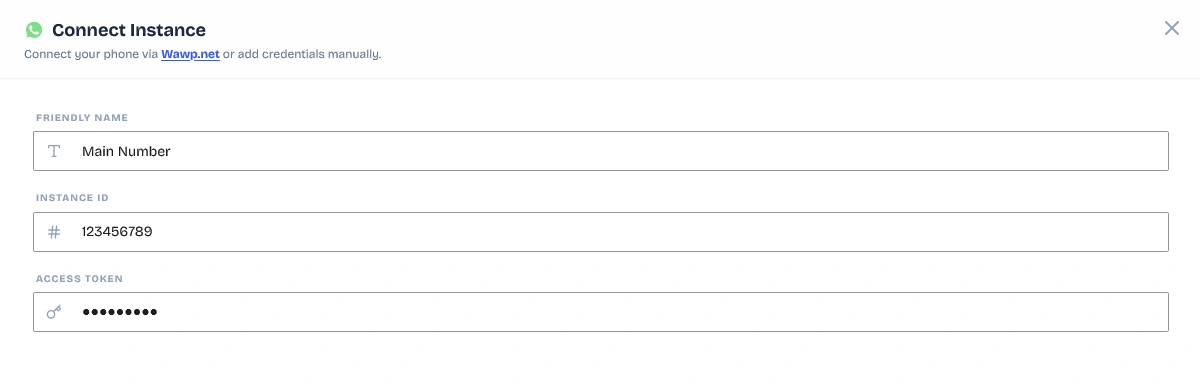
If you prefer to manually import a specific device instance from your Wawp Cloud console:
Click the Add New Instance button in your WordPress dashboard.
A secure side drawer will slide open.
Enter a Friendly Name (a custom label of your choice to identify the device).
Copy your Instance ID and Access Token from your Wawp API Console.
Paste them into their respective fields in the drawer, and click Connect. Wawp will immediately establish the local link.
Once connected, Wawp will display a final confirmation screen verifying linked details.
Step 3: Understanding Device Connection Statuses
Connected Numbers Panel
List of all linked numbers, displaying their real-time connection status (Online, Scan QR, Checking, Offline).
Keywords: connected numbers status, active whatsapp devices list, check device status
The Connected Numbers panel lists all imported devices and tracks their real-time connection status. For notifications to trigger successfully, ensure the device shows an Online status.
Wawp automatically tracks and translates four connection statuses:
Online (Green badge - ready to go): The device is fully synchronized and actively connected. Under the hood, if the instance is returned as working, online, or ready, Wawp displays it as Online with an animated green pulse indicating high availability.
Scan QR Code (Sky Blue badge): The session is pending authorization.
Checking / Paused (Amber badge): Wawp is actively checking the connection or the session is temporarily paused.
Offline / Failed / Stopped (Red badge): The link is broken or stopped. It will display a clear error warning showing the metadata reasons under the status badge.
Step 4: Deep Dive: Action Lifecycle Menu (Dropdown Options)
Clicking the three dots icon next to any instance in the table displays the action menu containing these real-time tools:
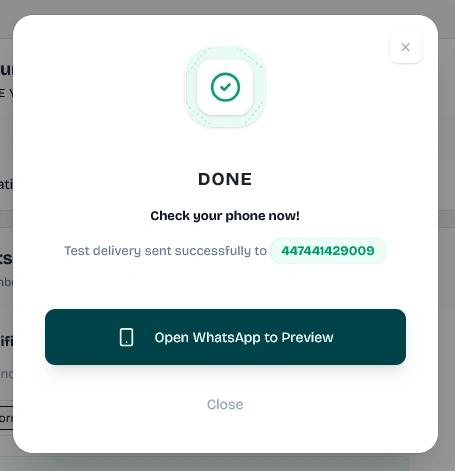
Send Test Delivery: Instantly dispatches a randomized secure test message (including dynamic greetings, unique references, and simulated OTP codes) to the official Wawp test line (447441429009). It opens a dialog showing success and provides a direct shortcut link to WhatsApp to preview the message delivery.
Send Test Delivery Action
The test delivery dialog confirming successful dispatch of a test payload to the Wawp test number.
Keywords: send test message, test routing check, whatsapp test delivery success
Force Status Link: Executes an on-demand heartbeat check directly with the API servers to verify and update the current connection status immediately.
Modify Credentials: Opens a secure side drawer allowing you to update the instance name, ID, or Token credentials without deleting the device.
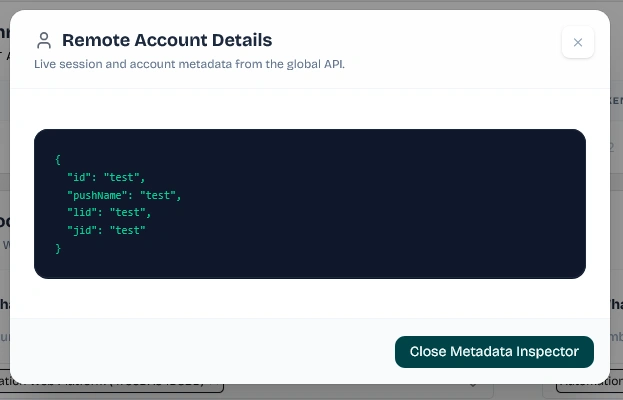
Inspect Session Data: For advanced developers, this launches a secure terminal metadata viewer dialog displaying the raw session JSON returned by the global API (battery life, active protocols, device manufacturer, operating system, and connection logs).
Inspect Session Data
The metadata viewer displaying raw JSON properties of the connected mobile device, including battery level, OS, and platform.
Keywords: inspect session data, raw json metadata, device information battery life
Disconnect Instance: Securely removes the instance credentials and decouples the device from your local WordPress database.
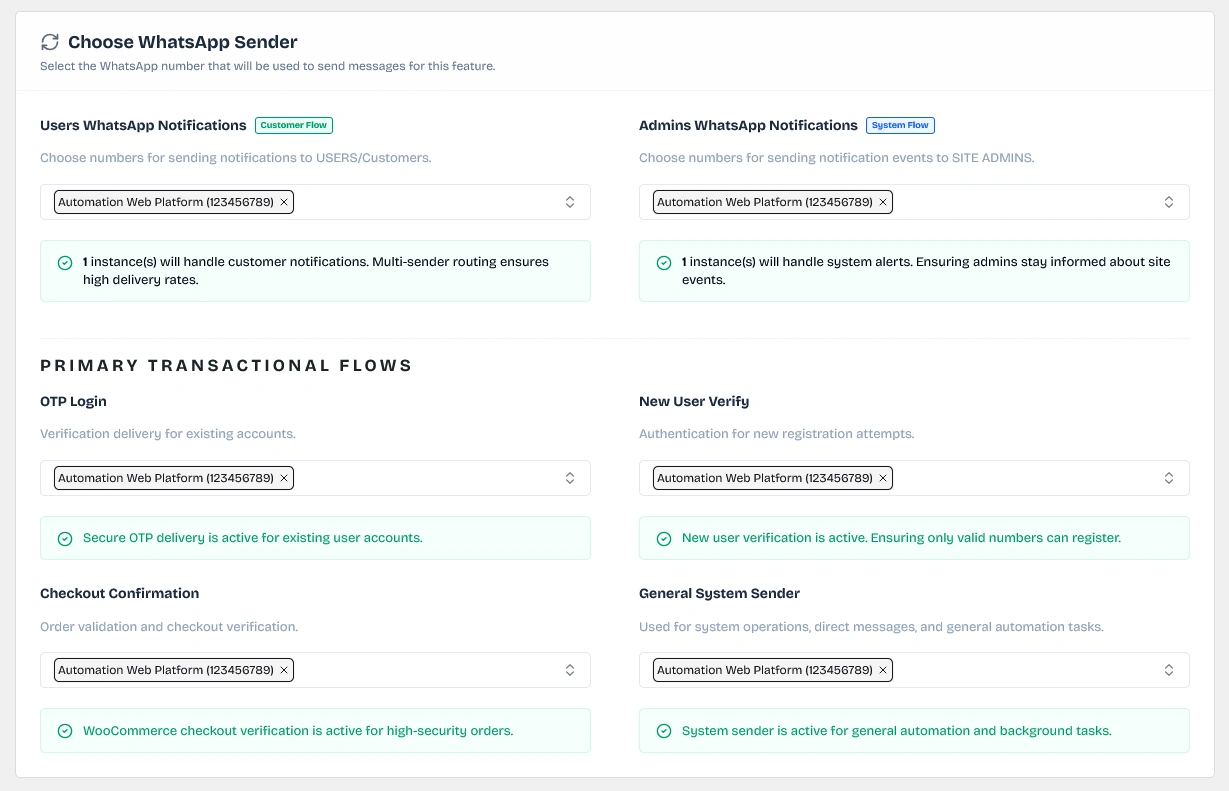
After connecting one or more numbers, you can configure Wawp to route specific notifications through dedicated lines (e.g., routing OTP codes through a highly stable number and marketing campaigns through another).
In the Feature Routing & Mappings card, you will configure these fields:
Users WhatsApp Notifications: The instances assigned to dispatch general transactional alerts (e.g. WooCommerce orders) to your customers. (Supports multi-sender routing to split loads).
Admins WhatsApp Notifications: The instances assigned to route critical system alerts directly to your website administrators.
OTP Login: The senders used to deliver secure login verification OTP codes.
New User Verify: The senders used to deliver OTP verification to new registrations.
Checkout Confirmation: The senders used to deliver OTP confirmation during WooCommerce checkouts.
General System Sender: The primary device used to route direct manual messages, background syncs, and system operations.
Select the appropriate instance for each outbound service and click Save to apply your routing configurations.
Best Practices: Rate Limits & Ban Prevention
Using your own WhatsApp number via the WhatsApp Web protocol is highly efficient, but it requires adhering to safety rules to keep your line active and avoid spam blocks.
1. Wawp Session Rate Limits
To prevent sudden blocks, Wawp uses an intelligent queue and safety delays to humanize outbound message delivery.
Safety Policies:
Strict (20s delay): Essential for new or recently warmed-up numbers.
Moderate (5-10s dynamic delay): Recommended for standard transactional alerts.
Turbo (Near-instant): Reserved only for seasoned numbers with high trust scores.
Smart Queue: Overlapping messages are queued and processed serially to prevent sudden traffic bursts.
Concurrent Workers: Control parallel processing queues (1 for serial pacing, 3-5 for high-priority streams).
Tip: Configure these settings in the Wawp API Console under Actions > Session Rate Limits.
2. How to Prevent WhatsApp Web Account Bans
Keeping your sending number healthy is heavily based on user response behaviors and profile trust scores:
Use WhatsApp Business: Business accounts handle higher volumes and transactional messaging much better than personal accounts.
Avoid Unsolicited Messages: Sending unsolicited cold texts is the #1 cause of bans. If 5-10 users report or block your number, WhatsApp will ban it.
Consent-First Flows: Encourage users to message you first. Place a WhatsApp chat button on your site or share click-to-chat links (https://wa.me/number?text=Hi).
Warm Up New Numbers: Do not automate a brand-new SIM immediately. Spend 2-4 weeks chatting manually with contacts so WhatsApp registers active organic activity.
Personalize & Enable Dynamism: Anti-spam filters block identical payloads. Always use dynamic placeholders (names, order IDs) and enable Unique Message IDs in Wawp.
Humanize Bot Flows: Simulate human interactions by triggering a read receipt (/v2/chats/read) and a typing status (/v2/send/start-typing) right before the payload dispatches.
Professional Profile: Maintain a high-resolution logo, business details, and status to reduce manual spam flags from customers.
Trust Points System: Think of your number as having a trust score. Contacts saving your number or replying adds points; blocks/reports subtract them. Keep the score positive!
3. Session Maintenance & Troubleshooting
To keep your WhatsApp Web instances fully active and prevent unexpected offline states, follow these hardware and system rules:
Disable Battery Optimization: Modern mobile operating systems (Android/iOS) actively put background apps to sleep. Ensure you disable battery optimization for the WhatsApp/WhatsApp Business app on your phone and enable Background App Refresh. If the operating system halts the WhatsApp background process, the WhatsApp Web session will toggle offline.
Avoid Extended Phone Offline States: Under modern WhatsApp Multi-Device protocols, your phone does not need to stay continuously active next to a PC. However, if your phone stays completely offline (due to battery drain or no internet) for more than 14 days, WhatsApp will automatically log out all active Linked Devices, including Wawp. Keep your phone connected to the internet at least once a week.
Handling Random Disconnections: If an instance toggles to Offline, launch your Actions dropdown inside Wawp and click Force Status Link to refresh the connection. If the session has expired, simple click Reconnect to re-authenticate via the secure Wawp.net dashboard.