Wawp Temporary Access Links: Secure Client Onboarding for WhatsApp Resellers

Streamline client instance delivery. Generate isolated, time-bound authentication URLs allowing your customers to link WhatsApp channels securely without exposing your master admin workspace credentials.

3 min read·Updated May 12, 2026
Wawp Temporary Access Links: Secure Client Onboarding for WhatsApp Resellers

For those offering instance sales through their own accounts, a new feature has been added to provide your customers with a quick and easy login method without needing to give them your account login details or burden yourself with unnecessary information.

Whether you operate as an agency reseller or manage distinct tenant applications, Temporary Access Links provide an entirely secure, decoupled onboarding experience. It grants client stakeholders exactly the capability they need—connecting their personal or business WhatsApp profile—while keeping your master workspace panels, billing matrices, and other provisioned instances strictly isolated.


Provisioning a one-time onboarding gateway takes just a few clicks inside your master workspace.

1
Access Linked Numbers Log into your master control panel and open the Linked Numbers dashboard panel.
2
Target Instance Row Locate the specific target instance you prepared for the customer and expand its Actions dropdown menu.
3
Select Temp Access Click on Temp Access Link from the options list. This instantly compiles and loads the secure generation dialog.

The Management Modal View

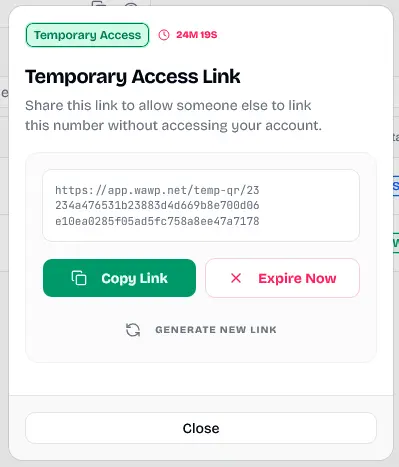
Once the generation panel opens, Wawp instantly provisions a cryptographically secure, tokenized URL uniquely bound to that specific sender instance.

Temporary Access Link Generation Modal
Temp Access Link Generator

The administrative modal for generating secure, time-bound URLs for external client onboarding.

Keywords: temp access link, guest onboarding, secure token

Inside the control modal, you maintain complete administrative governance over the temporary session via several dedicated controls:

1. Tokenized Secure URL

A complete sharing URL is formatted with embedded session hashes (e.g., https://app.wawp.net/temp-qr/...). This ensures that accessing the link requires zero parent authentication cookies or admin access states.

2. Active Countdown Timer ⏱️

Every generated link enforces an absolute strict security lifecycle, typically defaulting to 30 minutes of validity. A live countdown indicator (e.g., 29M 40S) prominently displays exactly how much connection window remains active.

3. Copy Link Button

Clicking Copy Link copies the complete tokenized string directly to your clipboard, allowing you to paste it cleanly into chat platforms, support tickets, or onboarding emails for immediate customer transmission.

4. Expire Now Button ❌

Should you transmit a link to an unintended recipient, or if a customer confirms they no longer require immediate setup, clicking Expire Now immediately revokes the active session token. Any subsequent visitor attempting to load the guest portal will be securely rejected.

5. Generate New Link Button 🔄

If a client experiences network timeouts or exceeds the initial 30-minute operational window, clicking Generate New Link provisions a brand-new tokenized endpoint while automatically purging prior legacy states.


The End-Customer Guest Experience

When your end client clicks the shared access link, they are directed to an elegant, minimalist gateway completely decoupled from your core administrative infrastructure.

Branded purely as a SECURE ONE-TIME LINK, the interface guarantees an extremely premium user experience designed to instil maximum trust and operational simplicity.

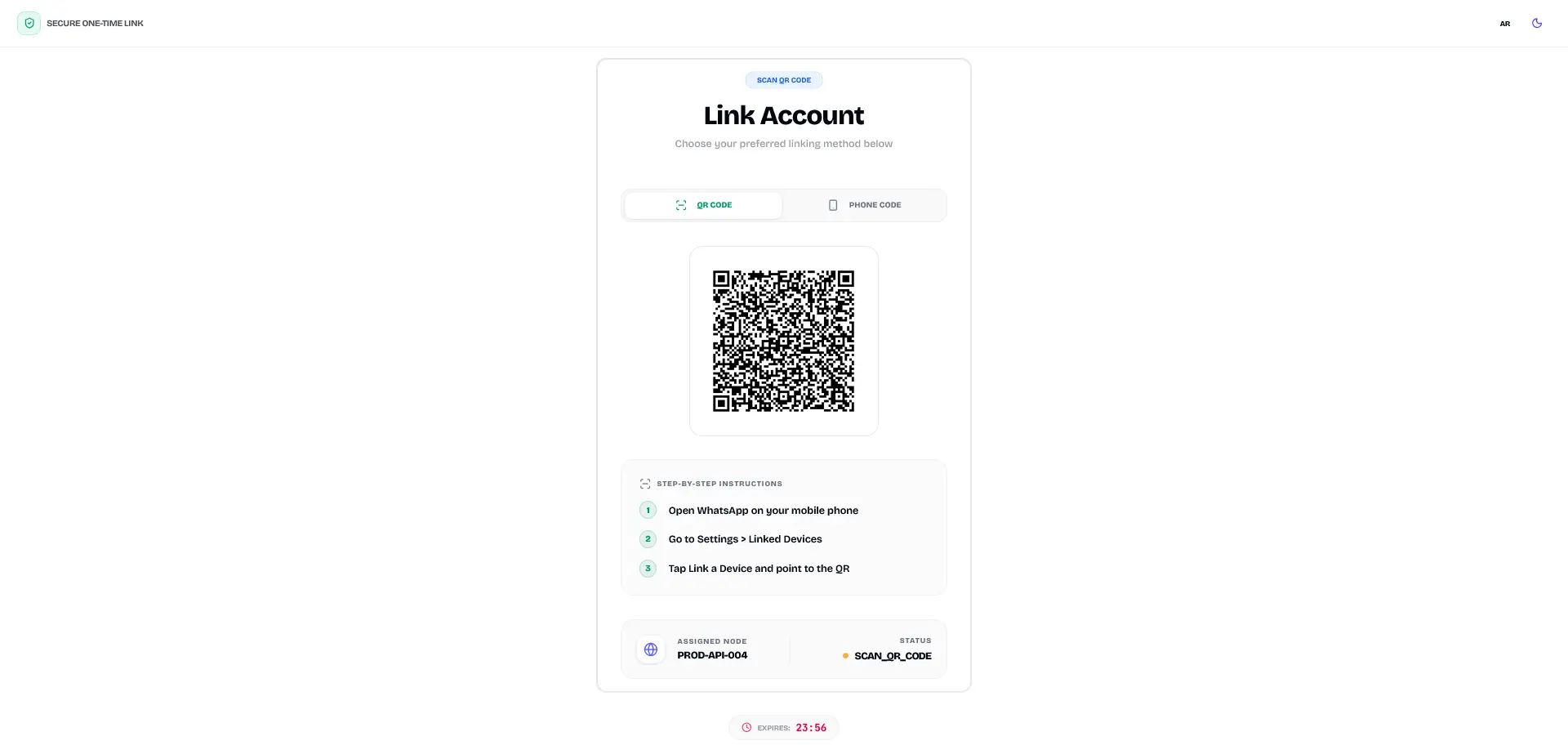
Secure Customer One-Time Link Standalone Gateway
Customer Guest Gateway

The elegant, minimalist frontend interface seen by end-customers when using a temporary access link.

Keywords: guest gateway, client linking interface, standalone portal

Comprehensive Functional Layout

  • Dual Authentication Selection: Customers are granted identical technical linking freedom as native workspace administrators. They can toggle seamlessly between standard QR Code scanning via the mobile multi-device camera interface, or generating an explicit Phone Code handshake directly on screen.
  • Clear Guidance: To eliminate customer confusion and support inquiries, an explicit step-by-step instruction matrix is embedded natively next to the session handshake elements:
    1. Open WhatsApp on your mobile phone.
    2. Go to Settings > Linked Devices.
    3. Tap Link a Device and point to the QR.
  • Transparent Connection Metrics: The lower status banner renders absolute technical clarity without exposing internal account data. Customers verify their designated routing profile via the Assigned Node indicator (e.g., PROD-API-004) while observing real-time connection status flags (SCAN_QR_CODE) driven directly by underlying secure WebSockets.
  • Sticky Expiration Footer: A highly visible bottom banner continuously ticks down the active remaining lifecycle window (e.g., EXPIRES: 29:47), encouraging prompt task completion before the temporary secure session pipeline expires automatically.
Share this article:

Did this page help you?
100% found this article helpful (295 likes)