Delivering beautiful, brand-consistent email communications is essential for maintaining strong customer engagement. The Email Templates module provides a premium, drag-and-drop designer integrated directly into your WordPress admin dashboard. This enables you to build custom templates for WooCommerce checkout notifications, OTP verifications, passwordless logins, and promotional email campaigns.
How to Build Custom Email Templates
Design high-converting transactional notifications using the integrated drag-and-drop builder and configure email domain autocomplete suggestions.
9 min read·Updated August 23, 2026

1. Saved Email Designs: Library Management
The Saved Email Designs panel serves as a centralized repository for your custom email designs. The interface provides fluid grid cards containing metadata and actions for each template in your library.
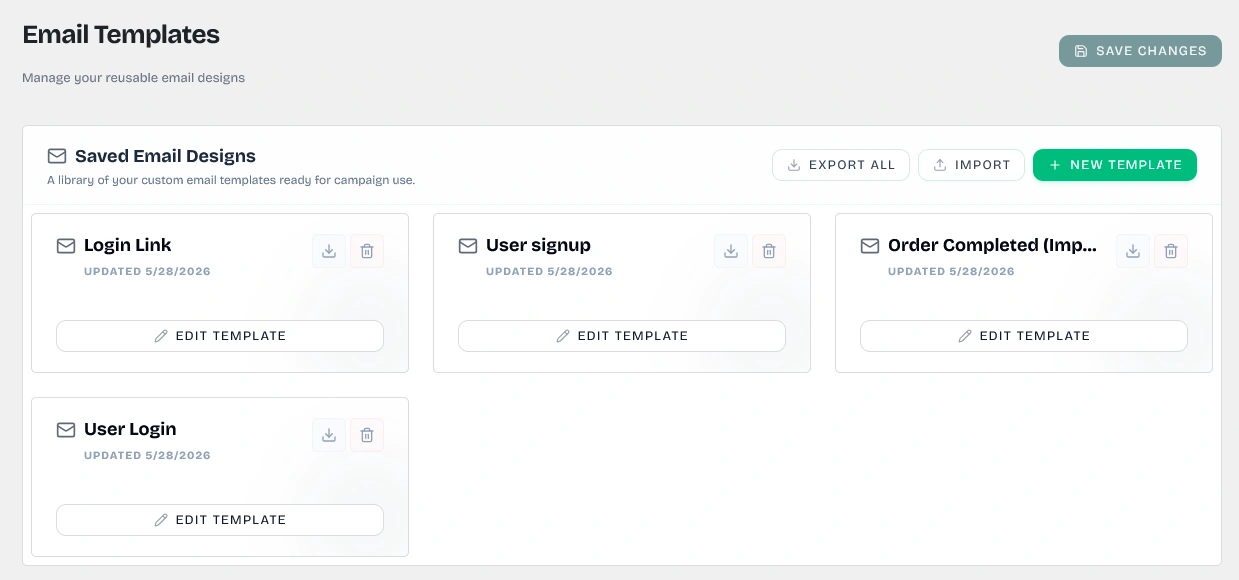
Review and manage all your saved transactional and marketing email templates.
Keywords: email templates dashboard, saved designs library, email template gridKey Library Actions
- Create Template (
+ NEW TEMPLATE): Click to initialize a blank design canvas and launch the visual editor. - Edit Template: Click the Edit Template button on any card to load its layout structure and resume customizing.
- Delete Template (Trash Can Icon): Deletes a template from the database. Clicking this triggers a browser confirmation warning (
Are you sure you want to delete this template?) before removing the record.

Direct buttons to edit templates, download configurations, or delete drafts.
Keywords: template card actions, edit email template, delete email templateImport & Export Workflows
Wawp makes migrating and backing up email templates easy with import and export features:
- Single Template Export: Click the download icon on any individual card. The system generates a structured JSON file named
wawp-template-[name].jsoncontaining the design's specific parameters. - Bulk Template Export (
EXPORT ALL): Click the Export All button at the top right of the designs card to compile the entire saved design library into a single backup JSON file namedwawp-all-email-templates-[date].json. - Importing Backup Files: Click Import and select any valid Wawp template JSON backup file. The system automatically detects the data structure:
- Single Template Import: If the file contains one template, Wawp extracts the configuration, appends
(Imported)to the title, and immediately opens the drag-and-drop editor. - Bulk Template Import: If the file contains an array of multiple templates, the system parses each item and performs background parallel database queries to import the designs in bulk, showing a toast notification detailing the exact count of templates imported.
- Single Template Import: If the file contains one template, Wawp extracts the configuration, appends
Download single templates as JSON files for backups or migrations.
Keywords: export single email template, template json download, backup template design2. Deep Dive: The Add New / Edit Template Interface
When creating a template (action=create) or editing an existing one (action=edit), Wawp launches a seamless, full-screen visual workspace overlay (.wawp-editor-fullscreen) built on GrapesJS. To maximize your editing canvas, this overlay temporarily locks WordPress admin body and menu scrolling parameters.
The interface is divided into three core functional zones: the Top Header Toolbar, the Left Control Sidebar, and the Central Workspace Canvas.
A. The Top Header Toolbar
The header bar runs horizontally at the top of the screen and hosts layout management, device preview, template naming, auto-save status, and testing utilities.

Hosts visual controls, device preview states, template titles, and diagnostic sending fields.
Keywords: grapesjs top toolbar, template editor header, canvas preview tools1. Canvas Control Actions (Far Left)
- Toggle Sidebar (
[|]Panel icon): Instantly collapses or expands the 320px Left Control Sidebar to maximize your screen space. - Undo (
<-Back arrow): Reverts your last design action. - Redo (
->Forward arrow): Re-applies an action that was previously undone. - Fullscreen Mode (
[ ]Maximize icon): Expands the browser window to full-screen display mode. - Toggle Preview (
Eyeicon): Hides element bounding boxes, grid lines, and layout guides so you can preview the template exactly as it will render in an inbox. - Export Code (
<>View Code): Displays the raw, structural HTML and CSS code generated by the builder. - Clear Canvas (
Trash Canicon): Triggers a prompt asking if you want to clear the canvas. On confirmation, it empties your workspace to start from scratch.

Quick tools to collapse sidebar, undo/redo edits, inspect raw code, or clear templates.
Keywords: undo redo canvas, inspect html css grapesjs, clear email template builder2. Responsive Viewport Toggles (Center-Left)
A grouped controller lets you instantly toggle between device preview widths to verify responsiveness:
- Desktop (
Monitoricon): Default full-width view frame. - Tablet (
Tableticon): Constrains the layout preview width to768px. - Mobile (
Smartphoneicon): Constrains the layout preview width to320pxto check mobile readability.
Verify layout responsiveness across desktop, tablet, and mobile preview widths.
Keywords: responsive email design, preview mobile tablet email, email client viewport size3. Template Naming (Center)
- Template Name Input: A text input box where you can type your template's title (e.g.,
OTP Access LinkorWooCommerce Receipt). This title is used to identify and select templates across active plugin settings pages.

Define a clear title to identify your custom email design within Wawp modules.
Keywords: template naming inputs, email template identifier, title email templates4. Auto-Save Status Badge (Center-Right)
Wawp features a background auto-save loop that monitors layout changes. The current status is shown via a color-coded status dot and description:
- 🟢 Auto-save Active: The background saving engine is listening and active.
- 🟡 Unsaved changes... (Pulsing): The builder has detected edits and is waiting for a 5-second pause to compile files.
- 🔵 Saving... (Pulsing): The system is executing a background REST API request to sync data.
- 🟢 Saved: The latest changes have been successfully committed to the database.
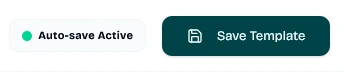
Monitors template edits and reports real-time database synchronization status.
Keywords: auto save email builder, real time data sync, saved draft statuses5. Primary Save Button
- Save Template Button: Instantly compiles your structural layout data and fully inlines CSS rules into a static HTML output, saving it to the database using the
/email-templatesPOST API route.
6. Live Test Email Dispatcher (Far Right)
- Recipient Input Field: Enter any active email address (defaults to the WordPress administrator's email address).
- Send Test Button: Dispatches a live test email directly to the entered address. This sends a real-world HTML draft via your connected mail server to verify formatting in live email clients before using the template in production.

Dispatch live drafts to your inbox to inspect rendering before publishing.
Keywords: test email dispatch, send email preview sandbox, check formatting inboxB. The Left Control Sidebar
The Left Sidebar is split into a Vertical Navigation Dock (far left) and an Interactive Content Drawer (320px wide).
1. Vertical Navigation Dock
Selects which panel drawer is loaded in the control column:
- ➕ Basic Elements (Tab 1): Renders layout primitives and structural containers.
- 📰 Templates Library (Tab 2): Renders custom category sections containing ready-made headers, hero segments, marketing callouts, social links, WooCommerce modules, pricing tables, and footers.
- 🤖 WAWP Templates (Tab 3): Contains Wawp-specific layouts pre-designed for authorization, transactional flows, and user security:
Magic Link LoginSecure Access LinkDark Magic LinkAccount VerificationSecurity AlertWelcome & VerifyMinimalist LoginApprove DeviceAccount RecoverySession Expired
- ⚙️ Traits Settings (Tab 4): Automatically opens when clicking complex elements. Lets you edit parameters like image alternative text (
alt), image source links (src), target paths, links, and URL targets (href). - 📂 Layers Manager (Tab 5): Renders a clean parent-child tree hierarchy of structural elements, making it easy to identify hidden containers, select overlapping boxes, and verify structure.
- 🎨 Style Manager (Tab 6): Renders granular controls to style the selected element:
- Layout & Flex: Configure displays, flex boxes, alignments, and directions.
- Dimensions & Spacing: Set padding, margins, custom widths, and heights.
- Typography: Select fonts, colors, sizes, line heights, and alignments.
- Decorations: Configure background colors, borders, and border-radius.
- 🖼️ Images Manager (Tab 7): Opens the native WordPress Media Library to easily upload new assets or select existing media files from your site.
- ⬅️ Back to List (Bottom): Exits the fullscreen builder and returns to the saved designs dashboard.
2. Interactive Content Drawer
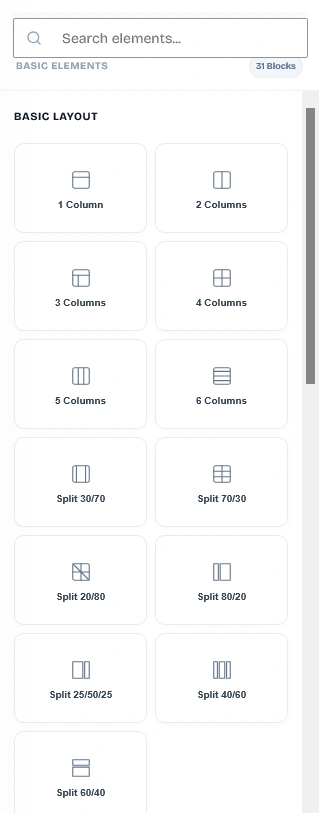
- Search Box: Renders at the top of the column to instantly filter elements or prebuilt templates by name or category.
- Element Grids: Lists element blocks with clean layout icons. Drag any block directly onto the central canvas to add it to your design.
- Absolute Internal Container: Content is loaded inside an absolute-positioned container to prevent layout shifting and ensure smooth vertical scrolling.
C. The Central Workspace Canvas
The Canvas represents the live template viewport where you arrange elements.
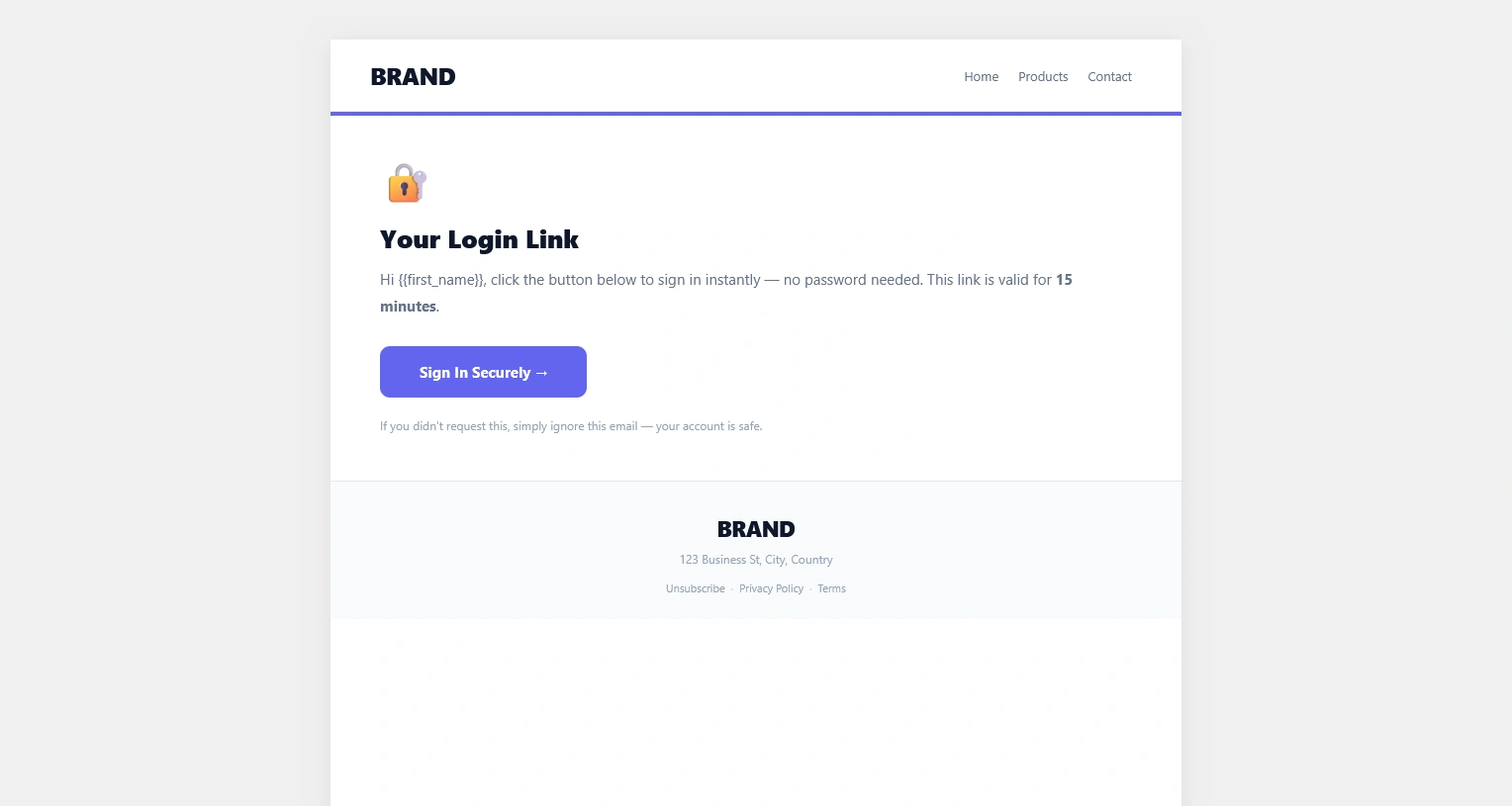
Drag elements onto the canvas, style borders, edit text blocks, and organize hierarchies visually.
Keywords: grapesjs design canvas, email structure grid, layout blocks builder- Centered Layout Constraints: The canvas constraints the layout frame to a standard
860pxmaximum width to emulate standard email client widths, displaying a soft shadow around the layout grid to differentiate it from the background editor surface. - Single-Click Text Editing: While GrapesJS usually requires double-clicking to edit text, Wawp overrides this to enable editing text, text nodes, and links on a single click.
- Rich Text Editor & Merge Tags: Selecting text opens a formatting toolbar featuring a custom Merge Tags (
{ }) dropdown menu to insert dynamic placeholders:{{magic_link}}- Inserts the user's passwordless login or verification link.{{user_name}}- Displays the recipient's registered username.{{site_name}}- Displays your WordPress site's name.{{site_url}}- Inserts your primary domain URL.{{order_id}}- Inserts WooCommerce order reference numbers (for shop transactional dispatches).
3. Email Domain Suggestions
The Email Domain Suggestions setting provides autocomplete suggestions for email input fields across your frontend forms.
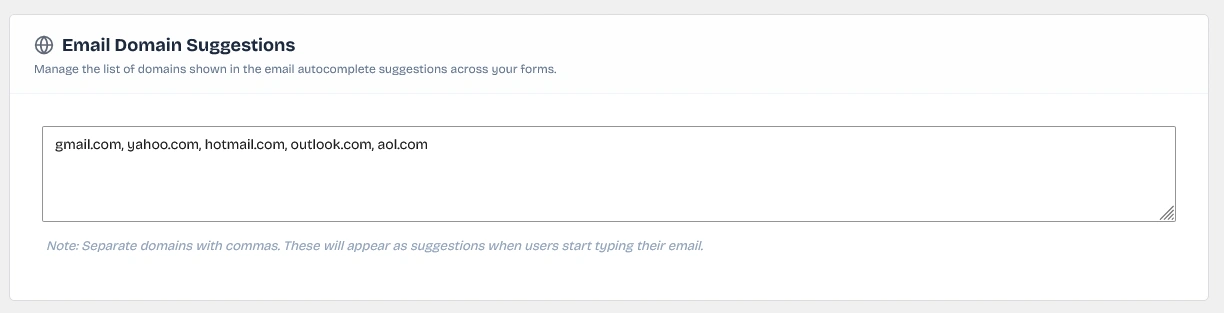
Define a list of domains to show as autocomplete suggestions to users typing email addresses.
Keywords: email domain suggestions, autocomplete email input, checkout email completion- Setup: Enter a comma-separated list of popular or standard email domains (e.g.
gmail.com, yahoo.com, hotmail.com, outlook.com, aol.com) in the settings card textarea. - Autocomplete Suggestions: When users begin typing their email address in a login, registration, or checkout field, Wawp's autocomplete module detects the
@symbol and displays these domains as a dropdown list. - Benefits: Accelerates form completion on mobile devices and eliminates delivery failures caused by simple typos.
Autocomplete Database Storage
Your list of suggested domains is stored securely as a serialized array inside the WordPress database under the option key email_templates_data.
Did this page help you?
100% found this article helpful (0 likes)
Related Articles
About Messaging Tools
Get an overview of Wawp's advanced Messaging Tools designed to optimize delivery rates, blacklist contacts, and log transactional events.
How to Block WhatsApp Numbers and Emails
Manage blocked users and blacklist specific phone numbers or email addresses globally from receiving automated WhatsApp alerts, emails, or OTP pings.
About Wawp Activity Hub
Monitor user-centric actions, login sessions, site movements, and unified communication delivery metrics in real-time.
- Need help? Contact Support.
- Check out our Changelog.
- Join our Facebook Community.
- LLM? Read llms.txt.
OFFER ENDS SOON
Extra 30% OFF All Plans
Use this exclusive promo code at checkout to enjoy an extra 30% discount on top of current sales!
BOOST30