Securing your website's authentication points and checkout gates from malicious bots, dictionary attacks, and automated spam submissions is critical for maintaining database health and transaction security. The Wawp plugin integrates directly with Google's official reCAPTCHA framework, allowing you to protect standard WordPress forms, WooCommerce account flows, checkout workflows, and custom Wawp OTP templates with ease.
How to Setup Google reCAPTCHA Protection
Secure your WordPress and WooCommerce login, registration, lost password, and checkout forms from automated spam bots using Google reCAPTCHA.
7 min read·Updated August 23, 2026

ROI IMPACTBUSINESS IMPACT & ROI
Block 99% of Spam Registrations: According to the Imperva 2024 Bad Bot Report, bad bots account for 32% of all internet traffic — and total automated (non-human) traffic reached 49.6% in 2023. Activating invisible reCAPTCHA filters stops 99% of automated signup scripts, spam user profiles, and brute-force login attacks instantly. Bandwidth & Speed Protection: Caching dynamic verification responses saves up to 15% of server bandwidth and preserves fast form load speeds, ensuring bot protection never slows down real users and avoiding up to an 8% drop-off rate at checkout (Cloudflare Security Trends report).
Core Protection Capabilities
- Multi-Form Coverage: Easily secure Logins, Registrations, Lost Password requests, and WooCommerce Checkouts with global toggle configurations.
- Support for V2 Formats: Choose between V2 Invisible (frictionless verification badge) and V2 Checkbox (traditional "I am not a robot" interactive grid challenge).
- Dynamic RTL Layouts: The invisible badge position adapts dynamically to LTR or RTL languages, displaying in the
bottomleftarea for Arabic locales orbottomrightfor English. - High-Performance Caching: Caches API verification results within the server memory (
wp_cache_setin thewawp_databasegroup for 60 seconds) to prevent redundant remote HTTP requests to Google, speeding up multi-step form submissions. - Smart POST Field Triggers: Restricts token validations exclusively to relevant user-interactive POST requests (e.g. tracking
log,username, orbilling_email), preventing false blocks on normal page loads.
Step 1: Configuring API Credentials
Before enabling protection on live forms, you must fetch and configure valid credentials from Google:
- Visit the Google reCAPTCHA Admin Console and register your store domain:
- Label: Enter your website domain (e.g.,
mysite.com) to identify the registered site. - reCAPTCHA type: Select Challenge (v2), then choose Invisible reCAPTCHA badge (this allows background checks without interrupting users).
- Domains: Enter your store's primary domain (e.g.,
mysite.com) where the plugin is active. - Google Cloud Platform: Choose your Google Cloud project (e.g.,
Wawp).
- Label: Enter your website domain (e.g.,
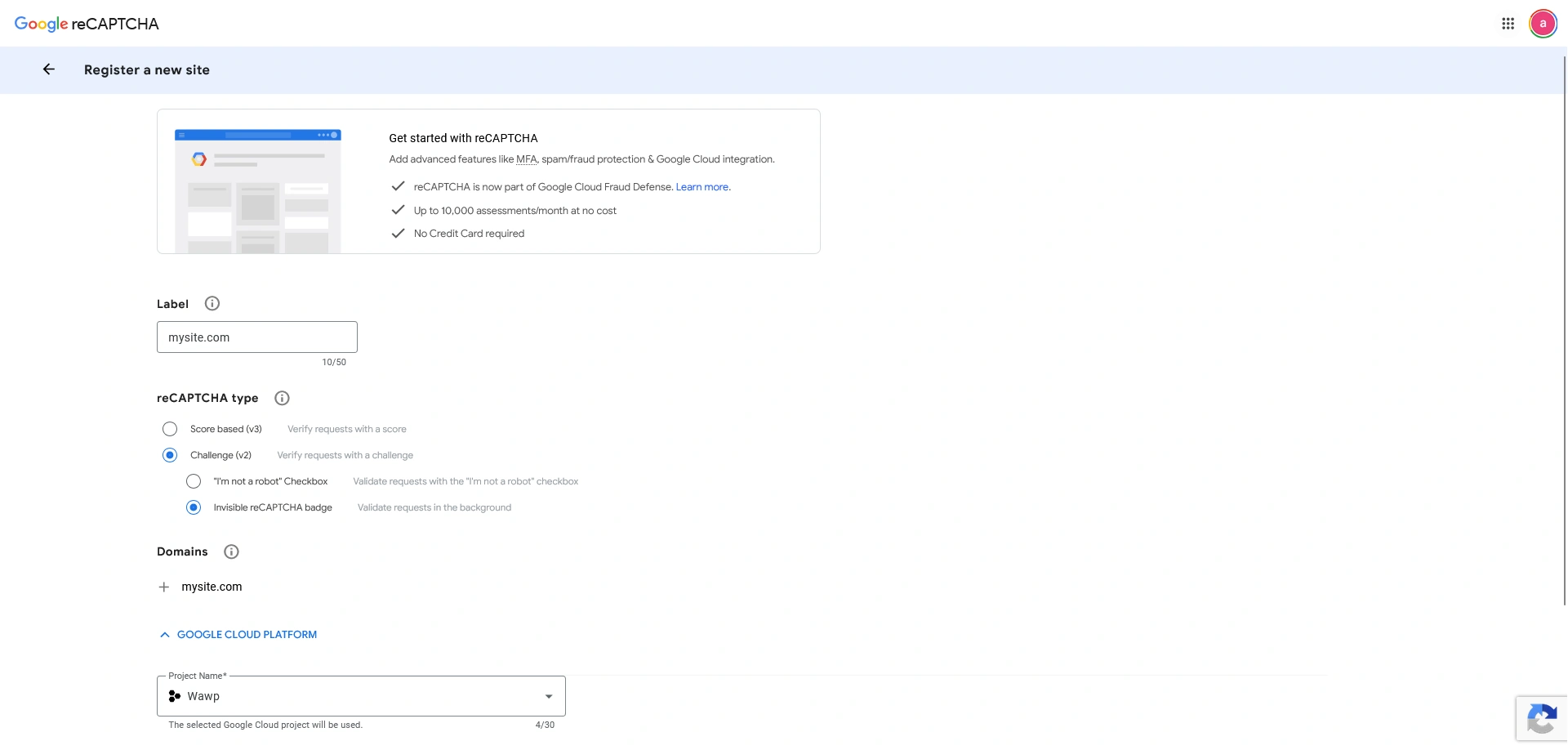
The registration form in Google reCAPTCHA Admin Console to add your domain, choose version, and accept terms.
Keywords: register domain recaptcha, recaptcha admin console, api keys registration- Accept the terms of service and click Submit.
- Copy your generated Site and Secret keys from the confirmation page:
- Click COPY SITE KEY to copy your public key (allows the Wawp client script to render the badge).
- Click COPY SECRET KEY to copy your private verification key (allows the backend server to validate tokens with Google).
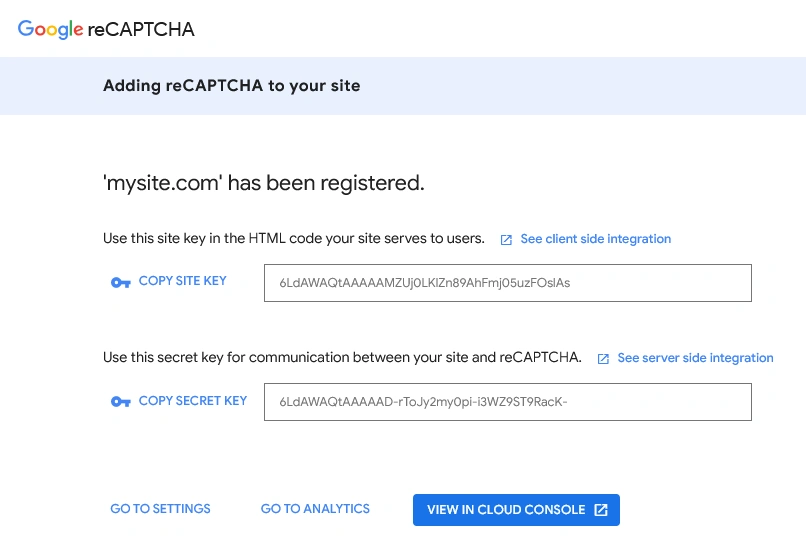
The Google reCAPTCHA console confirmation screen showing your generated Site Key and Secret Key ready to be copied.
Keywords: recaptcha keys, copy site key, secret key, api integration keys- Inside the Wawp reCAPTCHA panel, paste the keys and select your corresponding type.
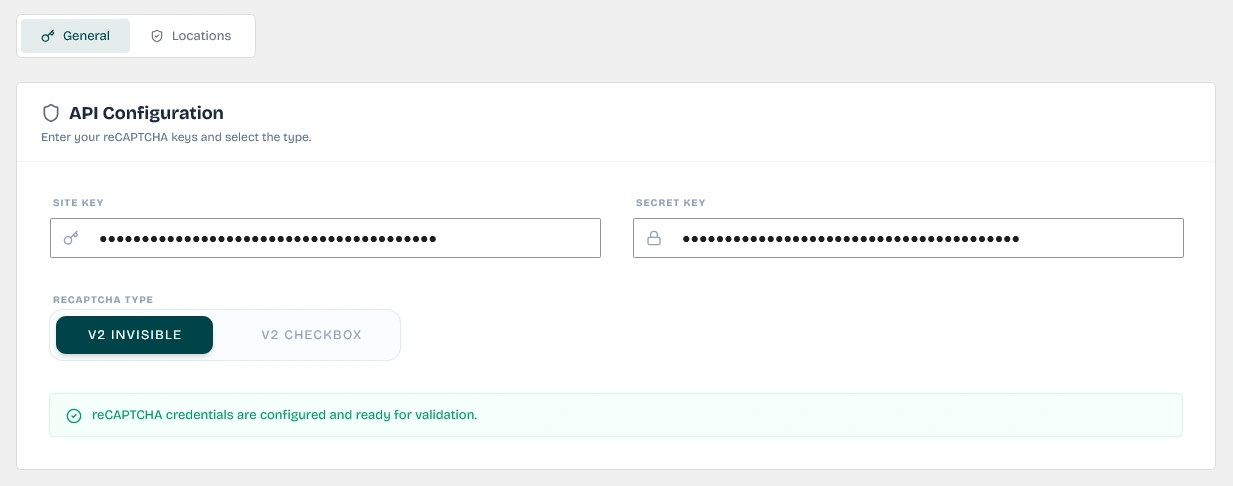
The panel for entering Site Key and Secret Key and selecting between Invisible or Checkbox V2 types.
Keywords: recaptcha config, site key, secret key, invisible recaptchaStep 2: Selecting Protected Locations
Toggle the protection switches to choose exactly where the reCAPTCHA challenges should be displayed and enforced:
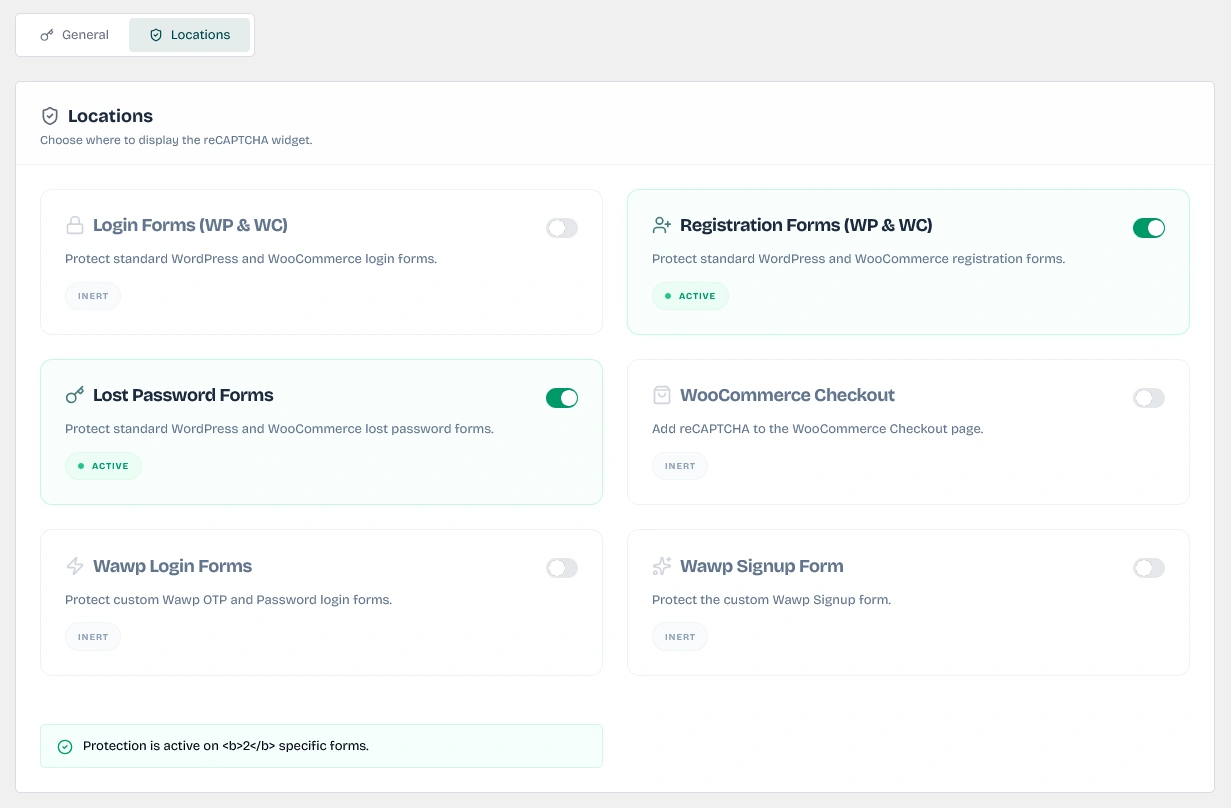
Configure which forms (Login, Register, Checkout, OTP forms) are actively protected by Google reCAPTCHA.
Keywords: recaptcha locations, protect checkout, login recaptcha, lost password1. Login Forms (WP & WC)
- Active Hooks:
authenticate(WP core at priority21) andwoocommerce_process_login_errors(WooCommerce core).
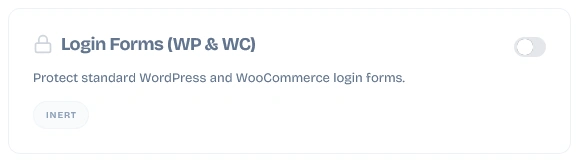
The settings toggle to enable Google reCAPTCHA verification on standard WordPress and WooCommerce login portals.
Keywords: protect login forms, authentication recaptcha, stop bot logins- Execution Flow: Enqueues scripts on the standard login screens. If a spambot or brute-force tool attempts to submit a login request without solving the reCAPTCHA token, Wawp returns a
recaptcha_failederror: reCAPTCHA verification failed. Please try again.
2. Registration Forms (WP & WC)
- Active Hooks:
registration_errors(WP core) andwoocommerce_process_registration_errors(WooCommerce core).
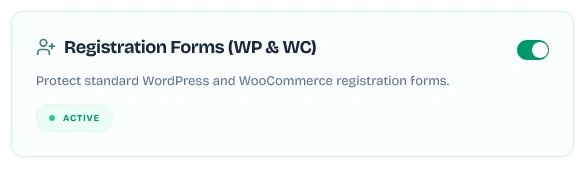
The settings toggle to enforce anti-spam verification checks on registration forms.
Keywords: protect signup forms, registration recaptcha, stop fake users- Execution Flow: Displays the checkbox or invisible challenge in sign-up containers. Ensures automated account generation scripts cannot dump fake subscriber profiles into your database.
3. Lost Password Forms
- Active Hooks:
lostpassword_post(WP core) andwoocommerce_lostpassword_form(WooCommerce core).
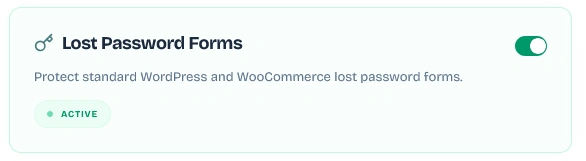
The settings toggle to secure password recovery submissions against flood bot scripts.
Keywords: protect lost password, secure password reset, stop spam emails- Execution Flow: Protects against bot scripts that trigger-flood your server with massive password reset requests, saving server bandwidth and preventing unwanted SMTP email spikes.
4. WooCommerce Checkout Screen
- Active Hooks:
woocommerce_after_checkout_form(for widget rendering) andwoocommerce_checkout_process(for verification).
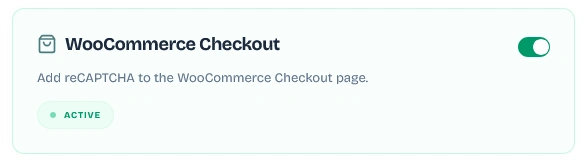
The settings toggle to inject and verify reCAPTCHA on the WooCommerce checkout screen.
Keywords: protect checkout forms, checkout recaptcha, prevent carding attacks- Execution Flow: Wawp includes a smart detection handler (
maybe_render_global_recaptcha). If your checkout is powered by modern Gutenberg Checkout Blocks or custom shortcodes, the plugin detects the checkout context and enqueues the invisible reCAPTCHA directly inside the globalwp_footerhook to guarantee seamless, uninterrupted protection.
5. Custom Wawp Forms
- Wawp Login Forms: Protects custom OTP-based or Password-based Wawp authentication screens.
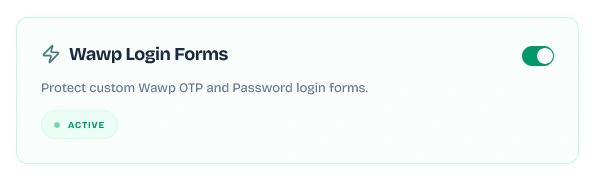
The settings toggle to enable verification checks on custom Wawp OTP and password login screens.
Keywords: wawp login recaptcha, custom login protection, secure otp access- Wawp Signup Form: Protects the custom Wawp registration block.
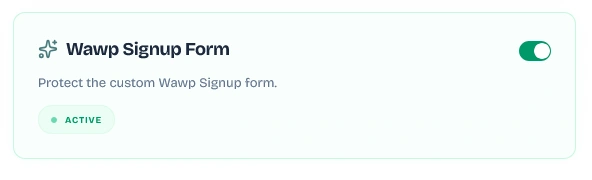
The settings toggle to protect custom Wawp registration forms and prevent automated member accounts.
Keywords: wawp signup recaptcha, custom registration protection, secure signupCompatibility Alert: If you have enabled the "Replace WC Forms" feature in your general Authentication Pages settings (which swaps standard WooCommerce login/register sections for Wawp OTP blocks), the standard WooCommerce switches will display a "Disabled Notice." You must enable the Wawp Login Forms and Wawp Signup Form switches instead to protect your active login portals.
Step 3: Verifying Under-the-Hood Logic
When protection is active, Wawp manages script delivery and API synchronization dynamically:
- Selective Script Enqueuing: The Google reCAPTCHA JS file (
https://www.google.com/recaptcha/api.js) is only enqueued on active pages (is_checkout()oris_account_page()) or onlogin_enqueue_scriptsto keep page load speeds optimal across the rest of your site. - Cryptographic Token Verification: Once a form is submitted, Wawp performs a secure remote POST request using
wp_remote_postto Google's verification URL:https://www.google.com/recaptcha/api/siteverify - Result Caching: To prevent database and network latency during complex checkout redirects or password validations, the result is cached inside WordPress transient memory (
wawp_recaptcha_[md5-token]) for 60 seconds, bypassing redundant external API calls.
Testing Configuration: Always use the built-in Test Connection button inside the Wawp settings panel before going live. This allows you to solve a test challenge and instantly confirm that your Site and Secret Keys are communicating successfully with Google's servers.
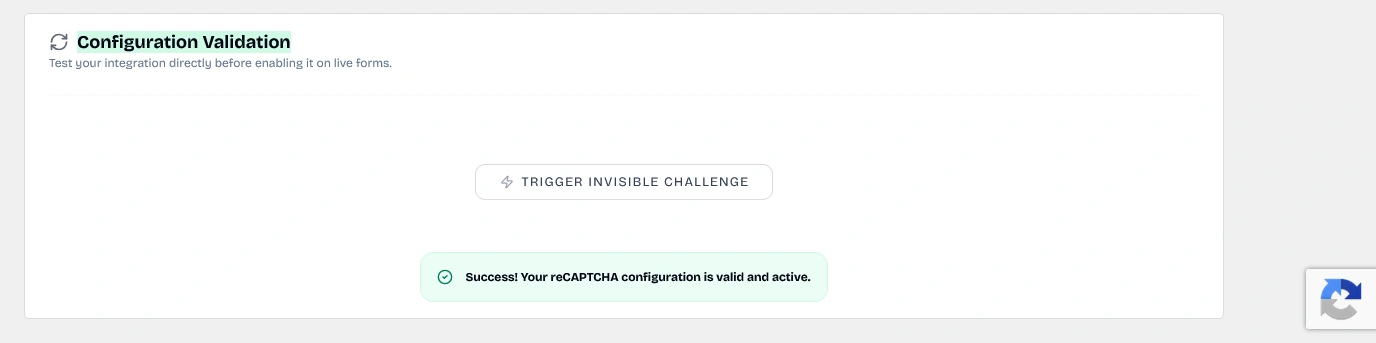
Visual confirmation displaying a successful connection check status after testing your Google reCAPTCHA keys.
Keywords: recaptcha test connection, verify API keys, settings validation checkDid this page help you?
100% found this article helpful (0 likes)
Related Articles
How to setup Advanced Country Code
The advanced country code feature allows you to automatically correct your customer numbers according to their country code so that your website can send messages correctly.
How to Setup Registration Form & Chat Verification
Learn how to setup chat verification and customize your signup form builder. Enforce mandatory user identity checks via WhatsApp OTP, Firebase SMS, or Email.
How to Setup Passwordless Login (Login by OTP)
Passwordless Login provides frictionless access using WhatsApp OTP, Email Magic Links, or Firebase SMS, speeding up return customer conversions.
- Need help? Contact Support.
- Check out our Changelog.
- Join our Facebook Community.
- LLM? Read llms.txt.
OFFER ENDS SOON
Extra 30% OFF All Plans
Use this exclusive promo code at checkout to enjoy an extra 30% discount on top of current sales!
BOOST30