Grant secure, passwordless WordPress access to developers and support agents without sharing credentials. Set expiry time, restrict permissions, and audit every action with Wawp temporary support links.
5 min read·Updated August 23, 2026
These settings define your secure administrative routing topology, allowing you to grant restricted, passwordless dashboard logins to developers, support representatives, or specialists without sharing site credentials.
The panel is fully managed under the Temporary Access Links tab inside your Wawp settings page.
Zero Shared Credentials Risk: Eliminate the necessity of sharing master passwords or leaving inactive support accounts in your database, reducing potential credentials leakage risk by 100%.
Real-Time Work Supervision: Complete transparency ensures that every action taken by the temporary support developer is audited and cataloged, protecting your business intelligence and customer records.
📌 How to Access
To configure or manage your support links:
Log in to your WordPress administrative dashboard.
Navigate to Wawp from the sidebar menu.
Select the Authentication Pages section.
Click on the Temporary Access Links tab.
1. Generating a Secure Support Link
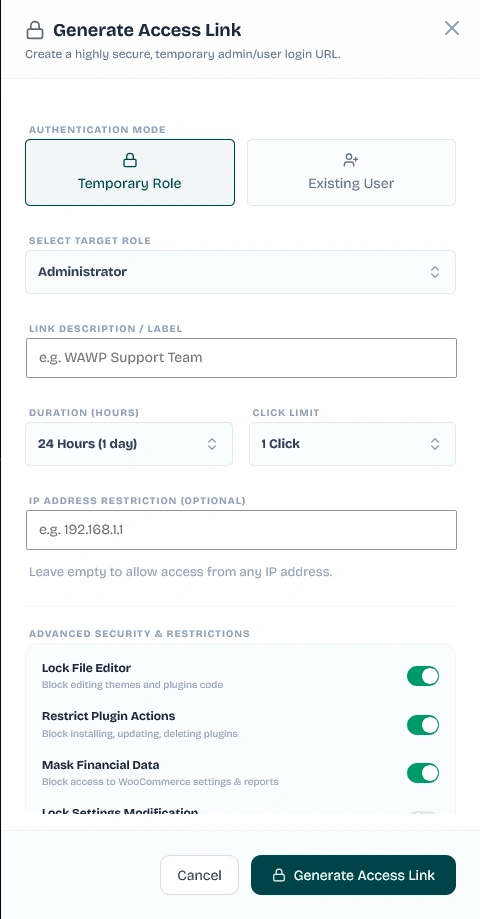
When setting up a new support login, you specify the target scope, limits, and IP address constraints.
Generating a Secure Support Link
Interface for generating a new temporary support link with Group Role or Specific User authentication, Allowed IP, Expiration, and Max Clicks constraints.
Keywords: generate support link, passwordless admin access, temporary access settings
Authentication Mode: Choose whether the visitor logs in via a dynamically created user role or directly as an existing user account.
Group Role: Dynamically generates a temporary, sandboxed user account matching a specific role (e.g., Administrator, Editor, Shop Manager) upon their first click. This account is automatically deleted from your database when the session expires or is terminated.
Specific User: Authenticates the temporary login directly into an existing, registered WordPress user account.
Link Label: Give the link a descriptive name (e.g., Theme Developer, WooCommerce Specialist) to recognize it inside your dashboard.
Allowed IP: Lock the link to a specific IP address. Requests originating from any other IP address will be instantly blocked.
Expiration Duration: Specify the link's active lifespan in hours (e.g., 2 hours, 24 hours).
Maximum Click Usage: Define the maximum number of successful logins allowed. For instance, a one-time link (Max Clicks: 1) expires immediately after its first use.
Device & Browser Fingerprinting Lock
To prevent support links from being leaked or shared, Wawp automatically locks the generated token to the first device footprint (User-Agent and IP address) that clicks it. Any subsequent login attempt from a different browser or device will be instantly blocked and flagged in the audit logs.
2. Real-Time Security Restrictions
You can configure granular permission filters to lock down specific capabilities and protect sensitive data before delivering the link.
Disallow File Editing: Enforces strict security by defining DISALLOW_FILE_EDIT dynamically. This completely blocks the temporary developer from editing theme or plugin files through the WordPress dashboard.
Disallow Financial & WooCommerce Access: Automatically masks sensitive WooCommerce tabs (Settings, Reports, Status) and prevents access to shop revenue data.
Disallow Plugin & Theme Actions: Blocks installing, activating, deactivating, or deleting plugins and themes on your site.
Disallow Global Settings Edit: Blocks modifying general WordPress settings, reading configuration options, and changing critical settings fields.
Server-Level Interceptor
All restrictions are enforced programmatically at the server level. If a support agent tries to bypass the UI restrictions by typing a restricted URL directly into their browser (e.g., /wp-admin/plugin-editor.php), Wawp will instantly terminate the request, throw an access error, and log a warning in their audit logs.
3. Real-Time Audit Logs
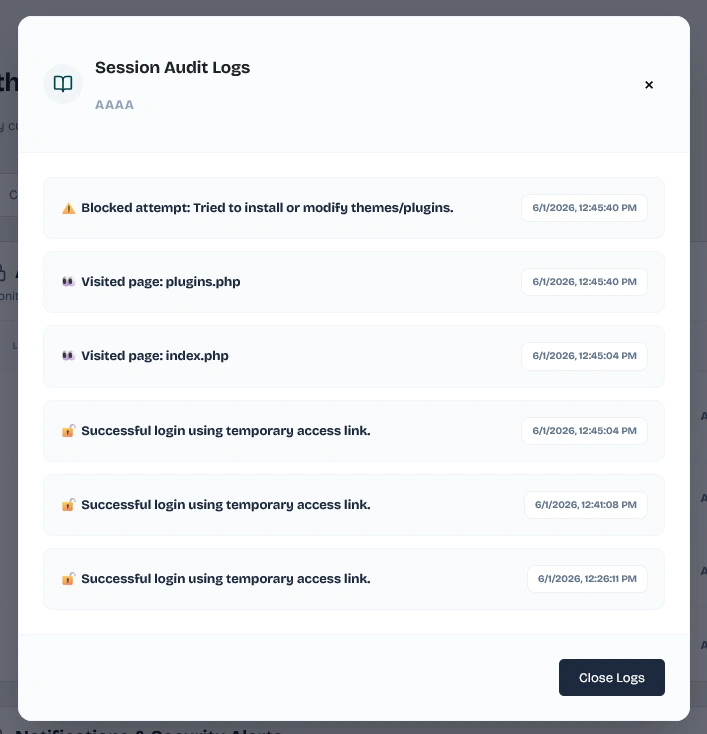
Every single administrative action performed by the temporary support developer is tracked in real-time. You can view these logs by clicking View Activity Logs in the actions dropdown next to each link.
Real-Time Audit Logs
Complete transparency auditing every action, visit, and restriction bypass attempt performed by the temporary support developer.
Keywords: temporary access audit logs, activity logger, support audit trace
Events Tracked Include:
Successful Login: Logins using temporary links (including IP address and Browser User-Agent).
Page Visits: Every administrative page path they view (debounced to keep logs readable).
Blocked Attempts: Instant log entries created when a restricted page or action is attempted.
Plugin & Theme Actions: Installation, activation, deactivation, and deletion of plugins/themes.
System Upgrades: System core or extension upgrades.
4. Active Link & Session Management
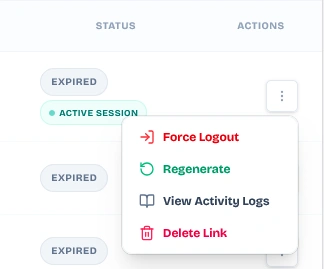
Administrators have full real-time command over all generated links from the actions dropdown:
Dropdown Link Actions
Options to Regenerate, Revoke, Delete, or view logs for each support access link in one click.
Keywords: regenerate support token, revoke active session, link management
Regenerate: Instantly resets the secure token, resets click count to 0, updates expiration date, and purges the old temporary user account, rendering the old URL completely useless.
Revoke Link: Instantly prevents any new logins and logs out any active session.
Delete Link: Permanently deletes the link record from your database, force-deletes the dynamic support user account, and terminates all active sessions instantly.
Force Logout: Disconnects the active support session instantly and logs out the developer.
5. High-Visibility Security Badges
Wawp provides clear administrative indicators when a temporary session is running to ensure transparency:
Admin Bar Temp Access Badge
Solid green badge displaying 'Temp access' rendered next to Wawp in the top WordPress admin bar.
Keywords: temp access badge, active session banner, support badge indicator
Admin Dashboard Banner: Displays a notice at the top of the WordPress admin panel for other administrators, warning them that an active temporary session is currently running on the site, complete with a quick "Force Logout & Terminate Session" button.
Green "Temp access" Badge: When a temporary support user is logged in, a prominent green badge is rendered next to Wawp in the top WordPress Admin Bar: