Artificial Intelligence has transformed how store owners manage customer engagement. Wawp integrates a state-of-the-art AI Assistant & Settings Center natively into your WordPress plugin, allowing you to configure top-tier AI models (such as GPT-4o, Claude 3.5 Sonnet, Gemini Pro, Groq, and DeepSeek) to automate your marketing campaigns, design notification workflows, and configure systems through simple, natural language conversations.
Wawp AI Assistant & AI Settings Center
Learn how to configure the AI Settings Center, connect high-performance Pro providers, utilize the Legacy Free mode, and harness the Ask AI conversational assistant to automate your WhatsApp workflows.
8 min read·Updated August 23, 2026

1. The "Ask AI" Header Assistant
Located prominently in the plugin's header menu, clicking the Ask AI (sparkles icon) button opens a rich conversational workspace panel. Driven by Wawp's background agent engine, this workspace understands e-commerce parameters and helps you perform complex tasks without navigating multiple menus.
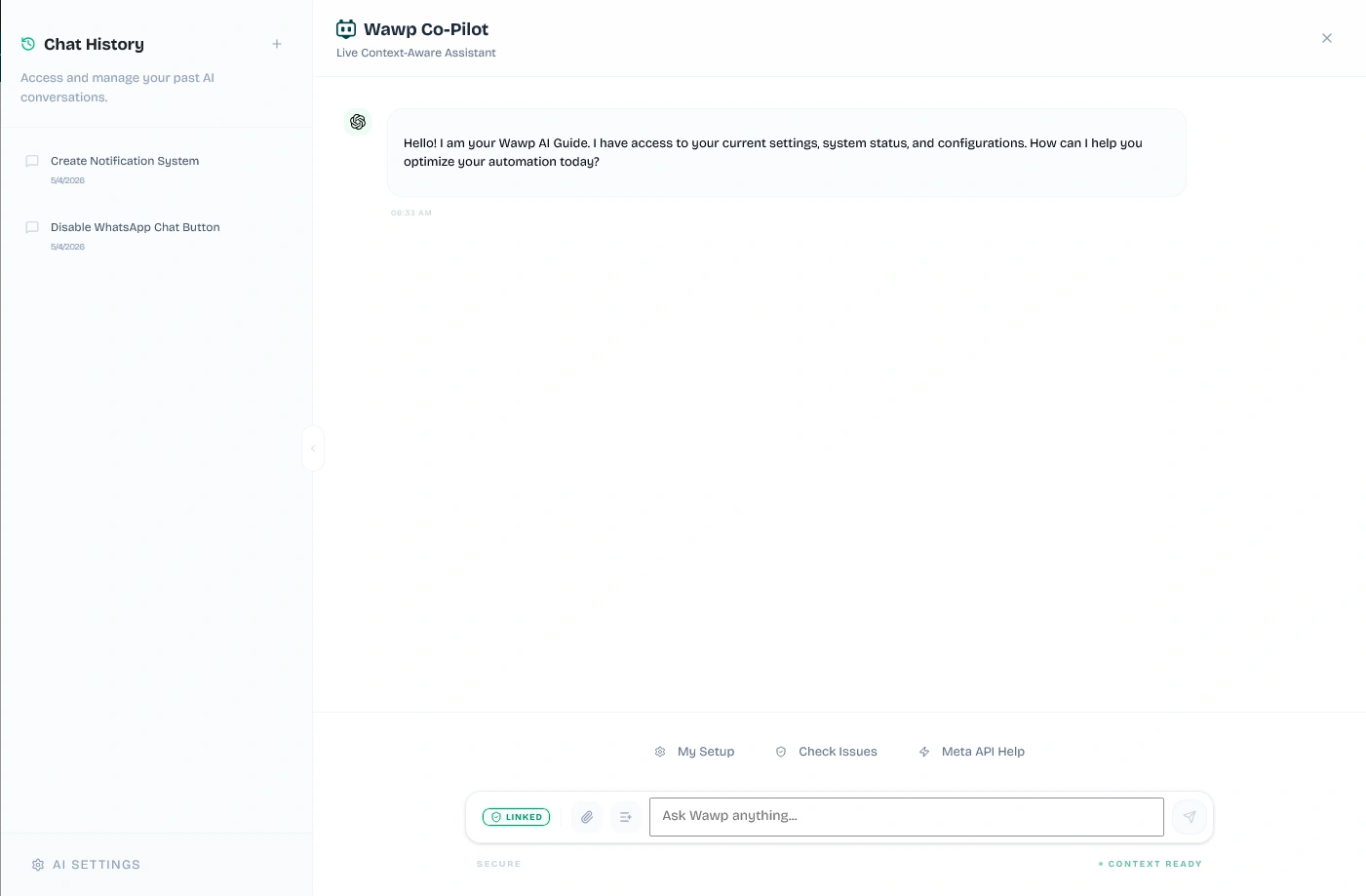
Conversation Starters & Quick Prompts
To maximize efficiency, the AI Assistant provides pre-configured, one-click prompts categorized by objective:
A. Notifications & Campaigns
- Create Order Notification:
- Default Prompt:
Create a WhatsApp notification for new WooCommerce orders - Benefit: Instantly generates draft rules for automated order confirmations, mapping variables like
{customer_name}and{order_total}.
- Default Prompt:
- Abandoned Cart Recovery:
- Default Prompt:
Create an abandoned cart recovery notification via WhatsApp - Benefit: Drafts high-conversion abandoned cart flows, pre-configured with recovery checkout links to recoup lost revenue.
- Default Prompt:
- User Welcome Message:
- Default Prompt:
Create a welcome notification for new user registrations - Benefit: Designs beautiful transactional greetings to onboard newly registered WordPress users.
- Default Prompt:
- Order Status Update:
- Default Prompt:
Create a notification for order status changes - Benefit: Automates follow-up templates for shipping updates, order completion, or refund processing.
- Default Prompt:
B. Feature Toggles
- Toggle Chat Widget:
- Default Prompt:
Enable or disable the WhatsApp chat widget - Benefit: Conversational toggle to quickly display or hide the frontend WhatsApp customer chat bubble.
- Default Prompt:
- Toggle Abandoned Cart:
- Default Prompt:
Enable or disable abandoned cart recovery - Benefit: Instantly turns off or turns on active checkout abandonment background tracking.
- Default Prompt:
- Toggle OTP Verification:
- Default Prompt:
Enable or disable OTP verification - Benefit: Enables/disables secure one-time password gates at login, registration, or WooCommerce checkout.
- Default Prompt:
- Toggle Notifications:
- Default Prompt:
Enable or disable automated notifications - Benefit: Master control switch to suspend or resume all trigger-based automated workflows.
- Default Prompt:
C. Chat Widget Settings
- Change Welcome Message:
- Default Prompt:
Change the chat widget welcome message - Benefit: Re-writes the opening prompt customers see when clicking your site's WhatsApp support bubble.
- Default Prompt:
- Change Widget Position:
- Default Prompt:
Change the chat widget position (left or right) - Benefit: Easily moves the chat button layout to avoid overlapping with other floating elements.
- Default Prompt:
- Change Widget Colors:
- Default Prompt:
Customize the chat widget colors - Benefit: Adjusts header backgrounds, text accents, and hover effects to match your brand style.
- Default Prompt:
D. General & Security
- Setup reCAPTCHA:
- Default Prompt:
Help me configure Google reCAPTCHA settings - Benefit: Steps you through entering v2/v3 Google reCAPTCHA keys to prevent bot-based spam OTP floods.
- Default Prompt:
- Checkout OTP Settings:
- Default Prompt:
Configure OTP verification for WooCommerce checkout - Benefit: Locks purchases behind a mandatory phone validation check to eliminate fake/unreachable order numbers.
- Default Prompt:
- Block Phone Numbers:
- Default Prompt:
Add phone numbers to the block list - Benefit: Instantly flags spam/banned numbers to block them from consuming SMS credits or firing WhatsApp triggers.
- Default Prompt:
E. Registration & Authentication
- Passwordless Login Setup:
- Default Prompt:
Configure passwordless login with phone or email - Benefit: Guides the user through enabling frictionless one-tap logins.
- Default Prompt:
- Registration Form:
- Default Prompt:
Configure the registration form settings - Benefit: Customizes active fields, required variables, and custom placeholders for new registrants.
- Default Prompt:
- Auth Pages:
- Default Prompt:
Setup custom login and signup pages - Benefit: Maps shortcodes to dedicated landing pages, bypassing native WordPress WP-Login screens.
- Default Prompt:
F. Gateway & Senders
- Meta API Setup:
- Default Prompt:
Help me configure the Meta WhatsApp Cloud API sender - Benefit: Walks you through Meta developer portal details (Token, Phone ID, Business ID) to activate official business sending.
- Default Prompt:
- WhatsApp Web Setup:
- Default Prompt:
Help me configure WhatsApp Web sender instances - Benefit: Guides the QR-code scanning steps to link standard personal or business mobile numbers.
- Default Prompt:
- Firebase SMS Setup:
- Default Prompt:
Help me configure Firebase SMS sender - Benefit: Instructs how to upload the
google-services.jsonkey file to run free/low-cost Google SMS gateways.
- Default Prompt:
- SMTP Email Setup:
- Default Prompt:
Help me configure SMTP email sender - Benefit: Helps plug in server hosts, secure ports (465/587), and user credentials for reliable email delivery.
- Default Prompt:
G. System Maintenance
- System Health Check:
- Default Prompt:
Run a system health check and report any issues - Benefit: Reviews cURL connections, database logs, background worker states, and lists critical bottlenecks.
- Default Prompt:
- Sync Users:
- Default Prompt:
Sync all WordPress users with Wawp - Benefit: Syncs user directory records to populate telephone numbers and user metadata fields.
- Default Prompt:
- Repair Database:
- Default Prompt:
Repair the Wawp database tables - Benefit: Resolves missing tables, optimizes indexes, and clean-installs necessary custom SQL schemas safely.
- Default Prompt:
2. AI Settings Center
Accessible from the AI Settings tab, this control board handles model integration. Wawp supports both a free zero-config shared proxy and elite high-performance paid configurations.
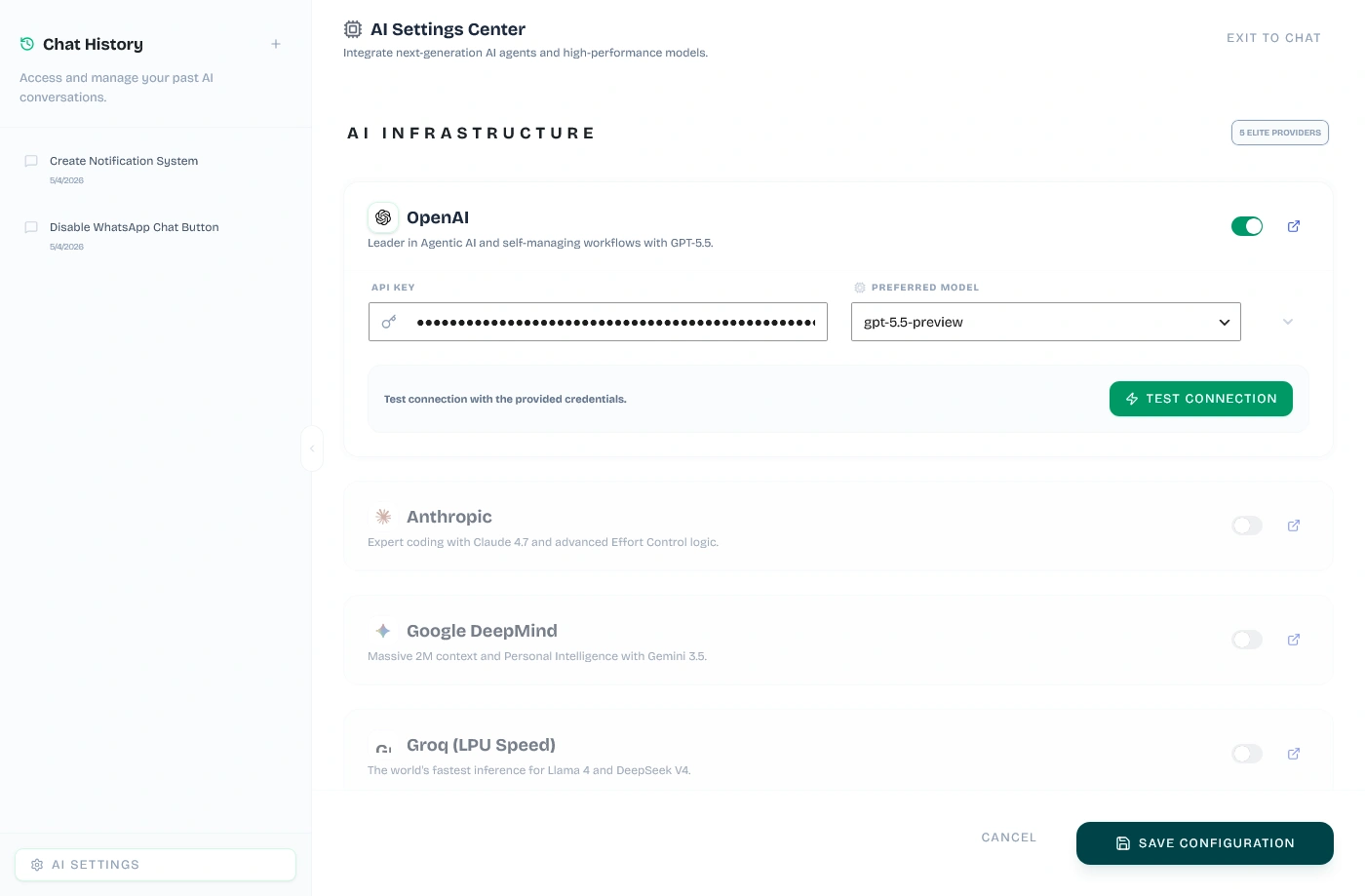
A. Legacy Free Mode (Pollinations AI)
- What it is: A shared, zero-configuration infrastructure hosted by Wawp via the Pollinations AI network.
- How to get started: Accessible immediately out-of-the-box by keeping the Legacy Free Mode toggle switched On. No third-party registrations or API keys are required.
- Limits: Uses shared rate limits. It is highly recommended for lightweight testing, drafting basic messages, and verifying initial automation configurations.

B. Pro/Paid Infrastructure (Elite Providers)
For maximum speed, reasoning intelligence (including GPT-5.5 capability), and unlimited API volume, you can connect your own developer accounts. Paste your credentials into the corresponding card, choose your preferred model, and test connection:
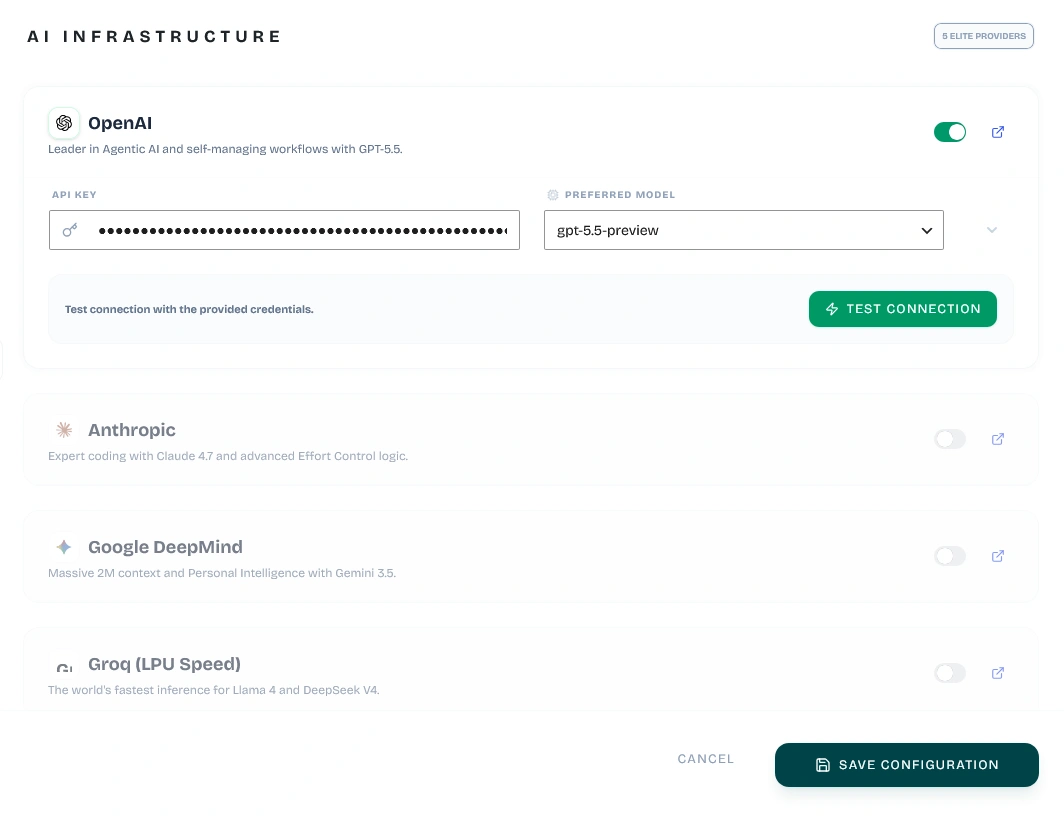
1. OpenAI Integration

- Available Models:
gpt-5.5-preview,gpt-5.4-turbo,gpt-4o,o1-preview(natively normalized in the backend to optimized stable production equivalents likegpt-4oando1-preview). - How to get an API Key:
- Create an account or log in to the OpenAI Platform.
- Fund your balance under Settings -> Billing to activate credit usage.
- Go to the API Keys section in the left navigation sidebar.
- Click Create new secret key, name it "Wawp Integration", copy the key, and paste it into Wawp's settings card.
2. Anthropic Integration

- Available Models:
claude-4-7-opus,claude-4-6-sonnet,claude-3-5-sonnet-latest(natively mapped toclaude-3-opus-20240229andclaude-3-5-sonnet-20241022on the server). - How to get an API Key:
- Sign up for an account at the Anthropic Console.
- Deposit credits in the Billing tab.
- Go to API Keys and click Create Key. Copy the key and paste it directly into Wawp's settings card.
3. Google DeepMind Integration

- Available Models:
gemini-3-5-flash,gemini-3-1-pro,gemini-1.5-pro(mapped to Gemini Flash and Gemini Pro production systems). - How to get an API Key:
- Visit Google AI Studio and sign in.
- Click Get API Key in the top-left menu.
- Click Create API Key, associate it with an existing or new Google Cloud project, copy the generated key, and paste it in Wawp.
4. Groq (LPU Speed Inference)

- Available Models:
llama-4-70b-fast,deepseek-v4-instant,llama-3.1-70b-versatile(mapped to optimizedllama-3.3-70b-versatileand LPU-accelerated DeepSeek models). - How to get an API Key:
- Open the Groq Console and register.
- Navigate to the API Keys sidebar menu.
- Click Create API Key, copy it, and paste it in Wawp.
5. DeepSeek Integration

- Available Models:
deepseek-v4-pro,deepseek-v4-flash,deepseek-chat(mapped to stable DeepSeek Chat and DeepSeek Reasoner/R1 endpoints). - How to get an API Key:
- Log in or register at the DeepSeek Platform.
- Access the API Keys section from the left-hand menu.
- Top up your credit balance, click Create API Key, copy the key, and paste it in Wawp.
C. Testing Connections Natively
Every premium card contains a dedicated Test Connection button. When clicked, Wawp securely proxies a lightweight, encrypted check request through your local WordPress server to the selected provider. This verifies:
- Your API key is active and correctly input.
- Your credit balance is sufficient to run queries.
- Your host server has a clear cURL route to the AI provider endpoint.
Page Reload Required: Whenever you change any provider keys, toggles, or preferred models inside the AI Settings Center, you MUST refresh your browser page completely (F5 / Ctrl+R / Cmd+R). This ensures that the newly configured credentials, switches, and active models are cleanly loaded into the React context state for the "Ask AI" global assistant.
3. Developer & Security Overview
Wawp prioritizes standard security compliance across all integrated AI routines:
- API Key Hiding: All calls are secure backend-to-backend proxies through standard WordPress endpoints. Raw keys never print in the React frontend DOM or database options visible to non-admin accounts.
- No Middleware Logging: AI prompts and conversation histories are stored directly in your local WordPress database tables (
ai_sessionsandai_chats), ensuring zero data sharing with third-party tracking portals.
Did this page help you?
100% found this article helpful (0 likes)
Related Articles
Best WhatsApp WordPress Plugin: Complete Linking & Automation Guide
Discover the best WhatsApp WordPress plugin and fully automate your store. Learn about notification dispatches, signup verification OTP forms, and advanced country codes.
Installing and Updating the Wawp Pro Plugin
Learn how to install and update Wawp Pro or Wawp Login Free using the lightweight Wawp Remote Updater downloaded from the official Wawp download page.
Wawp Onboarding & Setup Wizard Guide
A complete step-by-step walkthrough of the Wawp onboarding setup wizard, explaining account authentication, channel synchronization, diagnostics, and migration paths.
- Need help? Contact Support.
- Check out our Changelog.
- Join our Facebook Community.
- LLM? Read llms.txt.
OFFER ENDS SOON
Extra 30% OFF All Plans
Use this exclusive promo code at checkout to enjoy an extra 30% discount on top of current sales!
BOOST30