Delivering a direct, seamless communication channel for your website visitors is essential for maximizing conversion rates and customer satisfaction. The WhatsApp Chat Button & Widget module provides a premium, customizable floating chat button and contact card rendered on the frontend of your WordPress site. It supports multiple support agents, omnichannel social profile links, detailed interaction tracking analytics, and granular page visibility exclusions.
How to Configure WordPress WhatsApp Chat Button & Widget
Add a floating WhatsApp chat button to WordPress. Configure multiple WhatsApp support chats, omnichannel social media links, engagement analytics, and responsive display rules.
8 min read·Updated August 23, 2026

The Five-Tab Configuration Architecture
The WhatsApp Chat Widget configuration dashboard organizes settings into five dedicated, tab-controlled sections. This allows you to easily manage agents, social links, analytical reports, visual styles, and page-specific visibility rules.
Tab 1: WhatsApp (Primary Configuration)
The WhatsApp tab controls the general widget activation state, primary chat card content, and your support team agent directory.
1. WhatsApp Widget Status

Toggle to activate or hide the WhatsApp floating widget globally on your WordPress frontend.
Keywords: whatsapp widget status, enable whatsapp widget, active floating chat- Toggle Control: General toggle (
wawp_enable_buttonset toyesorno) to instantly publish or hide the widget globally on the frontend. - Dynamic Status Indicators: Displays real-time status notices depending on the toggle:
- 🟢 The WhatsApp floating button is currently active on your website.
- ⚪ The WhatsApp floating button is currently hidden from your visitors.
2. Account Configuration
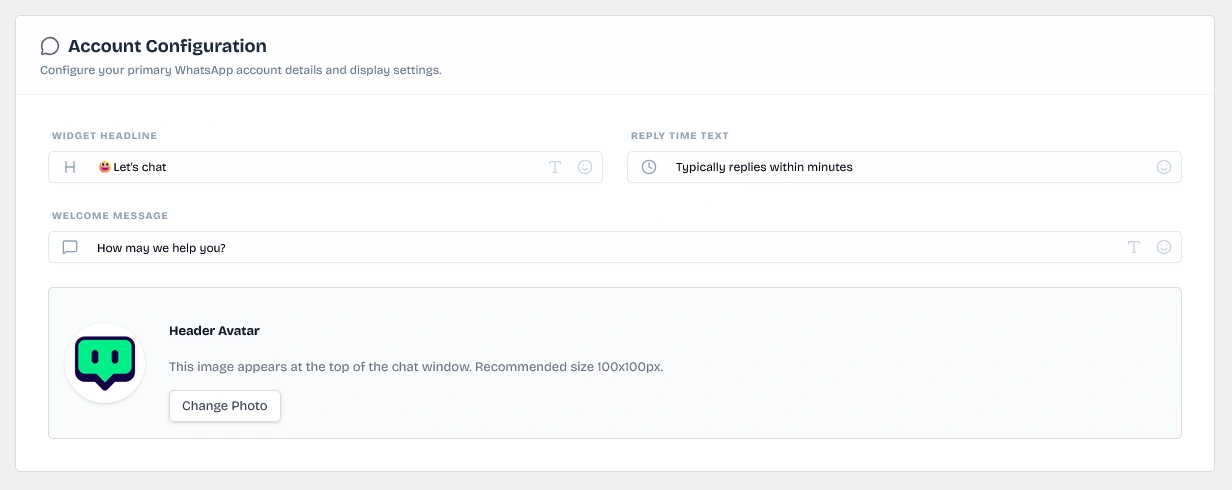
Configure custom headings, sub-headings, welcome messages, and default header avatars for the widget.
Keywords: whatsapp account settings, widget custom headline, welcome message avatarCustomize the primary header copy and welcome styling of the floating chat window:
- Widget Headline: The main title displayed at the top of the chat window (e.g.,
Let's ChatorCustomer Support). - Reply Time Text: A helpful indicator display under the header alongside a clock icon to manage expectations (e.g.,
Typically replies in minutesorOnline now). - Welcome Message: A customizable text block appearing in the window body, supporting emoji inserts and rich text formatting, inviting users to reach out.
- Header Avatar: The primary circular image shown in the header card. Click the image placeholder to open the native WordPress Media Library to upload or select custom avatars.
3. Support Agents Directory
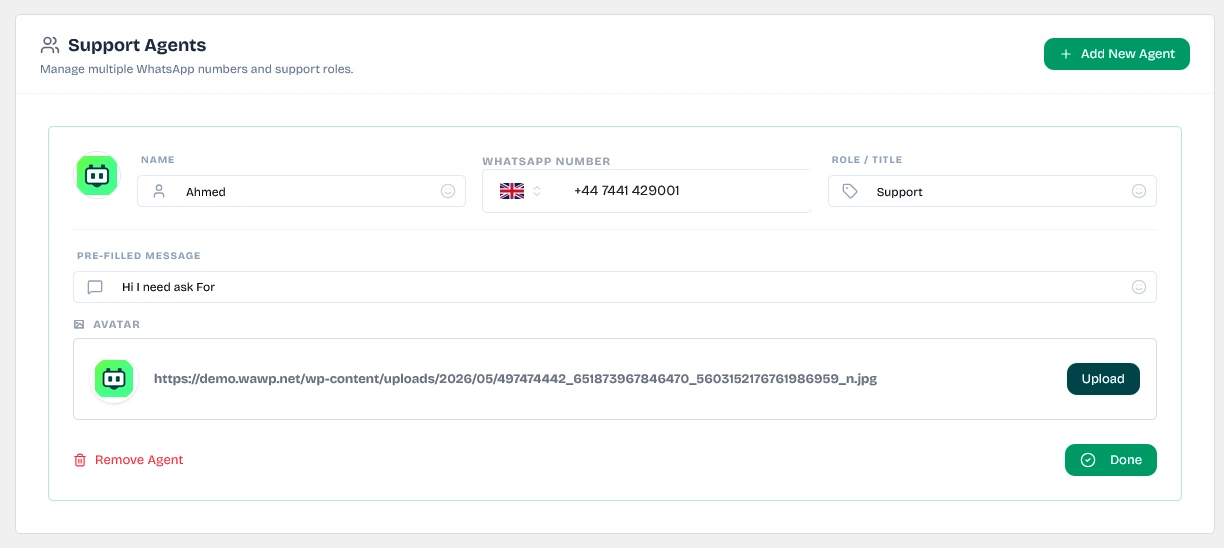
Configure multiple chat agents with custom names, phone numbers, department roles, and default greeting messages.
Keywords: whatsapp support agents, multi-agent live chat, billing support agent, sales agentDefine multiple WhatsApp contacts so visitors can direct their inquiries to the appropriate department (e.g., Sales, Billing, Tech Support).
- Collapsed Agent Summary: Renders configured agent profiles in a clean overview list showing Name, Number, and Role, alongside Edit and Delete buttons.
- Add Agent (
Add New Agent): Click to append a blank agent card. - Detailed Agent Settings (Edit Mode):
- Name: The agent's display name appearing on the contact row.
- WhatsApp Number: The target phone number to receive messages, using standard dialing formats.
- Role / Title: Department title appearing under the agent's name (e.g.,
Billing SupportorSales Manager). - Pre-filled Message: The default message text pre-populated in the user's WhatsApp input field when starting a chat (e.g.,
Hello! I have a question about my order.). - Agent Avatar: A dedicated circular profile image for the individual agent, integrated with the WordPress Media Library.
Tab 2: Social Links (Omnichannel Support)
Connect additional social platforms to provide visitors with alternative ways to contact your brand.
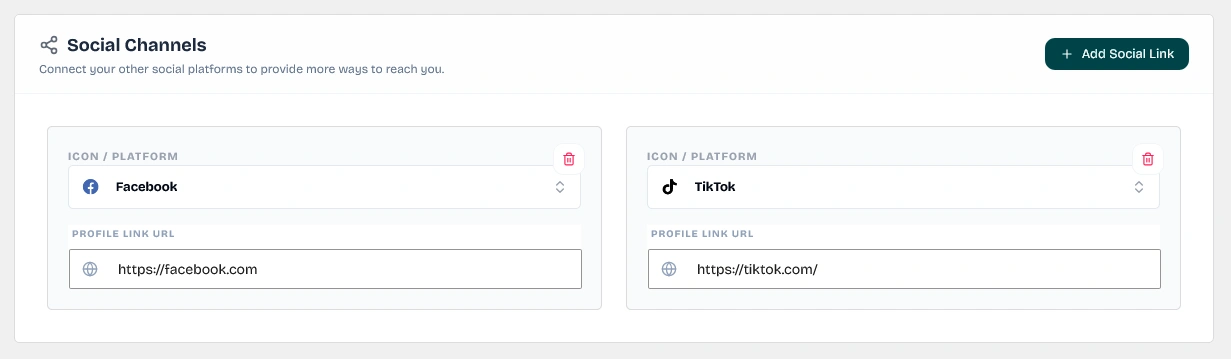
Add additional social platform links like Facebook Messenger, Telegram, or Instagram in the widget footer.
Keywords: omnichannel support, social channels links, telegram instagram widget- Social Channels: Add profile links for your other platforms. Select your target platform from a searchable dropdown pre-populated with Remix Icons mapping official brand colors (e.g., Facebook, Instagram, Telegram, LinkedIn, etc.), and input your profile URL.
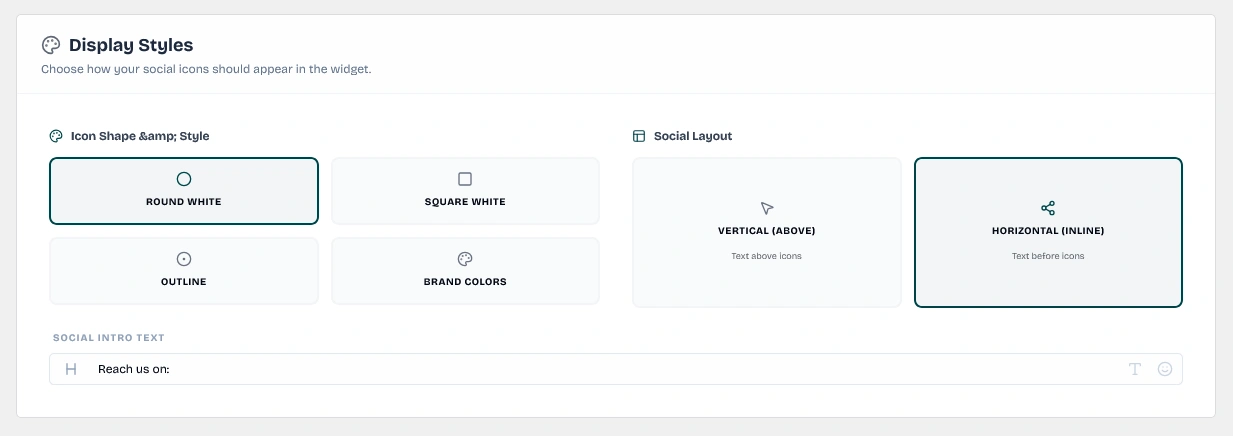
Choose the visual styling of your social links, including round, square, outline, or official brand colors.
Keywords: social icon style, visual outline shape, brand color icons- Display Shape & Style: Choose how the social link buttons appear in the widget footer:
Round White: Renders circular white buttons with contrasting platform icons.Square White: Renders square white buttons with rounded corners.Outline: Renders subtle, thin outline circular buttons.Brand Colors: Renders buttons utilizing each platform's official brand colors.
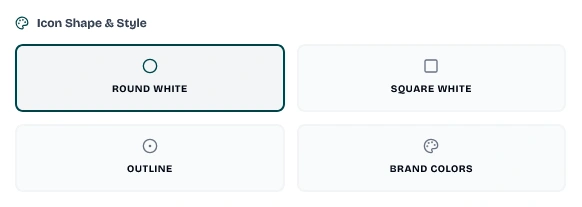
Select from round white, square white, outline, or official brand colors for the icons.
Keywords: round white icon, square white icon, outline brand colors- Social Layout: Define how the social links section is aligned:
Vertical (Above): Intro text stacked above a grid of social icons.Horizontal (Inline): Intro text and icons arranged in a single horizontal row.
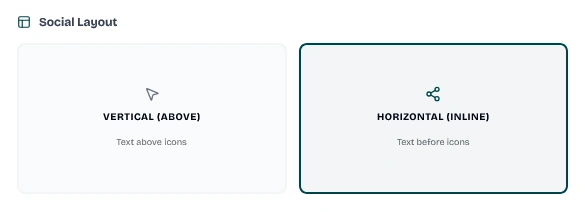
Define whether the social icons row aligns horizontally inline or stacks vertically below text.
Keywords: social layout grid, horizontal inline alignment, vertical layout stacked- Social Intro Text: Custom introductory copy displayed preceding the social icon row (e.g.,
Reach us on:orFollow our updates:).
Tab 3: Analytics (Engagement Dashboard)
The Analytics tab hosts a high-performance statistics reporting dashboard tracking visitor interactions in real-time.
1. Core KPIs Snapshot Grid
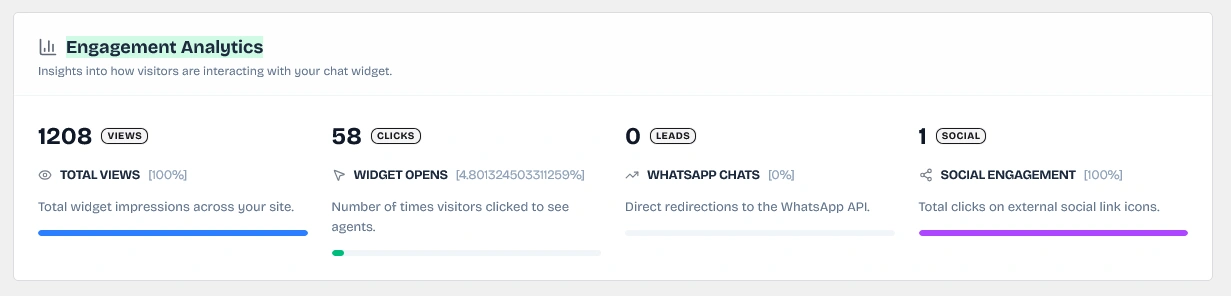
Monitor total widget views, click-to-open ratios, final lead conversions, and external social media clicks.
Keywords: whatsapp widget analytics, click to open conversion, total views snapshot, lead generation analytics- Total Views: The total number of times the chat button has been loaded and displayed to visitors.
- Widget Opens: Clicks on the floating button to open the contact card. Displays the overall interaction conversion rate:
(opens / views) * 100. - WhatsApp Chats: Number of clicks directing visitors to the WhatsApp API. Represents active lead conversion rate:
(chats / opens) * 100. - Social Engagement: The cumulative count of clicks on external social media link icons in the widget footer.
2. Timeline Graphs
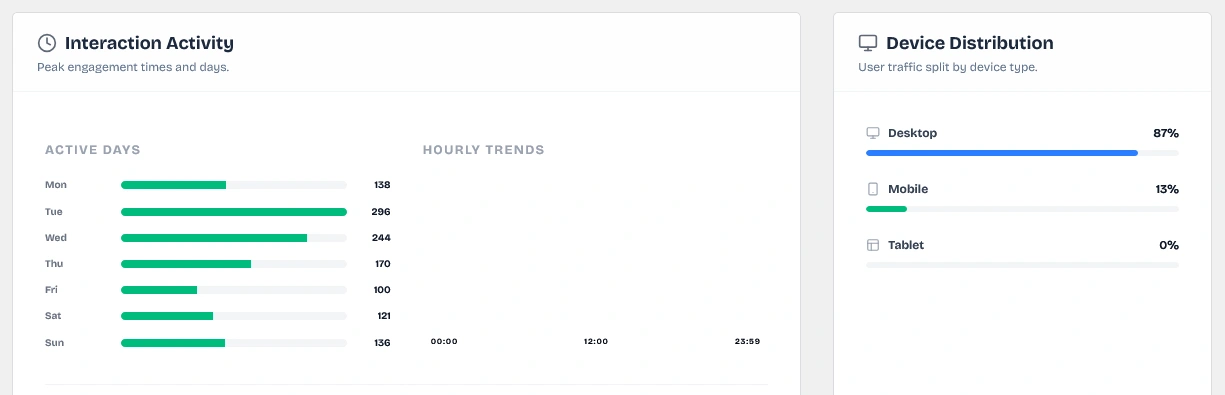
Analyze daily click distributions and hourly peak trends to optimize support shift schedules.
Keywords: hourly click trends, busy support days, interaction timeline graphs- Active Days: A clean bar graph plotting total click distributions across days of the week (Monday through Sunday) to identify your busiest days.
- Hourly Trends: A vertical 24-hour histogram visualizing peak engagement hours throughout the day (00:00 to 23:59) to help you schedule active agent availability.
3. Content and Team Performance Metrics
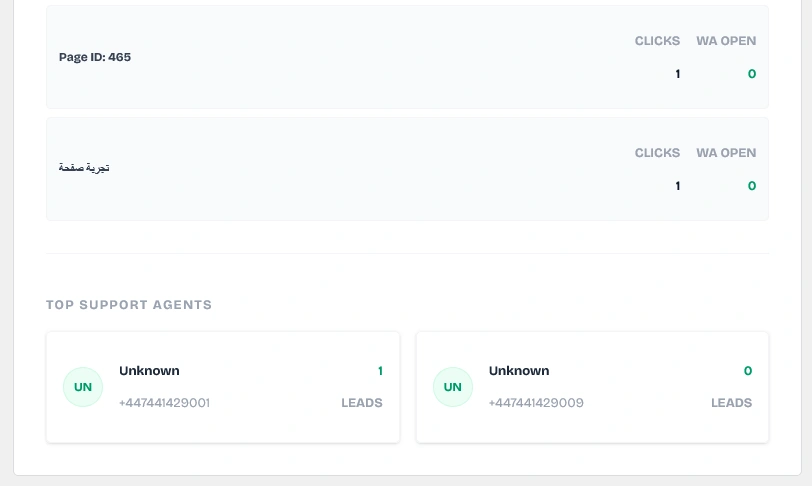
Verify page lead generation leaderboards, individual agent conversion ranks, and visitor device breakdowns.
Keywords: top support agents, best performing pages, mobile desktop tablet share- Top Performing Pages: Renders the top 5 pages on your site that generate the highest clicks and active WhatsApp leads.
- Top Support Agents: Performance ranks for your individual team members based on total WhatsApp leads generated.
- Device Distribution: Visual split analysis of visitor device traffic: Desktop (blue), Mobile (green), and Tablet (orange).
Tab 4: Appearance (Styling and Visibility)
Fine-tune the size, color, placement, and device visibility of the floating WhatsApp button.
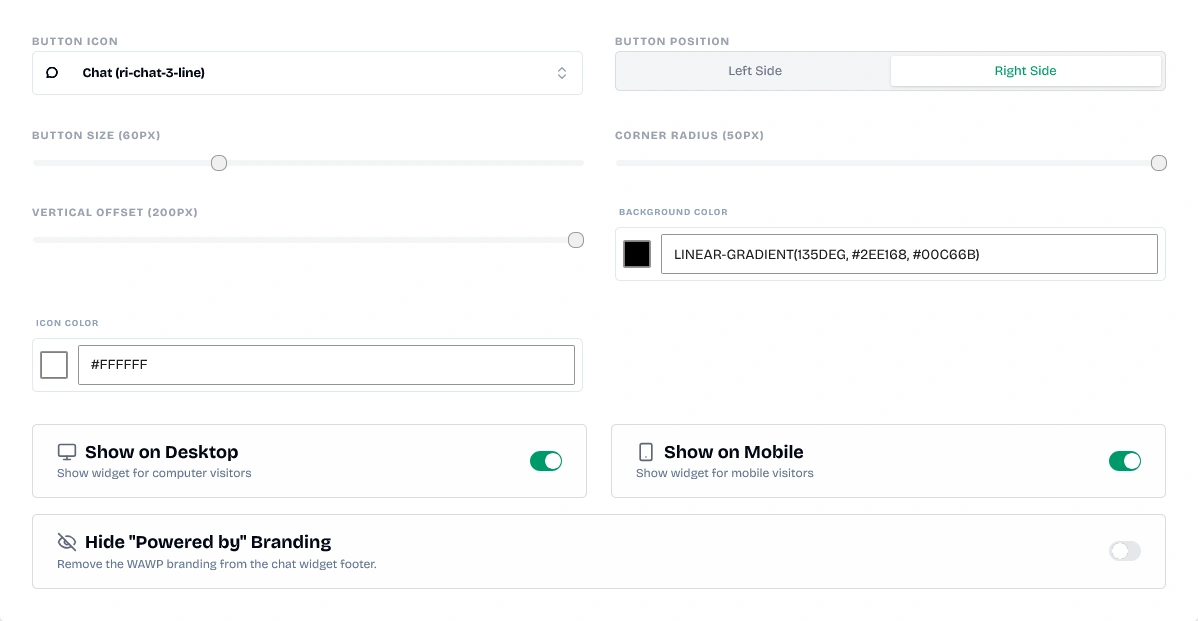
Customize button icons, positions, dimensions, offsets, custom colors, and responsive visibility settings.
Keywords: whatsapp floating button styling, change button color, vertical offset margins- Button Icon: Select your primary button icon from a searchable dropdown of classes (defaults to the standard WhatsApp balloon icon if left blank).
- Button Position: Set the floating button placement side to either Left Side or Right Side.
- Button Size: Slide-range control to size the floating button from
40pxup to100px. - Corner Radius: Slider setting from
0px(sharp square button) to50px(completely circular button) to match your site's design style. - Vertical Offset (Bottom Margin): Slide-range controller from
0pxto200pxto offset the button vertically, preventing overlaps with back-to-top anchors or other site elements. - Custom Colors: Dedicated color-picker inputs to set the button's Background Color and Icon Color.
- Device Visibility: Toggle visibility separately for Desktop (computer visitors) and Mobile (mobile and tablet visitors).
- Branding Control ("Powered by"): Toggle whether to display or hide the
Powered by WAWPbranding link in the widget footer:- Pro Restriction: Free tier installations are locked with a Paid Plan Crown badge overlay. Upgrading to a paid plan (Starter, Growth, or Premium) is required to hide the branding link.
Tab 5: Conditions (Page-Specific Exclusions)
Control exactly which parts of your website display the floating chat widget.
- Visibility Rules: Set
wawp_trigger_on_all_pagestoyesto display the widget globally across all public pages.

Configure the widget to load on all public website pages with active status notifications.
Keywords: trigger on all pages, global visibility rules, active pages trigger- Exclusion Lists: When visibility is restricted (
no), a tags search input (MultiSelectTagify) appears. Select specific WordPress pages to hide the widget on.
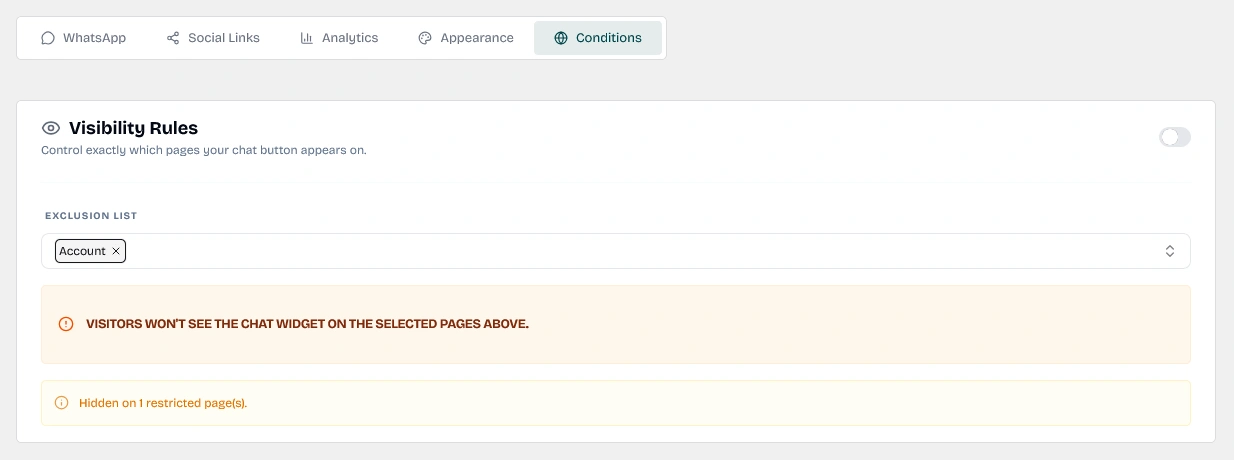
Define global page triggers or build multi-select tag lists to hide the widget on specific pages.
Keywords: hide chat widget on pages, tagify multiselect pages, exclude landing pages- Exclusion Warning Notice: An orange alert notice confirms: ⚠️ Visitors won't see the chat widget on the selected pages above.
Sanitizing WhatsApp Phone Numbers
To ensure successful communication routing, enter agent phone numbers with international dial codes (e.g., +1234567890) without spaces, dashes, or parentheses.
Make sure to click Save Settings in the top header toolbar to apply your changes to your live site.
Did this page help you?
97% found this article helpful (148 likes)
Related Articles
Best WhatsApp WordPress Plugin: Complete Linking & Automation Guide
Discover the best WhatsApp WordPress plugin and fully automate your store. Learn about notification dispatches, signup verification OTP forms, and advanced country codes.
Installing and Updating the Wawp Pro Plugin
Learn how to install and update Wawp Pro or Wawp Login Free using the lightweight Wawp Remote Updater downloaded from the official Wawp download page.
Wawp Onboarding & Setup Wizard Guide
A complete step-by-step walkthrough of the Wawp onboarding setup wizard, explaining account authentication, channel synchronization, diagnostics, and migration paths.
- Need help? Contact Support.
- Check out our Changelog.
- Join our Facebook Community.
- LLM? Read llms.txt.
OFFER ENDS SOON
Extra 30% OFF All Plans
Use this exclusive promo code at checkout to enjoy an extra 30% discount on top of current sales!
BOOST30